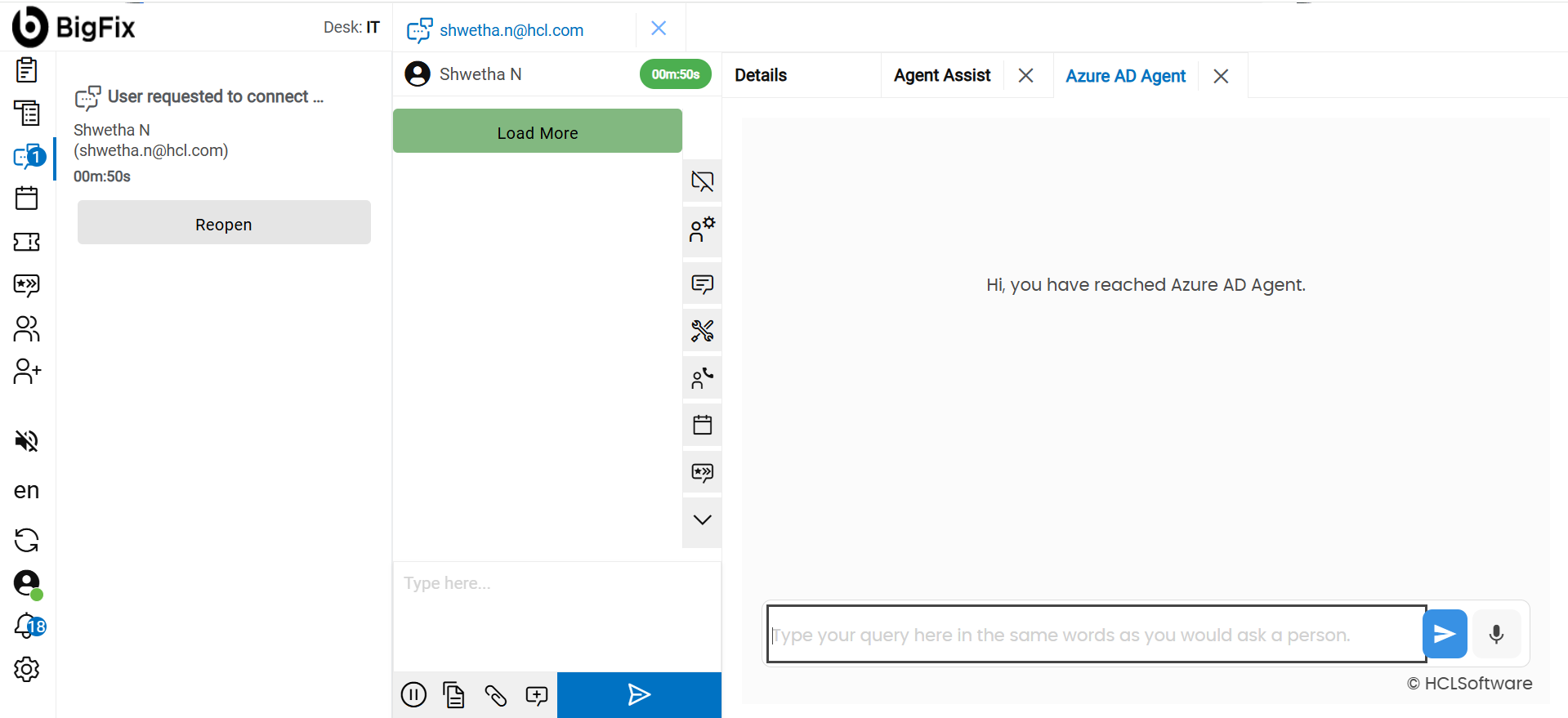
Multi-Agentic AI Agents on Agent Assist Co-pilot Selection
- This feature enables the selection of multiple Agentic Agents in the Agent Assist configuration page and allows Human Agents to choose which Co-pilot agent to launch during a chat session.
- By allowing multiple agents to be configured, Human Agents can select the most appropriate LLM-powered assistant based on the context of the customer interaction. For example, one agent may be optimized for Billing queries, while another may specialize in Technical Support.
- This enhancement improves the quality of assistance, enables specialized knowledge handling, and helps agents resolve customer queries more efficiently.
- The Agent Assist configuration page will be updated to allow tenant administrators to select and save multiple available Agentic Agents.
- In the Human Agent dashboard, the existing single Agentic Agent icon will be replaced with a selection mechanism (such as a drop-down or list) that displays the icon and name of all configured agents.
- Human Agents can then choose and launch the appropriate agent directly from the chat interface.
- To optimize usability, the system will include a fallback mechanism: if only one agent is configured, clicking the agent icon will launch that agent without displaying the selection list.
Overall, this enhancement will improve LLM assistance accuracy, support specialized Co-pilot capabilities, and enhance platform scalability, ultimately leading to better agent productivity, faster resolution times, and higher user satisfaction.
- To access the Agent Assist Admin Console, open the following URL: <https://tenant-url/admin#/agentassist>
- Navigate to the Settings section and click the Edit icon for the
Agent field.
Figure 1. Edit Agent Settings 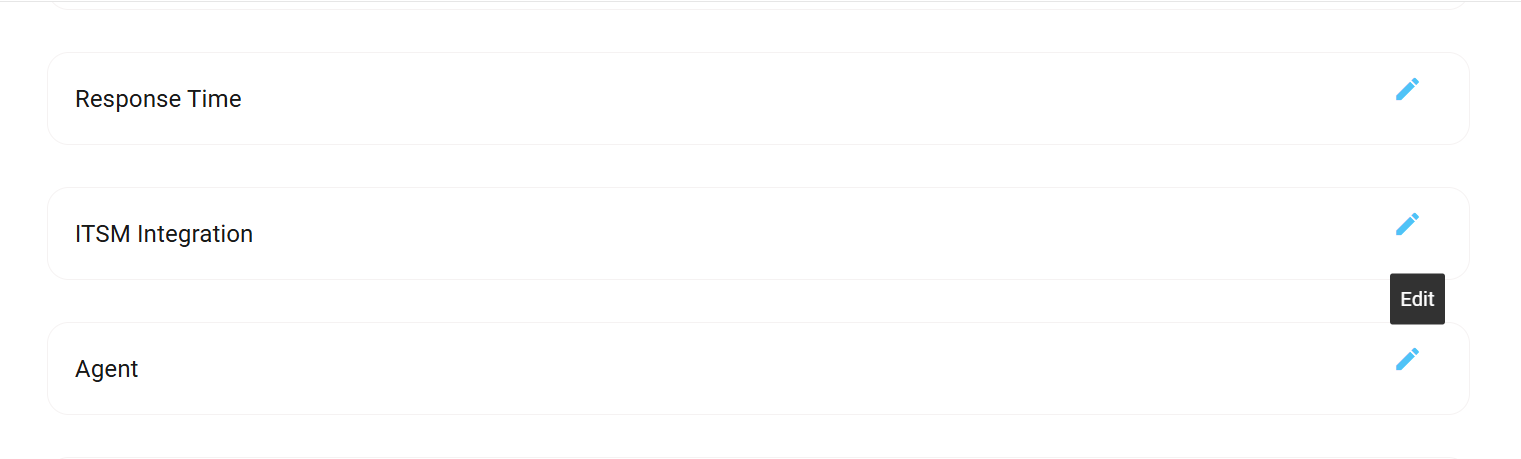
- Enable the Agent, choose agent from the drop-down list, and click
Done.
Figure 2. Enable Agent and select agent from drop-down 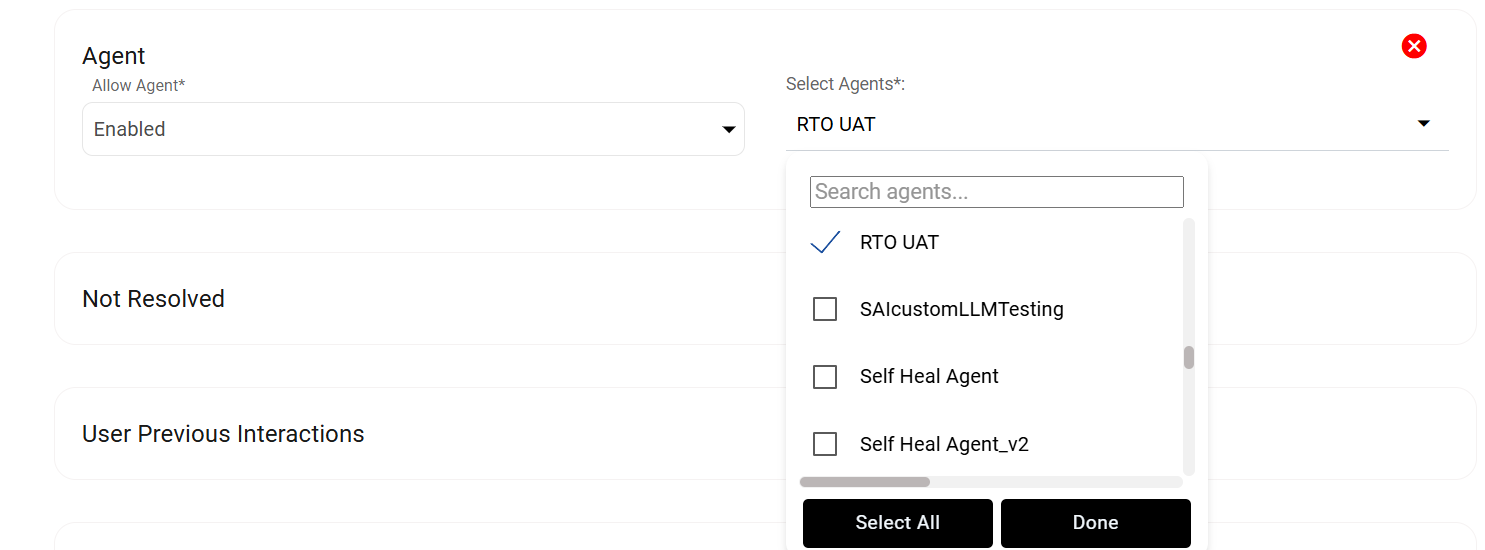
- Click on the Save icon.
Figure 3. Select Save 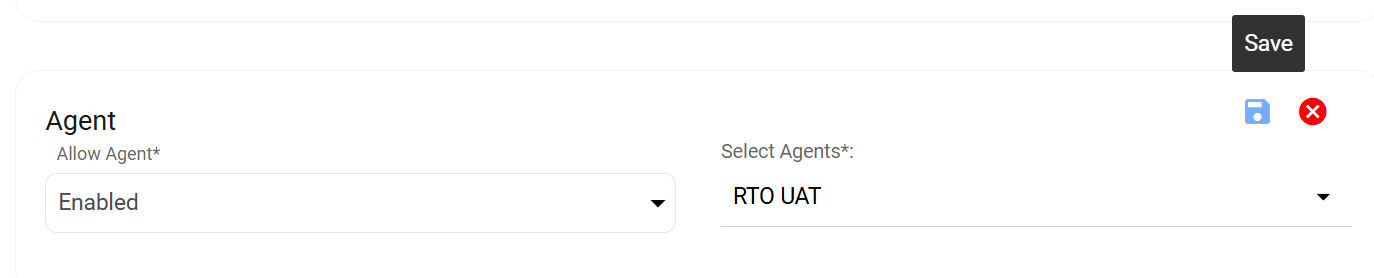
- Initiate a chat.
Figure 4. Initiate Chat 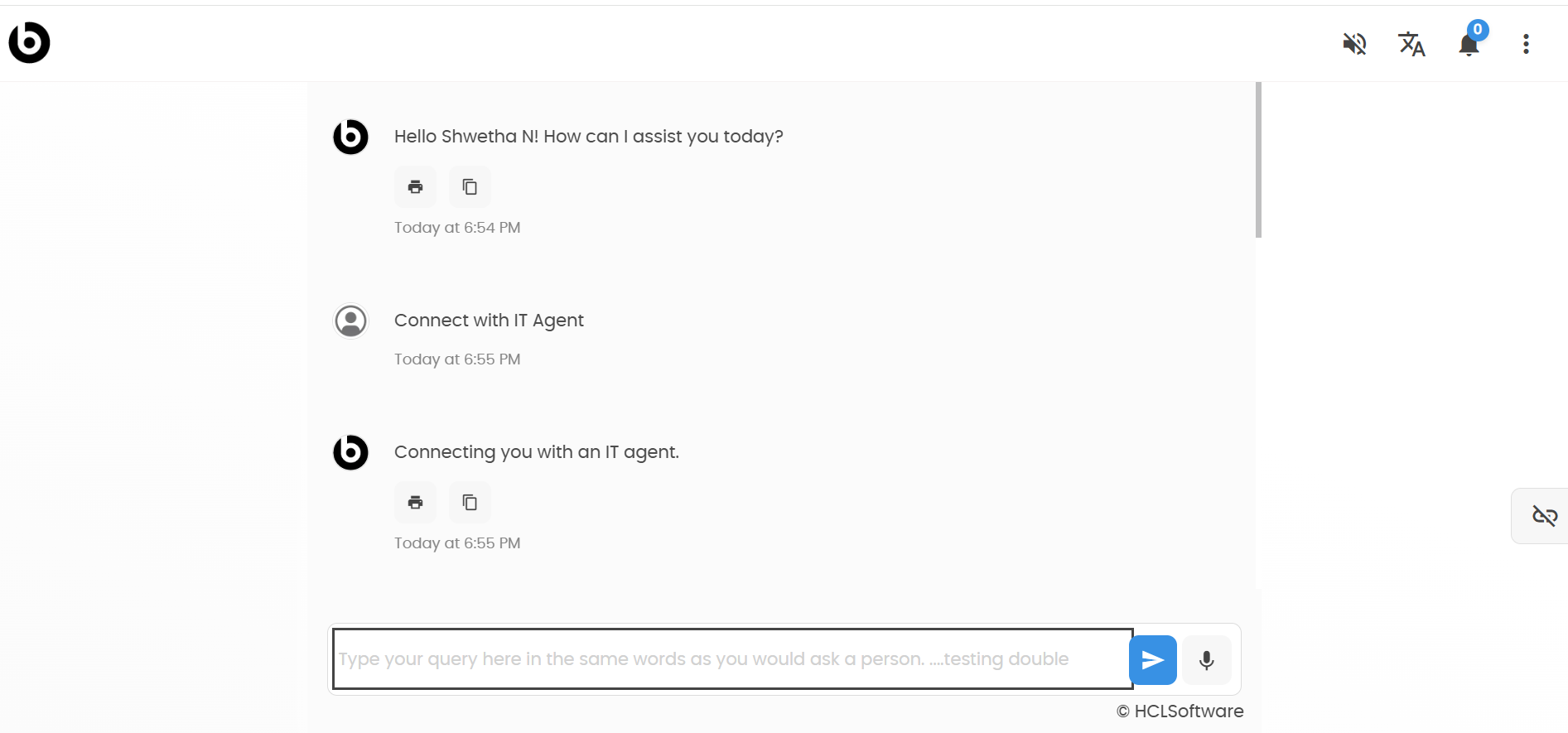
- Access the Agent Assist chat console by opening the following URL. < https://tennat-url/agent/#chats/>
- Accept the chat from the queue.
Figure 5. Accept the chat 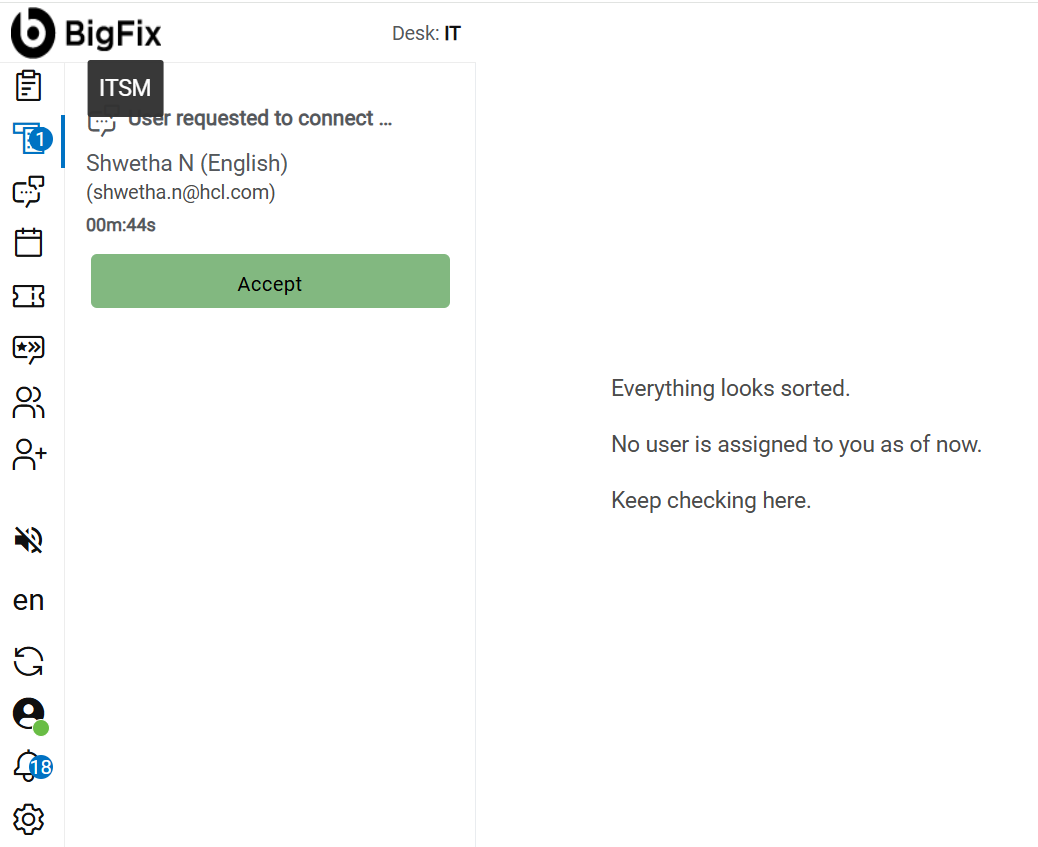
- Click on the Agents icon.
Figure 6. Select Agent 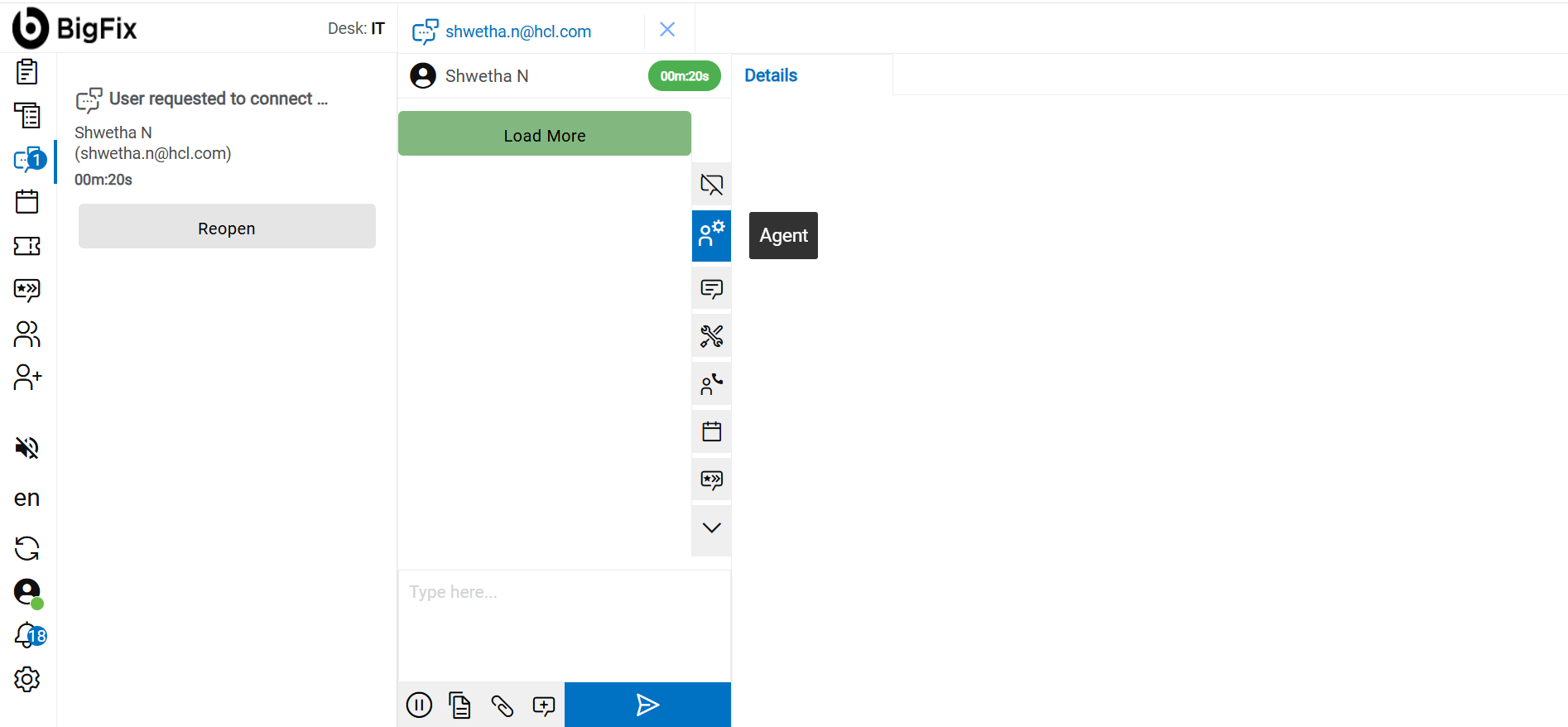
- If a single agent is configured, the system directly launches the agent without
displaying an agent selection list.
Figure 7. Single Agent Launches Directly 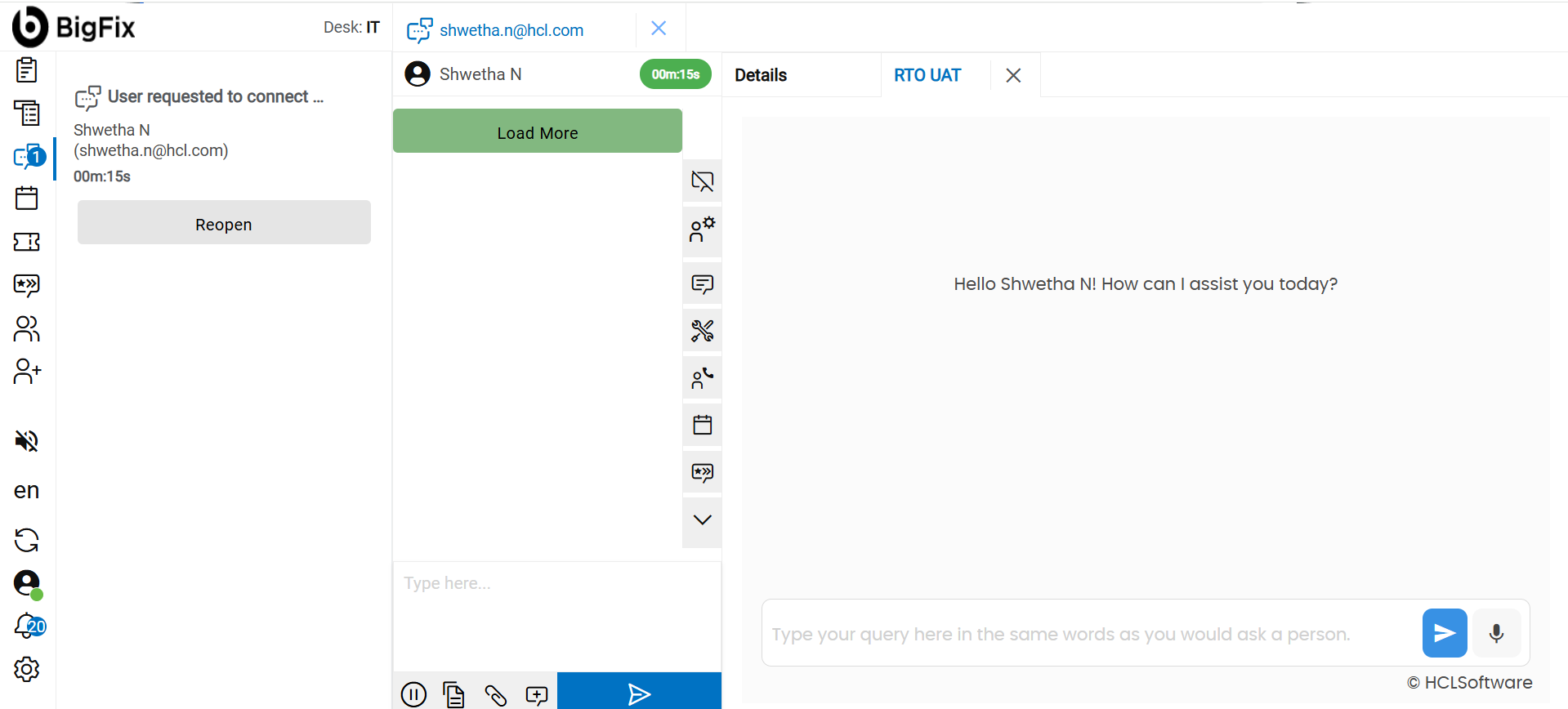
- If tenant administrators select multiple agents in Agent Assist and save the configuration, the Human Agent dashboard will replace the existing single Agentic Agent icon with a selection mechanism (such as a drop-down or list).
- This will display the icon and name of all configured agents, allowing Human
Agents to select and launch the appropriate agent directly from the chat
interface.
Figure 8. List of configured agents 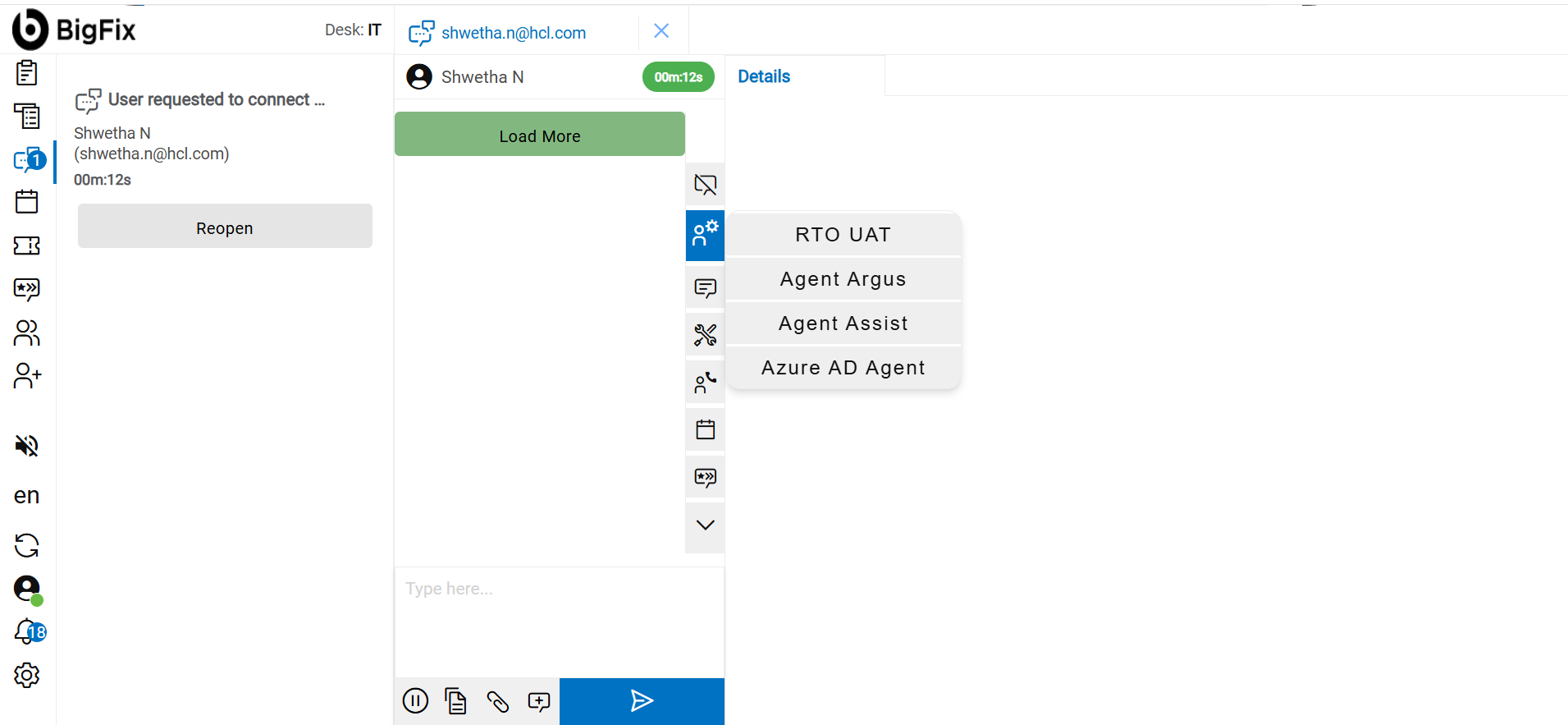
Figure 9. Selected agent launched successfully