
Bulk Agent Upload
Objective: To enable bulk uploads, allowing tenant administrators and supervisors to efficiently onboard multiple agents at once, reducing manual effort and ensuring agents are quickly registered and ready to handle issues for a specific desk.
To Access Bulk upload
- Navigate to Agent Assist Console: <https://tenanturl/admin#/agentassist>
- Go to Agent section
- Bulk Upload allows tenant admin to add multiple users to BigFix AEX in one go. That is done by uploading a CSV file having user details instead of adding individual user details.
- Sample: CSV file template fields
Figure 1. CSV File Template 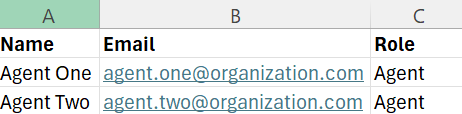
- As shown in the sample screenshot, the CSV file should have the following details,
each as a separate column heading.
- Name -Agent Name
- Email - Agent’s email id (unique entity).
- Role - Agent
- Once you have the CSV file in place, follow the steps mentioned below to add bulk
upload.
- On the Agent Assist admin page, under the Agents section, click Add
Agent.
Figure 2. Add Agent 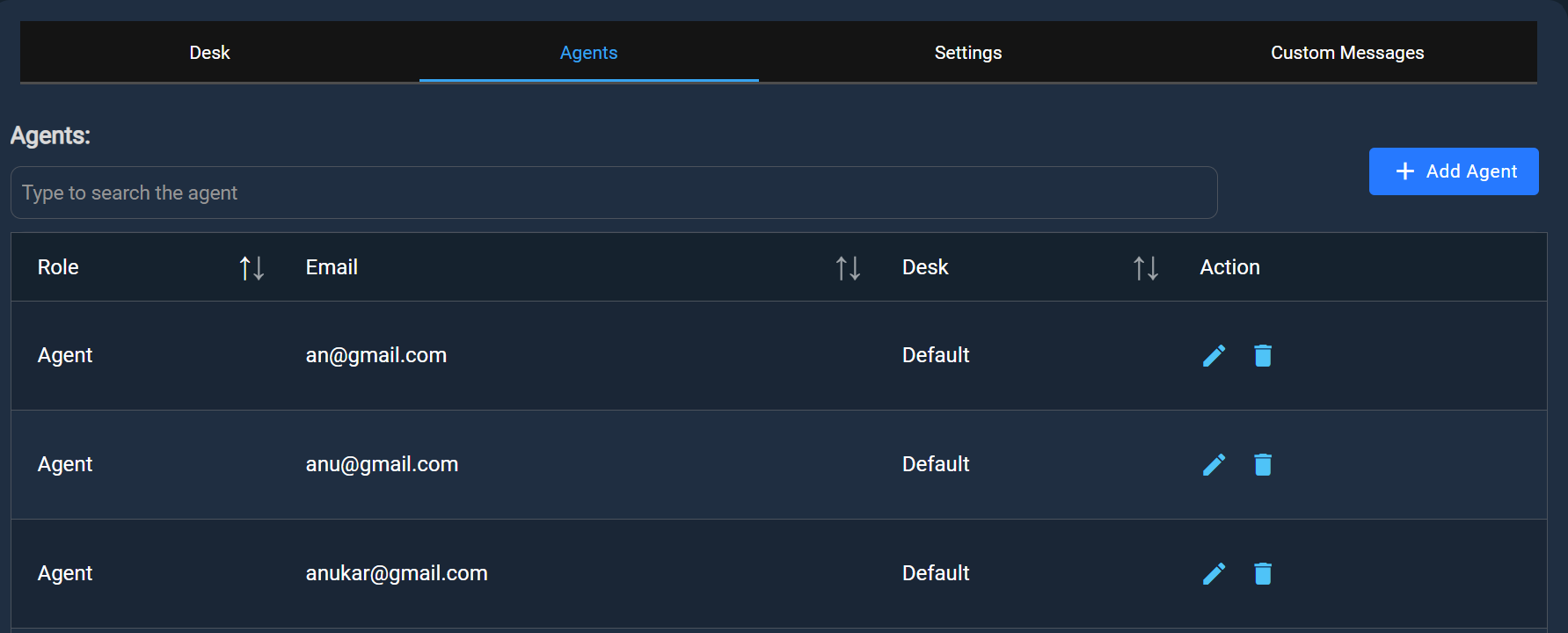
- Enable Bulk upload.
Figure 3. Enable Bulk Upload 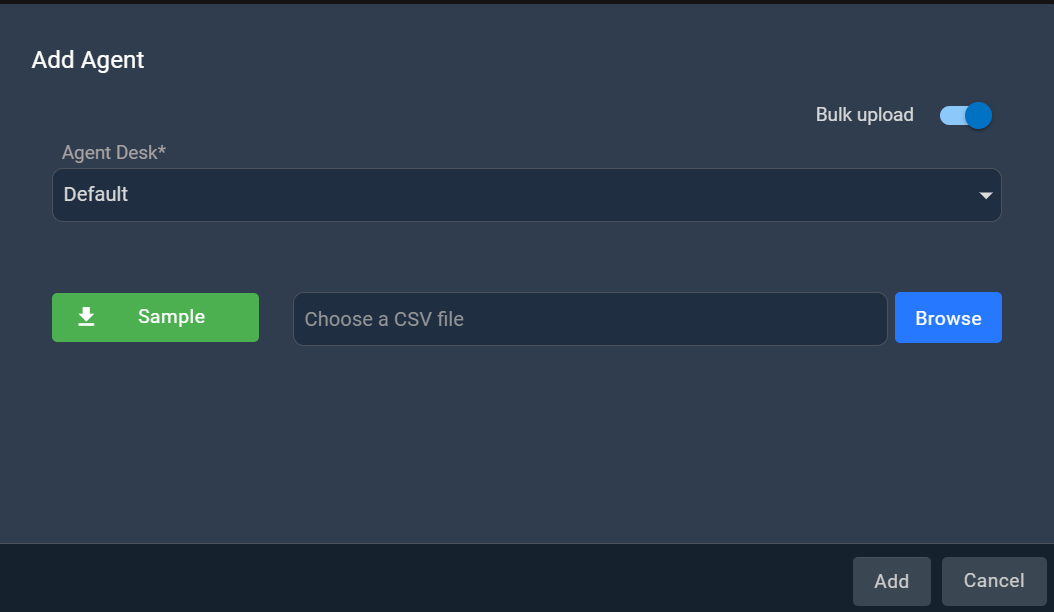
- Tenant admin can select the desk from a drop-down menu when bulk uploading
agents.
Figure 4. Add Agent (Cont.) 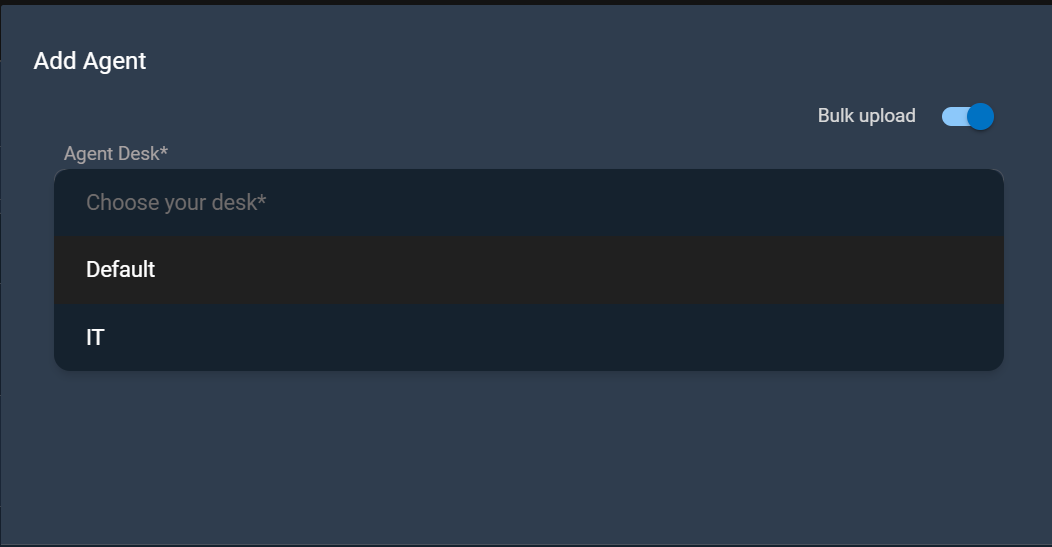
- The drop-down is disabled for supervisors for their specific desk and is also disabled for tenant admins if only one desk exists.
- Upload a CSV file using the Browse button and click Add.
Figure 5. Upload CSV File 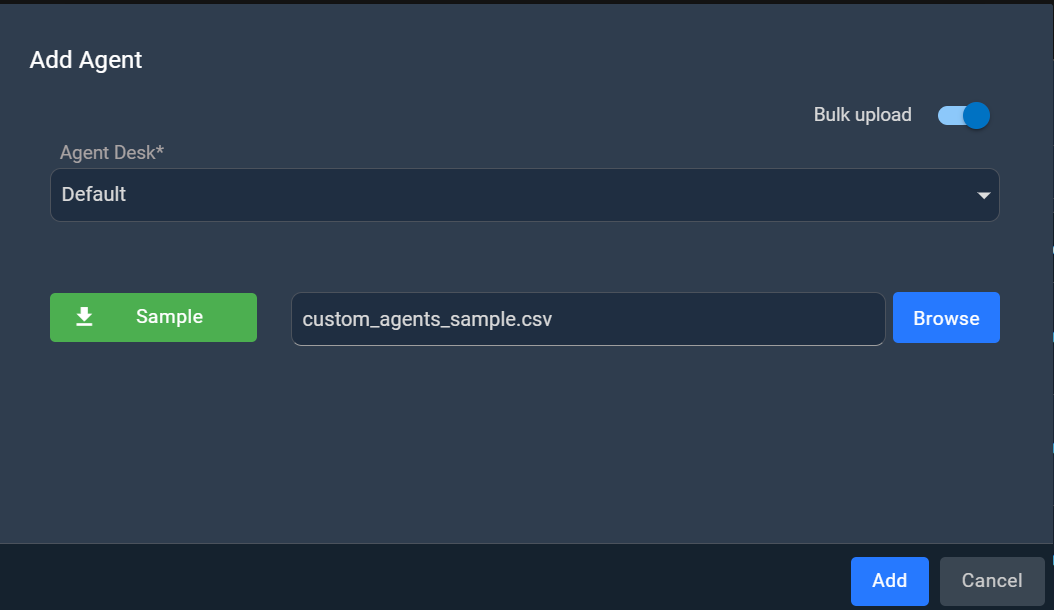
- After the CSV file is uploaded, the agent information is listed in the
Agents section.
Figure 6. List of agents 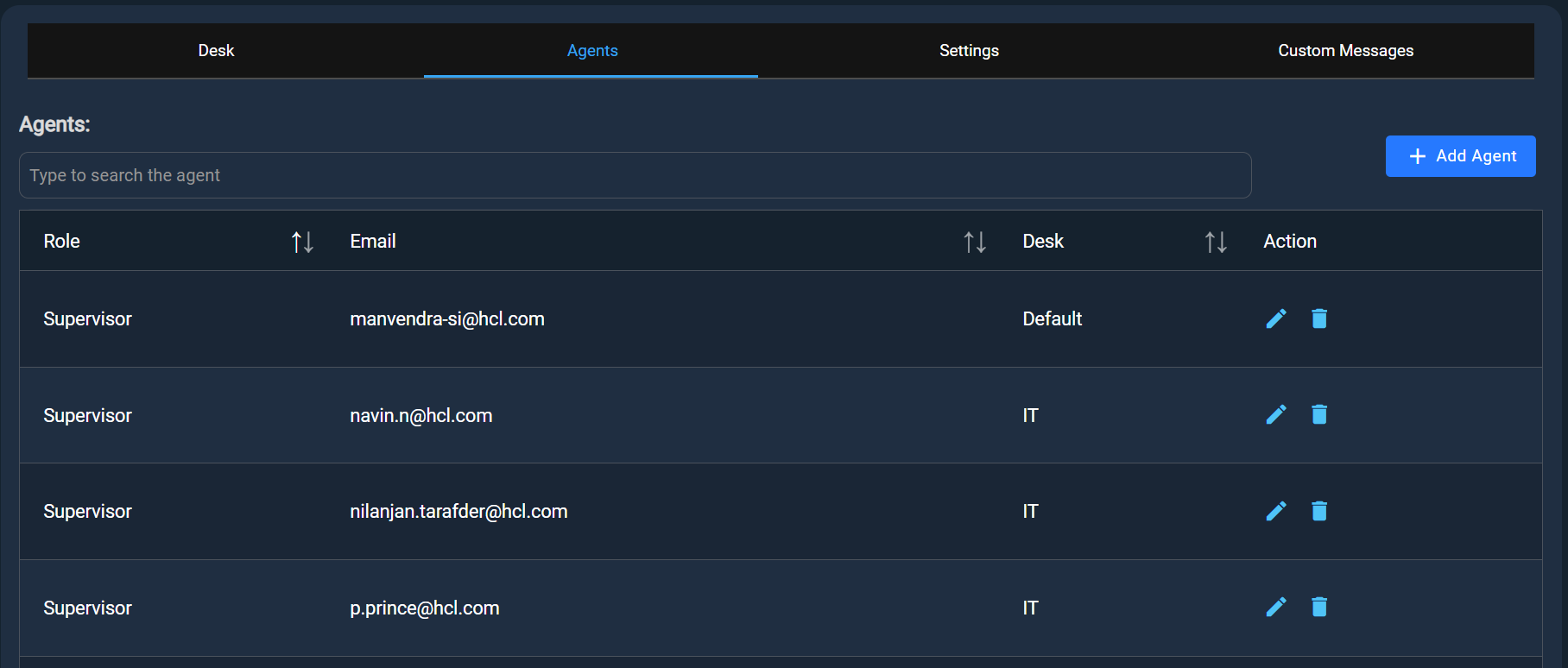
- On the Agent Assist admin page, under the Agents section, click Add
Agent.
- Validations added for the Bulk upload file
- File should be in CSV format.
- File should not be empty.
- File should have entries between 1 to 50.
- Header should be - name, email, role (all cases).
- Each row should have exactly 3 cells.
- All cells must be filled.
- Email type would be matched.
- No duplicate among the file and the already present agents.
- Role should be - agent or supervisor (all cases)