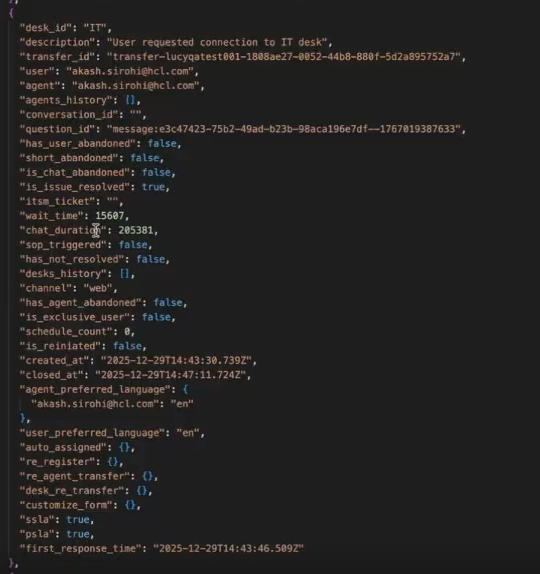
Chat Context for Agent Assist Co-pilot
Overview
Chat Context for Agent Assist Co-pilot enables Human Agents to view the complete conversation between the End User, the Bot, and Human agents directly within the Co-pilot window. This ensures that both the Agent and the Agentic Agent (LLM) have full contextual visibility of the ongoing query.
By retrieving and supplying the entire chat history to the LLM, the system enables context-aware suggestions, accurate recommendations, and intelligent summaries. The Co-pilot also presents a condensed summary of the interaction, allowing agents to quickly understand the case without reviewing lengthy message threads.
This feature is foundational to improving AI-assisted support, as complete conversational context directly enhances suggestion quality, reduces Average Handle Time (AHT), improves first-contact resolution, and increases overall agent productivity.
- Login to Agent console: <https://tenant/admin#/genai/agents>
- Select “+ Add New Agent” and configure the agent by choosing Agent
Assist and the ServiceNow tool.
Figure 1. Agent Visual Builder 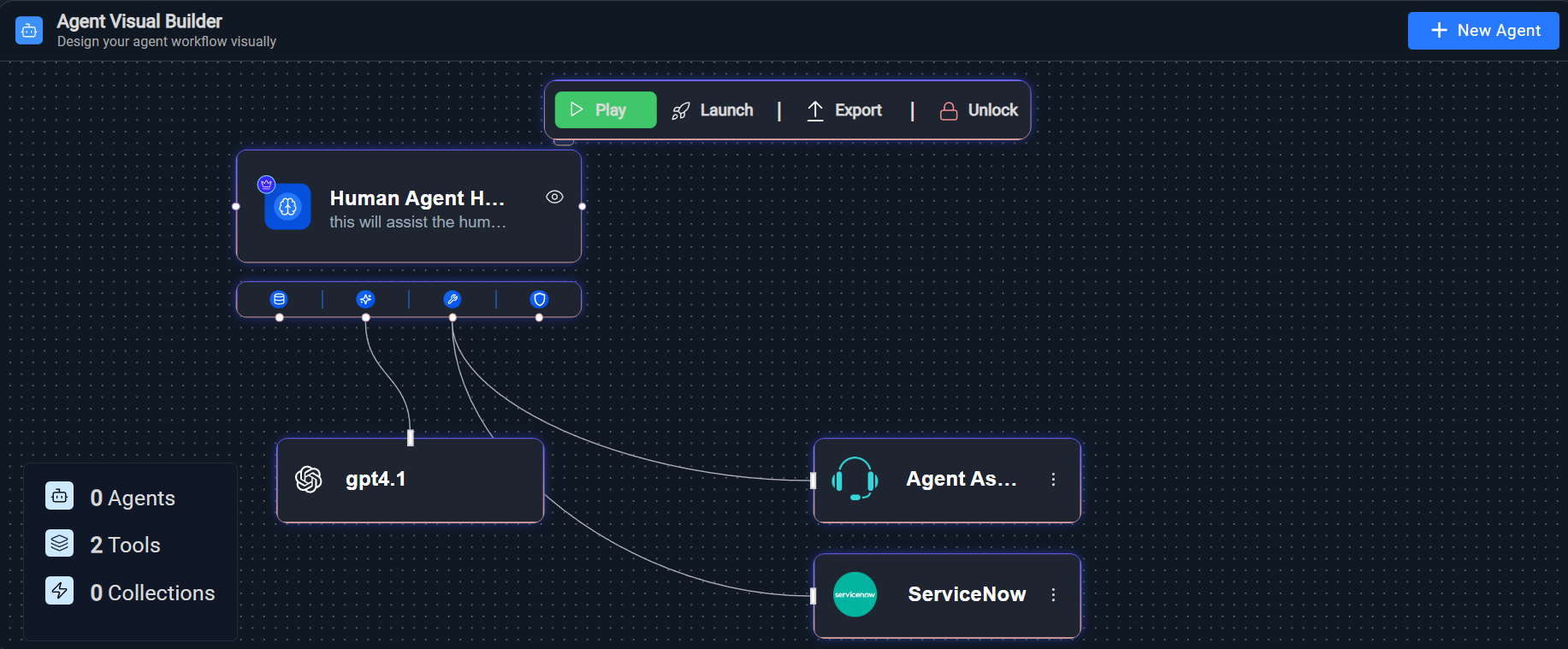
- Select the tool configuration, choose the required tools, and click Save
Configuration
Figure 2. Tool Configuration 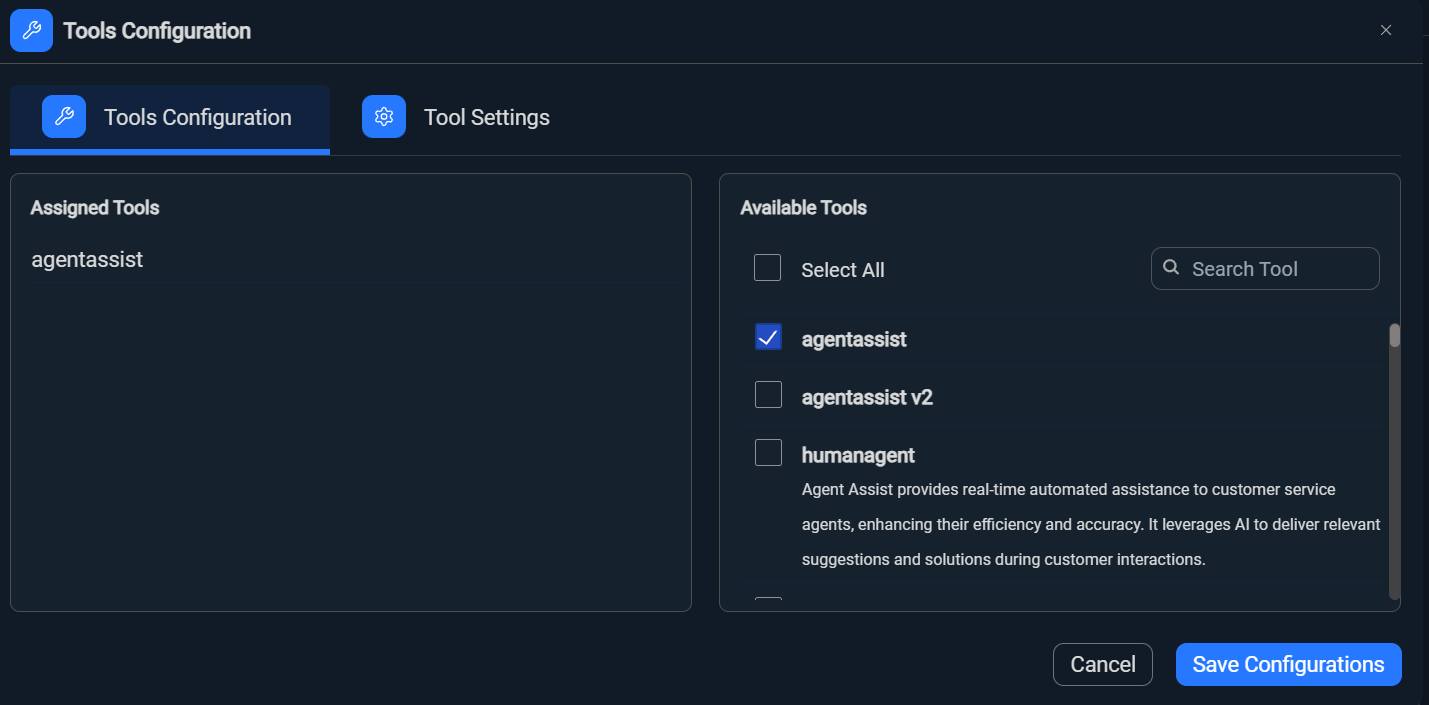
- Open the selected tool and enable aex_human_agent_chat_details. By enabling this
user or agent can use agentic bot to resolve the end user’s query and can also
create the ticket with chat history which will reduce the human effort and also
enhance the product.
Figure 3. Configure the settings for selected tool 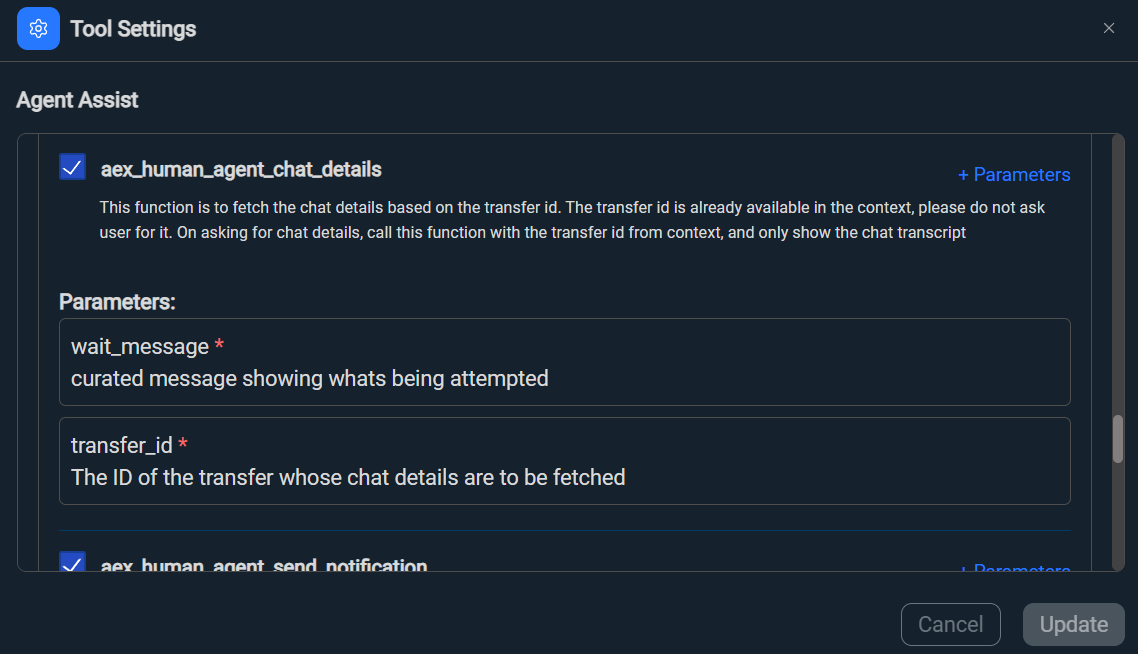
To enable agents on agent chat dashboard
- Login to Agent Assist Admin console: <https://tenant/admin/#/agentassist>
- Go to settings
- Select edit icon corresponding to agent row.
- Enable the agent, select the required agent from the drop-down list, and click
Save.
Figure 4. Enable the agent and select the required agents 
- Login to Agent Assist Chat Dashboard <https://tenant/agents#/chat>.
- Select the Agent icon to view the list of agents that are enabled in the Agent
Assist Admin Console.
Figure 5. List of Agents 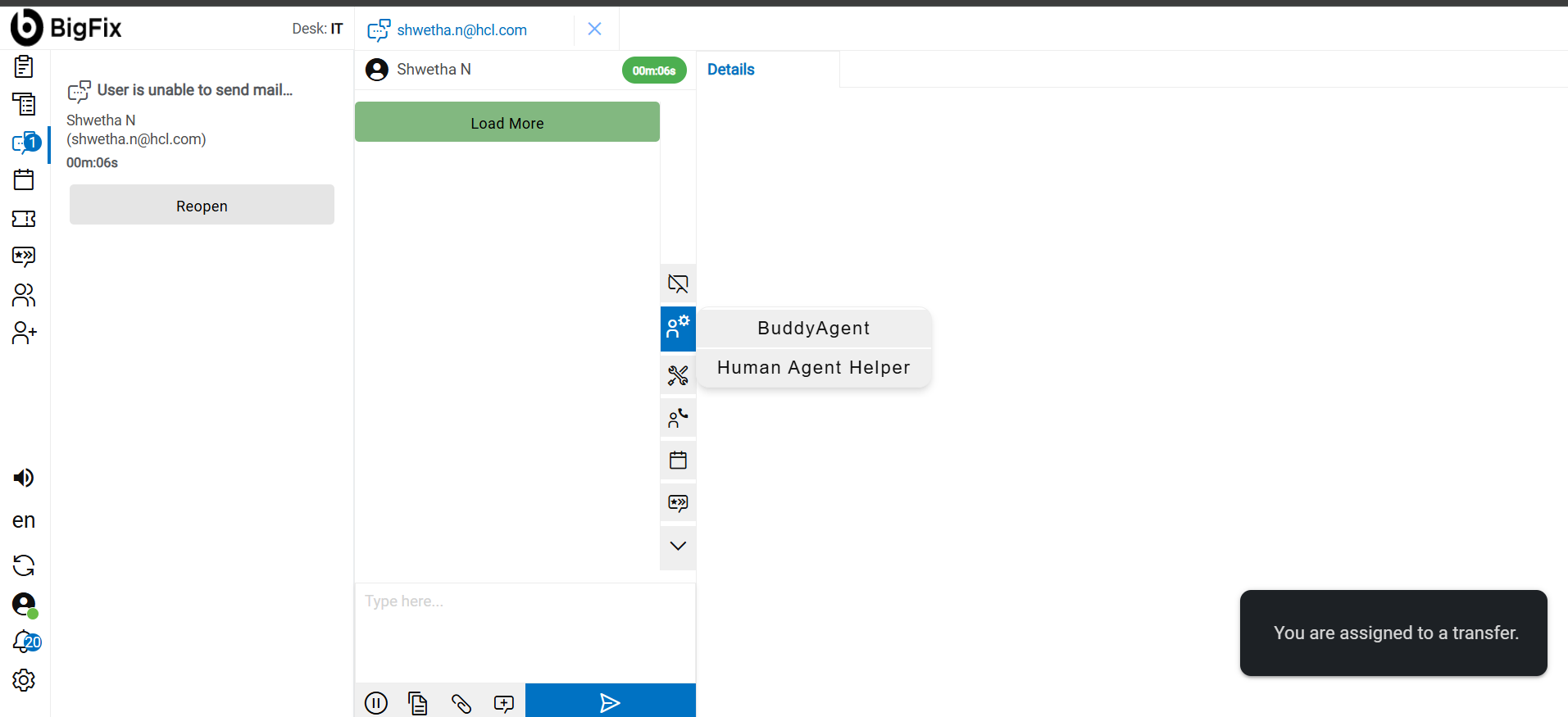
- Select a specific agent. In Co-pilot window enter the query such as “Fetch the
details of the chat.” LLM will fetch all the details, and the Context for Agent
Assist Co-pilot enables human agents to view the complete conversation history
between the End User, the Bot, and other Human Agents directly within the Co-pilot
window.
Figure 6. Fetching the details of the chat 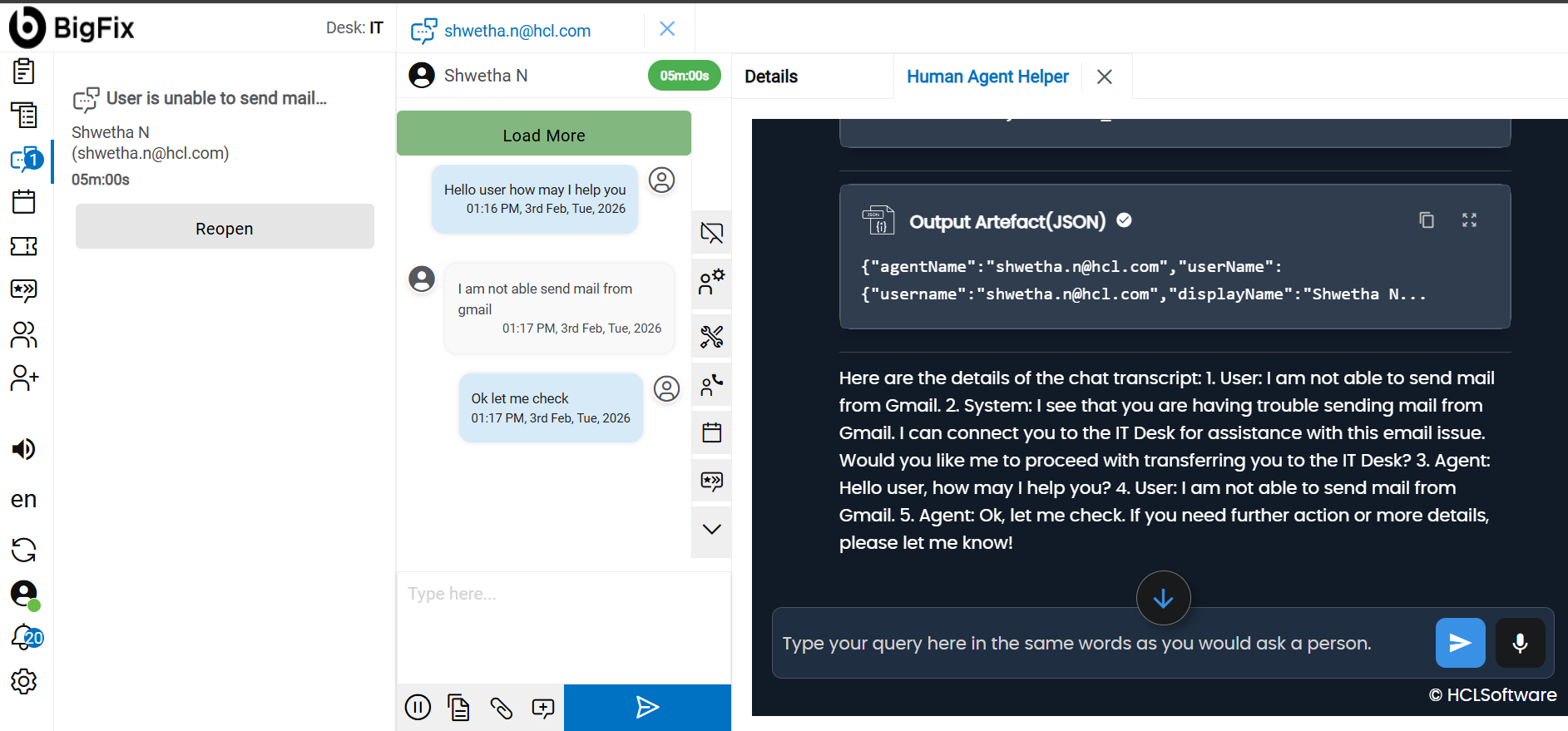
- The human agent leverages the LLM to resolve the user’s query, and the LLM suggests
collecting the required information from the user to proceed.
Figure 7. Collect user info to resolve query 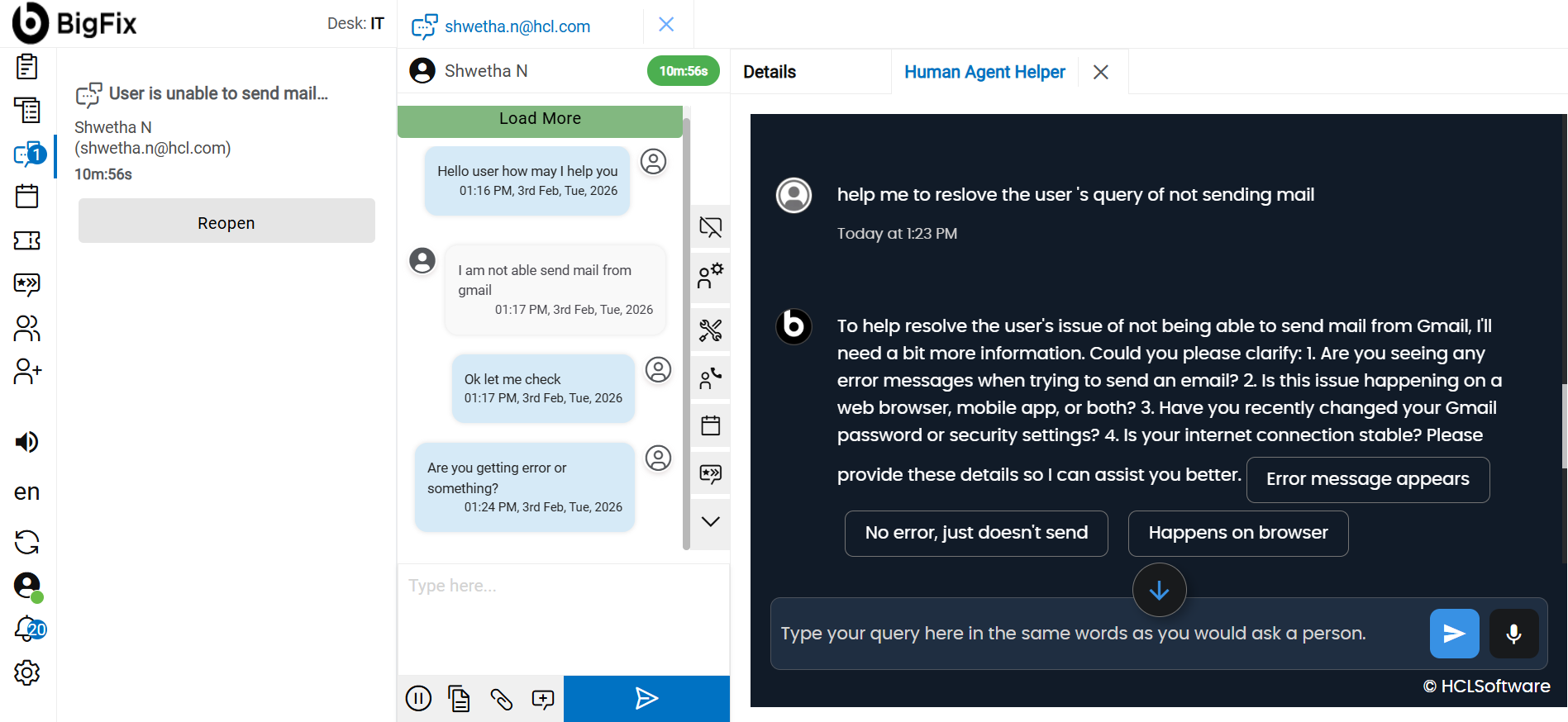
- To display agent, assist export data open the agent assist analytics page.
- Select Export, fill in the required fields, and click Download.
Figure 8. Export data dump 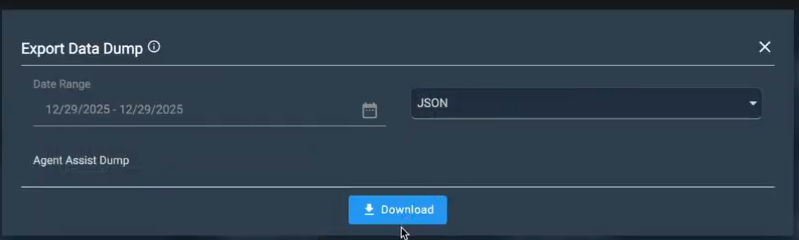
- After clicking Download, the user can view the data dump file.
Figure 9. Data Dump file