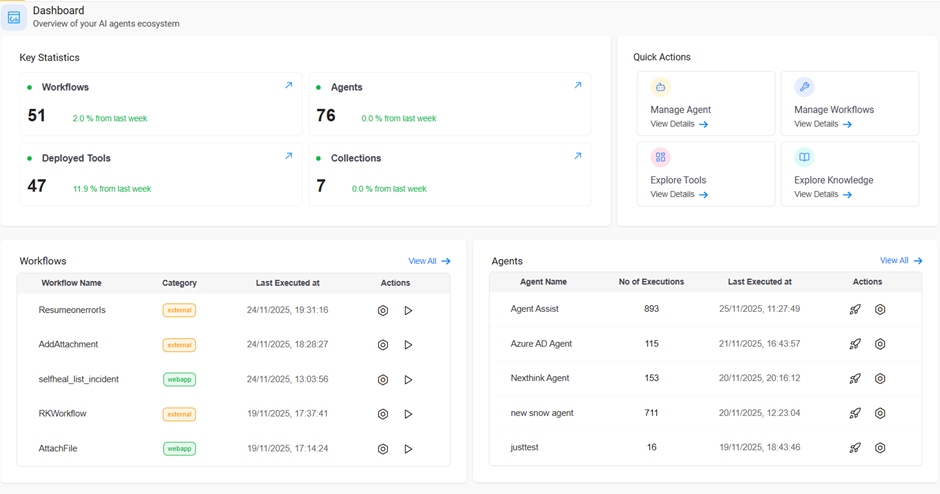
The dashboard provides a clear and interactive overview of workflows, agents, tools, and
execution data. It enables quick monitoring of system health, performance, and
productivity through real-time insights and accessible controls.Figure 1. AI Agents Ecosystem DashboardDashboard Overview
The dashboard provides a comprehensive overview of your AI agents ecosystem, including
key statistics, quick actions, and a detailed view of workflows and agents. It serves as
the central point for monitoring system activity, performance, and recent executions.
Key Statistics
This section highlights important metrics related to
your environment:
Workflows: Displays the total number of workflows configured
in the system, along with the percentage change compared to the
previous week
Agents: Shows the number of agents available, with a weekly
comparison.
Deployed Tools: Indicates how many tools have been deployed.
It also includes a weekly percentage increase or decrease.
Collections: Represents the total number of knowledge or tool
collections created.
These metrics help users quickly assess the current system scale
and how it has changed over time.
Quick Actions
This panel provides shortcuts for commonly used
functionalities:
Manage Agent – Redirects to agent configuration and
management.
Manage Workflows – Redirects to the workflow management
page.
Explore Tools – Redirects to the Tool Library Console.
Explore Knowledge – Redirects to knowledge management
Console.
These quick-access buttons help improve navigation efficiency.
Workflows Section
This area lists recently executed workflows along
with key attributes:
Displayed Columns:
Workflow Name – Name of the workflow (e.g., Resumeerrorfls,
AddAttachment).
Category – Type of workflow (e.g., external, webapp).
Last Executed At – Timestamp of the most recent
execution.
Actions – Options to Configure and Execute the workflow.
To explore the full workflow list, click View All
link.
Agents Section
This section displays agent usage
statistics:
Displayed Columns:
Agent Name – The name of each agent (e.g., Agent Assist, Azure AD
Agent).
No. of Executions – Total count of executions performed by the
agent.
Last Executed At – Timestamp of the most recent agent
execution.
Actions – Quick access options to launch and configure the
agent.
to see the complete list of agents, click View All link.