
Agent Playground
Agent Playground
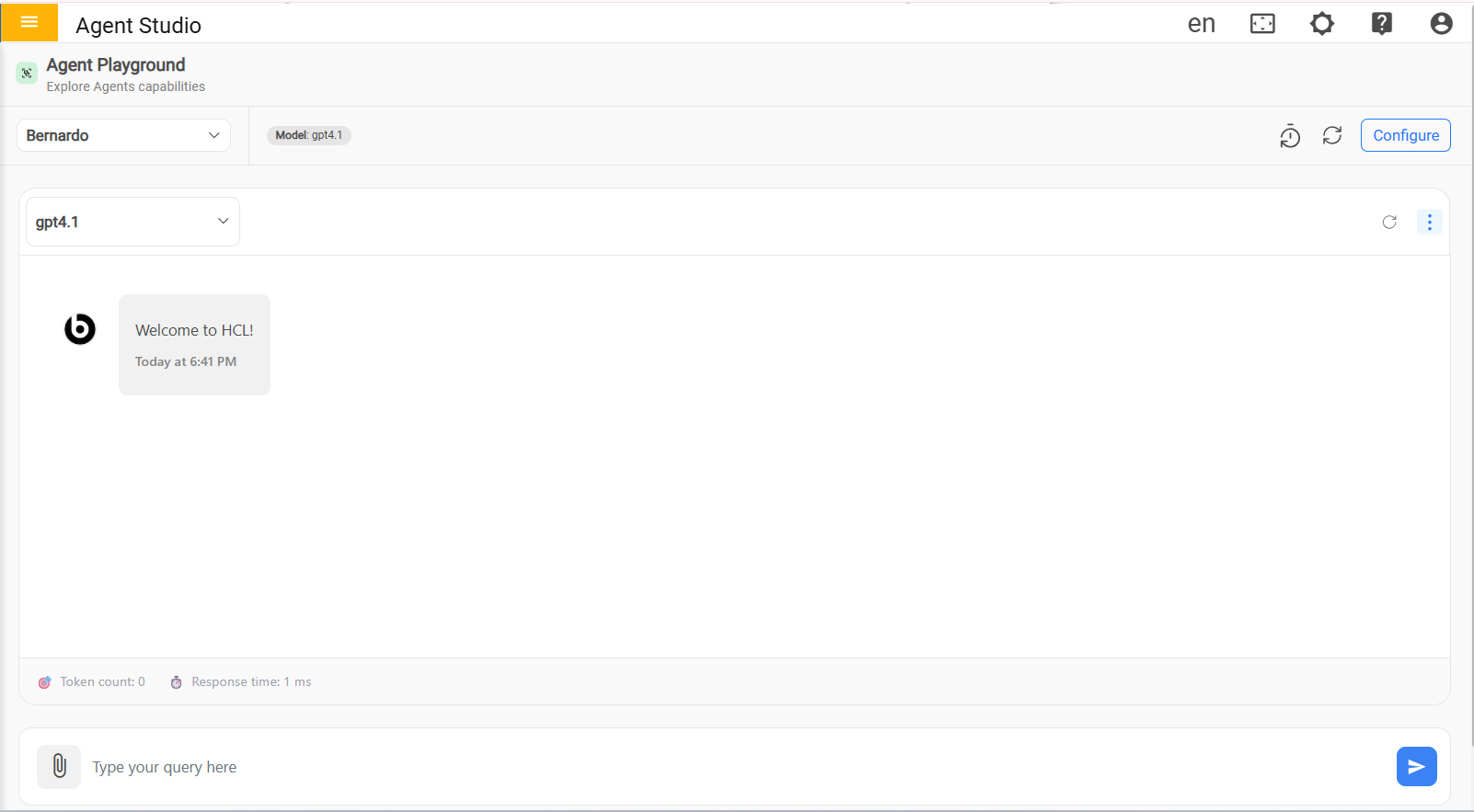
Agent Playground is an interactive testing surface within Agent Studio where users can validate agent behaviour before broader rollout. It provides a controlled space to select an agent, choose or review the active model, send sample prompts, inspect responses, and quickly reset or reconfigure the session.
Agent Playground interface
Purpose
The Playground is intended for rapid validation and iteration. It helps builders confirm whether an agent responds as expected, compare behavior across prompts or models, and review the conversational flow without needing to publish the full experience.
This makes it useful during agent authoring, prompt refinement, and troubleshooting.
Main interface sections
| Area | Description |
| Agent selection panel | The Select Agent drop-down on the left allows users to choose the agent they want to test. It surfaces the available configured agents so the user can switch the testing context without leaving the page. |
| Model indicator | The model chip near the top of the page shows the active model associated with the selected agent or current test context. This helps users confirm which model is being exercised during a test run. |
| Configuration action | The Configure button provides quick access to agent configuration so users can move from testing to setup changes when updates are needed. |
| Reset and refresh controls | The icons in the top action area support quick test management, including resetting the Playground state and refreshing the current view or session content. |
| Conversation canvas | The large central panel is the main interaction area where prompts and responses appear. It allows users to observe how the selected agent responds during the session. |
| Model selector within the canvas | The drop-down inside the conversation panel shows the model currently used in the active test view and supports explicit confirmation of the runtime selection. |
| History | The action icons on the conversation panel give quick access to session-related actions such as viewing prior activity, refreshing the thread, or opening additional options. |
| Response metrics bar | The footer area of the conversation panel displays lightweight runtime details such as token count and response time. These values help users understand basic execution characteristics while testing. |
| Query composer | The input field at the bottom is where the user types a test query. |