
Android App Request
To raise request for Android App, an organization’s BigFix AEX administrator can raise request in the Global Admin Console for a particular tenant. The following steps illustrate the process of raising a request:
- Log on to Global Admin Console.
Figure 1. Android App Request .png)
- Click on the ‘+Support Ticket’ button to raise a new Android App request.
Figure 2. New Android App Request .png)
- Once the Support page opens, choose the Support Type as ‘Access &
Usage’ from the drop-down menu.
Figure 3. Access & Usage Request in Support Menu .png)
- On selecting Access & Usage the following fields appear on the screen:
Figure 4. Data Erasure Request 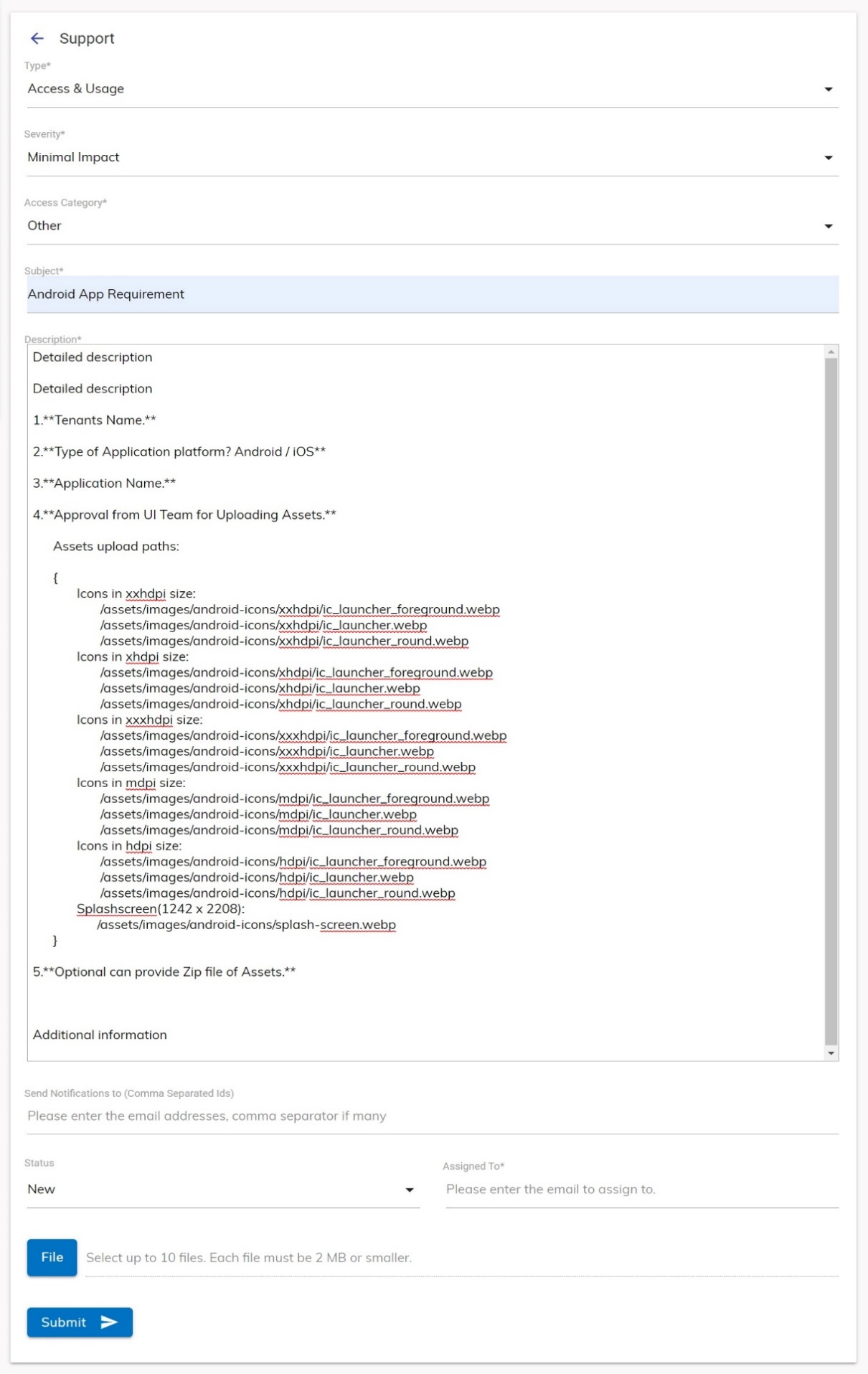
- Populate the fields as directed below:
- Access Category: Choose Other
- Subject: Mention Android App Request
-
Description: Mention the following details in the free text area:
- Tenants Name: Tenants Name for which android application is to be created.
- Type of Application platform? Android / iOS: Type of Application platform for which app can should be generated.
- Application Name: Name of Application which is displayed at type of installation.
-
Approval from UI Team for Uploading Assets: This is mandatory step for
creating Android App. Ticket Requester must get permission for UI Team for uploading
assets for the app.
{ Icons in xxhdpi size: /assets/images/android-icons/xxhdpi/ic_launcher_foreground.webp /assets/images/android-icons/xxhdpi/ic_launcher.webp /assets/images/android-icons/xxhdpi/ic_launcher_round.webp Icons in xhdpi size: /assets/images/android-icons/xhdpi/ic_launcher_foreground.webp /assets/images/android-icons/xhdpi/ic_launcher.webp /assets/images/android-icons/xhdpi/ic_launcher_round.webp Icons in xxxhdpi size: /assets/images/android-icons/xxxhdpi/ic_launcher_foreground.webp /assets/images/android-icons/xxxhdpi/ic_launcher.webp /assets/images/android-icons/xxxhdpi/ic_launcher_round.webp Icons in mdpi size: /assets/images/android-icons/mdpi/ic_launcher_foreground.webp /assets/images/android-icons/mdpi/ic_launcher.webp /assets/images/android-icons/mdpi/ic_launcher_round.webp Icons in hdpi size: /assets/images/android-icons/hdpi/ic_launcher_foreground.webp /assets/images/android-icons/hdpi/ic_launcher.webp /assets/images/android-icons/hdpi/ic_launcher_round.webp Splashscreen(1242 x 2208): /assets/images/android-icons/splash-screen.webp } - Optional can provide Zip file of Assets: This is optional part if user wants to provide at the ticket generation time, then user has to provide .zip file of Android Assets.
- Send Notifications to (Comma Separated Ids): Notification will be sent to the administrator raising data erasure request; however, user’s (user requesting data erasure) email ID can be added for notification.
- Status: Choose New
- Assigned To: Mention BigFix AEXPS@hcl.com
- File: Attach assets .zip file.
- Click on Submit. On submission, confirmation would be visible for new support
ticket raised for data erasure.
Figure 5. Android App Request Submitted Successfully .png)
- On successful request submission, the submitter receives ticket confirmation email from
BigFix AEX.
Figure 6. Android App Request Ticket Confirmation Email 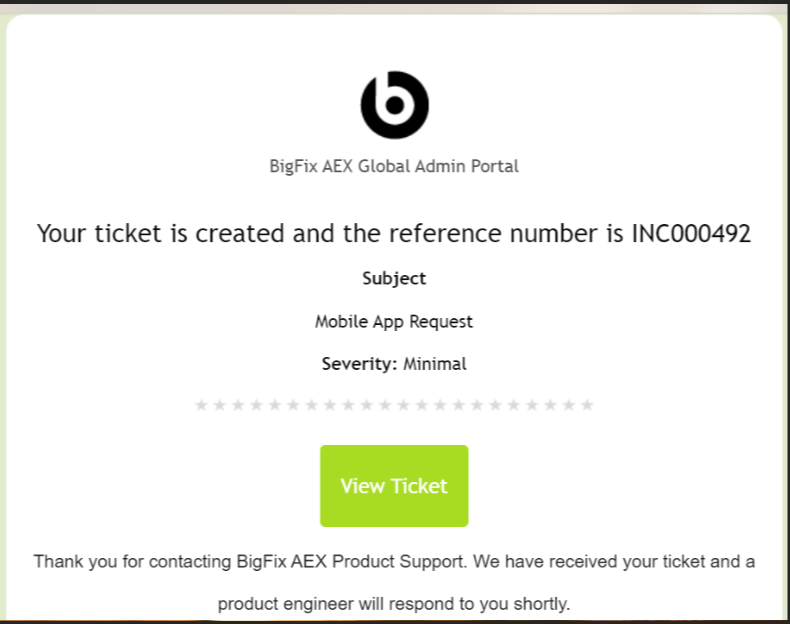
- The latest request will also be visible on the support page of the tenant.
- The Android app request will be completed in 3-4 working days from the date of app generated. The requester will be notified.