PWA onAEX
Progressive Web App (PWA) are web applications that utilizes modern web capabilities to deliver an app-like experience to users. They are intended to work on any platform that uses a standards-compliant browser, including both desktop and mobile devices. End-users and administrators of AEX who wish to access the platform through a Progressive Web App (PWA) on he application is built as a Progressive Web App (PWA), offering cross-platform support across most modern devices and browsers. It is optimized for installation and usage on Android, iOS (with limited capabilities), Windows, macOS, and Linux, primarily through Chromium-based and Safari browsers." can do so to eliminate the need for dedicated app downloads, enhance cross-device accessibility, and improve the overall user experience by leveraging the convenience of modern web technologies.
About this task
Procedure
- Open the tenant-specific URLhttps://tenantURL.bigfixaex.com/ in Chrome browser.
-
Click the 'Install PWA App' option in the search bar.
Figure 1. Install PWA APP 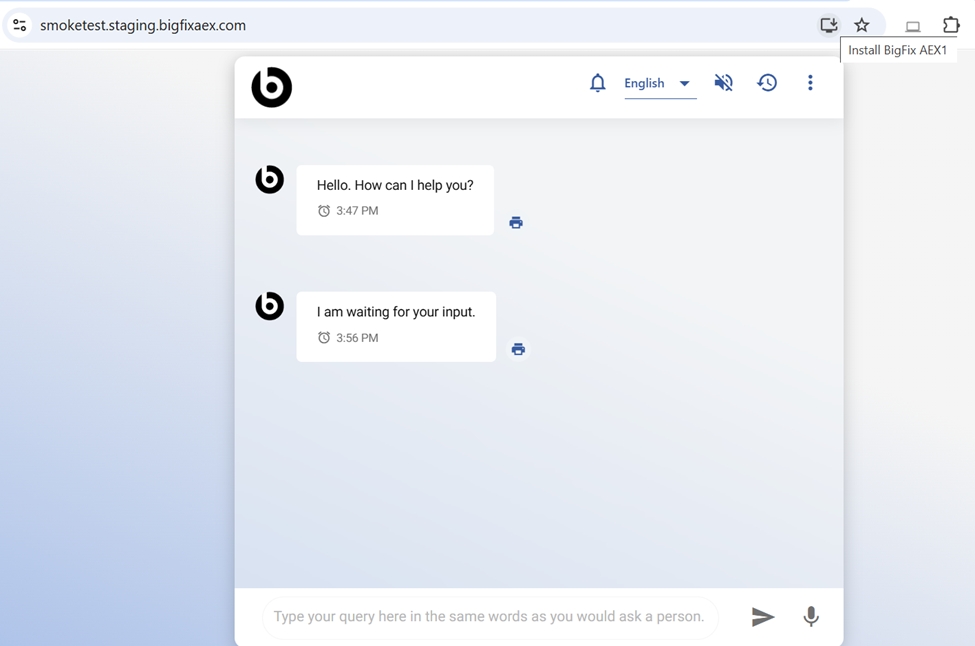
-
When the user clicks the download option, a confirmation prompt appears asking
whether to install the app. Click 'Install' to proceed with the installation or
'Cancel' to abort the download.
Figure 2. Confirmation Message 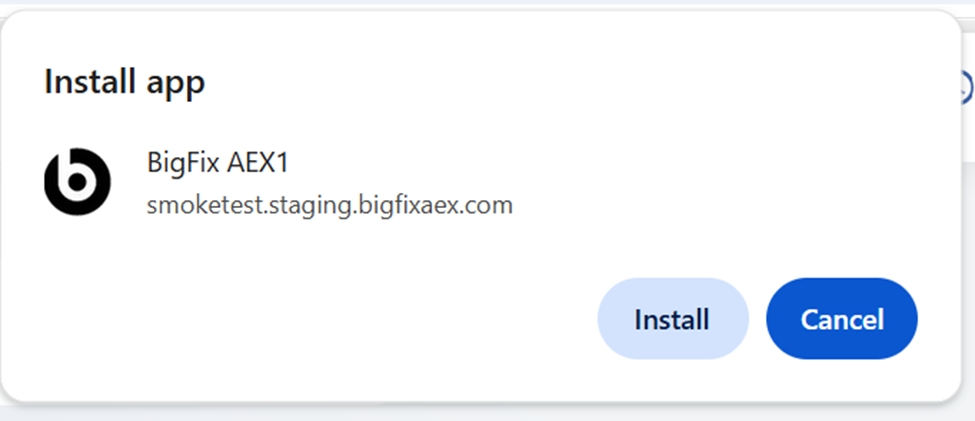
-
Once User clicks on Installing button the below page is displayed, App is
installed on the desktop (PWA application will be installed as a separate
app)
Figure 3. PWA APP Installed 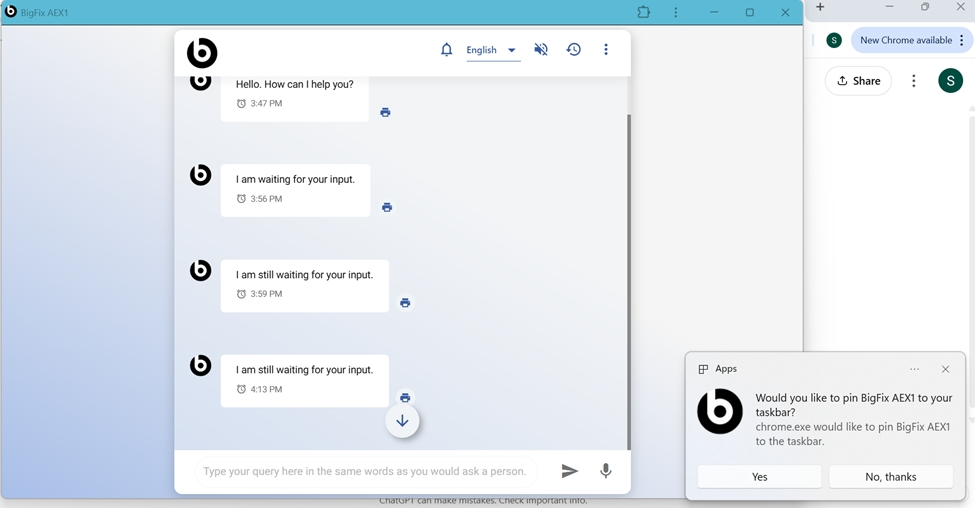
-
After the app is installed, another confirmation prompt appears asking whether
to pin the app to your taskbar. Click 'Yes' to proceed with pinning, or 'No,
thanks' to skip this step.
Figure 4. PWA APP is Installed as a Separate App 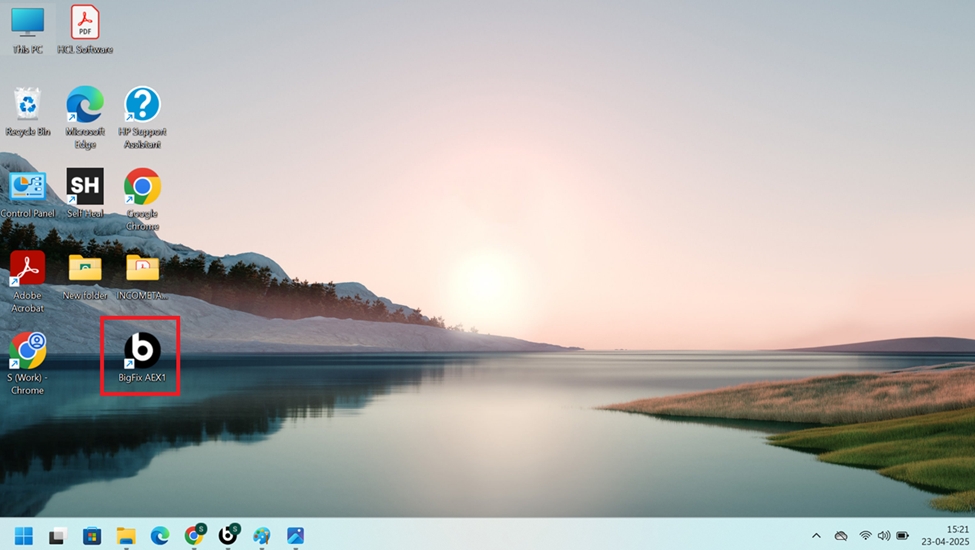
-
After the app is installed, another confirmation prompt appears asking whether
to pin the app to your taskbar. Click 'Yes' to proceed with pinning, or 'No,
thanks' to skip this step.
Figure 5. Confirmation Message 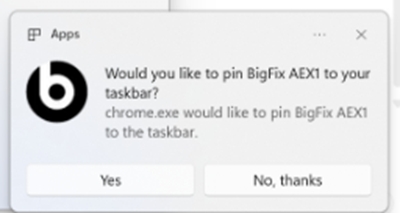
-
After the user selects 'Yes,' the PWA application will be pinned to the
taskbar.
Figure 6. PWA App in Task bar 
-
To change the app icon, the admin needs to browse for the App Icon in ChatUI
V3.
Figure 7. App Icon In ChatUI V3 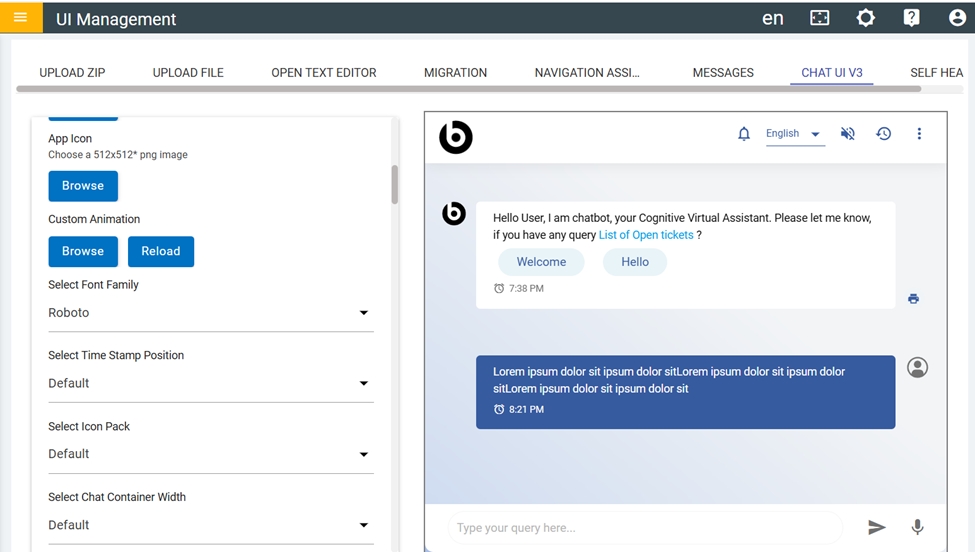
-
Select an image with a size of 512×512 for optimal compatibility across all
devices. A 192×192 size is also acceptable. Otherwise, an error message will be
displayed.
Figure 8. Error Message 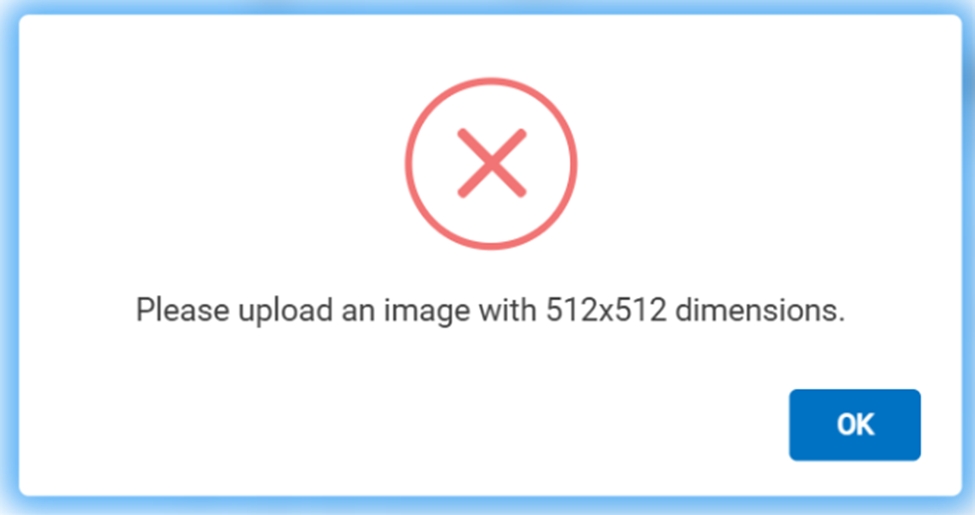
- If the bot is already installed, then to reflect that change the user needs to uninstall and install the app.
-
To uninstall the app, click the kebab menu icon.
Figure 9. Kebab menu icon 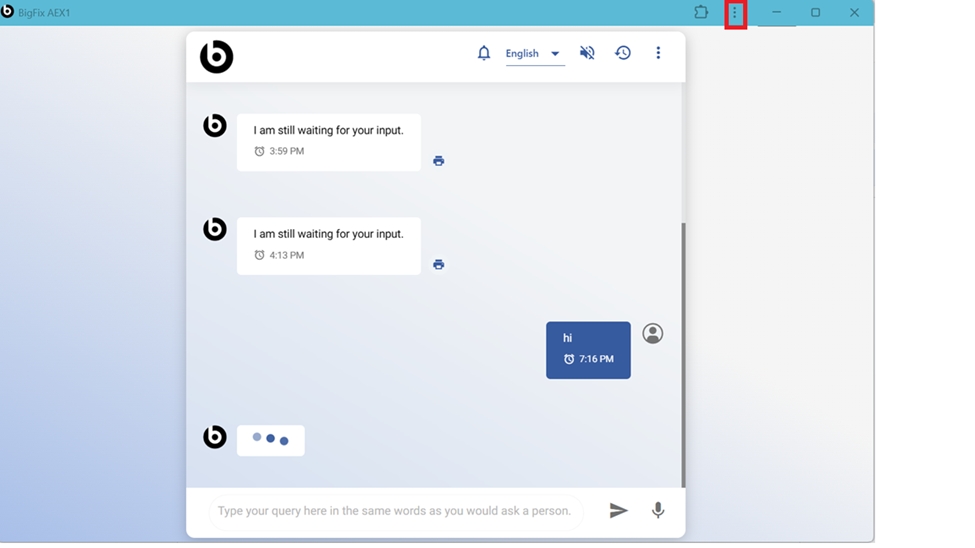
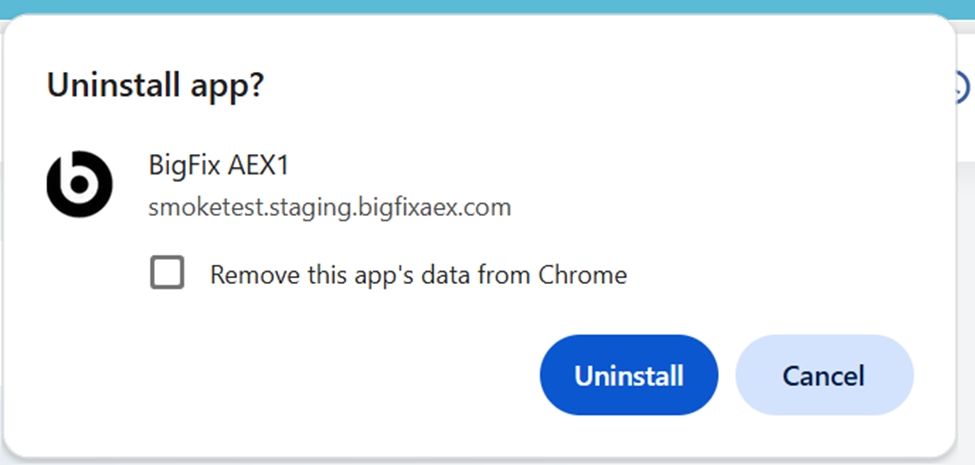
- When the user clicks on the kebab menu icon, a confirmation prompt appears asking whether to uninstall the app.
-
Click 'Uninstall' to proceed with the uninstallation or 'Cancel' to abort the
uninstallation.
Figure 10. Confirmation Message