
Avolin Integration
The actual goal of this integration is to execute solution on user’s machine. It does so by fetching the user’s machine name then passing it with solution’s event id to get it executed.
Another functionality that it imparts is the status callback that is users can capture the status information at every stage of execution. ProactiveAssist healing station installed on user’s machine will notify them whenever solution execution request is made.
- Log into Global admin and navigate to Tenants page under Provider tab.
Figure 1. Global Admin Console 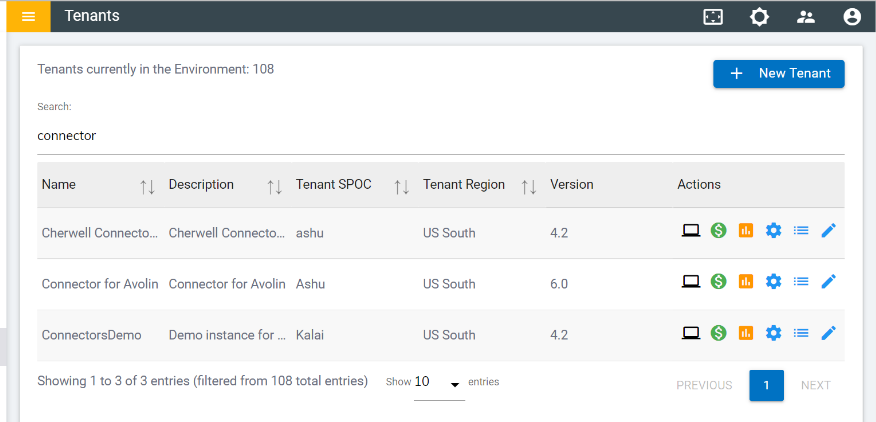
- Click on the Configure button
.png) available in Actions column.
available in Actions column. - In Tenants’ configuration page, click on Open link on “Choose Integrations” card.
Figure 2. Tenant’s Configurations Page 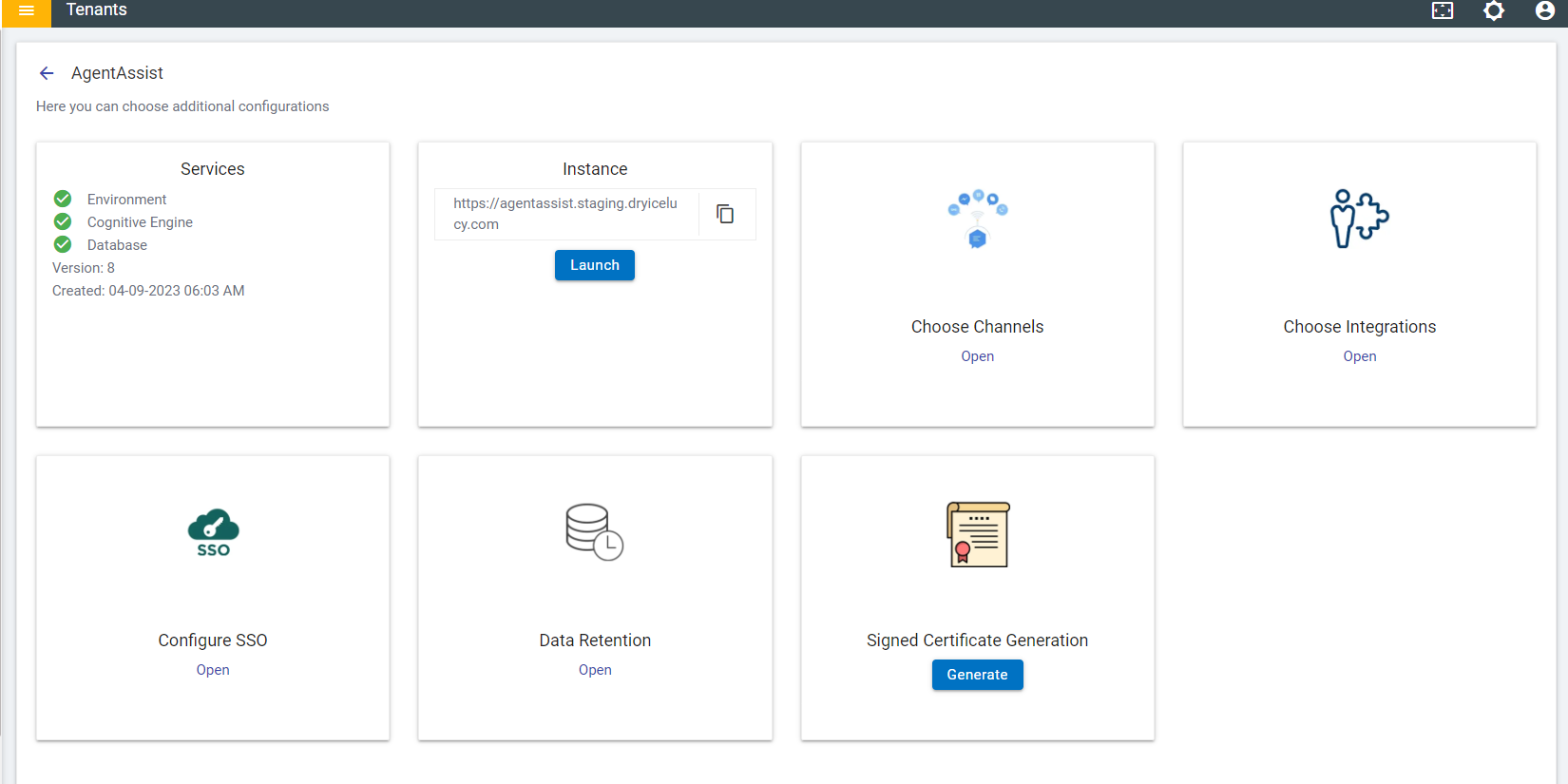
- Click on Open link on “Avolin” connector.
Figure 3. Available Integrations 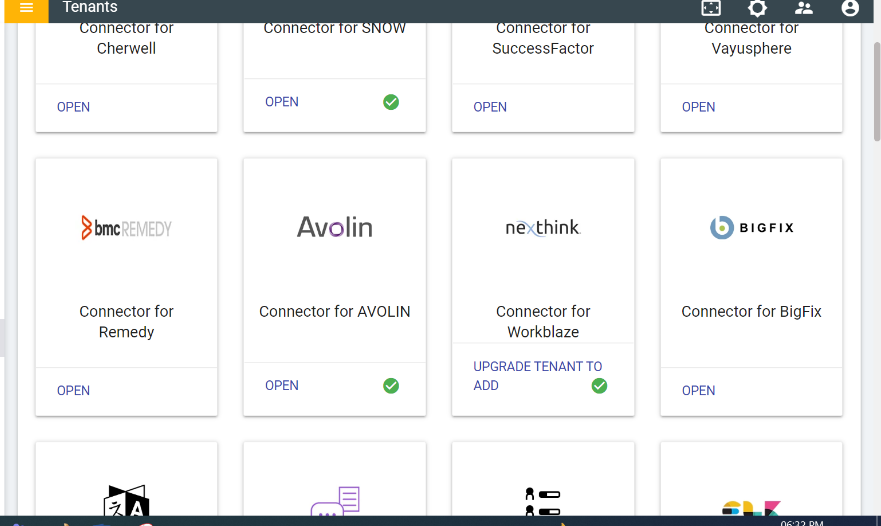
- Fill out the all the fields in the form.
Figure 4. Avolin Integration Form 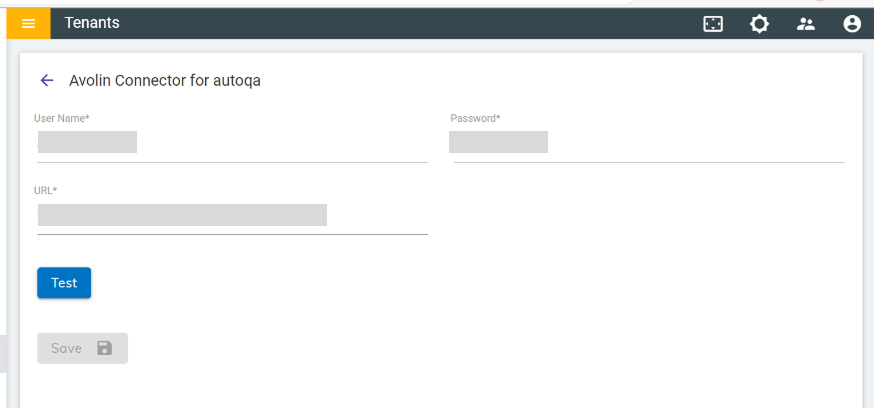
- To test whether the credentials given are correct, click on the Test button. If it is
correct, tick icon will be shown, else cross icon will be shown.
Figure 5. Avolin Integration Form – Test Credentials 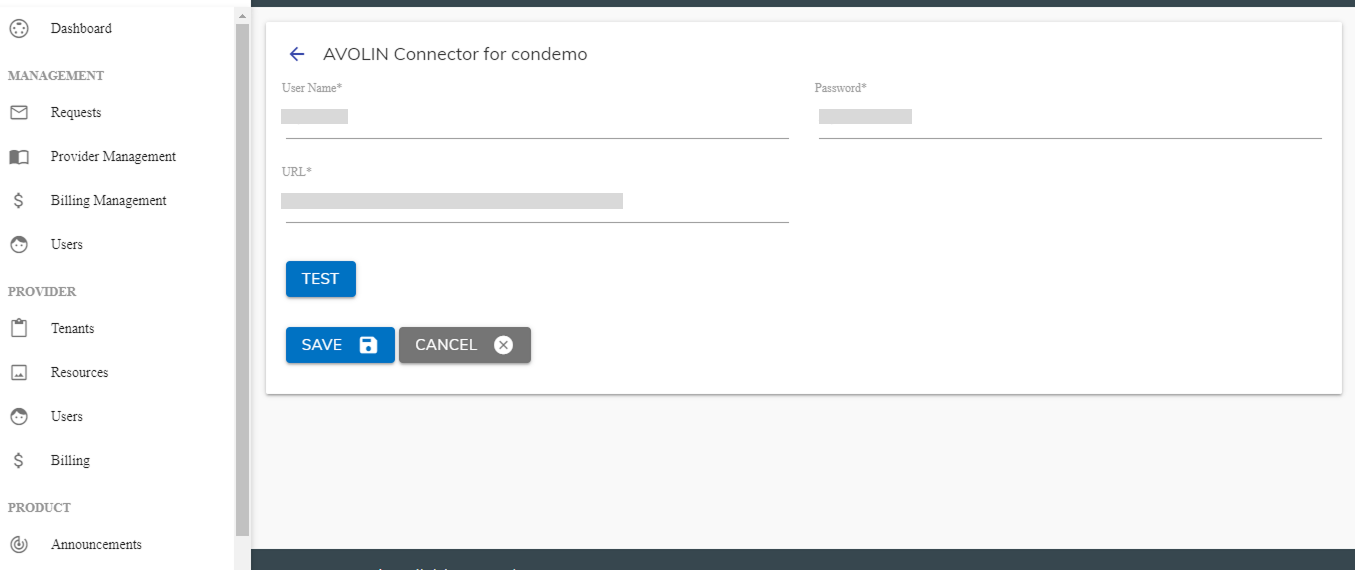
- Click on the Save button to enable the integration.
Figure 6. Integration Success Message .png)
- Launch the instance.
Figure 7. Launch Instance .png)
- In the tenant instance, navigate to Integration module 🡪 List of integrations.
Figure 8. Integration Module 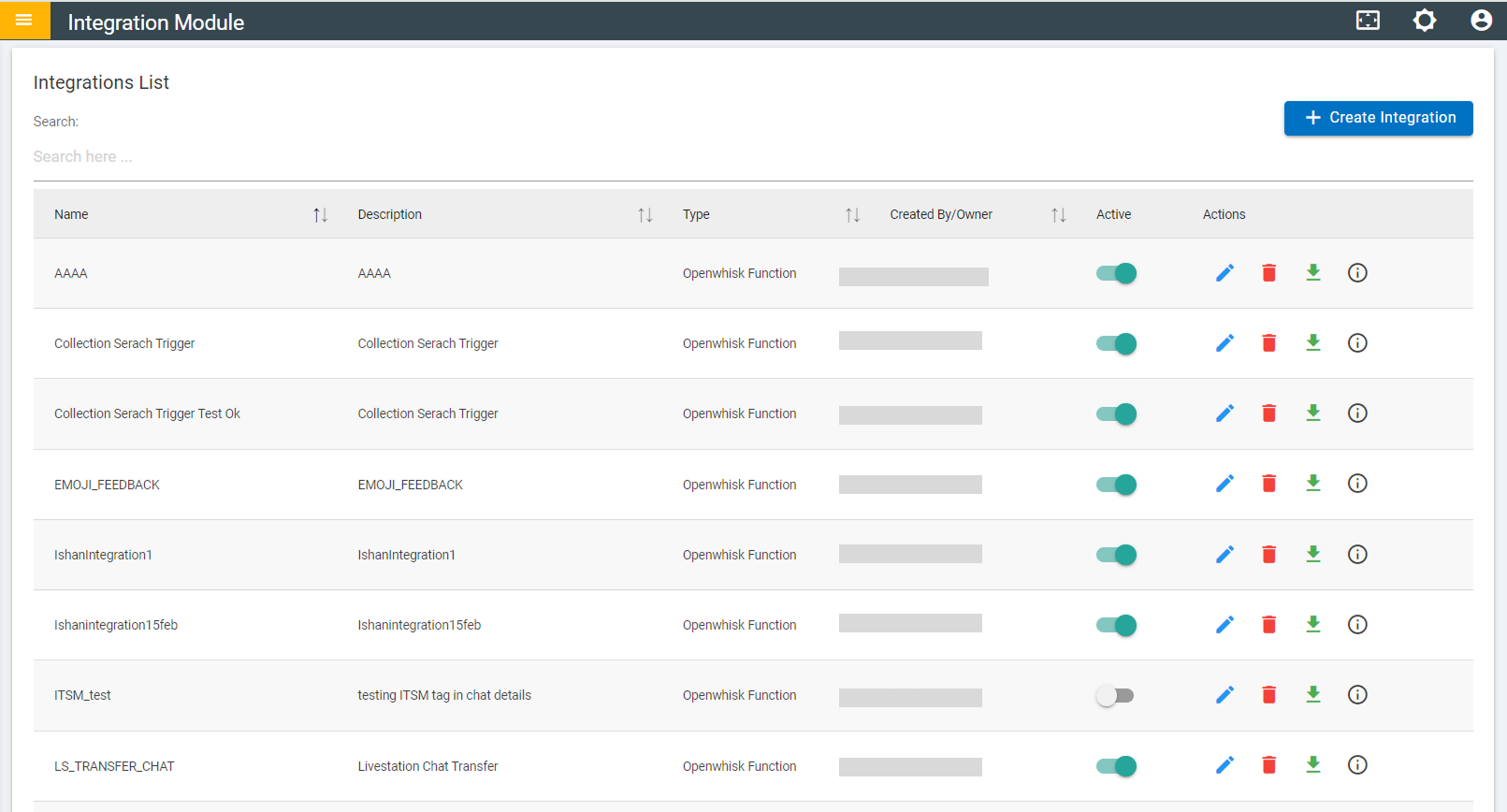
- Three rules are created for Avolin.
- Avolin Get Machine Information – To fetch the machine details of the User.
- Avolin Solution Execution – To execute the solution on the User machine.
- Avolin Solution Execution Status – To get the status of the solution that was executed.
- Click on “Openwhisk” module in the side navigation bar,
Figure 9. Openwhisk Module .png)
- Three openwhisk actions are created.
- Avolin_Get_Machine_Info – To fetch the machine details of the User.
- Avolin_Solution_Execution – To execute the solution on the User machine.
- Avolin_Solution_Execution_Status – To get the status of the solution that was executed.
Note:
Ensure you have Avolin installed on the machine/endpoint for which
integration is to be tested.