Editing Keys
- Click on
 icon to see
the key value and click on the
icon to see
the key value and click on the  icon to change the key value.
Figure 1. Key Value .png)
- Clicking on the edit icon provides the field to enter a new key as shown below:
Figure 2. Enter New Key 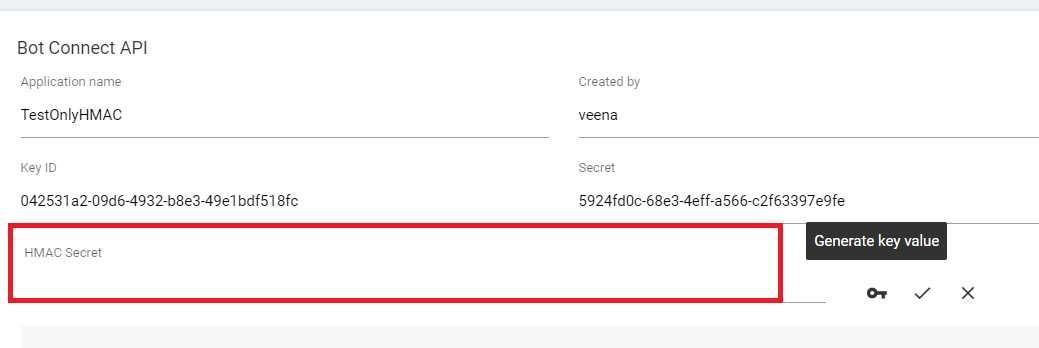
- User can either manually enter a new key or generate a key using the Generate Key
Value icon
Figure 3. Generate New Key 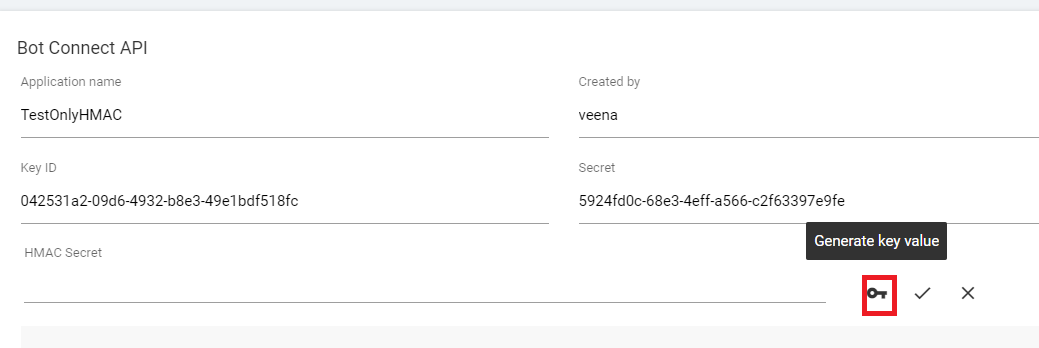
Figure 4. Generate New Key .png)
- Click on the save change icon
 to replace the old key with a newly entered one or click on
discard change icon
to replace the old key with a newly entered one or click on
discard change icon  and the
changes will be discarded.
and the
changes will be discarded. Figure 5. Save Button 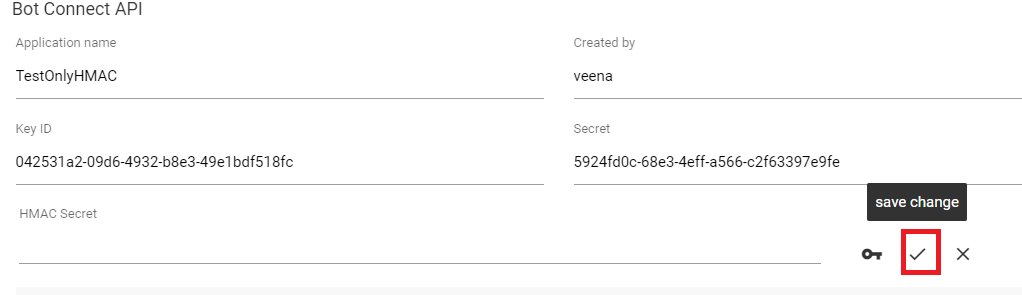
Figure 6. Discard Change .png)
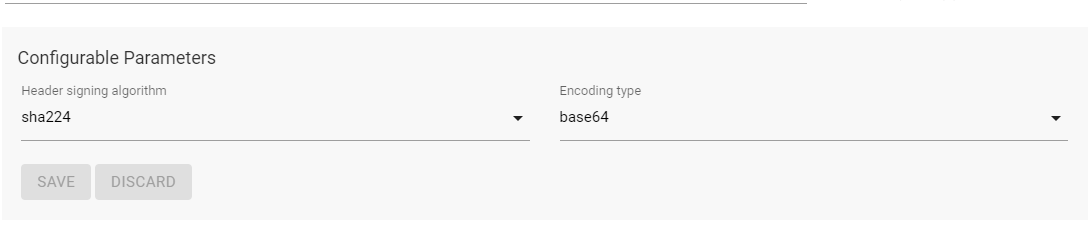
Configurable Parameters:
- Change in any of the configurable parameters enables SAVE and DISCARD
buttons as shown below:
Figure 7. Save and Discard 
Figure 8. Save and Discard Enabled 
- Click on DISCARD to set the values of configurable parameters to the previously saved value.
- Click on SAVE button to save the changes.
Figure 9. Saved Changes 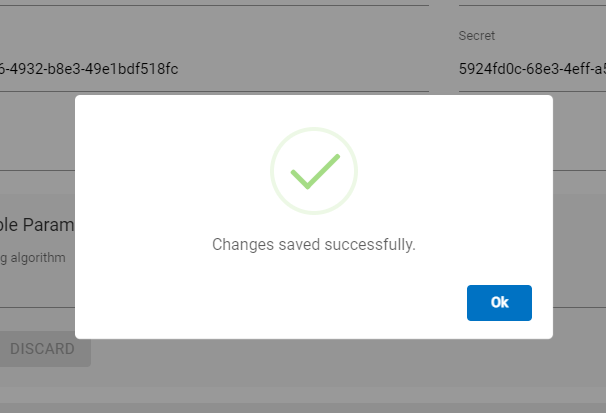
Figure 10. View of the Saved Changes