
Using Bot Connect API
We can leverage the Bot Connect API in the following scenarios:
- Scenario 1: An application not supported as a part of BigFix AEX ’s Out of the Box (OTB) channels. For more details on OTB channels supported in BigFix AEX, please refer to the Global Admin Guide.
- Scenario 2: Any application that requires a chat interface to interact with the end user.
- Scenario 3: BigFix AEX as a Child Bot: BigFix AEX can be integrated as a child bot for domain-specific use cases and be initiated by the parent bot as and when required using the Bot Connect API.
As part of the Bot Connect API , we have some child bots that can be configured and leveraged by a parent bot. These bots are created based on domain specific uses.
Some Out of the Box (OTB) bots available in BigFix AEX with their functionality are described in the table below:
| Bot Name | Functionality |
| IT Bot | Trained on use cases related to IT systems and IT applications. It also supports use cases related to the IT Operations Life Cycle. |
| HR Bot | Trained in use cases such as Leave Policies, Employee Relations, and so on. |
| Sales Bot | Trained on use cases related to Sales Assistance, Lead Generation and Tracking, Sales Reporting, and so on. |
| Procurement Bot | Trained on use cases related to Inventory Check, Order Tracking, Placement, and so on. |
| Banking Bot | Trained on use cases related to Customers, Account Updates, and Banking Services. |
Before an application/chat system uses the Bot Connect API , it needs to be configured in BigFix AEX .
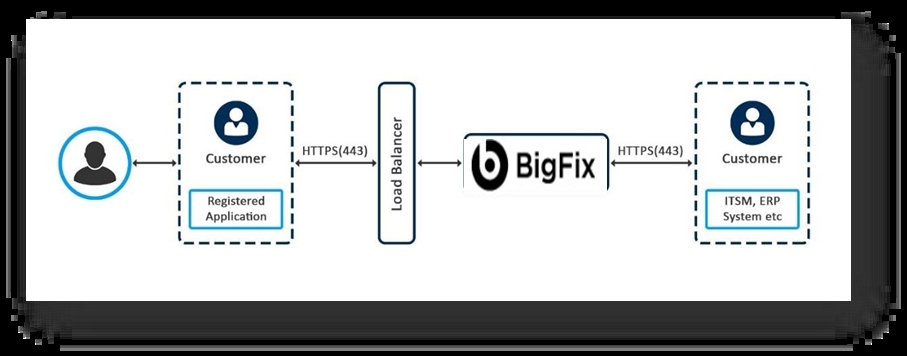
Authentication Tenant Endpoint for API calls:
The endpoint for making the API request is “https://<BIGFIX AEX -TENANT-URL>/endpoint/api/token.”
Below are the details for Authentication Tenant Endpoint for SSD API calls:
- Endpoint: https://<BIGFIX AEX -TENANT-URL>/endpoint/api/token
- Method: Post
- Authorization: Basic <credentials-passed-as-per-bot-connect-API>
- Content-Type: application/json
- Mandatory Fields: displayname, username, access_token
- Body:
{ "username": "string", //Unique User ID of the user (Combination of the user id and tenant id) [Mandatory] "email": "string", //Email ID of the user if different from Username and if required for the implementation of the use cases. "displayname": "string", //Username to be used for greeting the user [Mandatory] "access_token": "string", //SolarWinds Access token for SSD Interactions [Mandatory] "refresh_token": "string", //Refresh token to regenerate token when Access token expires (Optional as previously discuss the expiry might not happen) "exp": "number", //Expiration post which refresh token to be used for regeneration of access token (Optional as per refresh_token) "endpoint": "string", //SolarWinds Tenant Endpoint for SSD API calls "tenantId": "string", //Tenant id for classifying the user for reporting purposes. "actions": "Object", //key of operations that users should be able to do in BigFix AEX. sample: { ticket_status: true, list_tickets: true, create_ticket: true, create_service_request: true, search_knowledge: true, chat_agent: true } "language": "string", //Language preference of the user "region": "string", //Region of the user for reporting and tracking (Optional) if not provided will default user browser specific region. "country": "string", //Country of the user for reporting and tracking (Optional) if not provided will default user browser specific region. ... //Any other required parameters can be passed like premium access. All keys are not mandatory other than displayname,username,access_token } - Response: Session Identifier/BigFix AEX token in string format
Sample response:
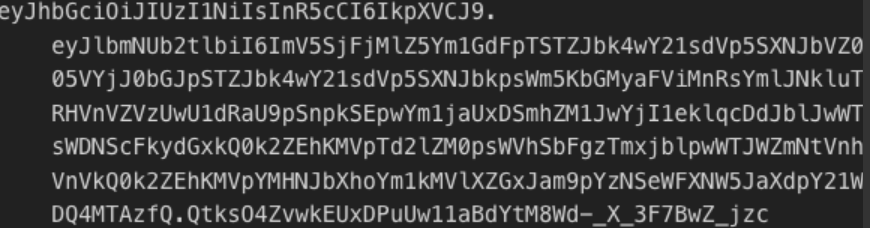
How to use the Token:
Session identifier generated previously; you can send the session id as the query parameter Session Id (case sensitive) to BigFix AEX 's URL.
Example:
https://< BIGFIX AEX -TENANT-URL>/SessionId=<Session ID> or,
https://< BIGFIX AEX -TENANT-URL>/t/<Session ID>
- This should use the session id to connect the user for whom the session is generated.
- Above endpoint is rate limited to 5000 requests per minute per BigFix AEX Tenant.
After going through this section, the user should be able do the following:
- Register an application in the Bot Connect API .
- Leverage BigFix AEX ’s API for conversations.
Now follow the steps below to configure the Bot Connect API .
- Register the application to be configured
with BigFix AEX . The registered application will consume the
Bot Connect API
. Follow the steps below to register an
application:
- Click the Bot Connect API Console on the main console page. You will be
redirected to the Bot Connect API landing page as shown in Figure 4 Bot Connect API Landing Page
.
Figure 3. Bot Connect API Console 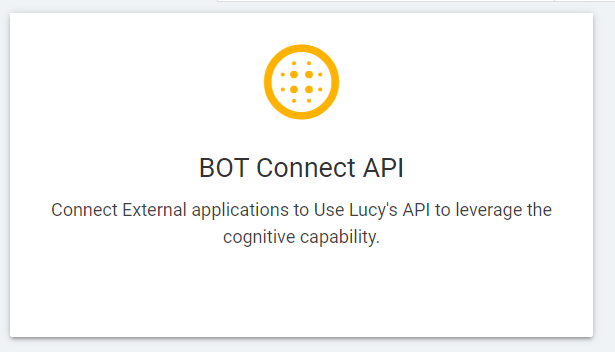
- Click Get Started to register your application.
Figure 4. Bot Connect API Landing Page 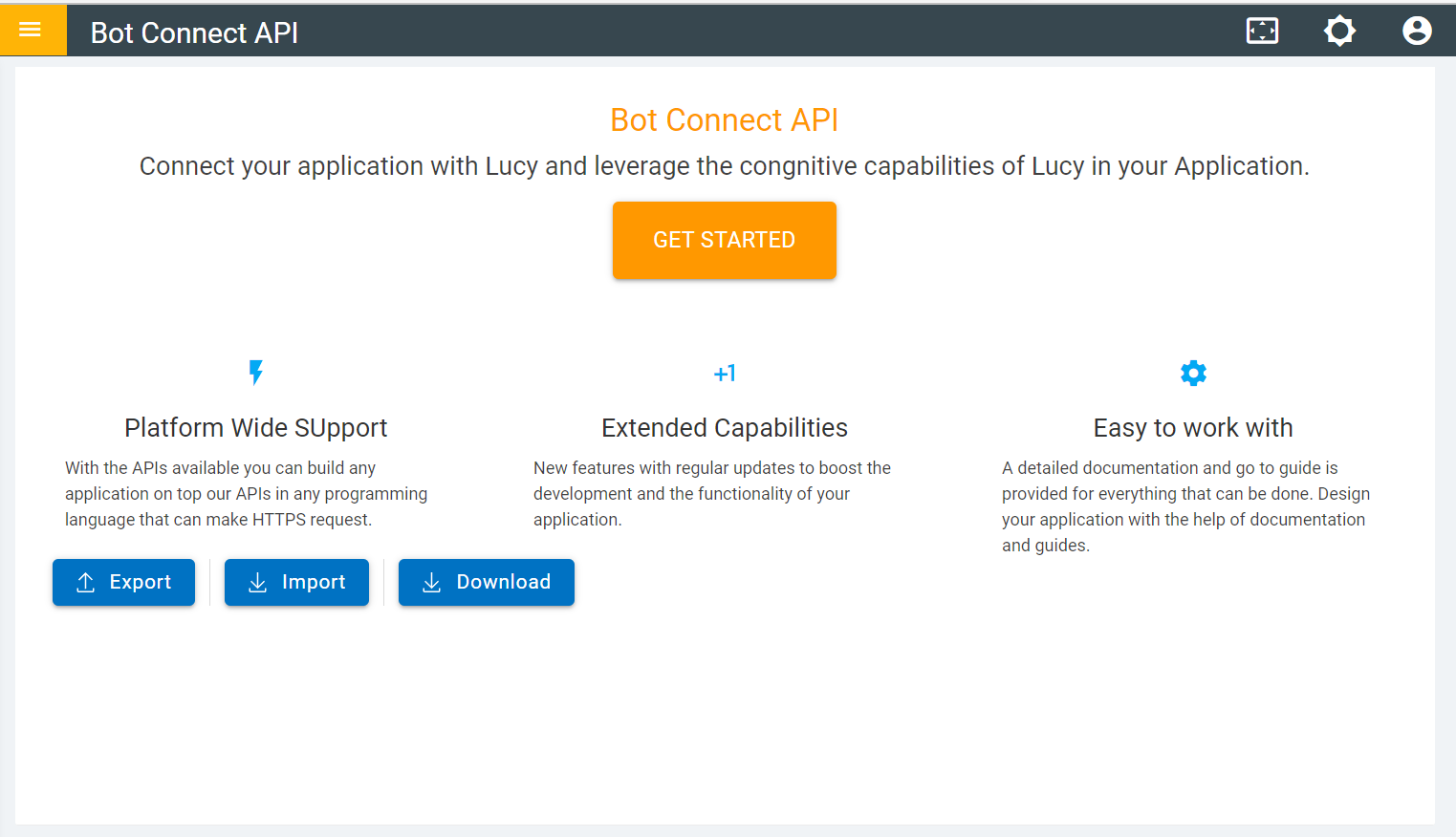
- The Application List page appears as shown in Figure 5 Applications List.
Figure 5. Applications List Page 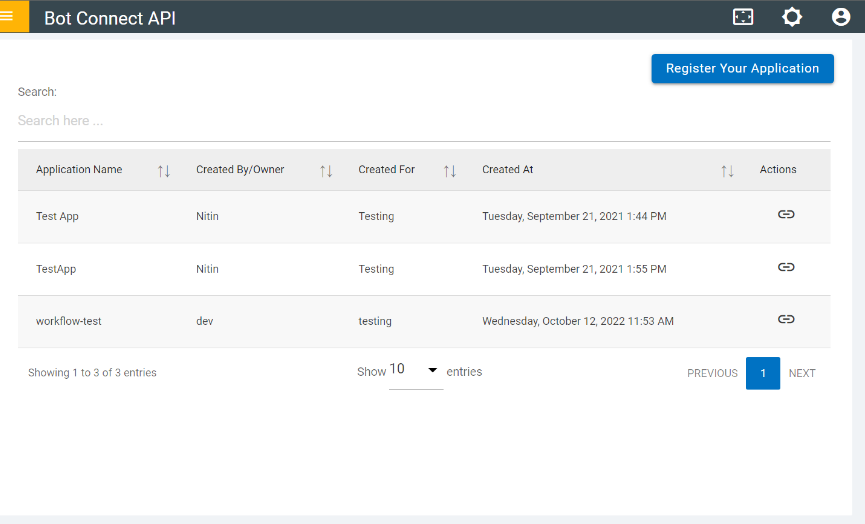
- Click
 button to register your
application.
button to register your
application. - The Register Application form appears.
Figure 6. Register Application Form 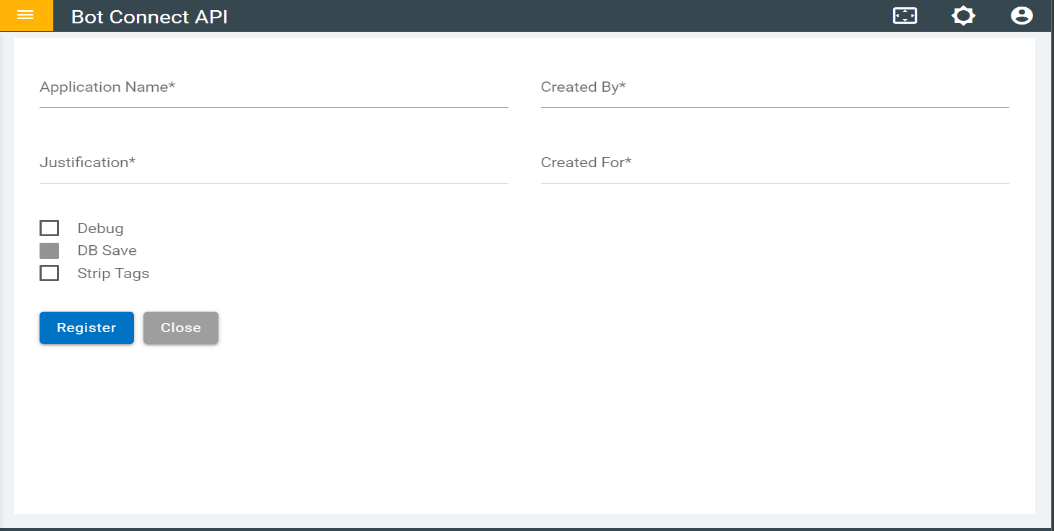
- Fill in the below attributes for the application to be registered:
-
Application Name: Users are advised to give a unique and functional
application name for better management. Ensure that they are meaningful and
consistent.Note:
You may like to follow the below mentioned guidelines while naming:
- Brevity
- Use Keywords
- Avoid Spaces and use underscore (_) to delineate words
- Created By: Type the name of the application’s owner.
- Justification: Type a detailed description of the application to justify why it is registered to consume the bot connect API.
- Created for: Type a brief one-liner about the application.
-
Application Name: Users are advised to give a unique and functional
application name for better management. Ensure that they are meaningful and
consistent.
Once the above attributes of the application are filled, select the check box mentioned below as per your requirement:
Note:All the above-mentioned attributes are mandatory.Figure 7. Register Application (Cont.) 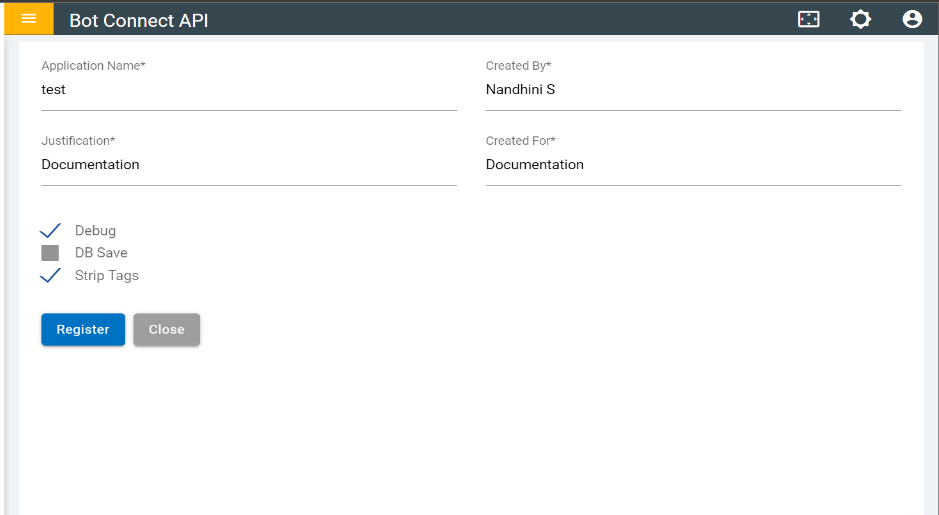
-
Debug: It captures the following details:
- Source: It refers to the location of an API call, mostly an IP address or a hostname.
- Request: It is the request parameter sent to the API from the application.
- Received: It captures BigFix AEX understanding of the request it received.
- Sent: It is the response sent by BigFix AEX to the application through its API.
- Time: It shows the time at which this API call was made from BigFix AEX to the application. It is captured in the ISO String format.
- DB Save: This field is auto enabled for all applications registered on BigFix AEX Bot Connect API. It contains all the conversation details or metrics done over the API. These conversation details are shown in BigFix AEX reporting dashboard. (For more details, please refer to BigFix AEX reporting dashboard)
- Strip Tags : This is used to remove the HTML components of the chat. As a result, the output is simply a textual and marked-up-based response. This is to be used in case an application does not support HTML. Use this feature where the use cases are designed with HTML components for the Web Client, but you will also be using the Bot Connect API for other channels.
Note:Debug and Strip are optional while registering your application in Bot Connect API. - Click the Bot Connect API Console on the main console page. You will be
redirected to the Bot Connect API landing page as shown in Figure 4 Bot Connect API Landing Page
.
- To submit the application details, click on Register .
-
Click on Close if you wish to go back to the Application List Page as shown in Figure 5 Applications List.
-
To use the BigFix AEX BotConnect API , enterprise users must register at least one application.
-
Once the application is registered, the users can view it in the Application List as shown in Figure 5 Applications List .
It contains a tabular view of debug details such as Source, Request, Received, Sent and Time. These debug details are already covered while registering a new application on the application list page.
- Users can search the registered application using the Show
Entries Search field. The existing applications can be sorted based on their
attributes by using the up/down icon (
 ). The attributes are: Name, Created By/Owner, created
for and Created (the time at which the application was registered)
). The attributes are: Name, Created By/Owner, created
for and Created (the time at which the application was registered) - When an application is registered in Bot Connect API, its credentials are automatically generated. These credentials are used to connect/make the API request. To view the credentials for the application, click on Link under the Action column as shown in Figure 5 Applications List.
- Users can search the registered application using the Show
Entries Search field. The existing applications can be sorted based on their
attributes by using the up/down icon (
- User is re-directed to the Credentials Landing Page which also displays the debug/log
data.
Figure 8. Credentials Landing Page 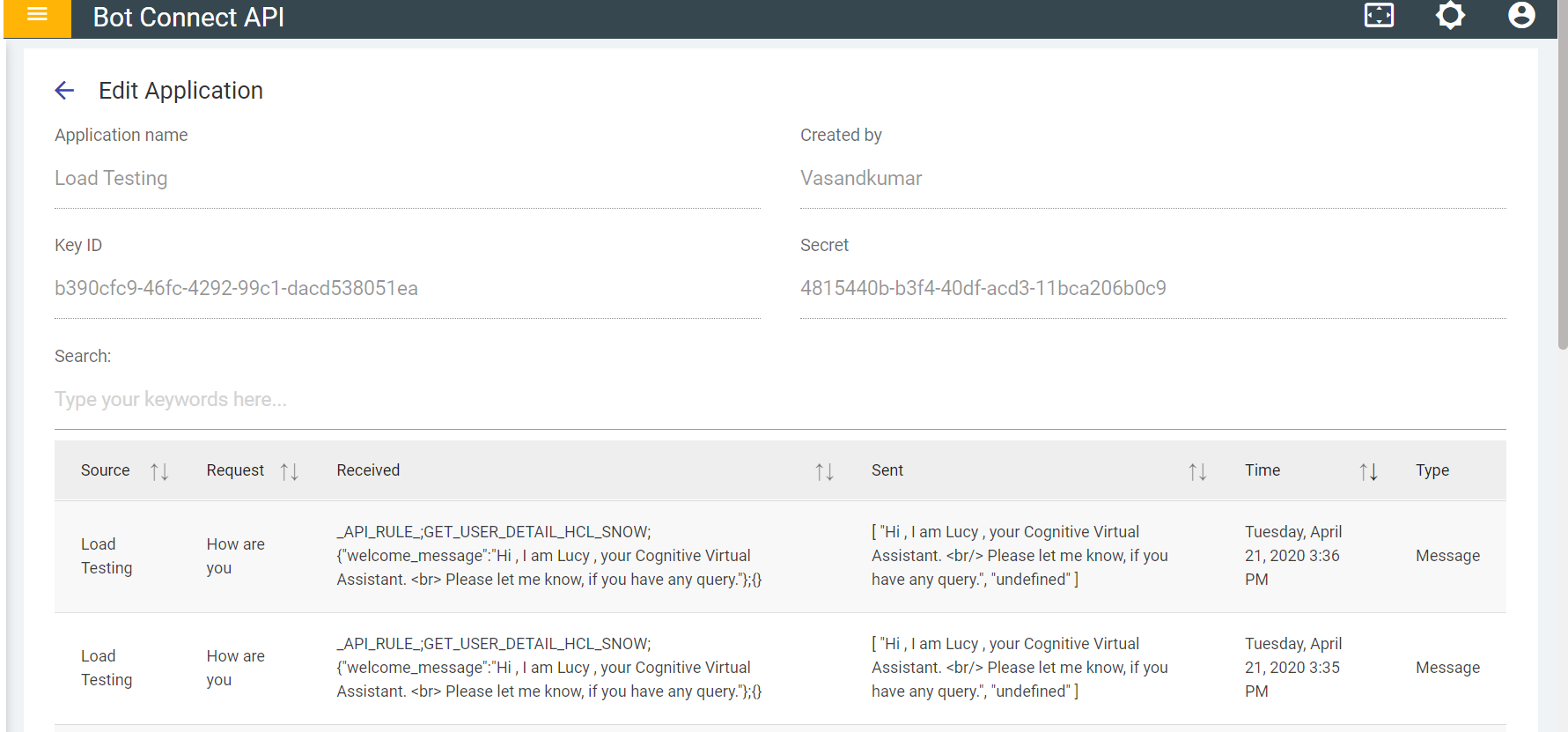
On this page, users view the following details:
- Application Name: Name of application which is used while registering application.
- Created By: Name of user who registered application.
- Key ID: It is automatically generated Universal Unique Identifier (UUID) of the registered application. It acts as a username for the API call as a basic authentication credential.
Note:While making the API call from application to BigFix AEX , this parameter should be sent by the application as the username for authentication purposes.- Secret: It is generated automatically after the application is registered in the Bot Connect API. It acts as a password for the API call as a basic authentication credential.
- After the application is registered, its credentials are generated automatically. Use these credentials to make an API request to BigFix AEX Bot Connect Endpoint.
Once an API request is made to BigFix AEX , it lands on the load balancer which forwards the request to the BigFix AEX application. The load balancer acts as a reverse proxy and distributes network or application traffic across several servers. It is used to increase the performance (concurrent users) and reliability of applications. See Using Bot Connect API .
BigFix AEX receives the API request along with the parameters.
The endpoint for making the API request is “POST external/api/message”
POST Data: It is the payload sent by the registered application in the request body. Below is an example of how a valid API request can be made to BigFix AEX :
curl -X POST -u "username":"password" --header "Content-Type:application/json" --data "{\"input\": {\"text\": \"where are you? \"}}" Error! Hyperlink reference not valid.
The sample request with the payload:
{
"input": {"text”: "where are you?"},
"context": {
"conversation_id": "8996afcc-310d-4aea-b92e-f2c078d4e41b",
“username”: “<Username>”,
“firstName”: “<First Name>”,
“email”: “<Email>”,
“sipid”: “<SIP ID>”,
"system": {
"dialog_stack": [
{
"dialog_node": "root"
}
],
"dialog_turn_counter": 1,
"dialog_request_counter": 1,
"_node_output_map": {
"Node_1_1511191023806": [
0,
0,
2,
1,
3
]
},
"branch_exited": true,
"branch_exited_reason": "completed"
}
}
} {
"conversation_id": "c4edde11-30e0-4d01-a7b3-48bec5e65e2f",
“username”: “<Username>”,
“firstName”: “<First Name>”,
“email”: “<Email>”,
“sipid”: “<SIP ID>”,
"system": {
"dialog_stack": [
{
"dialog_node": "root"
}
], "dialog_turn_counter": 1,
"dialog_request_counter": 1, "_node_output_map": {
"Welcome": [
0
]
},
"branch_exited": true, "branch_exited_reason": "completed"
}
}
Refer to the table below to understand the fields in the Request (Curl) and Request Body:
| Name | Description | Example |
| Input | User Input or Query. Input data should have a text key with the actual user input or query. |
|
| Context | Context is used to maintain the state information for the ongoing chat in BigFix AEX. To maintain state and to continue the conversation, include the context from the previous response when sending the request. The context can also be used to send specific information that the application would like to share with BigFix AEX to use in the integration or flow. |
|
{
"input": {
"text": "where are you?"
},
"output": {
"text": [
"I exist in my own world of AI."
]
},
"context": {
"conversation_id": "8996afcc-310d-4aea-b92e-f2c078d4e41b",
“username”: “<Username>”,
“firstName”: “<First Name>”,
“email”: “<Email>”,
“sipid”: “<SIP ID>”,
"system": {
"dialog_stack": [
{
"dialog_node": "root"
}
],
"dialog_turn_counter": 2,
"dialog_request_counter": 2,
"_node_output_map": {
"Node_1_1511191023806": [
0,
0,
2,
1,
3
]
},
"branch_exited": true,
"branch_exited_reason": "completed"
}
},
"time": 1511198029929,
"confidence": 1
}Refer to the below table to understand the fields in the Response sample:
| Name | Description |
| Input | The input sent on the request is sent back based on your request. It varies if the dialog designed is complex and goes through integrations. |
| Output | Output is the response to a user query. The text is the actual response, which is an array of strings that needs to be displayed to users. |
| Context | The context has various details required to maintain the state of an ongoing conversation. If the context is not sent, then the conversation will restart from the beginning. If a conversation or chat is continued, then the context of this response must be included in the request. If any of the value is removed or changed from the context, the conversation might reset and start from the beginning. Send the Username, First Name, Email & SIP ID in the context as shown in the sample request. If the application that is making an API request would like to pass some information or to maintain a state, the same context can be used. All values should be added as “key value pairs” in the context. |
| Time | This refers to the timestamp of the API call and is mainly used for debugging. |
| Confidence | Confidence of response and intent mapping. |
Event Type:
It triggers the external event of workflow. The endpoint for making the API request is “POST/hostname/external/api/event/{workflow_Name}”
Here we are using Testing Workflow application credentials to hit the workflow endpoint.

Once the workflow is triggered, it executes the sequence in the flow, and the information is displayed on the table as seen in the image below.
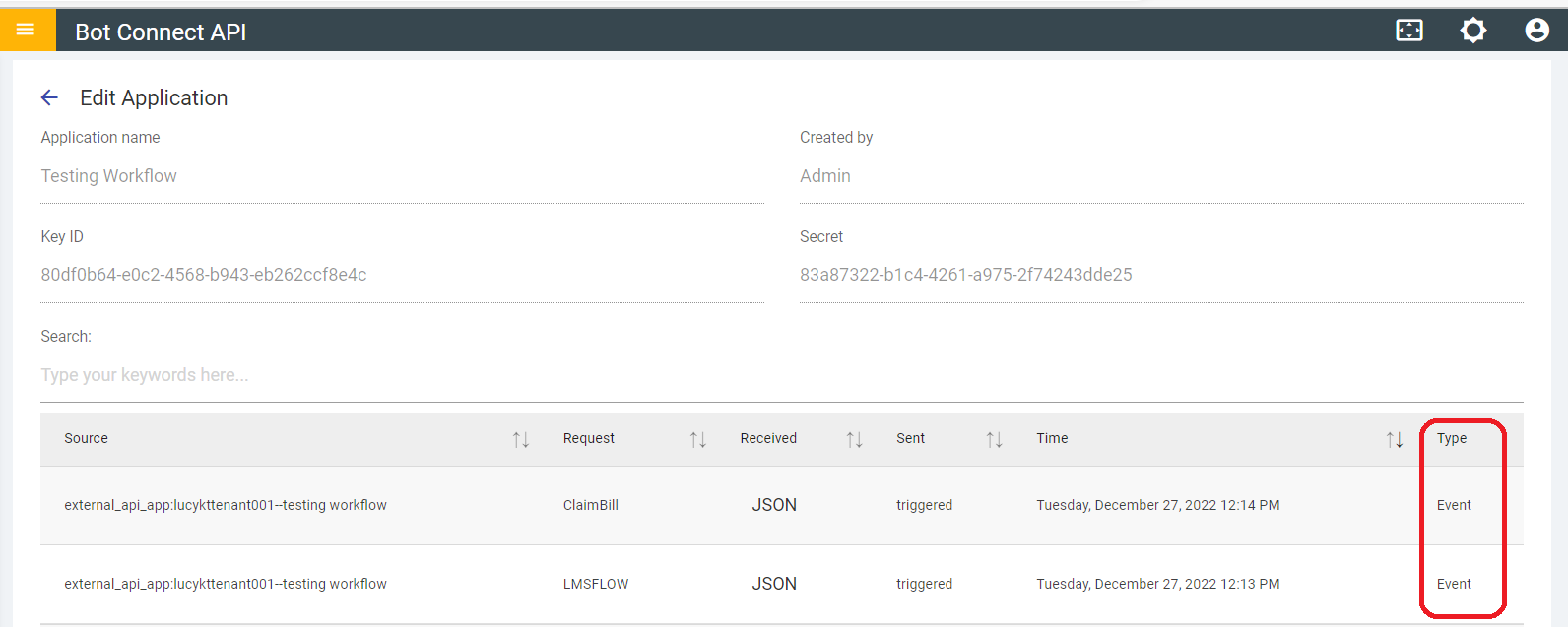
- Source: It refers to the location of an API call, mostly an IP address or a hostname.
- Request: workflow that has been hit
- Received: It receives the JSON (of the workflow)
- Sent: It is the response that comes once the workflow is triggered
- Time: It shows the time at which this API call was made from BigFix AEX to the application. It is captured in the ISO String format.
- Type: Since it hits the external event of workflow, so the type is Event.