
Build Query
You can ask for a query for a particular collection by following the below steps:
- Click on BUILD QUERY on the collection to ask a query for that collection.
Figure 1. Build Query 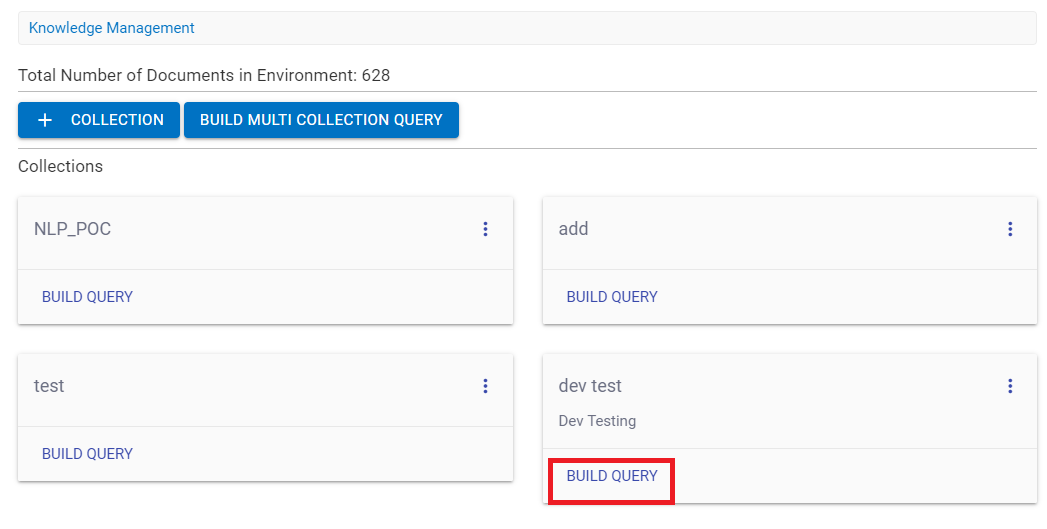
- The following screen appears:
Figure 2. Build Query (Cont.) 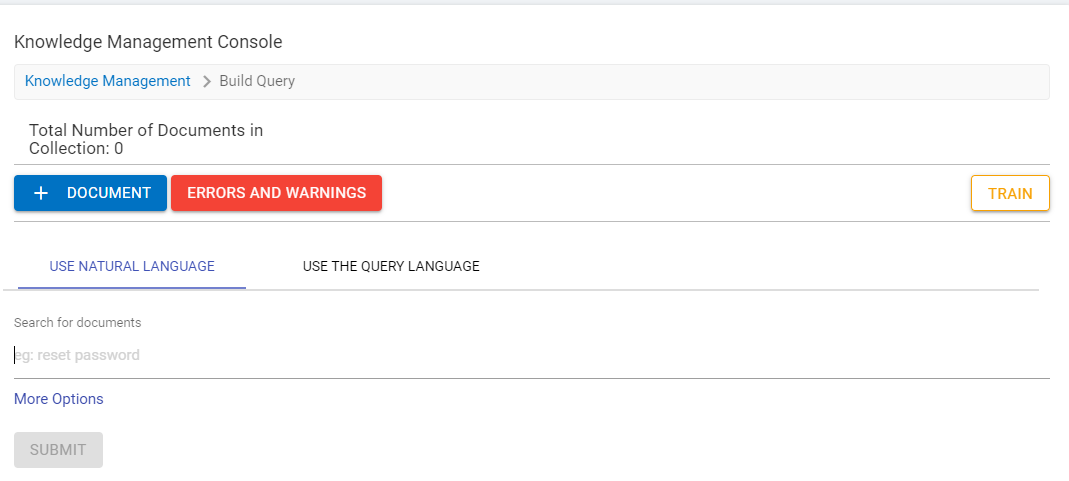
- Total Number of Documents in Collection displays the total count of the documents in the collection.
- Click on the Document button to upload the document of a particular choice.
Figure 3. Build Query (Cont.) 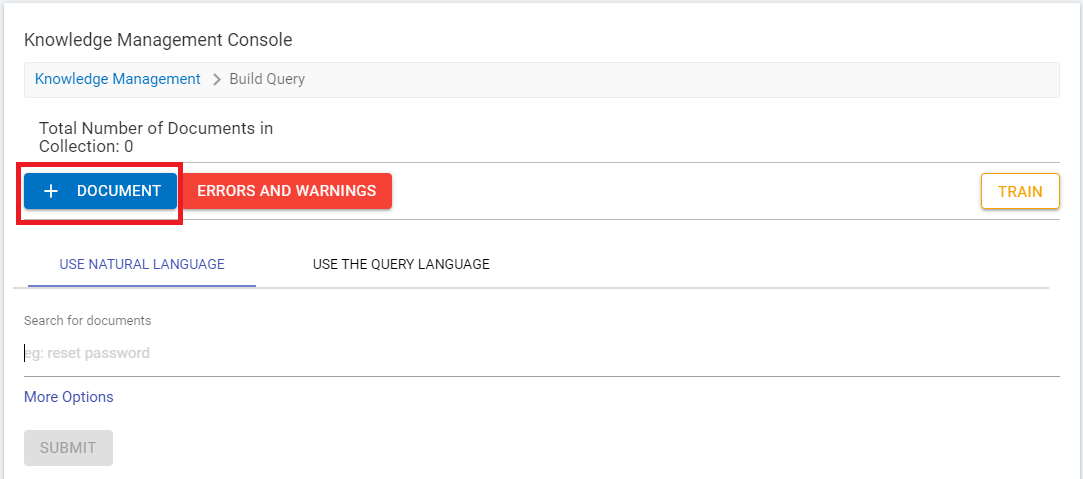
- The following screen appears and prompts to upload the document.
Figure 4. Build Query (Cont.) 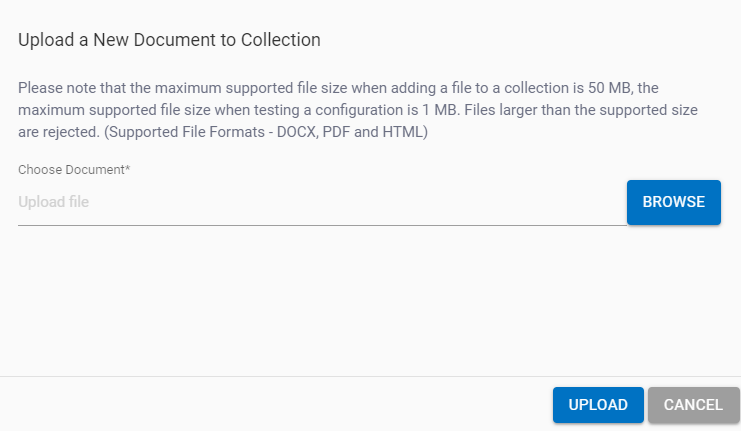
-
Browse for the document that you want to upload and then click Upload. The
three supported Formats are DOCX, PDF and HTML.
Figure 5. Build Query (Cont.) 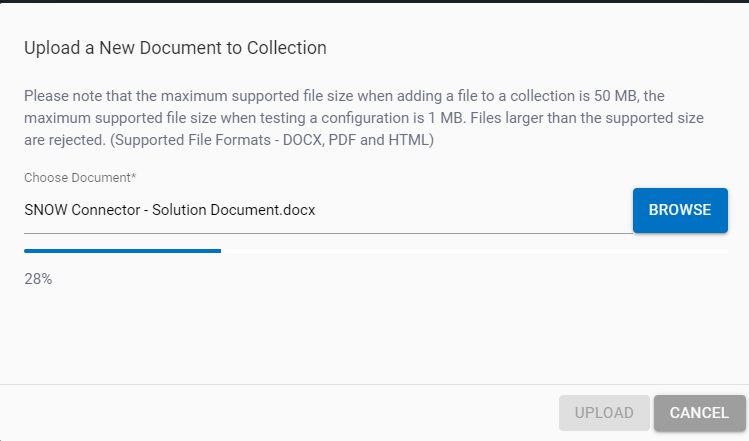
- Once the document is uploaded, the count of the Total number of documents in the collection is increased.
- User can query in following two ways :-
- Use Natural Language
- Use The Query Language
Use Natural Language:
User can query in a normal way as a layman can do. Just write a query for which you want to specifically search. The more specific the query, the more targeted the results.
- Select the option Use Natural Language. Write the specific query in the
Search for Documents field.
Figure 6. Build Query (Cont.) 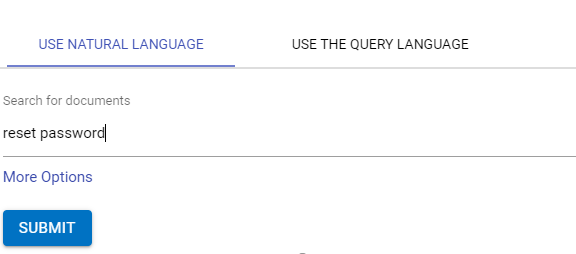
- Click on More Options for advanced settings of the query. The following screen
appears:
Figure 7. Build Query (Cont.) 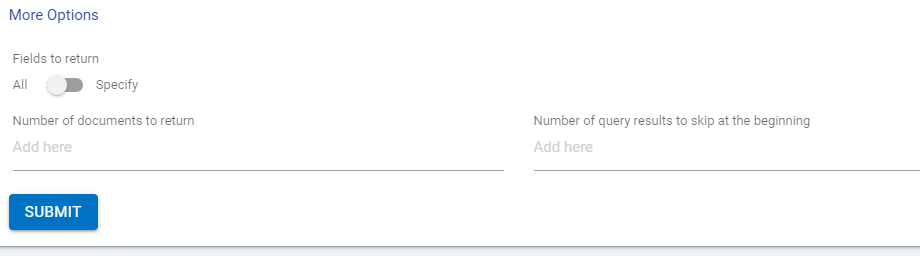
- By default, it is selected to ALL, but User can switch the toggle button to Specify as well.
- As soon as user chooses the Specify option, a dropdown appears that enables
users to select specific details.
Figure 8. Build Query (Cont.) 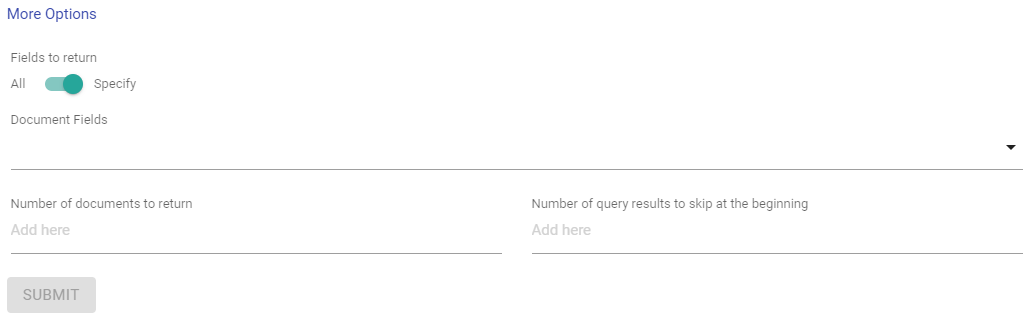
- Click on the dropdown and you can see the list of available options.
Figure 9. Build Query (Cont.) 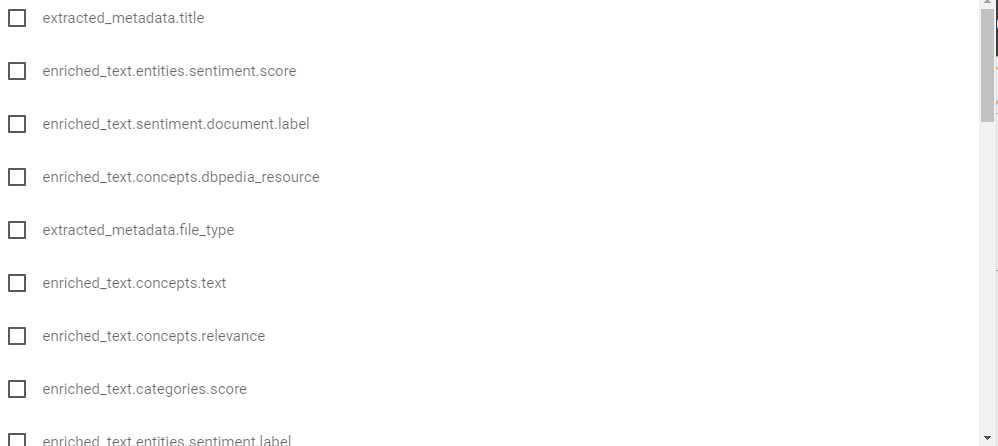
- Select any of the boxes as per your choice.
- Populate the following fields:
- Number of documents to return min 1 and max 9999.
- Number of query results to skip at the beginning.
Figure 10. Build Query (Cont.) 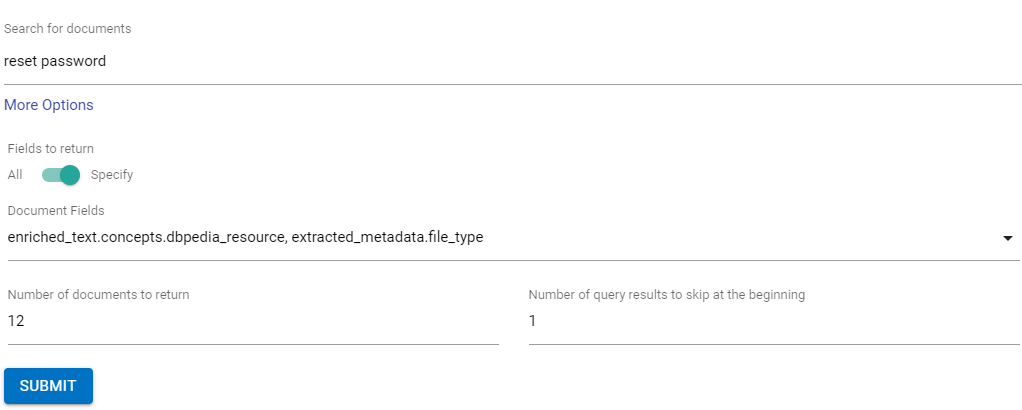
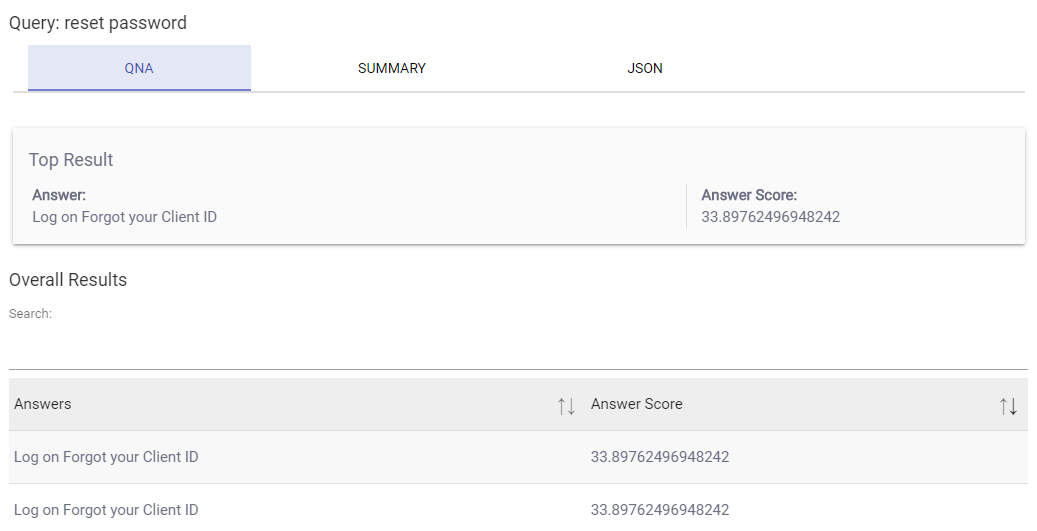
- Click Submit to get the result. The following screen appears. By default, the
QNA tab is selected.
- QNA: Shows the topmost result and the answer score.
- Summary: shows the files as per the number of counts selected in the query. BigFix AEX Livestation Attachment BigFix AEX Livestation Attachment
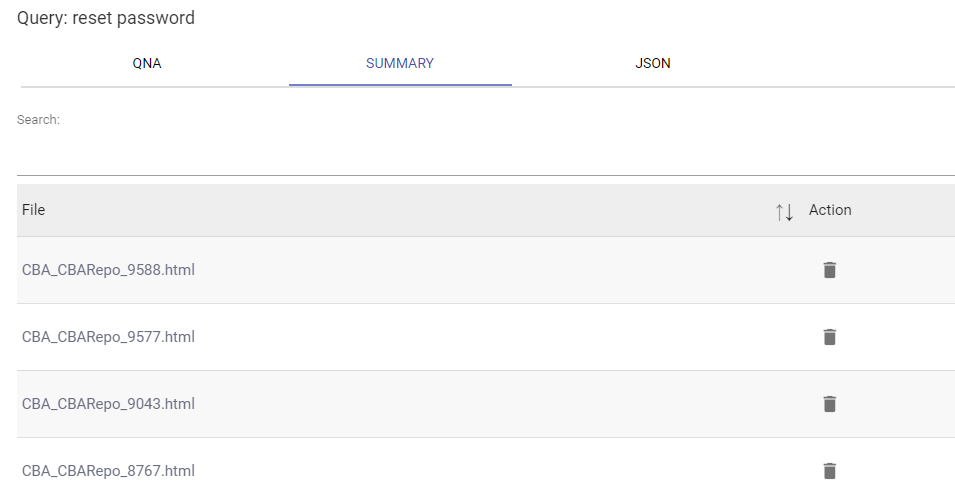
- You can delete the file by clicking on the delete icon corresponding to the file to be deleted.
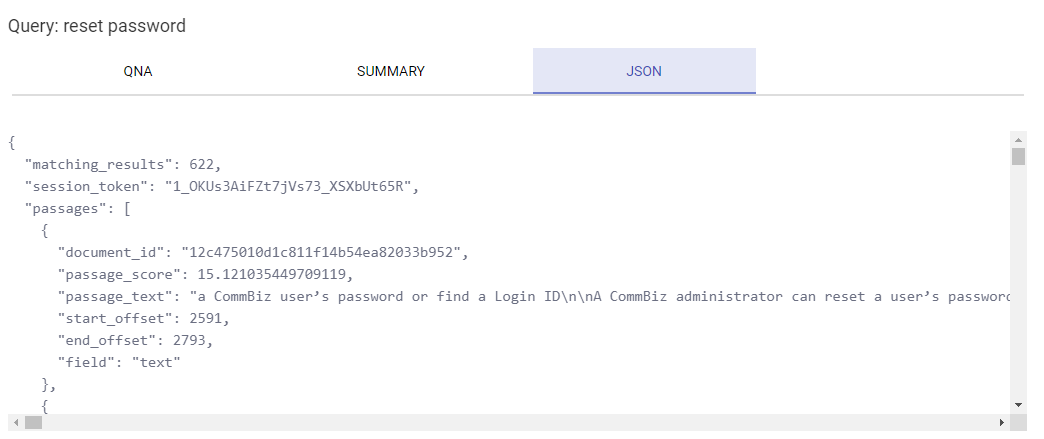
- JSON: This tab shows the content of the file.
Use The Query Language:
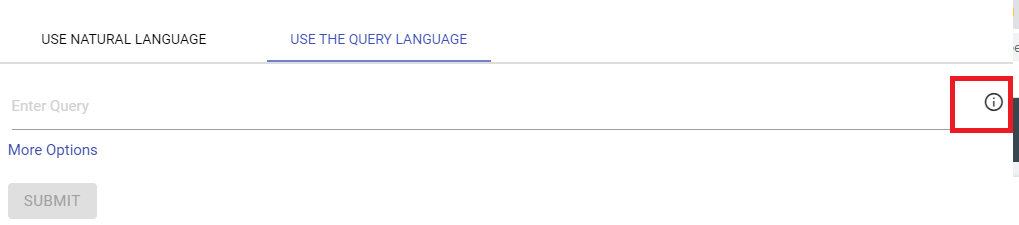
In this method, the user can write the syntax for the specific
query by clicking on the  icon as
shown in the figure.
icon as
shown in the figure.
- Click on the
 icon. It shows query examples to query
the syntax.
icon. It shows query examples to query
the syntax. Figure 15. Build Query (Cont.) 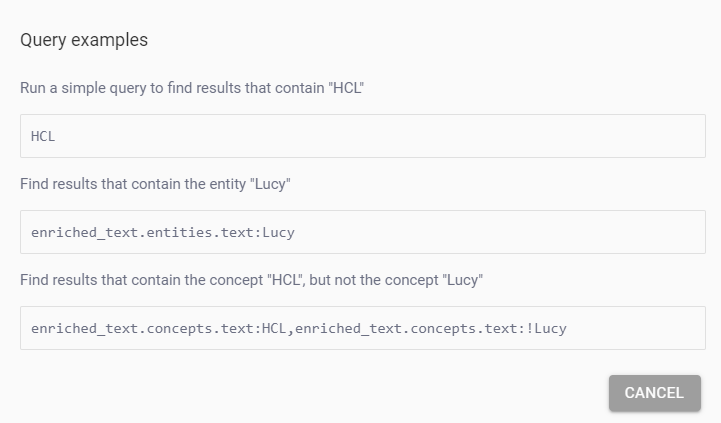
- Enter a query in the field as per the requirement. You can type simple text as well.
Figure 16. Build Query (Cont.) 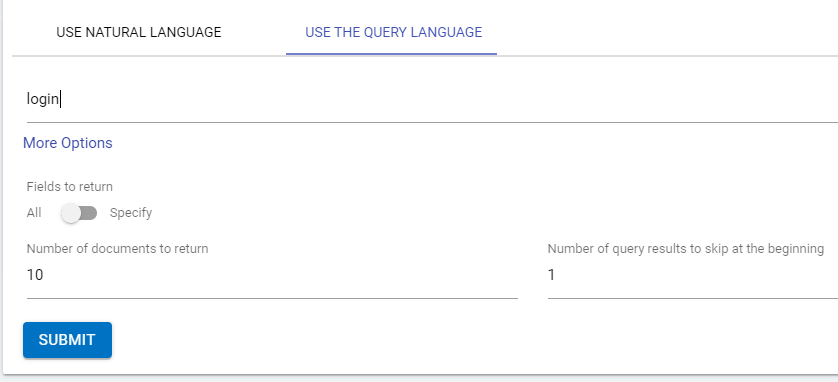
- The More Options are the same as used in the Natural Language Query method.
- Click Submit to get the result.
Figure 17. Build Query (Cont.) 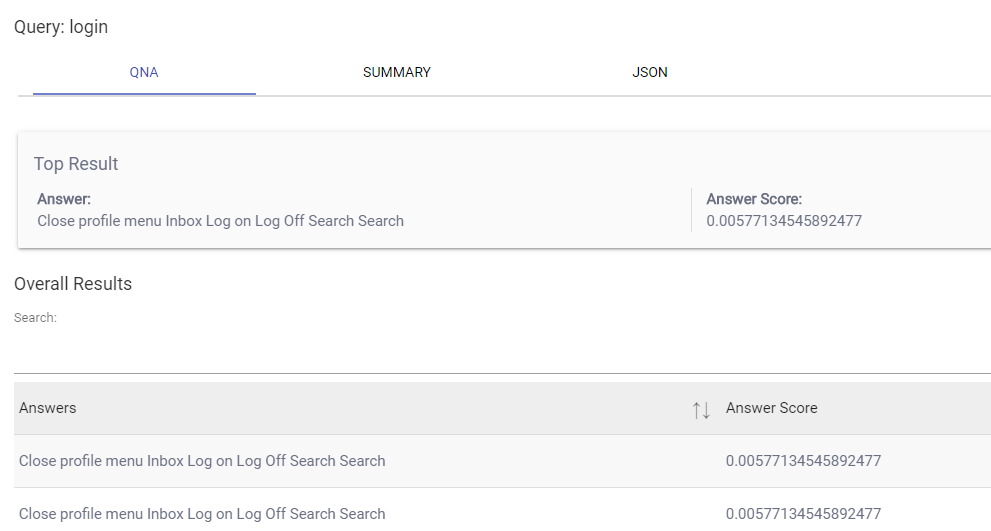
- By clicking on the Train button, users can train the queries called as
pre-trained queries.
Figure 18. Build Query (Cont.) 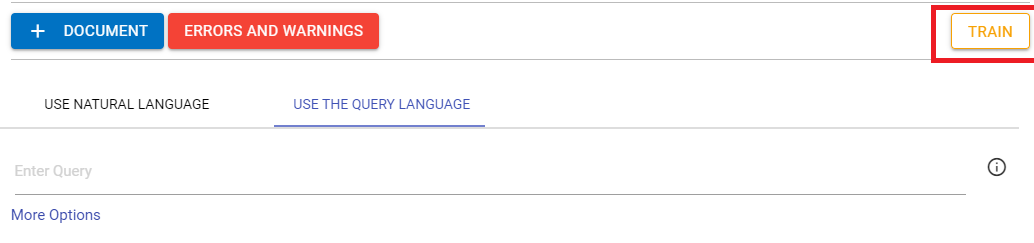
- A side navigation panel slides in allows the user to write the query.
Figure 19. Build Query (Cont.) 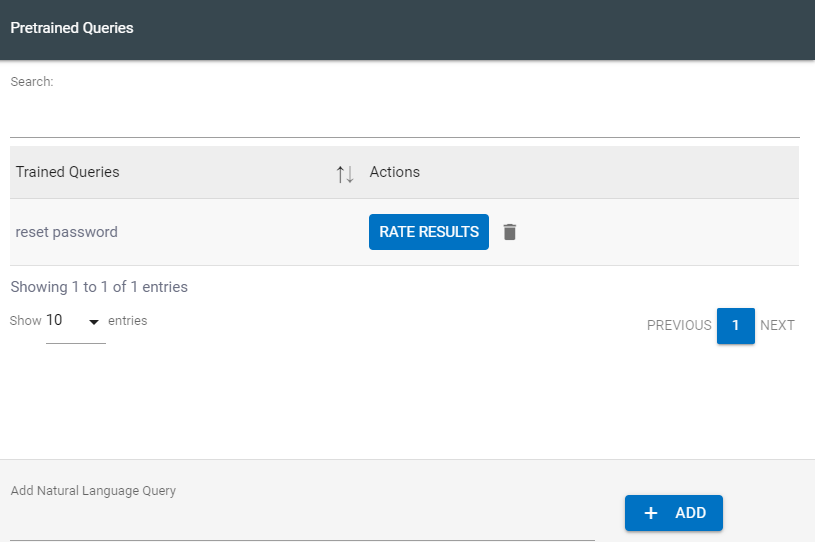
- Click on the ADD to add the query in the pertained list.
Figure 20. Build Query (Cont.) 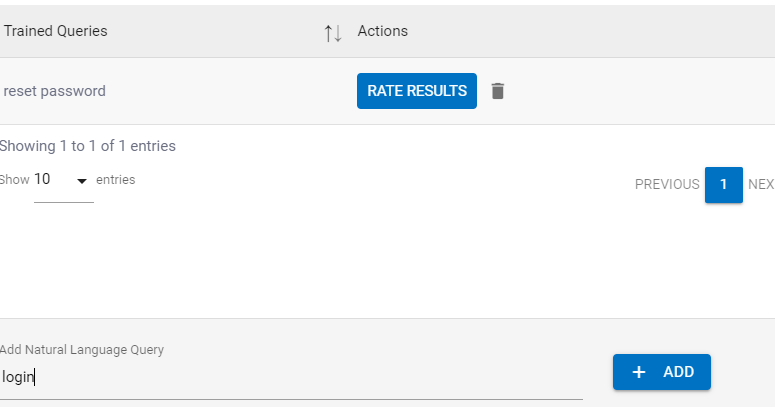
- Click on the Rate Results button to see the files that are associated with a particular query.
- Click on the delete icon to delete the query.