SOP Console Translator
Translation capabilities while creating SOP (standard operating procedure), which are called inside a use case, are integrated. Translation of SOP text can be requested directly from the SOP creation console itself.
- This section provides details of a new feature in the SOP Management Console which allows the users of this console to add translations to the contents of newly created or already existing SOPs.
- The section contains all the messages that should appear, all the steps that should be taken in the process, and all the validations that are required.
Note:
- This feature is only available to tenants that have enabled multilingual chat configuration.
- You can use this feature to get translations for normal text content or contents within HTML tags.
- This feature provides translations for the HTML fields and the Steps texts.
To initiate the translation in the SOP Management Console, the following steps are to be followed:
- Go to SOP Management Console from BigFix AEX Cognitive Console.
- Click on the Add SOP button to create a new SOP.
Figure 1. Add SOP Options in SOP Management Console 
- The following Screen appears:
Figure 2. Screen to add SOPs with Translate Button 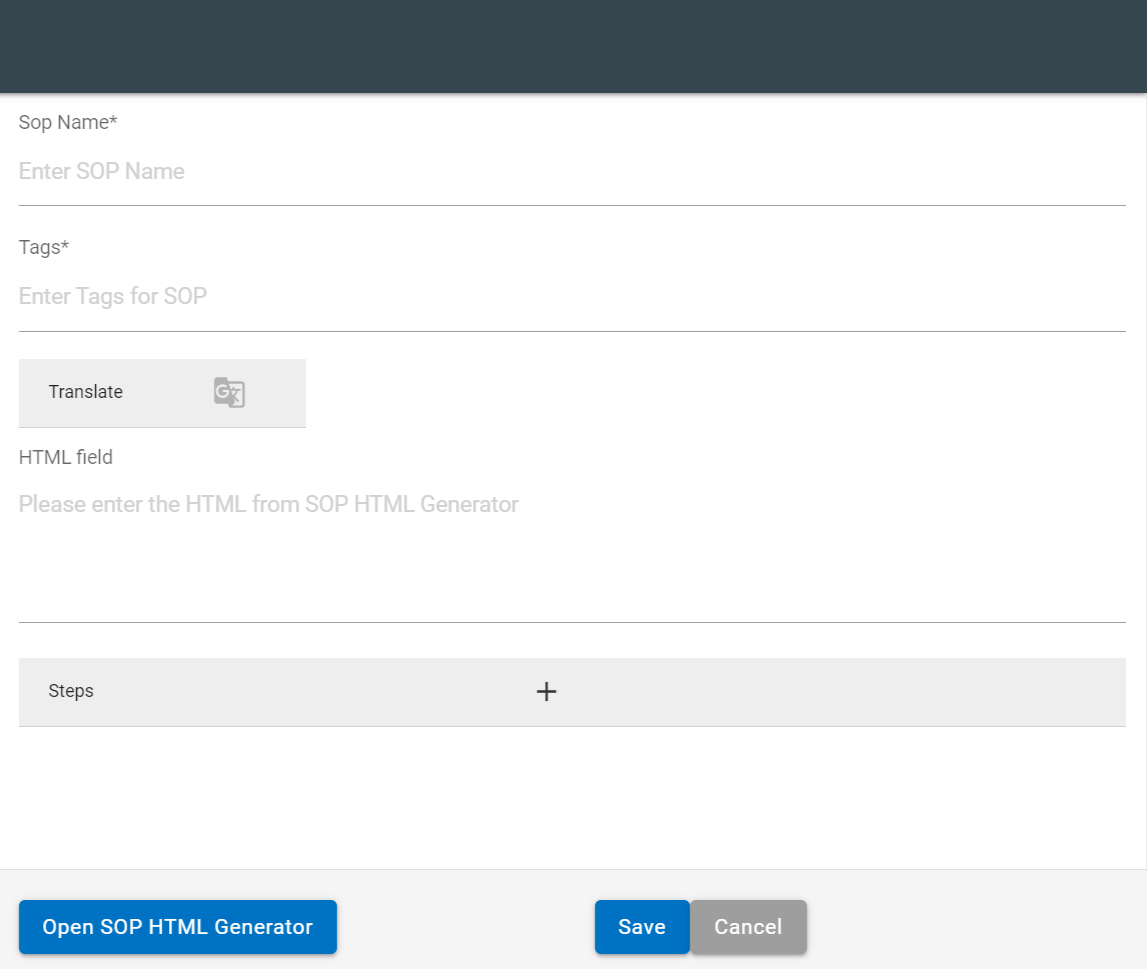
- The following fields are to be populated:
- SOP Name: Identifiable Name of the Stand
- Tags: Tags with which to identify the SOP with, e.g., outlook, offline etc.
- Translate Button: By default, the Translate button is disabled. The button gets enabled once either the HTML field or the Steps field is filled with relevant values.
- HTML field: HTML response for the SOP
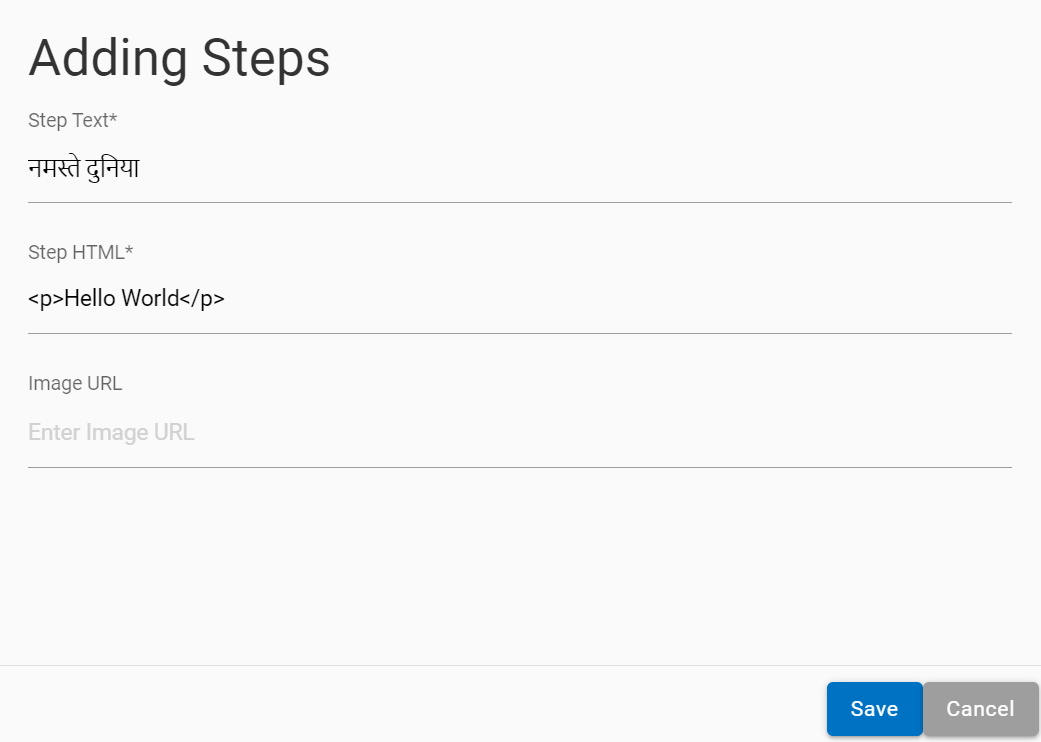
- Steps: SOP Steps to be added
Figure 3. Translation Button Enabled as HTML Field Is Added 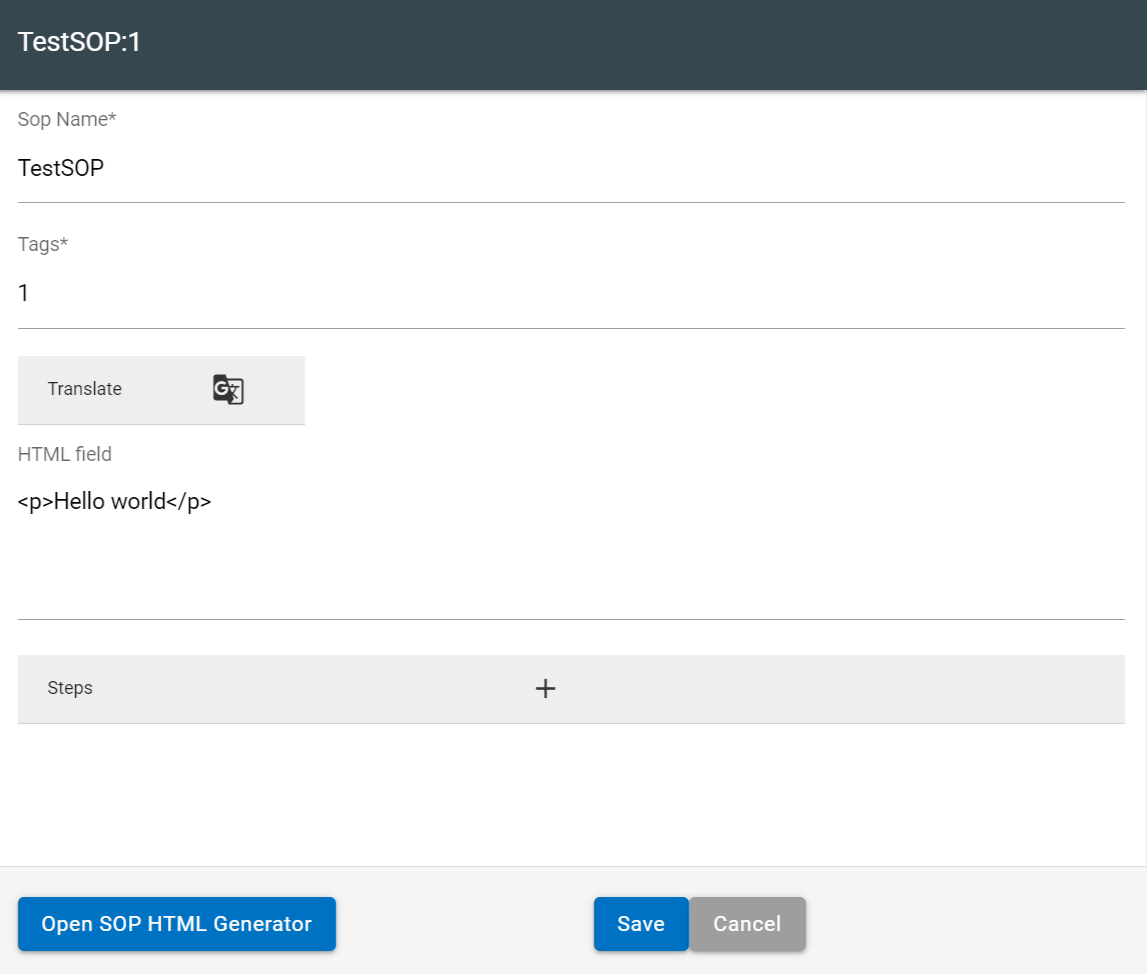
Figure 4. Translation Button Enabled as Steps Are Added 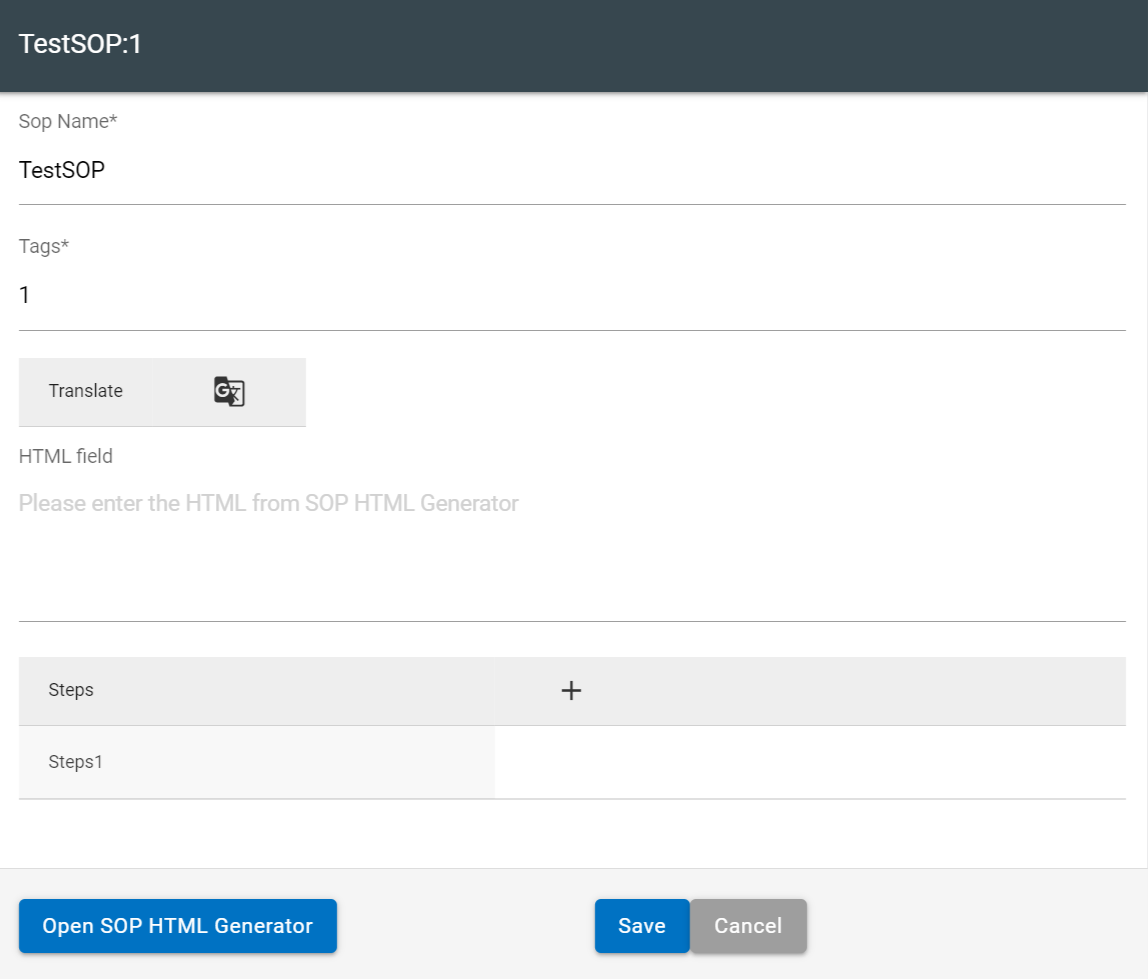
- Clicking the Translate button gives an alert message to verify the content/value of your
HTML field and steps, as the translation is a one-time process, and it cannot be changed
once translated.
Figure 5. Alert Message When Translation Is Initiated 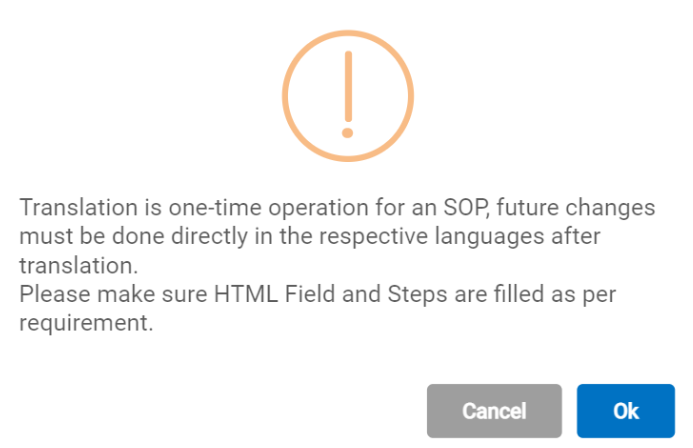
- Once you approve the alert message, the Translate button is replaced with a drop-down
where all the languages that the translation is available for are available. By default, the
English language is selected.
Figure 6. Select Language Drop-Down Enabled for Translation 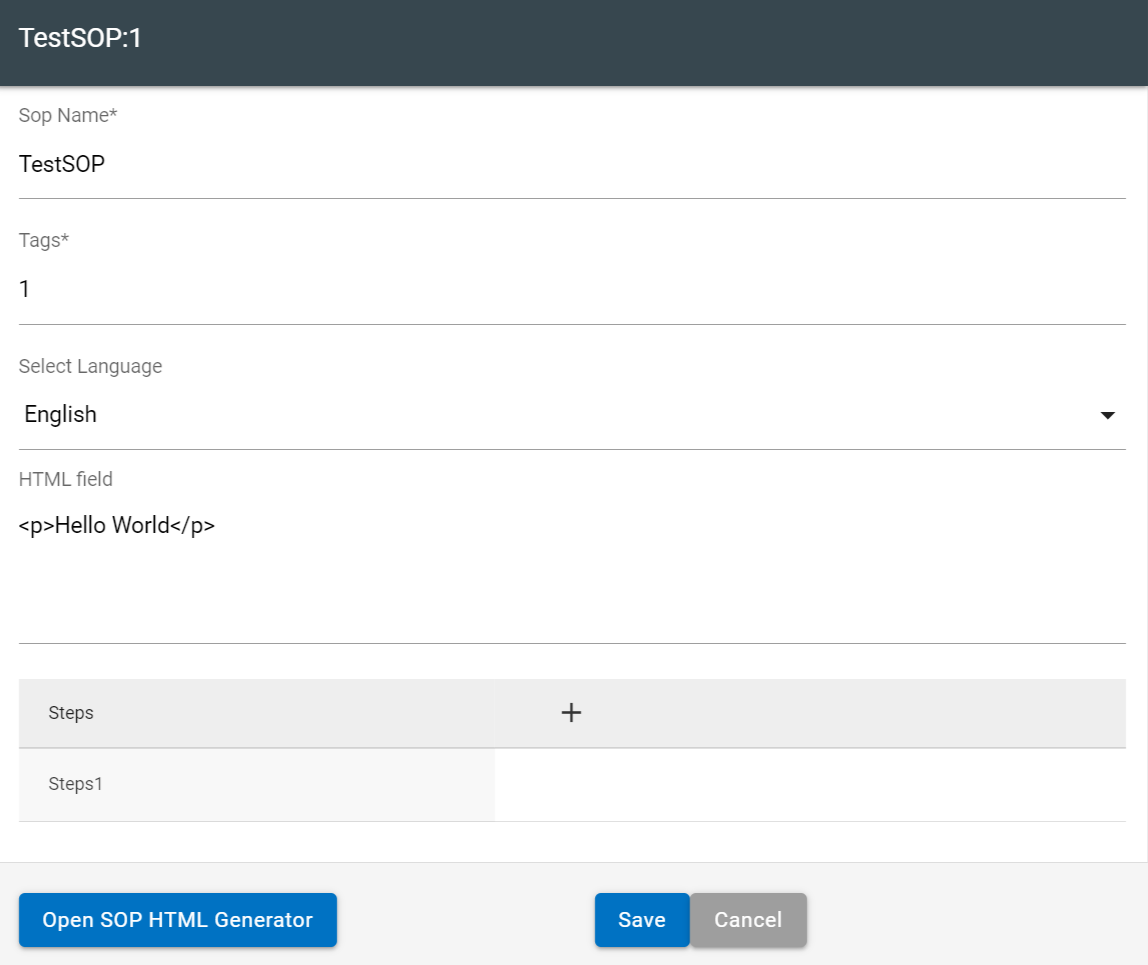
- Selecting another language from the Selected Language drop-down changes the
language of the content in the HTML Field.
Figure 7. The Content of the HTML Field Changes as Per the Language Selected 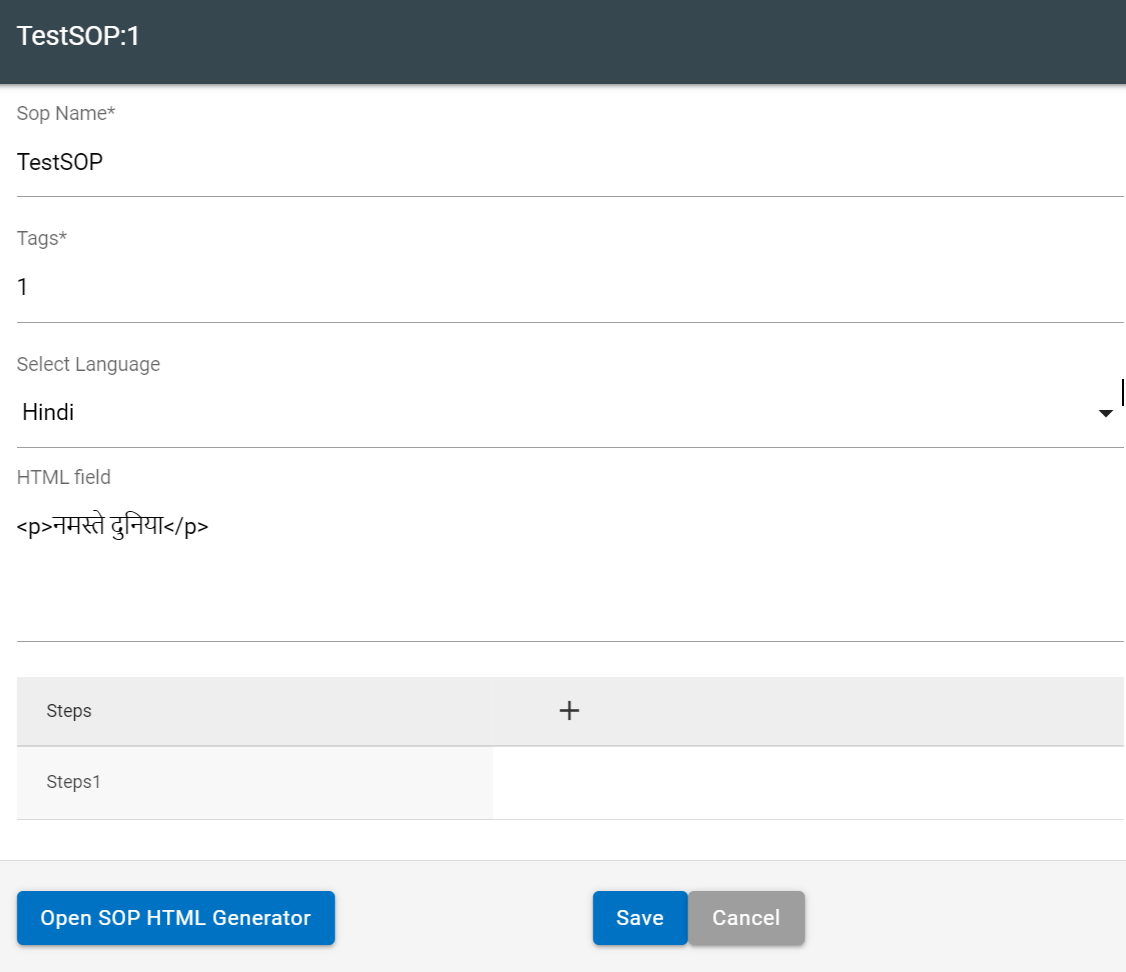
- In the case of a saved SOP, the language of the content in the Step Text field changes in the same manner as in the case of the HTML Field.