Problem Management
Process Overview
- Problem Management aims to manage the lifecycle of a problem and to minimise both the number and severity of incidents and potential risks to the Business/ Organisation.
- It is the responsibility of the Problem management process to ensure that incident
information is documented in such a way that it is readily available to support all
problem management activities.
Problem Management activities include:
- Problem Identification
- Problem Logging
- Problem Categorization and Prioritization
- Problem Investigation and Diagnosis
- Problem Resolution
- Problem Closure and Evaluation/ Review
Key Definitions
- IT Service: A service provided to one or more customers by an IT Service Provider. An IT Service is based on the use of Information Technology and supports the customer’s business processes. An IT Service is made up from a combination of people, processes and technology and should be defined in a Service Level Agreement (SLA).
- Incident: An Incident includes any event which disrupts, or which could disrupt a service. Incident can be raised as a reactive or proactive work item on an existing service request by a Consumer.
- Problem: A problem is the underlying cause that leads to an incident. A problem may be something that could lead to the same incident occurring again or lead to another incident entirely. It is essentially the root cause of an incident.
- Change: Any addition, deletion or modification in IT Infrastructure which can cause positive or negative impact to IT Services.
- PIT (Problem Investigation Team): Problem Investigation Team (PIT) aims to investigate and diagnose the root cause of a problem.
- Known Error: A Known Error is a problem that has a documented root cause and a workaround.
- KEDB: Known Error Database (KEDB) is a repository that holds information about problems for which the root cause is known but a permanent solution doesn't. Either the permanent solution does not exist or has not been implemented yet. KEDB must be maintained outside HCL BigFix Service Management.
- Workaround: A workaround is a temporary way to restore Service failures to a usable level.
- Task: Tasks are designed to perform specific level of work with a specific output.
- Impact: Impact is a measure of the effect of an Incident, Problem, or Change on business processes. Impact is often based on how service levels will be affected.
- Risk: It is an uncertain event that can either have a positive or negative impact on the business process.
- Configuration Item (CI): CIs are the components or service assets that needs to be managed to deliver an IT service. Information about each configuration item is recorded in a configuration record within the configuration management system and is maintained throughout its lifecycle by service assets and configuration management.
- Root Cause Analysis (RCA): An Activity that identifies the Root Cause of an Incident or Problem. RCA typically concentrates on IT service failures.
- Reactive Problem Management: Reactive Problem Management reacts to incidents that have already occurred and focuses effort on eliminating their root cause and reoccurrence. The focus of Problem Management is to increase long-term service stability and consequently, customer satisfaction. It deals with an existing problem, mostly in response to one or more Incidents, to find a solution as the permanent fix.
- Proactive Problem Management: Recognising a potential problem and finding a solution that prevents it occurring in the first place. Proactive Problem Management is a continuous process that doesn’t wait for an incident (or series of incidents) to happen to react; it’ is always active and on guard. Even though Reactive Problem Management relies heavily on other Service Management components, Proactive Problem Management relies even more.
Roles and Responsibilities
| HCL BigFix Service Management Roles | Permissions |
| Problem User | To be able to see Problem tickets of own Problem Management Groups. |
| Problem Manager | To be able to see Problem Tickets across Problem Management Groups of own/ associated companies (to which it provided support). |
| Problem Investigator | Read/ Write access to assigned problem work items in HCL BigFix Service Management. |
| Problem Submitter |
Identify potential problems and create Problem records in the Service Management tool. ▪ Relate the configuration item, incidents, related problem records (if existing already), change records and any Known Error Database (KEDB)/ Knowledge base (KB) articles in the problem ticket. ▪ Add all additional information about any temporary fixes or workarounds already used in service restoration for incidents. ▪ Append any system log files, screenshots or any other form of technical information that may help the investigation team understand the issue better and if required, re-create the scenario in lower environments for investigation purposes. ▪ Use discretion and ‘Pain Value’ principles while submitting the Problem records. ▪ Provide any further information during the course of Problem Investigation and resolution and remain available for additional support during the lifecycle of the Problem record, as required. |
| Process Owner |
Approves Problem Process and policies. ▪Understands the underlying principles, processes, enabling tools and technologies. ▪Reviewing and approving Problem management policy and Process. ▪Owns the Problem Management Module & KEDB. ▪Participates in Global/ regional Problem Management review meetings to prioritize the resolution of Problems. |
| Problem Investigation Team (PIT) |
Aggregate and correlate all available information to suggest a meaningful direction for the root cause investigation. ▪Perform root cause analysis and adequately document within the service management tool the root causes as well as the rationale used in determining the root causes. ▪ Review the temporary fixes and workarounds already used and validate them for future use. ▪ Evaluate and propose options for permanent solutions and advise on the viability and cost effectiveness of the various available options. ▪ Design in sufficient detail, the technical aspects of the solutions that are finalized for fixing the identified problems. ▪ Whenever required, raise Change requests for implementation of the proposed solutions. ▪ Participate in the Change Management Post Implementation Review for the changes requested for Problem Management activity, to ensure that the changes have been implemented correctly and completely. |
| Problem Manager |
▪ Receive and act timely on all Problem records by evaluating, analyzing and accepting or rejecting the newly requested Problem records. ▪ Constituting correctly skilled teams for investigating and resolving the Problems. ▪ Understanding the tasks that will be required from various teams and creating/adding such tasks against appropriate teams for all activities required to complete the work on Problem record. ▪ Follow criteria for prioritization of problems, in accordance with agreed priority Levels. ▪ Convene and lead the discussions required across teams in their Tower, in order to establish initial clarity on the course of investigation, solution definition, solution implementation and KEDB/KB updates required for each Problem record. ▪ Specify the time-task expectations from each engaged group/task owner and if required, follow up or escalate if the progress is not made as per the expected time/ quality. ▪ In a timely manner, actively engage other roles of Problem Management Process (Investigator, KEDB Administrator, Solution implementer etc.). ▪ Manage end-to-end problem lifecycle including detection, diagnosis, root cause analysis, known error recording, repair and recovery (if approved). ▪ Provide inputs and feedback to the Technical Management staff on the resource quality as well as sufficiency, policies and any other operational optimizations as may have been witnessed incidentally while working on Problem records with various teams. ▪ Escalate to Stakeholders if corrective actions are not being taken and foresee the Problem Team to improve services. |
Problem Status Transition
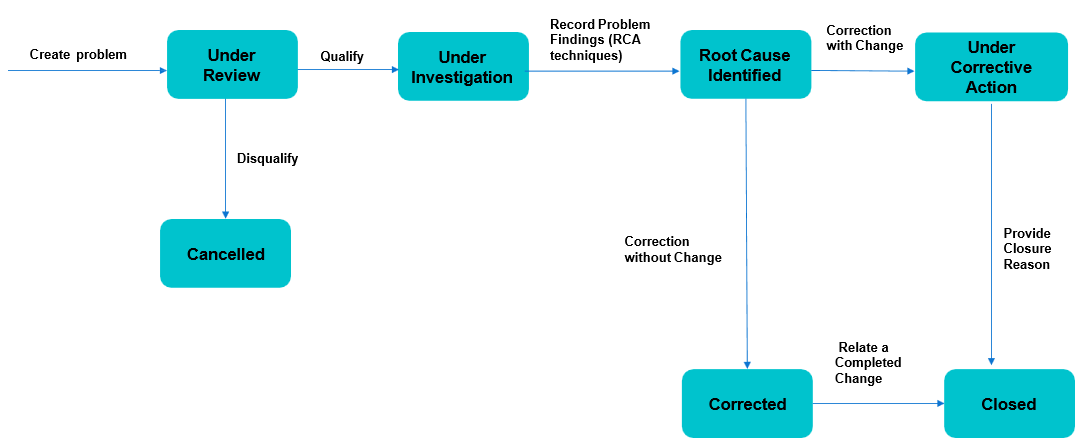
This status workflow illustrates the lifecycle of a Problem record in ITSM, beginning in Draft, moving to Under Review, and then either being Cancelled and Closed, or progressing to Under Investigation and Under RCA Review to perform root cause analysis. Once the root cause is identified, the Problem can move into Under Corrective Action where remediation is implemented, transition to Corrected when fixes are completed, and finally reach Closed once all actions are verified and no further work is required.
Product Walkthrough (Problem Work Item)
Logging into HCL BigFix Service Management
To login, the user should:
- Open internet browser (Edge, Chrome) and enter the URL: https://support.dryice.ai
- Provide login credentials to authenticate and login to HCL BigFix Service Management.
.png)
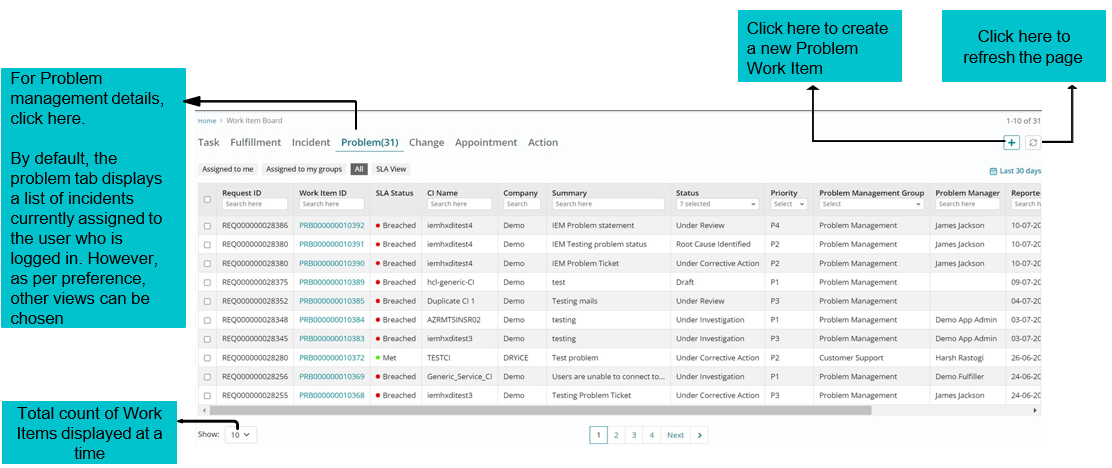
Landing page of Work Item Board
- From the Application Menu, click on the Work Item Board.
- Click here to refresh the page
- Click here to create a new Problem Work Item
- The User will be presented with the current Work Item Board.
Sorting of Problems on Landing Page
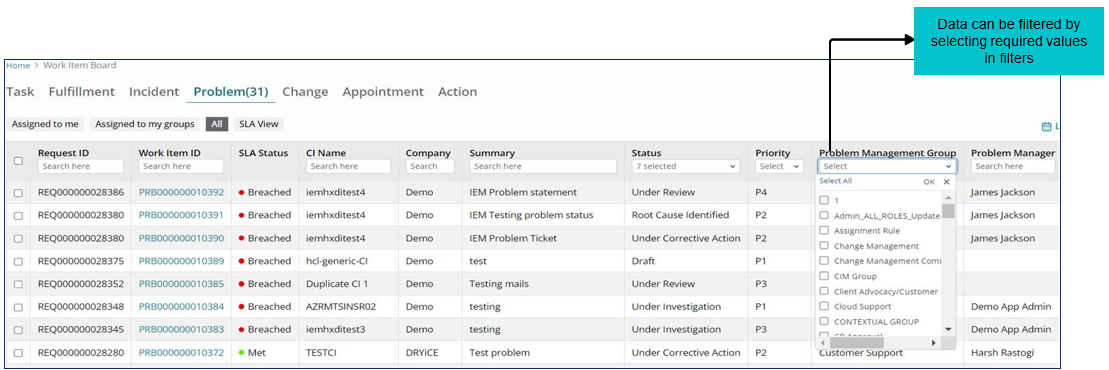
Support users can sort Problem Work Items based on various filters available on the landing page of work item board.
Creating a Problem Work Item
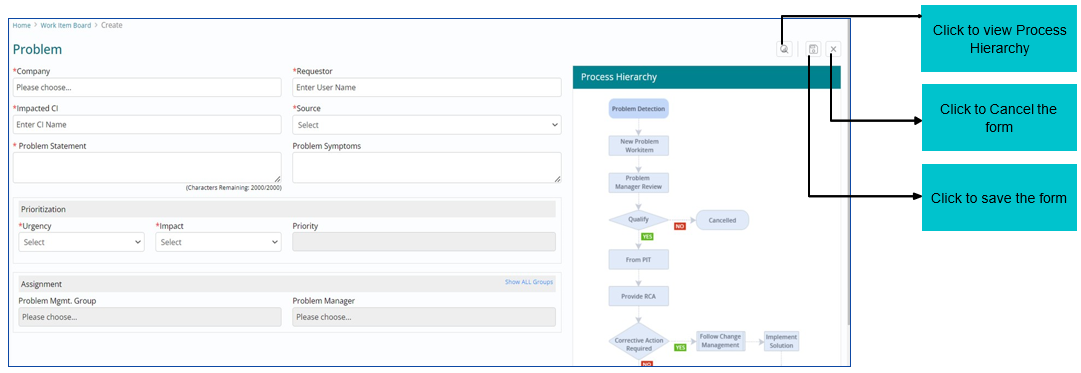
To create a Problem Work Item, all mandatory fields need to be filled in the below form.
Qualifying a Problem Work Item
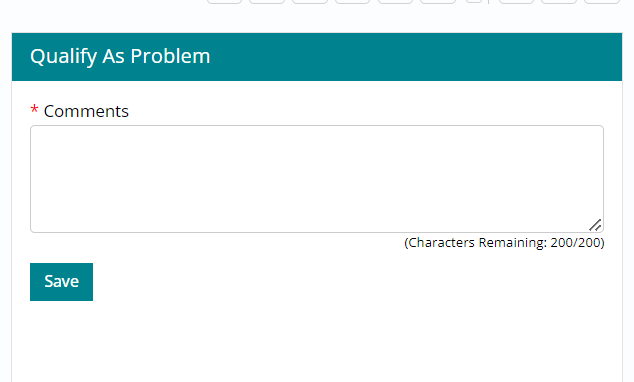
Work Item needs to be reviewed for correctness and consistency by the Problem manager who will have to Qualify as Problem to move ahead with the lifecycle.
Problem Ticket can be Qualified, Disqualified or Cancelled by Problem Manager.

Justification needs to be entered in the Comments box. Click ‘Save’. Problem ticket will move to Under Investigation
Forming a Problem Investigation Team (PIT)
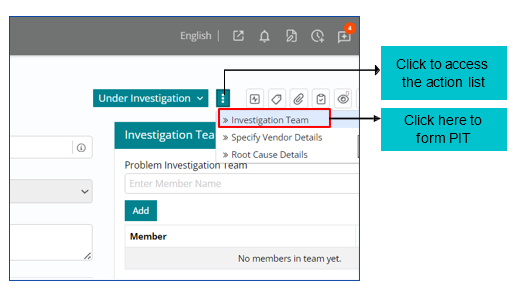
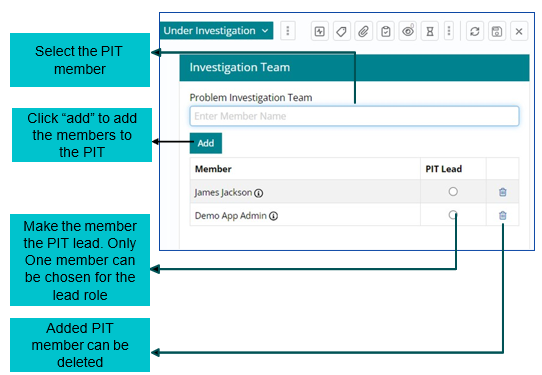
Once the problem is qualified, Problem Investigation Team (PIT) is formed to investigate and diagnose the root cause of the problem, identify a fix and implement it to restore services to normal as early as possible.
As soon as support user clicks on ‘Investigation Team’ a window will appear on the right where PIT members need to be chosen.
Updating Root Cause
A Root Cause Analysis (RCA) is performed by the support user to identify the key points of the problem and fix the problem.
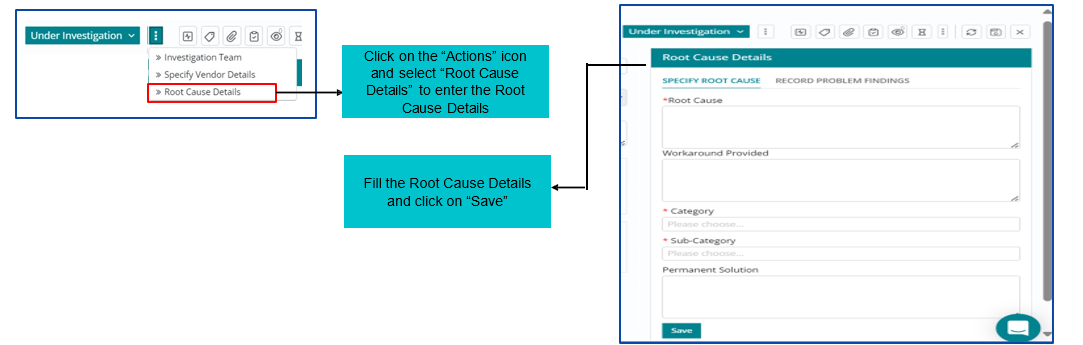
RCA once done needs to be updated in the tool by clicking on ‘Root Cause Details’ option.
After that user can fill in the Root Cause details in Root Cause Details section of the form and click on Save.
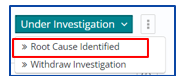
Post adding Root cause Details users can click on Root Cause Identified option to move forward with the Problem Management Workflow.
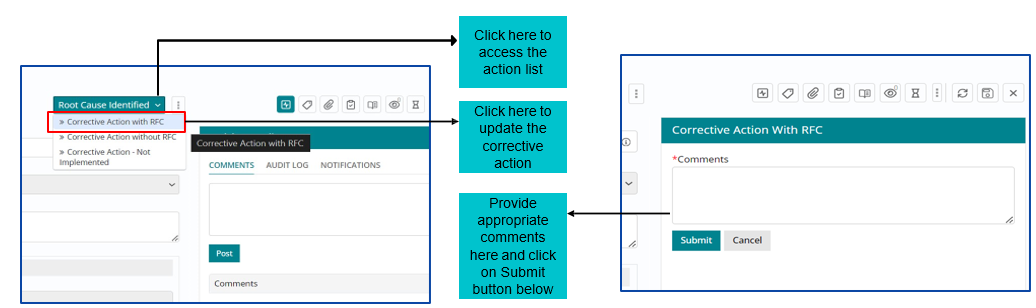
Corrective Action Required
Post adding Root cause Details, user can click on Root Cause Identified option to move forward with the Problem Management Workflow.
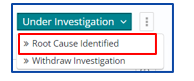
Once RCA is completed, Corrective Action needs to be implemented and captured in the tool. Problem fix can require Change/RFC to be implemented.
Proposing a Change from a Problem Work Item
A Change can be proposed to implement the corrective actions for fixing a Problem Work Item. This can be done via a feature available in the tool as shown below.
Once work item is under corrective action then problem manager should Propose a Change.
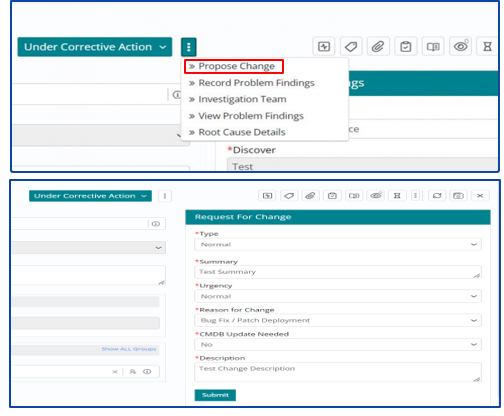
Once the mandatory fields are filled and support user clicks on
Submit, an RFC number will be generated with a message –
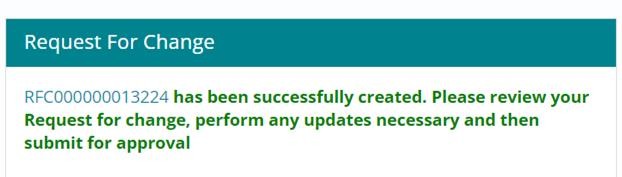
As soon as RFC (Request for Change) is created, it will be routed to the Change Management team and will be catered through the Change Management Process based on its priority.
Once Change is Implemented and Completed successfully as per the process, the lifecycle of Problem Work Item will move to ‘Corrected’.
Creating and Assigning Tasks to other support groups
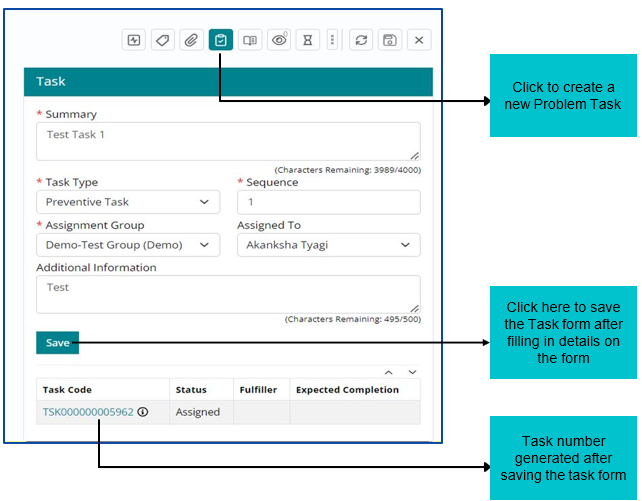
Support User can create and assign tasks for multiple support groups if needed to work on same Problem Work Item.
Tasks can be created and assigned based on following attributes:
- Summary
- Sequence
- Task Type
- Assignment Group – This tab will include all the available groups
- Assignment to – Individual to whom Work Item will be assigned
- Additional Information for tasks being created
Implementing an assigned Problem Task
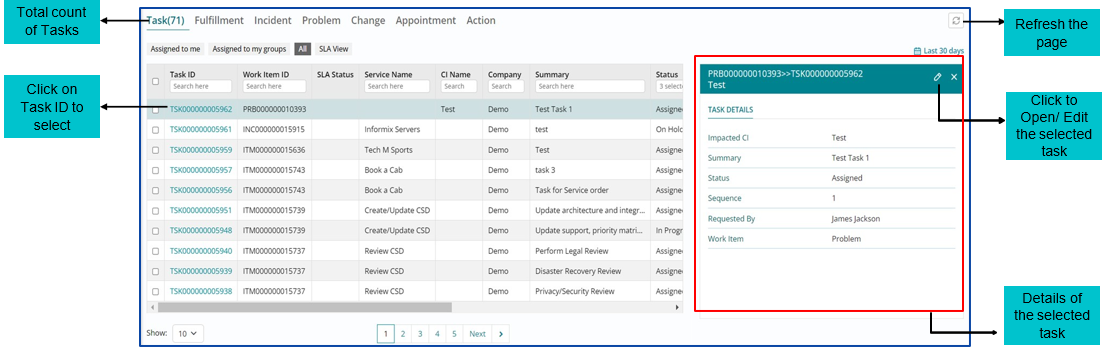
Support user will select the Task option on WIB and then he will be presented with the Task Module homepage.
The Support User can view all the Tasks assigned to them on the Task List View page.
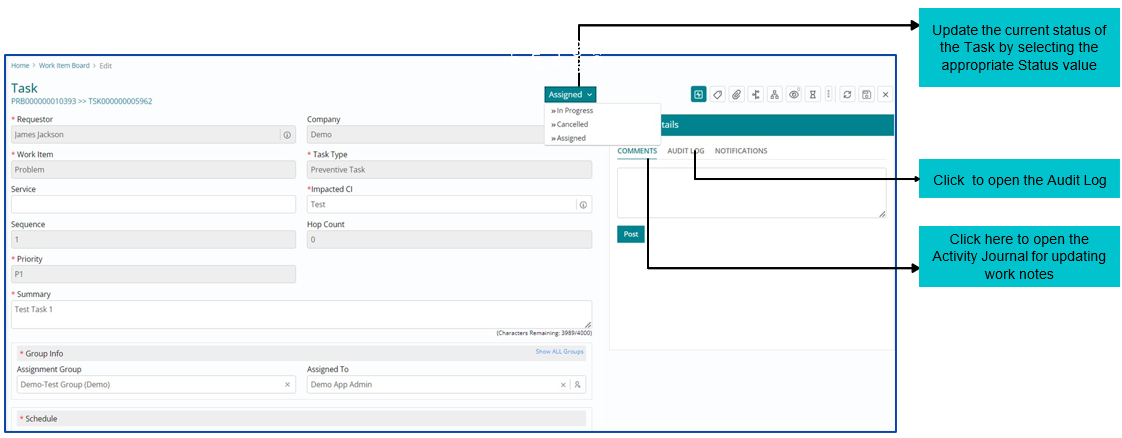
After implementing the Task, the Support User must update the Task status to ‘Completed’.
Corrective Action Without Change
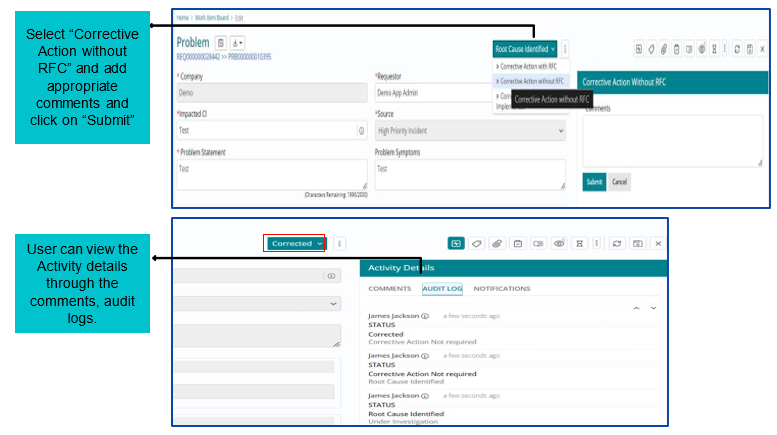
If Corrective Action- without Change is required, then Problem work item will be Corrected. Problem fix does not require any Change/ RFC.
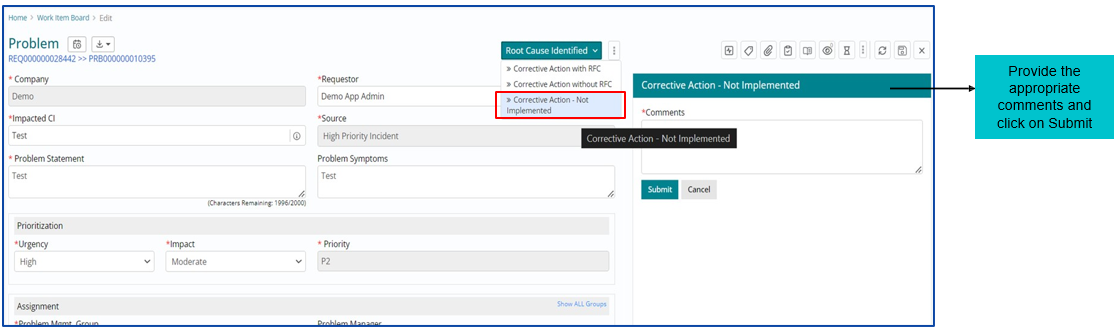
Corrective Action- Not Implemented
If Corrective Action – Not Implemented is required, then Problem work item will be Closed. Problem fix does not require any Change/ RFC.
Disqualifying a Problem
Click on the “Action” button to link the appropriate Incident
Problem ticket can also be disqualified and in that case, user needs to attach an incident with the problem to proceed. The user gets a pop up on the screen requesting to link an appropriate incident to the problem to continue.
Under the “More” option, select “Related Work Items” option to attach the incident
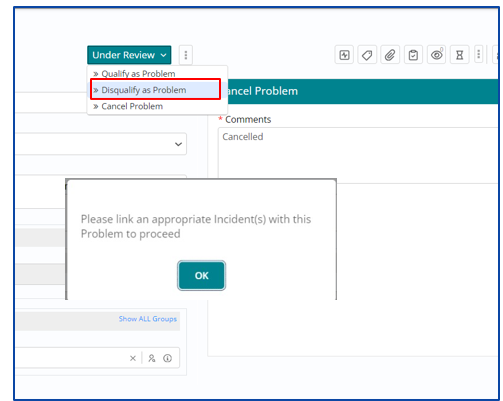
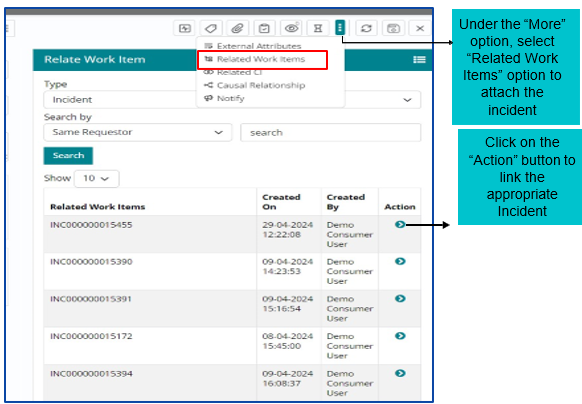
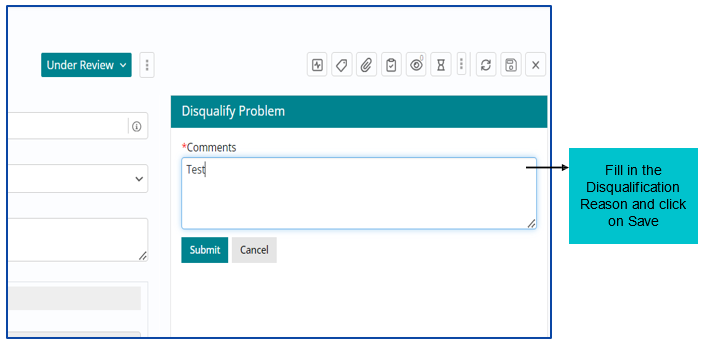
After attaching a related Incident, user must click on Disqualify Problem and then fill in the reason to disqualify post which the problem work item is automatically Closed.
Cancelling a Problem Work Item
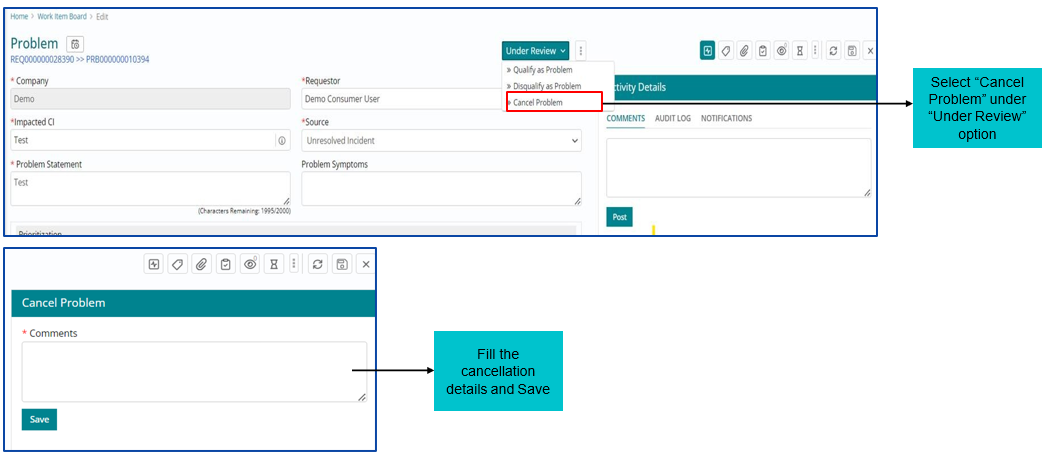
A Problem Work Item can be cancelled, in ‘Under Review’ Stage by selecting the option ‘Cancel Problem”.
After providing the reason and saving the form, the problem Work Item is set to Cancelled status.
Updating the Problem Findings
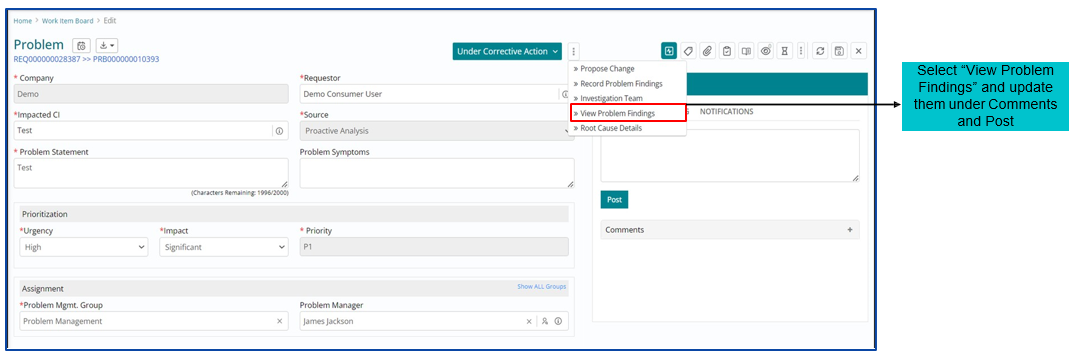
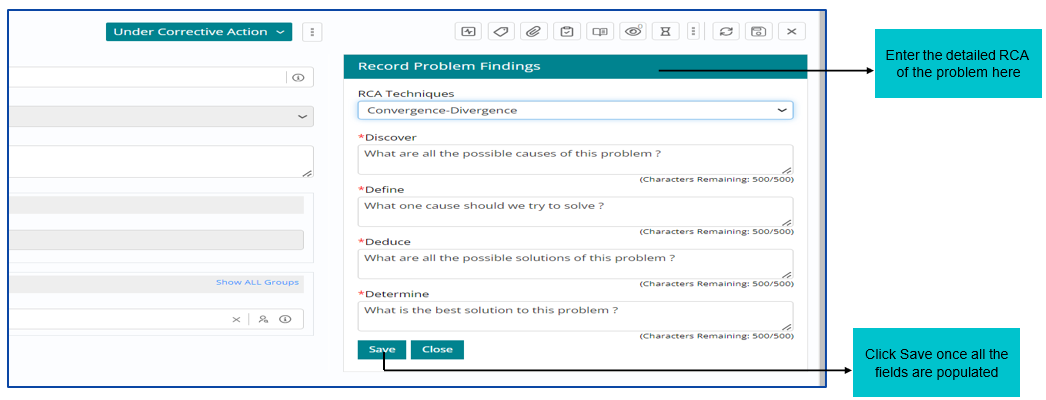
Once investigation is completed, support user needs to update the findings under ‘Record Problem Findings’ option.
Fill the required details based on RCA Technique selected and click on Save.
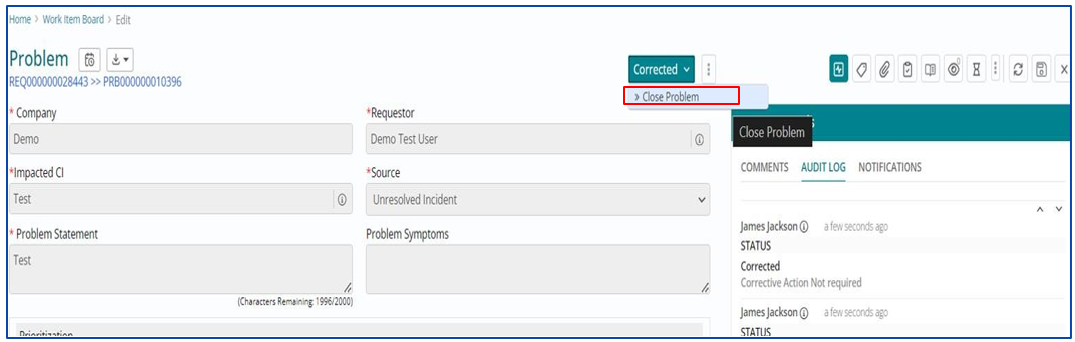
Closing a Problem Work Item
Work Item can be Closed once it is Corrected.
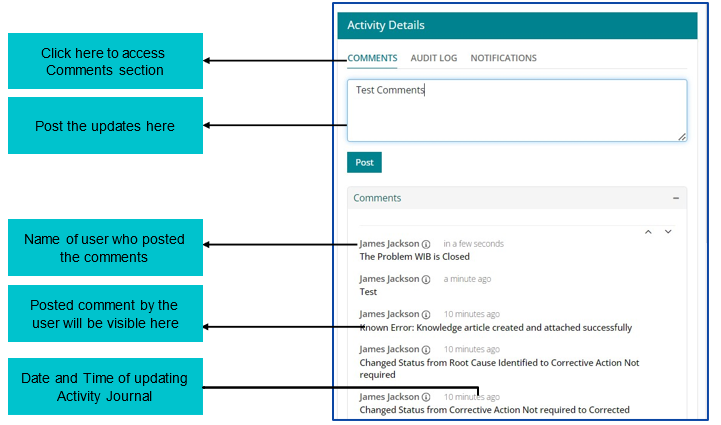
Updating Activity Journal
Support User can update ‘Activity Journal’ for Problem Work Item from the Comments tab under Activity Details section available on the left of the page.
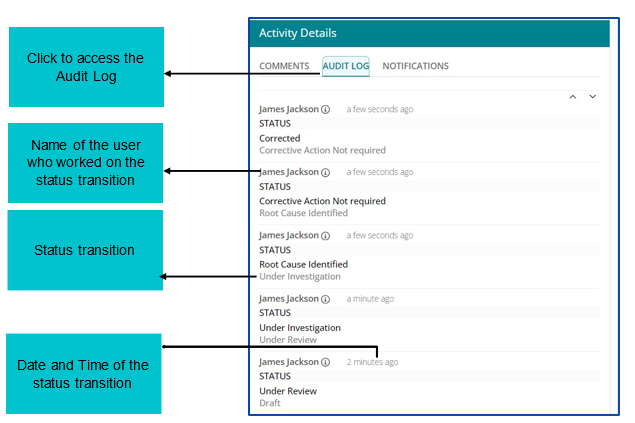
Audit Log
Audit Log captures the status changes throughout the lifecycle of a Problem Work Item.
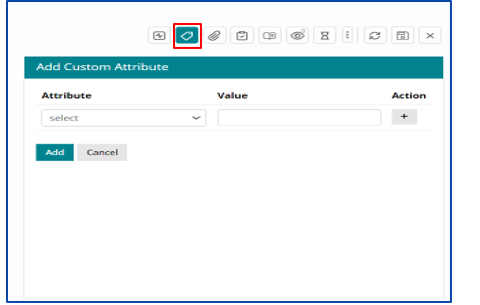
Custom Attributes
Users can add various Custom Attributes in the form of key-value combination on the Problem Work Item to add any details which the Problem Work Item form does not contain.
Users can do so by clicking on Tags icon on the right.
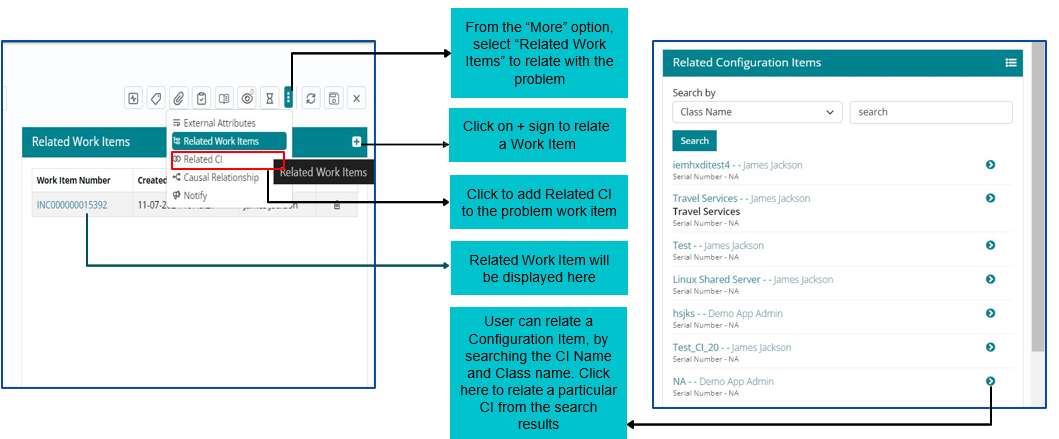
Relating other Work Items or CI with Problem Work Item
Support User can relate other Work Items with existing Problem Work Item anytime if required based on following attributes:
Type – Problem, Incident, Fulfilment and Change
Search by – Item ID, Same Requester and Same Impacted CI
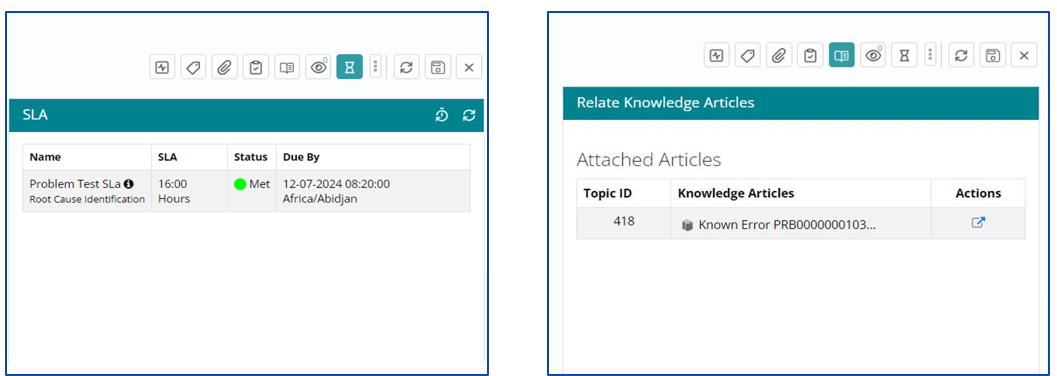
View SLA Details and Related Knowledge Topics
Users can view the SLA details by clicking on SLA icon available on the right side of the page. Users can also view the attached Knowledge Topics by clicking on Relate Knowledge Articles icon.
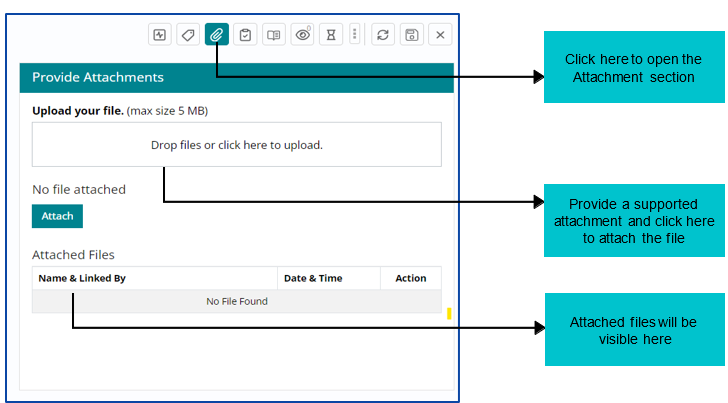
Uploading Attachments
A support user can Provide Attachments supporting the Work Item throughout the Lifecycle of the Problem via the ‘Attachments’ functionality available at each stage.
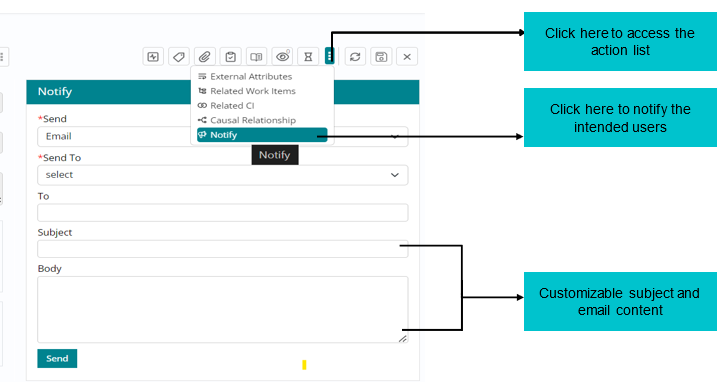
Notifying intended audience about the Work Item
Support User can Notify the intended audience by sending emails to the respective recipients through the Notify feature.
Emails can be sent to a ‘Requester’ or ‘Assigned Group. Support users also have a provision to mention the email ID of any intended individual/ group by selecting the ‘Specify Group’ or ‘Specify Individual’ option under ‘Send To’ field.