Multi Supplier Governance
Multi Supplier Governance components
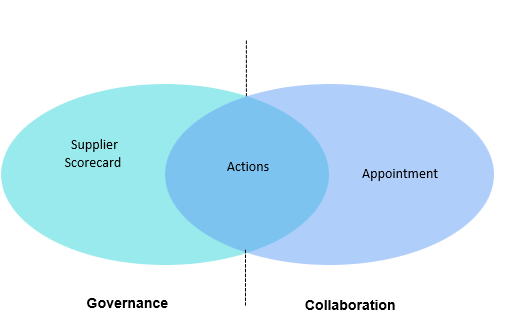
- Supplier Scorecard
- Appointment
- Forums
- Committees
- Meetings
- Actions
- Supplier Performance Dashboard
- Contracts*
Forum and Committee
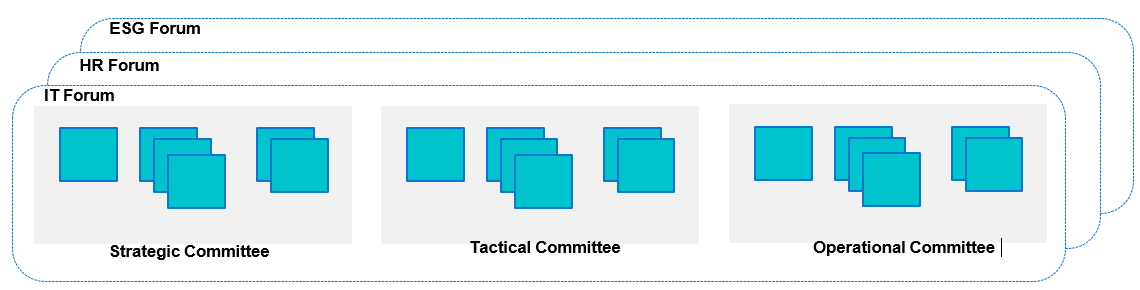
- Committee – Committees can be of strategic, tactical or operational in nature depending on Governance levels that an organization wants to achieve.
- Committees establish collaboration mechanisms for their own targets, vendors/suppliers and action tracking.
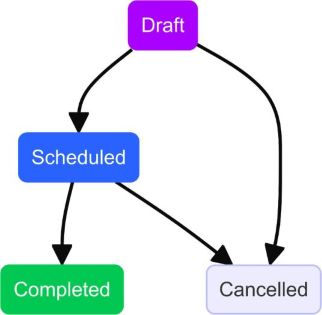
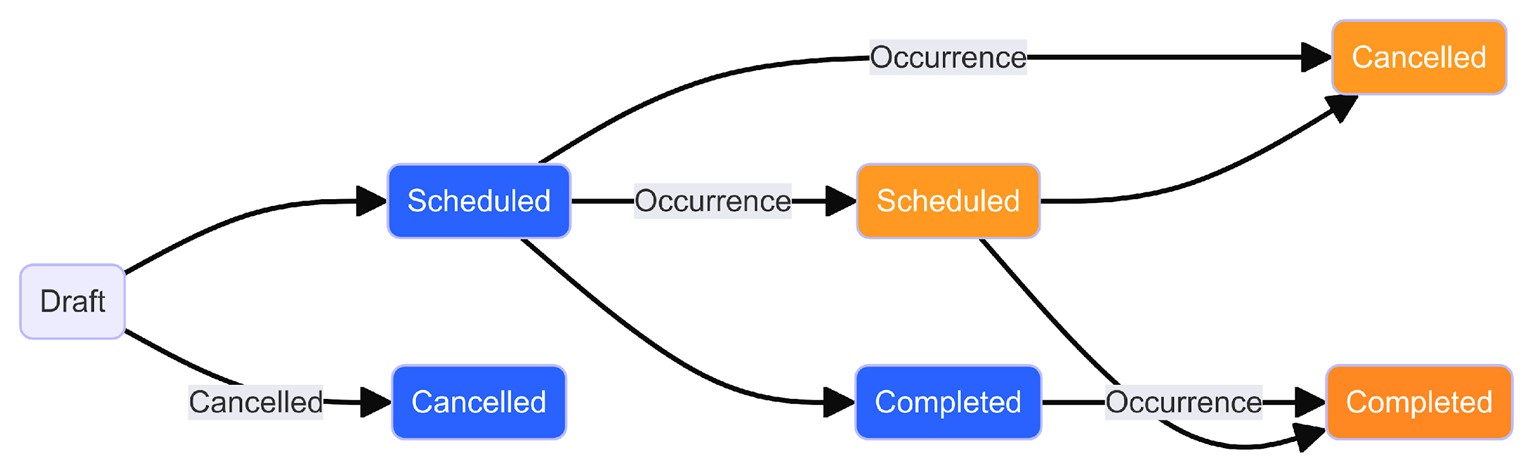
Status Transitions
| Meeting | Meeting Occurrence |
| Draft | NA |
| Scheduled | Scheduled |
| Cancelled | Cancelled |
| Completed | Completed (all) |
User Personas / Roles
- SIAM lead – Has access to supplier scorecard
- Meeting manager – has access to create/update meetings
- Meeting user – has access to view update meetings
Supplier Scorecard
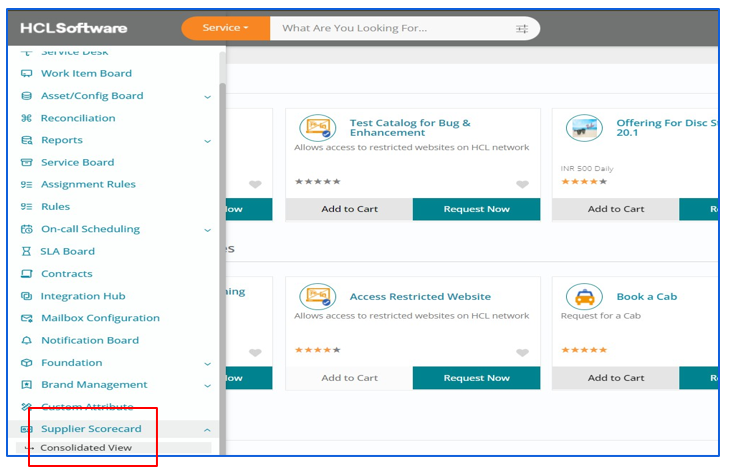
Navigate to Supplier Scorecard -> Consolidated View
Multi Supplier Governance Score Card
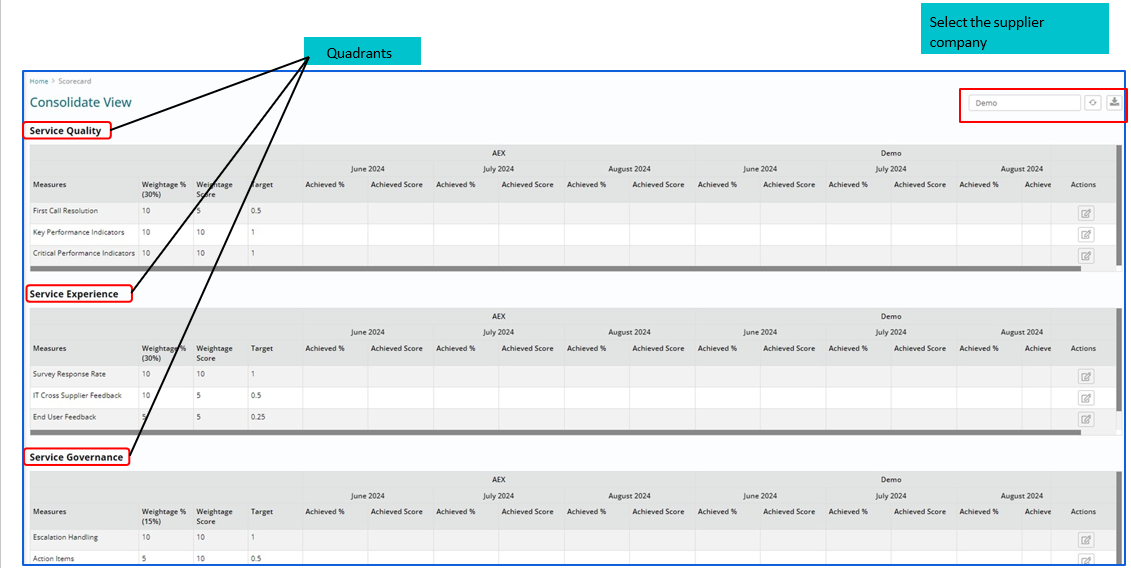
Supplier Scorecard - Manage Supplier Metrics
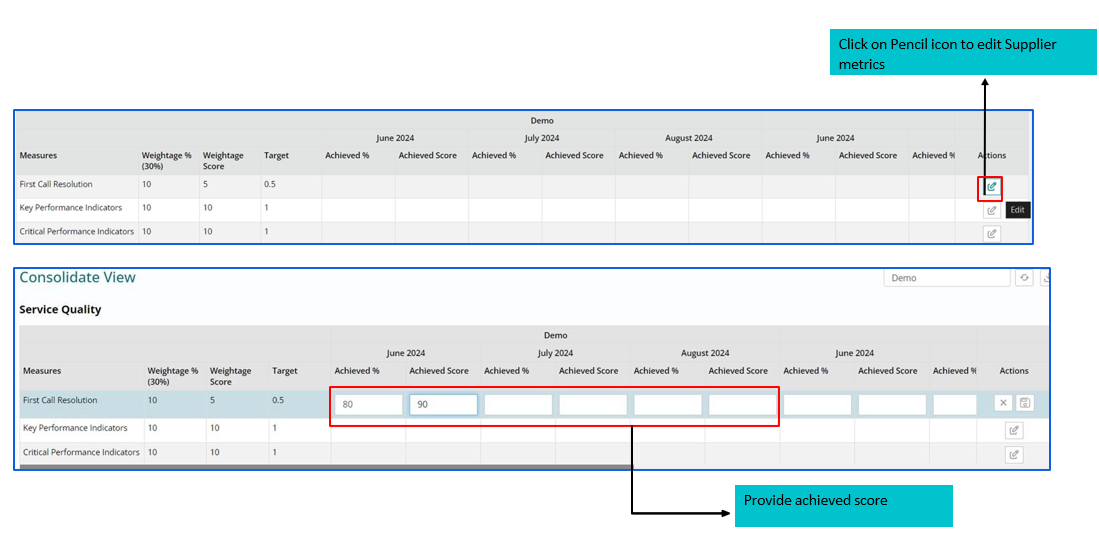
Supplier Scorecard (Supplier Governance)
| First call resolution | Service Quality (Quadrant 1): |
| Key performance indicators | |
| Critical performance indicators | |
| Survey Response Rate | Service Experience (Quadrant 2): |
| IT cross Supplier feedback | |
| End User Feedback | |
| Business Feedback | |
| Escalation Handling | Service Governance (Quadrant 3): |
| Action Items |
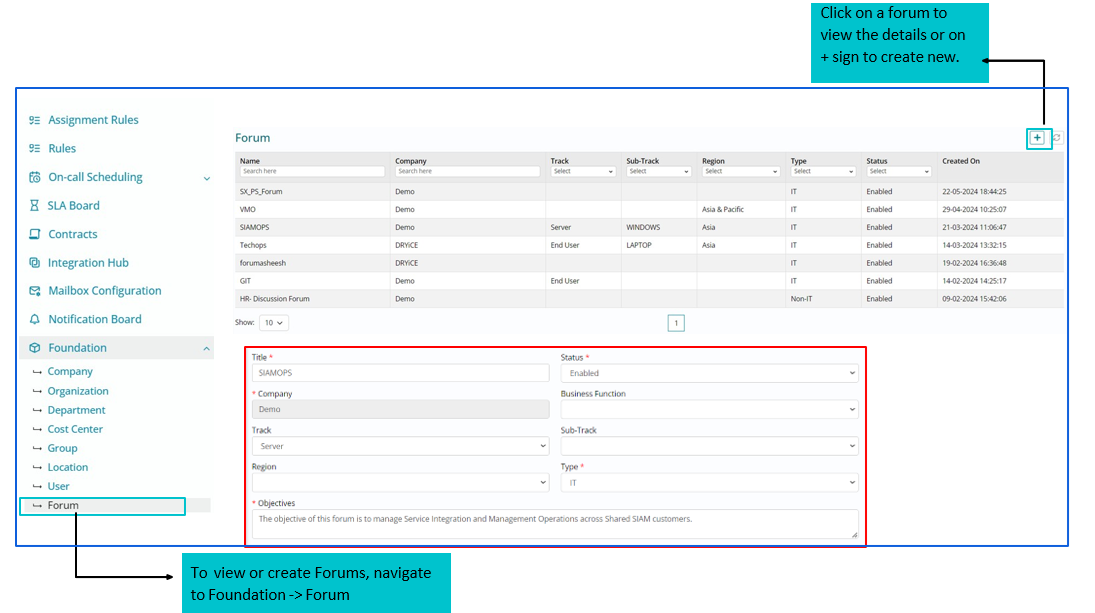
Creating a Forum
Provide the required details and click on Save.
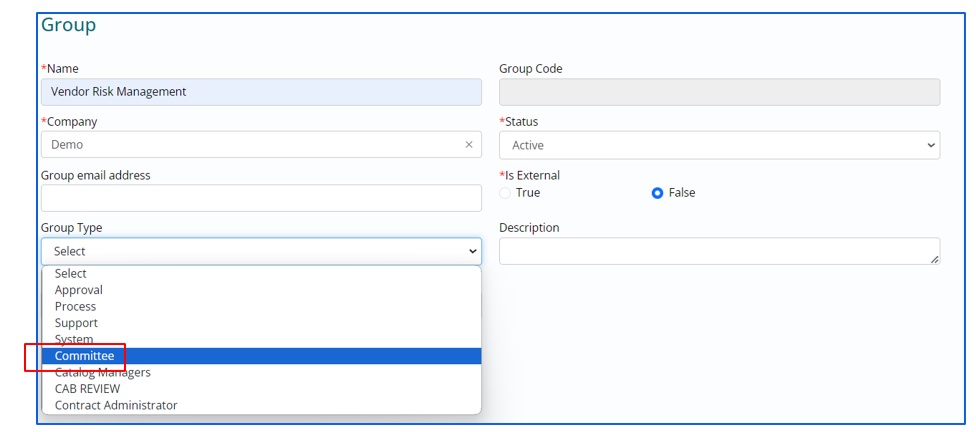
Creating a Committee
To view or create Committee, navigate to Foundation -> Committee. Click on + button to create a new committee and select the group type as Committee. Once the required details are provided click on save button.
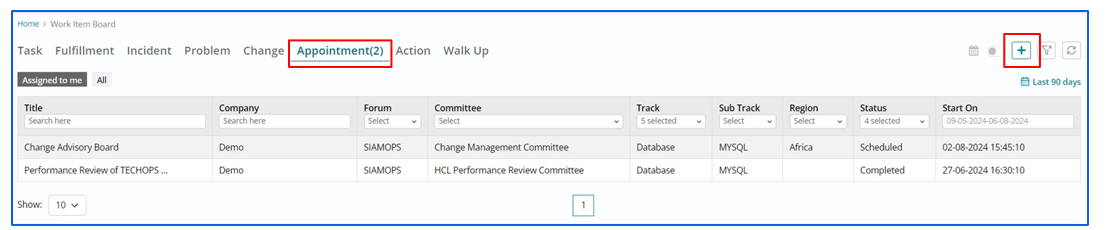
Navigating to Appointment
To view or create Meeting, navigate to Work Item Type -> Appointment. Click on + button to create a new meeting definition.
Creating an Appointment / Meeting
Provide the required details such as Title, Company, Forum, Committee, Chairperson and Coordinators.

Details needed to Create Appointment / Meeting
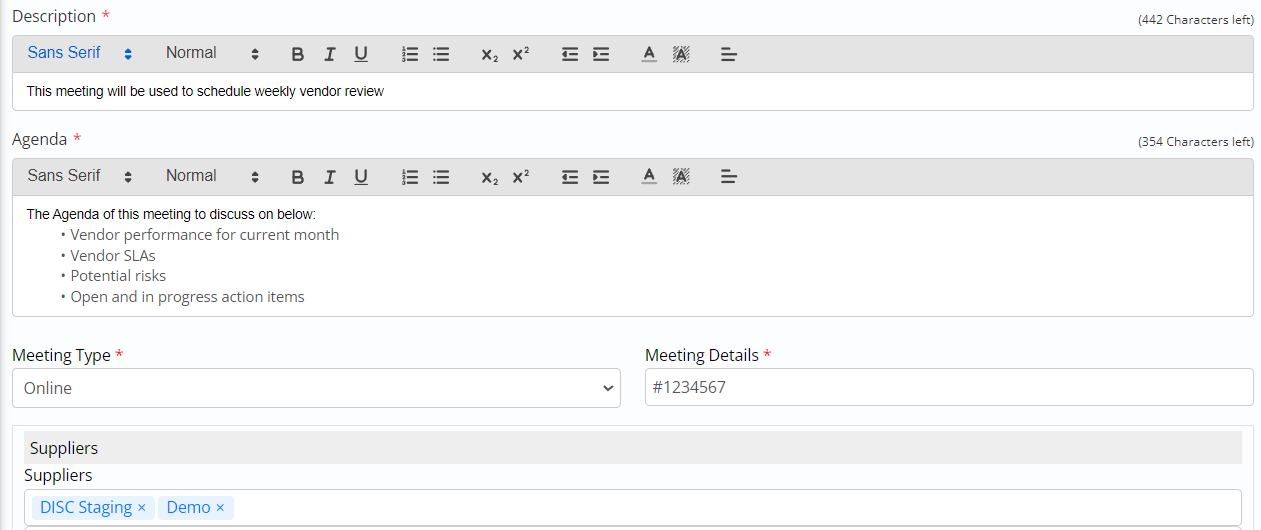
Provide the required details such as Description, Agenda, Meeting Type and Suppliers.
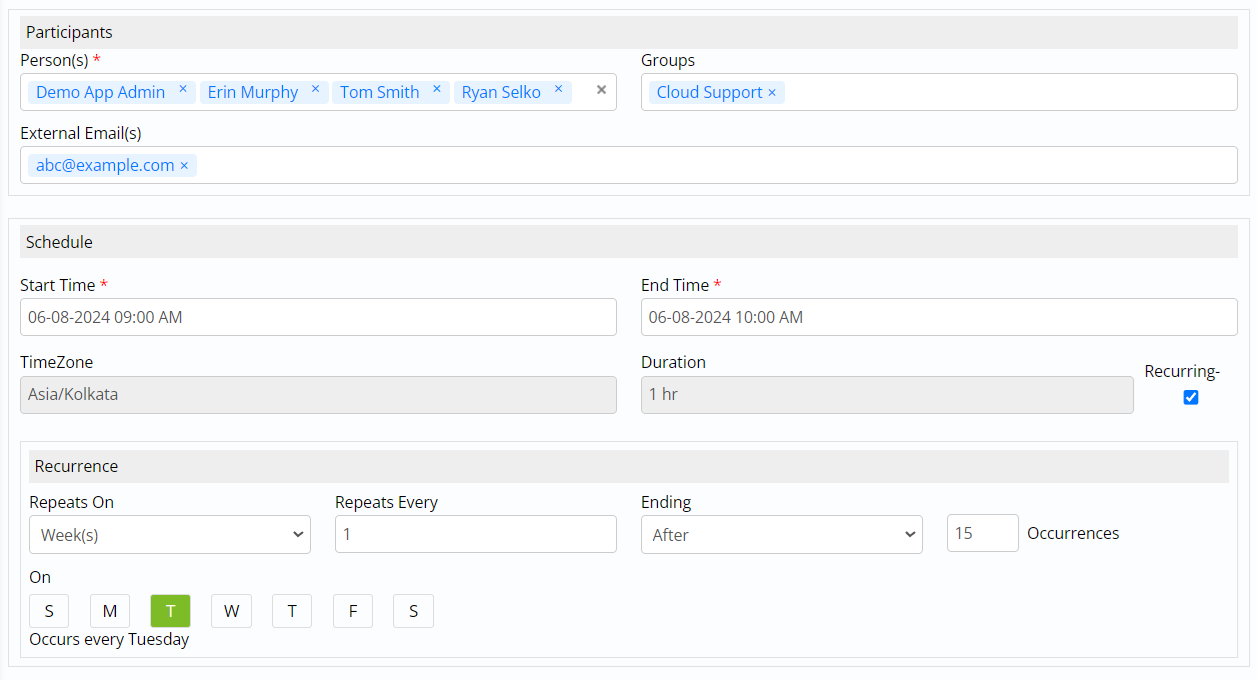
Details to adding Participants/ Groups
Select the participants. Both users and groups can be selected. Participants can also be added using external email ids. Select the schedule and click on recurring checkbox for recurring meetings and add meeting recurrence details.
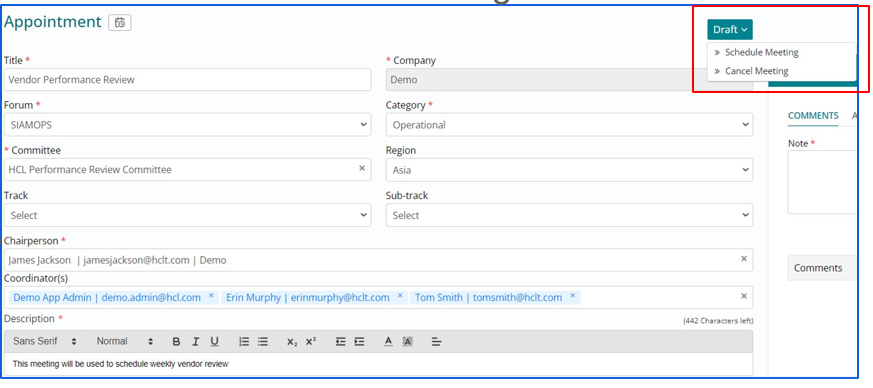
Trigger Meeting Occurrences
Meeting definition is created in Draft status. Change the status to schedule meeting to trigger meeting occurrence(s).
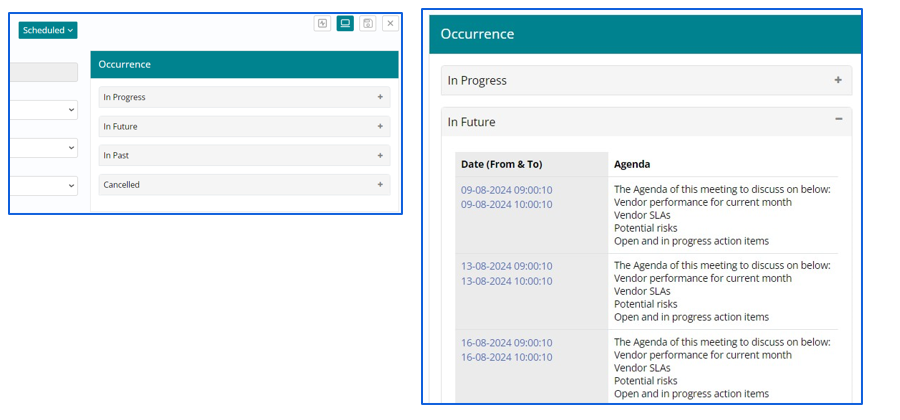
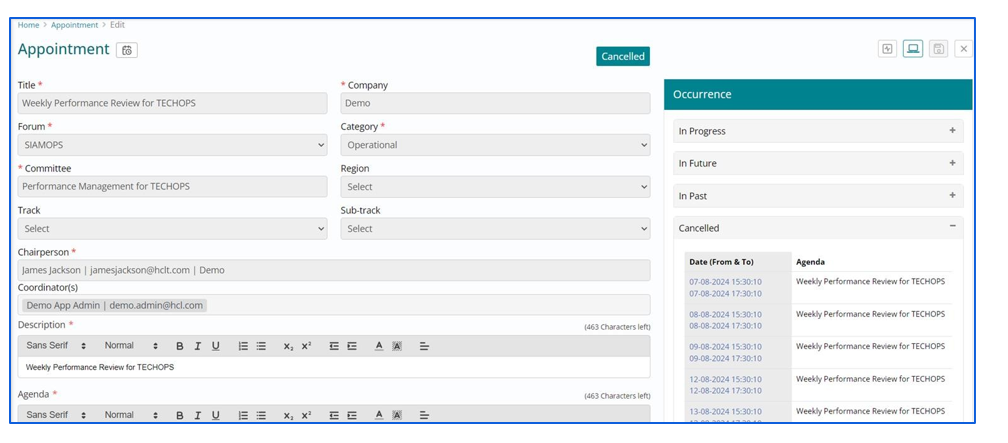
Once the meeting status is Scheduled, occurrence tab is visible on the side panel. Occurrence is listed as “In Progress”, “In Future”, “Past” and “Cancelled”. Clicking on any of the occurrence links will open occurrence pages.
Cancelling an Appointment / Meeting
For cancelling the meeting, status is to be changed to cancel meeting. Provide
cancellation reason. 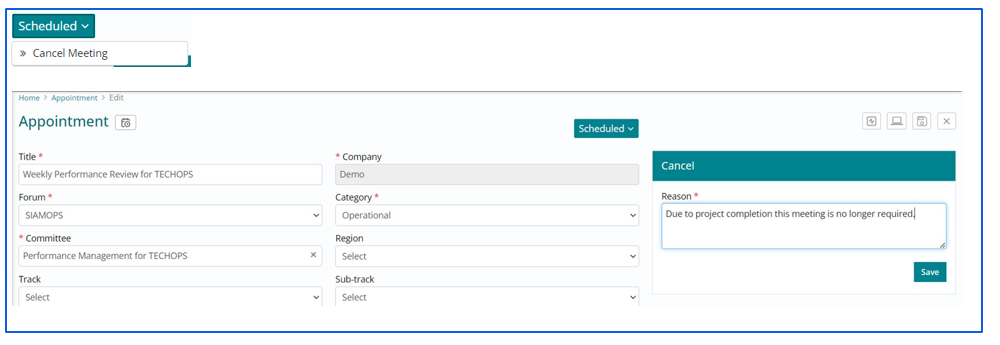
Cancelling Meeting Occurrences
Once meeting is cancelled, all future occurrences will be cancelled.
Acting on Occurrences
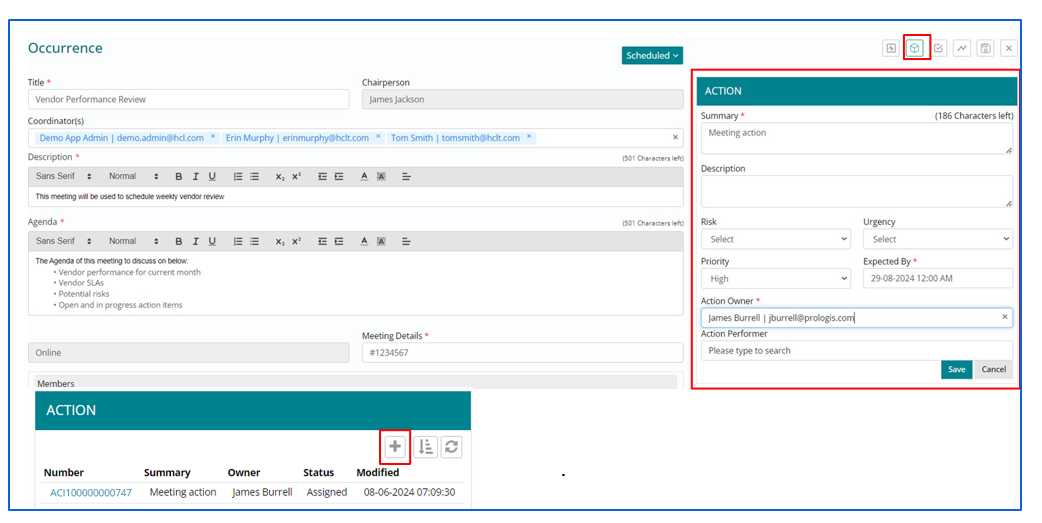
Click on Action button in the side panel and provide the details. Click on + button to add more actions.
Recording Meeting Minutes
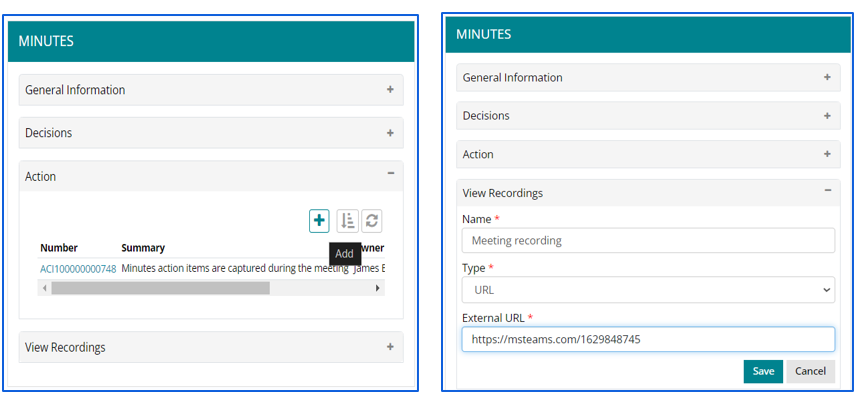
Click on Minutes button on the side panel. Add meeting minutes in the General information. Click on + button in decisions to add decisions.
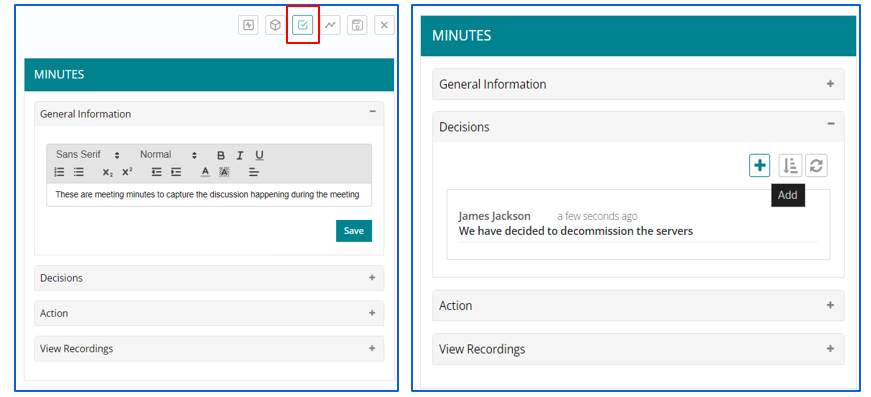
Click on + button in Actions section to add actions. Click on View Recording section to add URL for meeting recording.
Tracking Meeting Occurrences
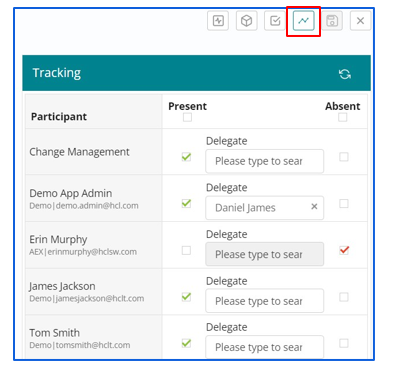
Click on Tracking button on the side panel to mark attendance. Delegates can also be selected in lieu of attendees.
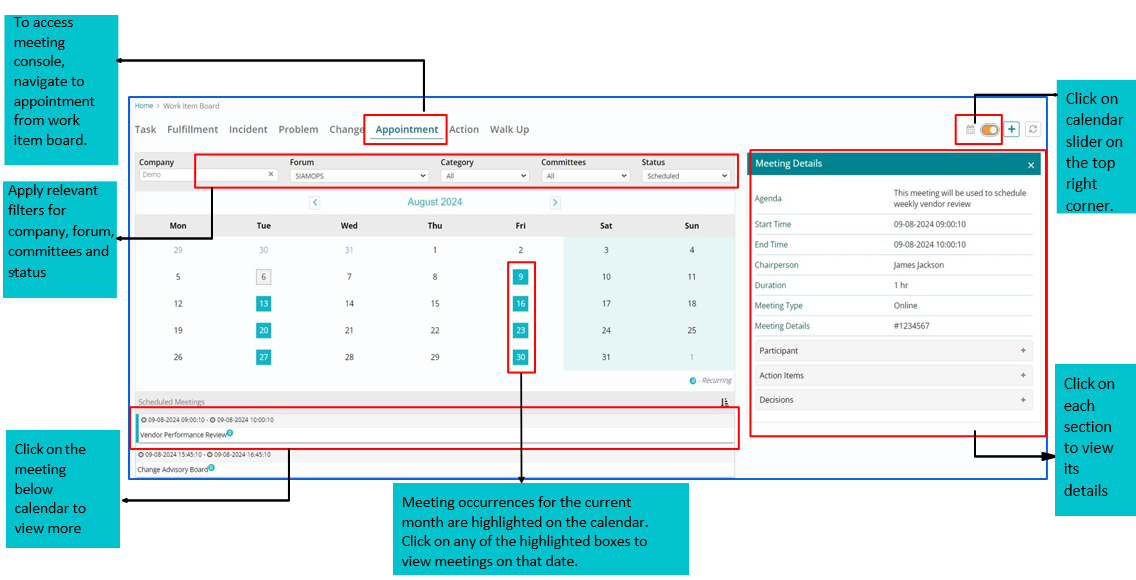
Meeting Console
Meeting Actions
Navigate to action from work item board to view the list of already created action items. Click on + button to create a new action item.

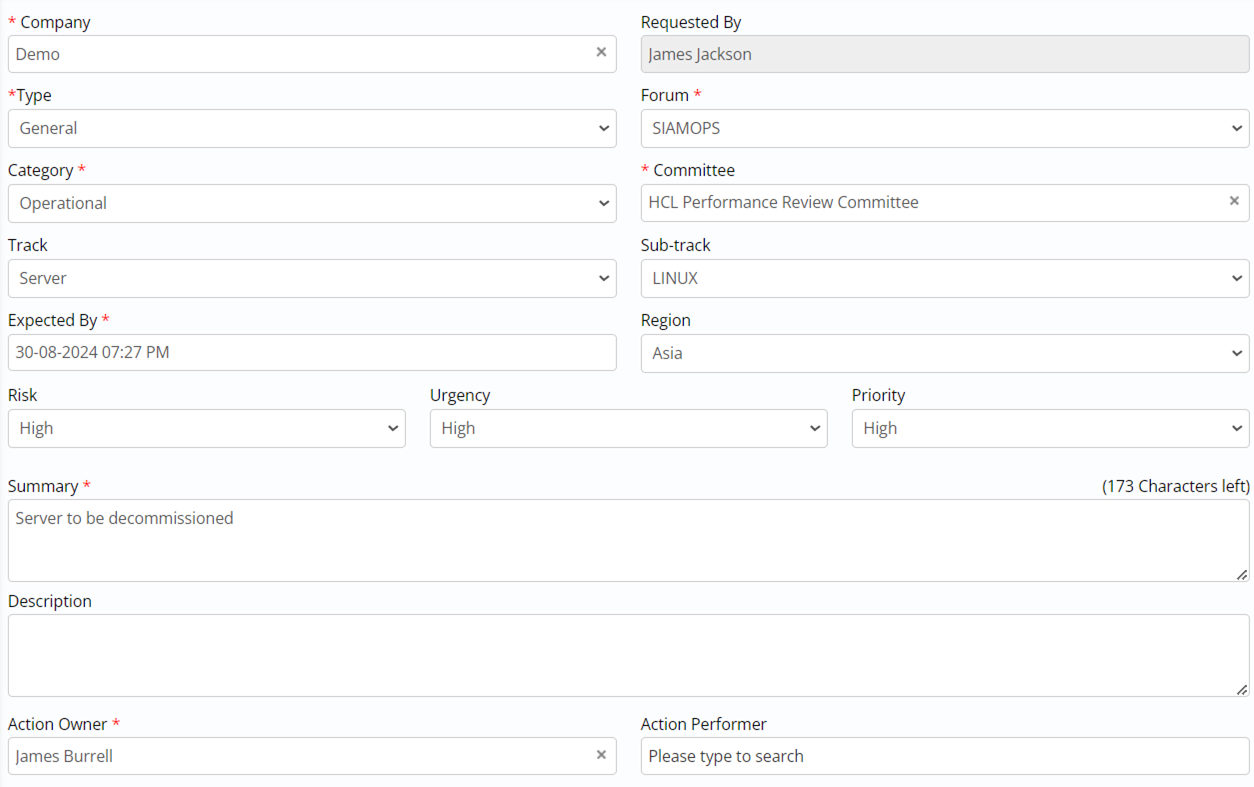
Create Action
Provide the required details and click on save to create action record.
Working on Action items
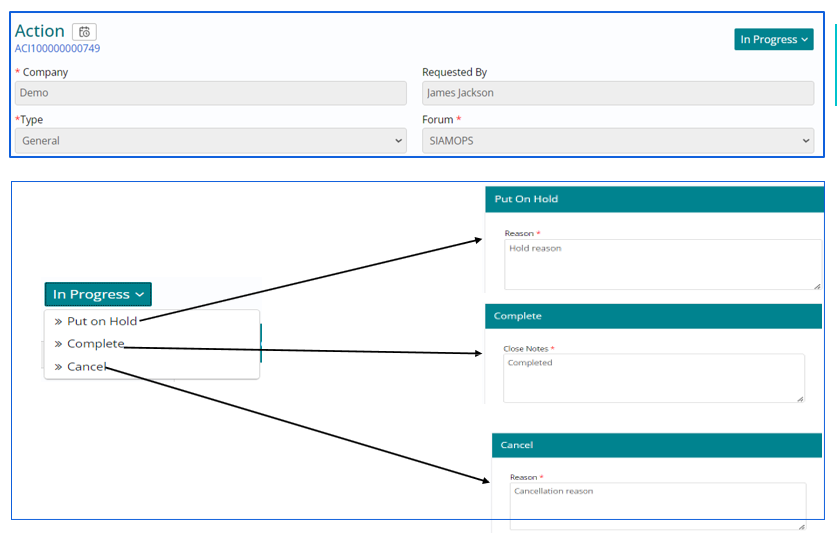
To work on action, action owners can change their status to “In progress”.
Action can be either put on hold, completed or cancelled from in progress. In each of these cases, appropriate reasons or notes need to be provided.