Asset and Configuration Management
Process Overview
- Asset and Configuration Management process is responsible for ensuring that the Assets and Configuration Items (CIs) required to deliver Services to Consumers are properly controlled, and that accurate and reliable information about those Assets and CIs is available when and where it is needed. This information includes details of how the CIs have been configured and the various inter-relationships between them.
- Configuration Management process mainly revolves around the development and management of a centralized data repository named Configuration Management Database (CMDB) and the organizational policies describing the identification, administration and control of the Configuration Items within the IT infrastructure. This data is critical to the success of all other ITIL disciplines and business processes.
- Change Management process is the primary control for the Configuration Management process. Any update in a CI should be performed through an approved change request i.e., Request for Change. By controlling the updates into the CMDB, Change Management helps in creating an accurate and updated CMDB.
Asset and Configuration Management Objectives
- Maintain the currency and accuracy of all CIs within the scope of the Configuration Management process.
- Support other IT Service Management processes by providing accurate information about CIs to provide the organization with information and enable it to make the right decisions at the right time. This is important in authorizing changes and releases and providing faster Incident resolution.
- Protect the integrity of the CMDB through proper control processes. An example is routing an update to the CI via change management.
- Perform CMDB audits to ensure CI information is accurate. Identify reasons for discrepancies identified during audits and take appropriate actions
- HAM has the capability to get integrated with other systems as well. It has various components which tracks and manage the lifecycle of hardware assets, both physical and consumable.
- HAM addresses the challenges of HAM by providing a centralized system for monitoring and managing hardware assets. It manages the inventory by maintaining information such as asset ID, model, manufacture, serial number, warranty information, purchase date etc making it transparent.
Key Definitions
- Service: Services are specific offerings provided by Service Providers that are directly consumed by Consumers. Consumers can order deployed Services that are published in the Service Catalogue.
- Configuration Item (CI): Configuration Item (CI) is a component of IT infrastructure that is in ‘Deployed’ status and which needs to be managed because it has an impact on the IT Services. CIs can be both physical as well as virtual. For e.g.: Hardware components like Servers, Storage devices etc. and virtual components like Applications, Software etc.
- Asset: Asset is any hardware product or software license that has a financial value attached to it. It has a cost, and the Organization uses it for its asset value calculation. Also, components with status values as ‘In Stock’, ‘Deployed’, ‘Decommissioned’ etc. can represent an Asset.
- Configuration Management Database (CMDB): A configuration management database (CMDB) is a data repository that acts as a data warehouse or inventory for information technology (IT) installations. It holds data relating to CIs as well as the various inter-relationships between them.
- CI Relationships: CI relationships specify the inter-dependencies between different CIs. In each CI relationship, one CI is the source of the relationship, and the other CI is the target.
- Recovery Point Objective (RPO): It is the maximum targeted period in which data might be lost from CI or Service due to a Major/Critical Incident.
- Recovery Time Objective (RTO): It is the targeted duration of time and a service level within which a CI/Asset must be restored after failure.
- Change Management: Change Management process is responsible for controlling CIs in CMDB. This process ensures that no unauthorised changes are made on any CI.
- CMDB Audit: The objective of CMDB audit is to identify the existence and accuracy of CIs in the CMDB. Audits should verify that the CMDB contains correct and authorized versions of CIs. Any unregistered CI should either be removed or registered through the formal change control process.
CMDB Data Model
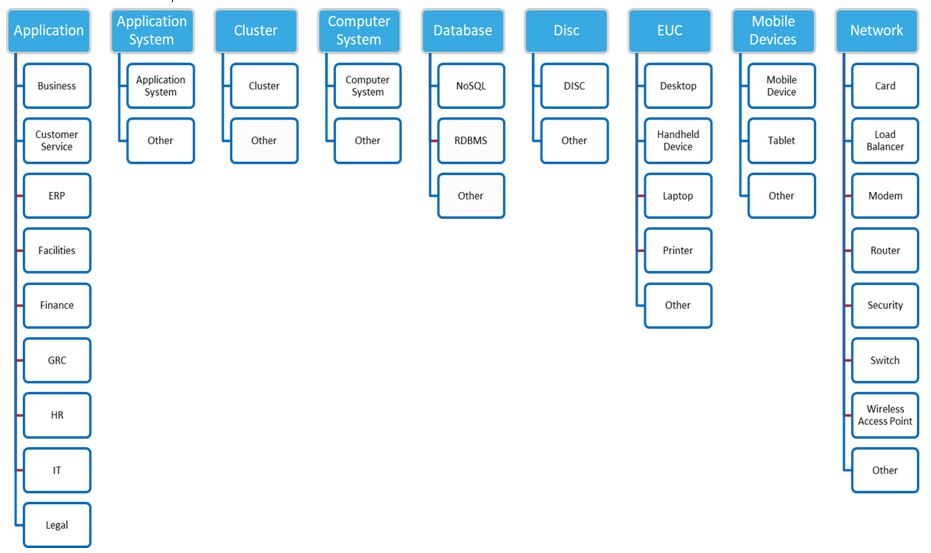
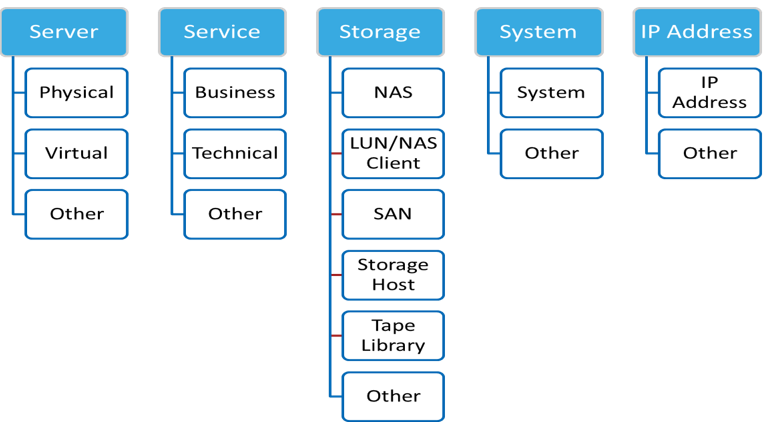
- HCL BigFix Service Management CMDB Data Model currently holds 14 Classes
- These Classes are further divided into Categories and Subcategories
- The number of classes, their corresponding categories and sub categories can be modified by the super administrator as per requirements
- Authorize CMDB Update: In order to record the changes made to a CI, a retrospective or a latent change may be required as per the change control process. If for any reason, the CI needs to be configured back to its previous state, a change needs to be submitted to perform a rollback.
-
Update CMDB: In case a Change is rolled back, a corresponding update to the CMDB
will be done as a part of roll-back Change request.
Asset versus Configuration Item
- Asset is any hardware product or software license that needs to be managed because it has some economic value and Asset Management DB is the database which holds the information about IT assets. In other words, AMDB will have information about economic attributes such as cost, depreciation, contract, purchase date etc.
- Configuration Item is a component of IT infrastructure that needs to be managed because it has an impact on the IT Services. In other words, CMDB will have information about technical attributes/configuration such as host name, IP address AND relationship with other CI but NO information about economic value.
- An asset may or may not be a CI; conversely a CI may or may not be an asset. Consequently, Asset DB and CMDB may share some common items, but different attributes. Some items may be included in AMDB, but not in CMDB. For example, end user devices and software licenses. Some items may be included in CMDB, but not in AMDB. For example, logical systems like virtual machines. However, it should be noted that in cloud computing, a virtual machine is a candidate for AMDB as well.
Asset & Configuration roles configured in HCL BigFix Service Management
|
HCL BigFix Service Management Roles |
Permissions |
| Config Manager | Read/Write access to Asset/CI lifecycle of user's own company and associated companies. |
| Asset Manager | Read/Write access to Asset/CI lifecycle of user's own company and associated companies. |
| Config Viewer | Read only access to Asset/CI lifecycle of user's own company and associated companies. |
CI Relationship Mapping
| Class 1 | Class 2 | Relationship Type |
| Base Class | Server | Related To |
| Application | Application | Connected To |
| Application | Application | Member Of |
| Application | Application | Runs On |
| Application | Application | Used By |
| Database | Server | Hosted By |
| Application System | System | Member Of |
| Computer System | System | Member Of |
| Computer System | System | Members |
| Disc Partition | Server | Managed By |
| EUC | Server | - |
| Network | Server | Connected By |
| Service | Application | Depends On |
| Service | Server | Depends On |
| Server | Network | Connected To |
| Server | Server | Connected To |
| Server | Storage | Connected To |
| Server | Database | Hosts |
| Server | Disk Partition | Manages |
| Server | Computer System | Member Of |
| Server | System | Member Of |
| Server | Base Class | Related To |
| Server | Application | Runs |
| Server | Service | Used By |
| Storage | Server | Connected By |
Asset Status Sub-Status Mapping
| Status | Sub-Status |
| Requested | Planned |
| Ordered |
Order Released Order Shipped |
| Received | Short Shipment Completed Shipment Pending Inspection |
| In Stock |
Being Tagged Ready for Deployment Reserved |
| Build | In Progress |
| Deployed |
Monitoring Functional In Maintenance Out of Service Inoperable Planned for Refresh Swapped |
| Decommission | In Progress Decommissioned |
| Surplus |
Returned to Stock Pending Inspection Redeploy able Faulty/Damaged Awaiting Repair/Parts Quarantine Forensics |
| Retired |
Pending Disposal Requested Pickup Requested/Scheduled Returned to Vendor Lost Stolen |
| Disposed |
Scrapped / Salvaged Sold Donated Duplicate Out of Scope Transferred Warranty Return/Replacement |
CI Status Sub-Status Mapping
| Status | Sub-Status |
| Build | In Progress |
| Deployed |
Monitoring Functional In Maintenance Out of Service Inoperable Planned for Refresh Swapped |
| Decommission | In Progress Decommissioned |
| Surplus |
Returned to Stock Pending Inspection Redeploy Able Faulty/Damaged Awaiting Repair/Parts Quarantine Forensics |
| Disposed |
Scrapped / Salvaged Sold Donated Duplicate Out of Scope Transferred Warranty Return/Replacement |
| Missing | Under Investigation |
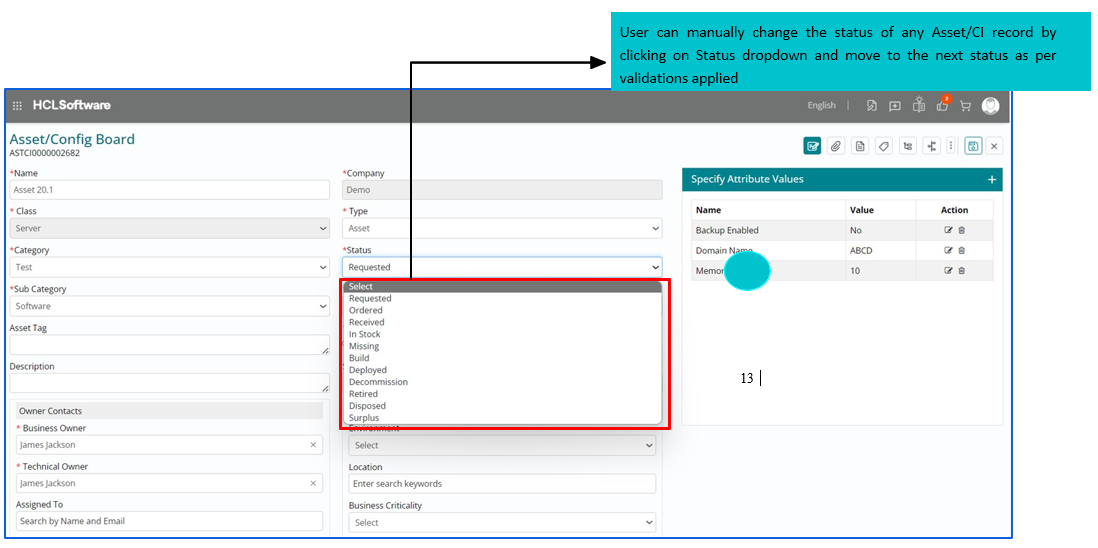
Status Transition - Asset

Product Walkthrough
Logging into HCL BigFix Service Management
To login, the user should:
- Open internet browser (Edge, Chrome) and enter the URL: https://support.dryice.ai
- Provide login credentials to authenticate and login to HCL BigFix Service Management
.png)
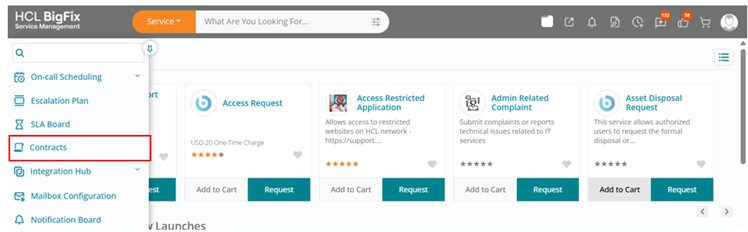
Navigate to Asset/Config Board
- In the Navigation Panel, click on ‘Asset/CI Details’ under ‘Asset/Config Board’ menu
item to view/create Asset/CI records
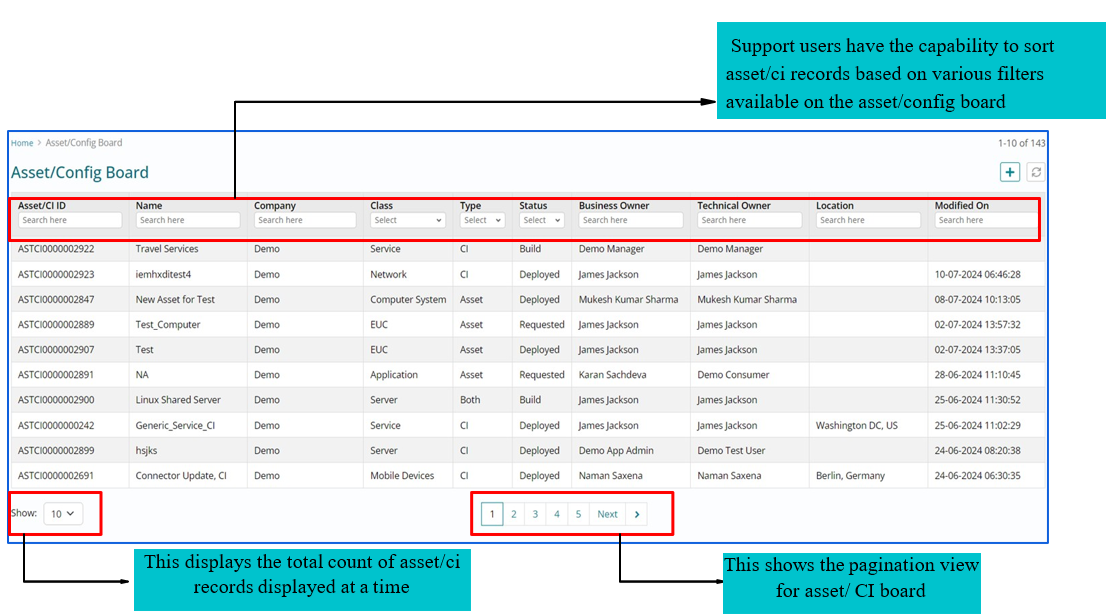
Asset/Config Board
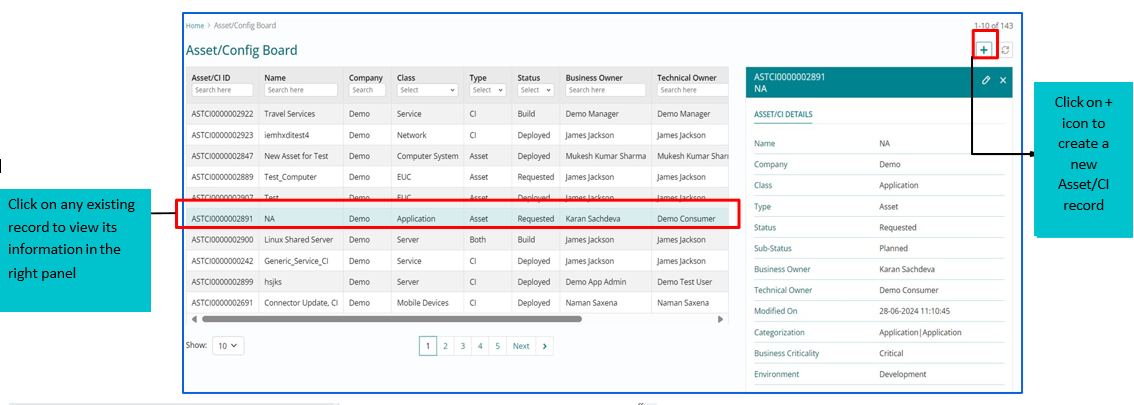
View/ Edit an Asset/ CI record
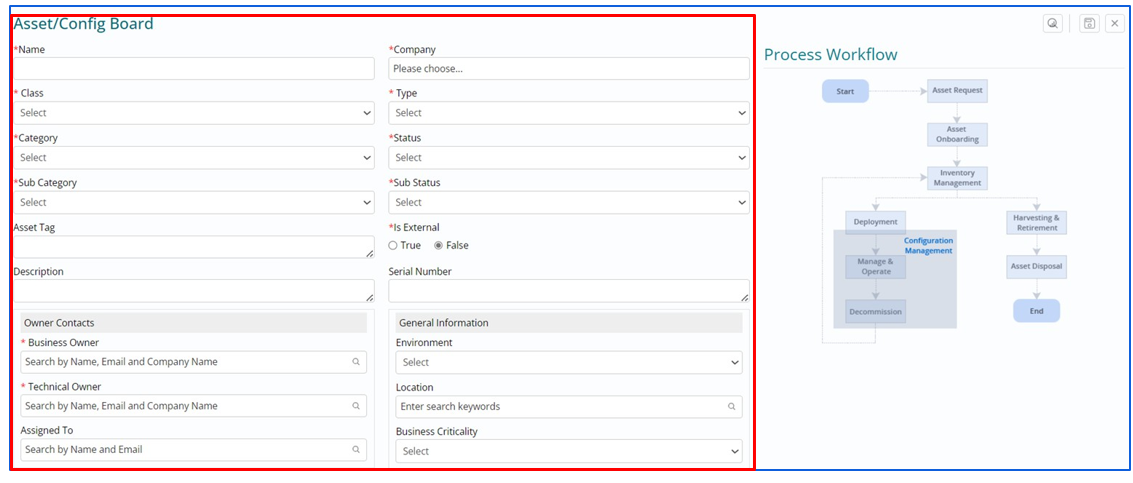
Create New Asset/CI record
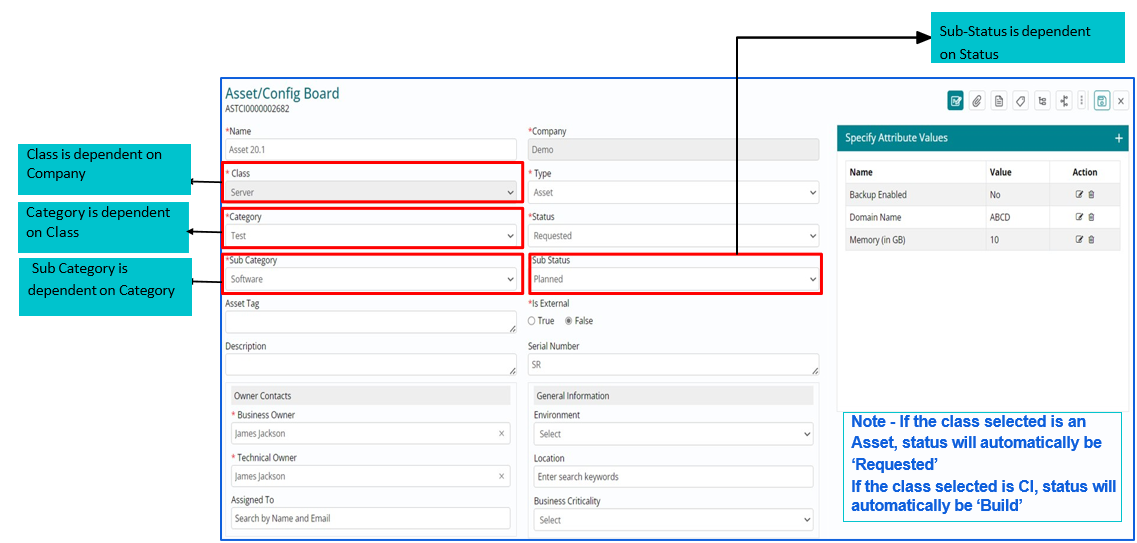
- To create a new Asset/CI record, it is required to fill in all the mandatory fields on
the form for all classes.
Asset/CI record created
Status Transitions
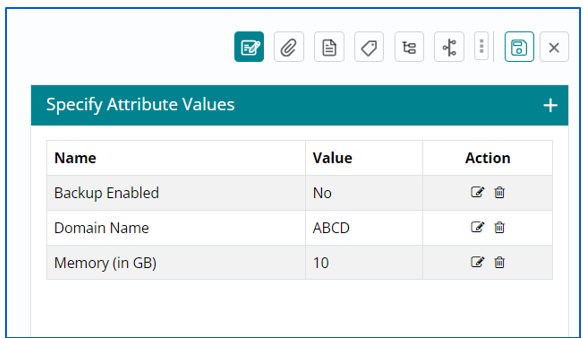
Specify Attribute Values and Attachments
Use this section to add any technical attributes specific to the selected class on any Asset/CI record
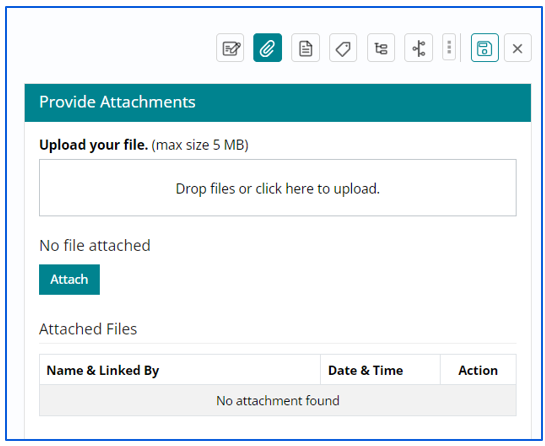
Click on attachment icons to attach any file up to 5 MB on a record. Drop or upload the files and click on attach button to attach it in the record.
Custom Attributes and Related Work Items
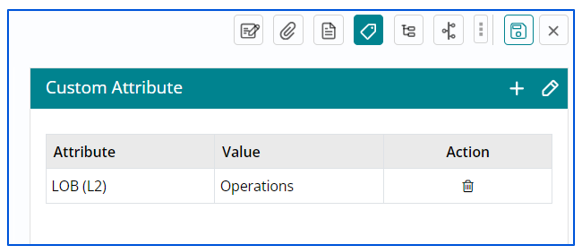
Use this section to add any custom attributes specific to the selected class on any Asset/CI record
- Click on the + icon to add a new custom attribute
- Click on the pencil icon to modify the value of existing linked
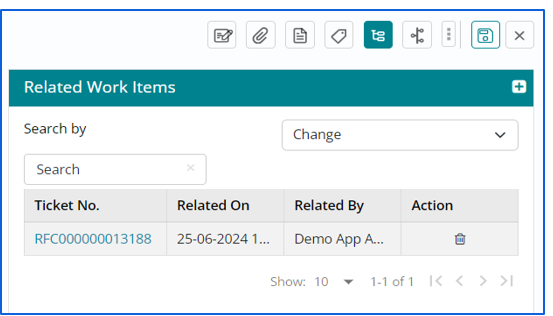
User can use this section to relate any other work items such as Incident, Problem, Change, Fulfilment to a particular Asset/CI record
- Once related, the linked work item can also be deleted by using the delete button
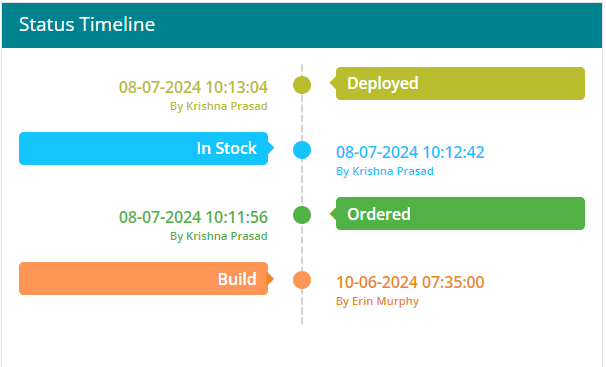
Status Timeline
This section is used to showcase the status changes with their timestamps
CI Relationships
This section is used to create relationship of one CI on another CI
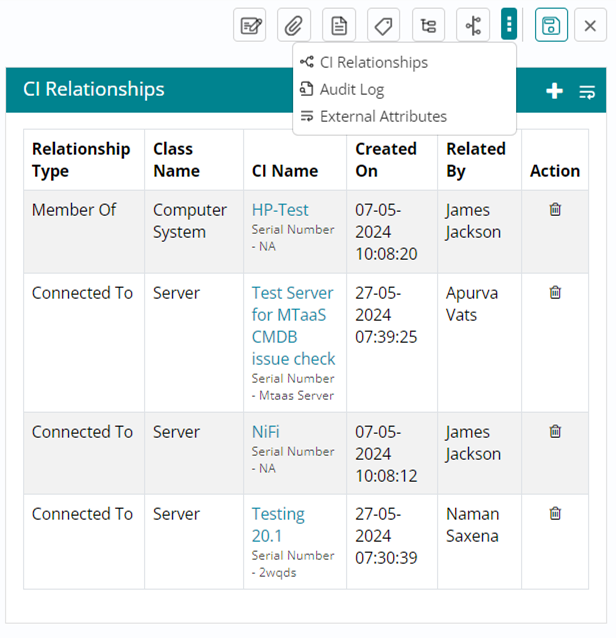

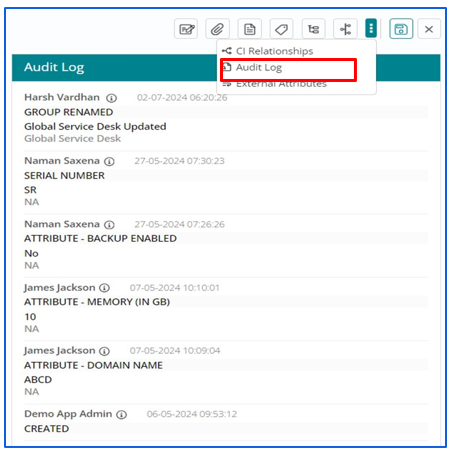
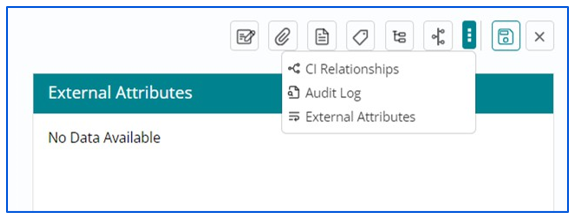
Audit Log and External Attributes
This section is used to capture the audit logs (changes) happening on all the fields with their timestamps and updated values.
This section is used to capture the attributes and their values which are used when e bonding exists.
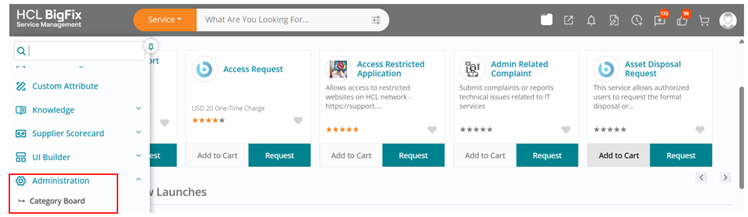
Navigate to Category Board
In the Navigation Panel, click on ‘Category Board’ under ‘Administration’ menu item to redirect to Category Board.
CI Category
Any user having the role of CMDB Manager will only be able to see the tab ‘CI Category’.
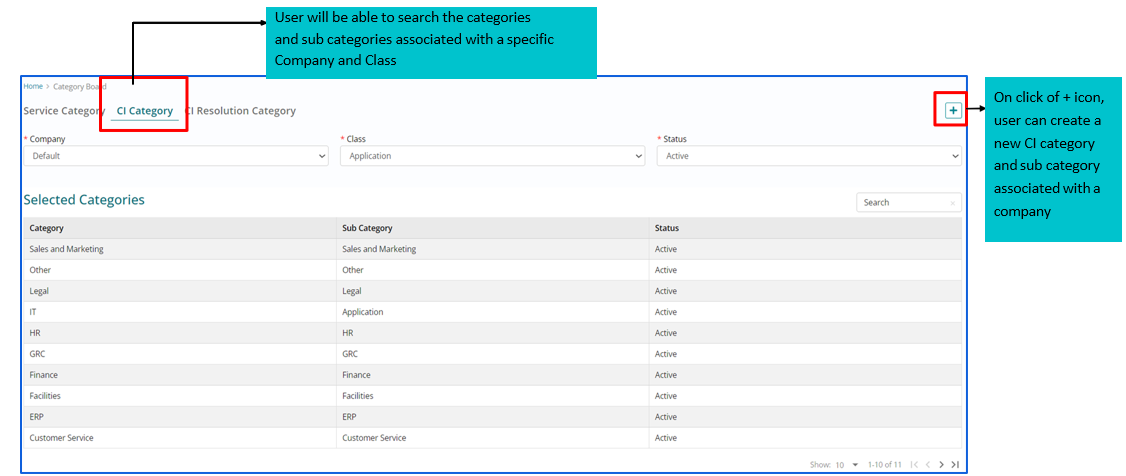
Create New CI Category
Fill in all the mandatory information to create a new CI category and subcategory.

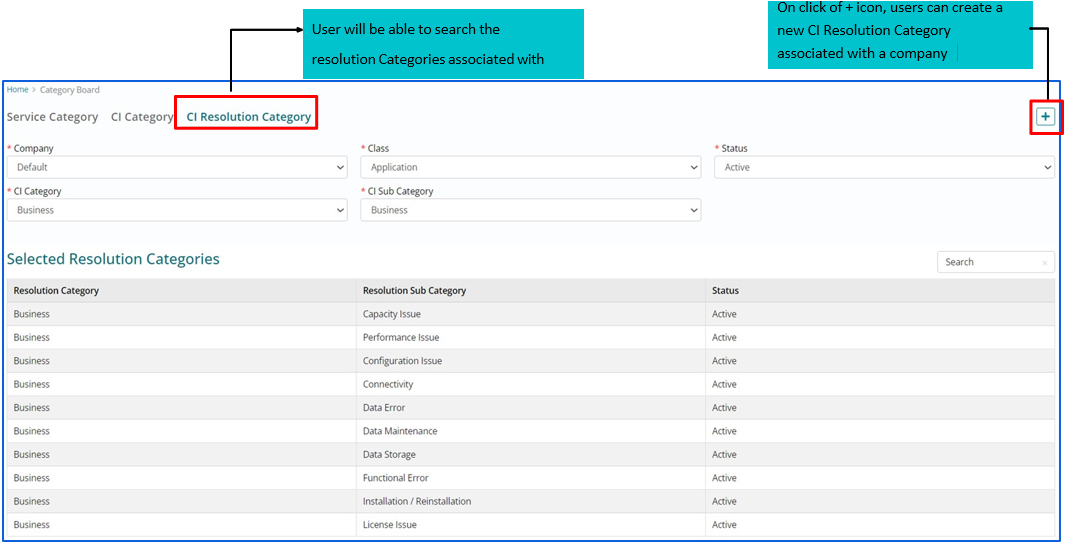
CI Resolution Category
Any user having the role of CMDB Manager will only be able to see the tab ‘CI Resolution Category’.
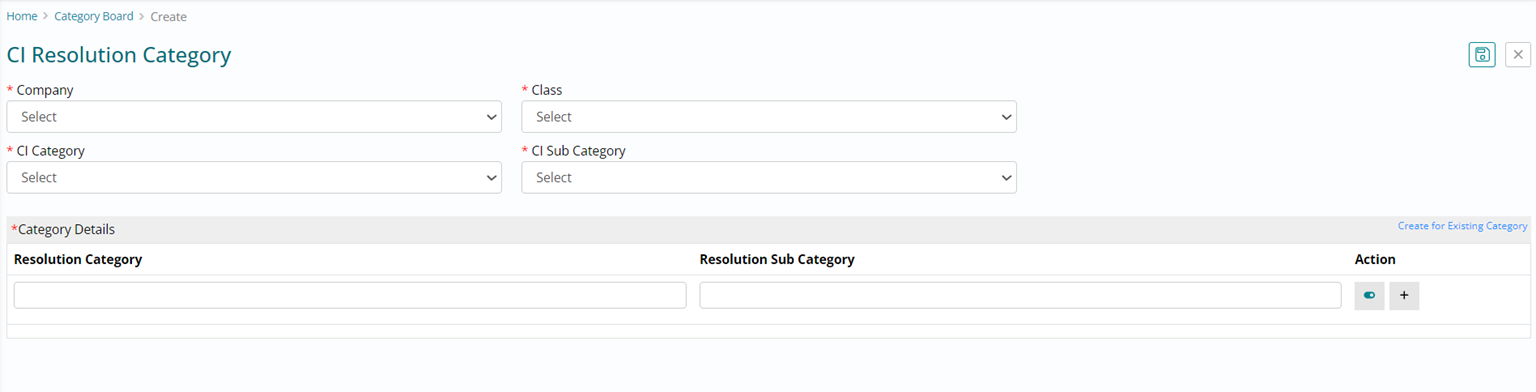
Create New CI Resolution Category
Fill in all the mandatory information to create a new CI Resolution Category
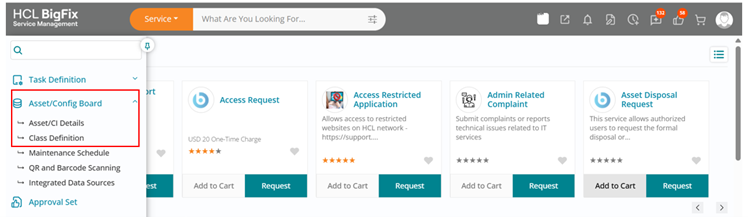
Navigate to Class Definition
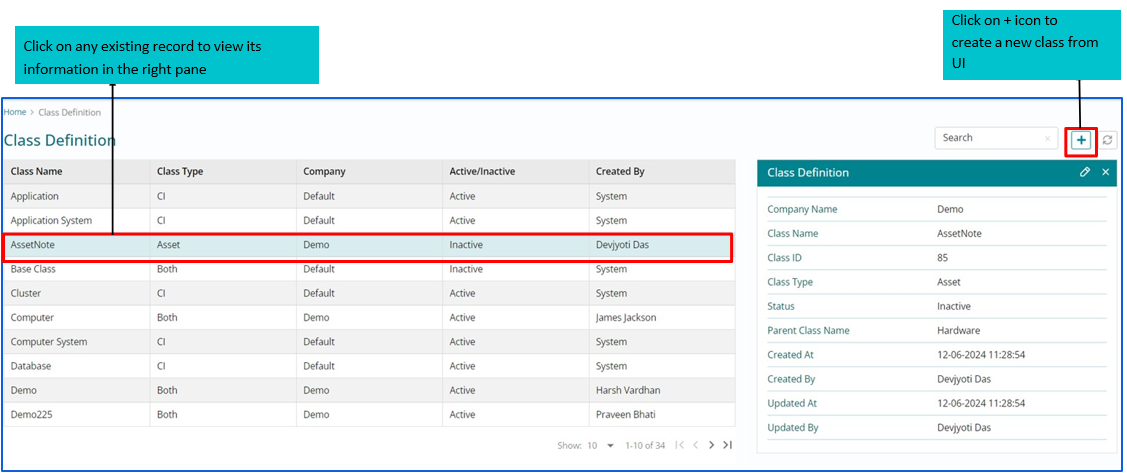
In the Navigation Panel, click on ‘Class Definition’ under ‘Asset/Config Board’ menu item to view/create Asset/CI records.
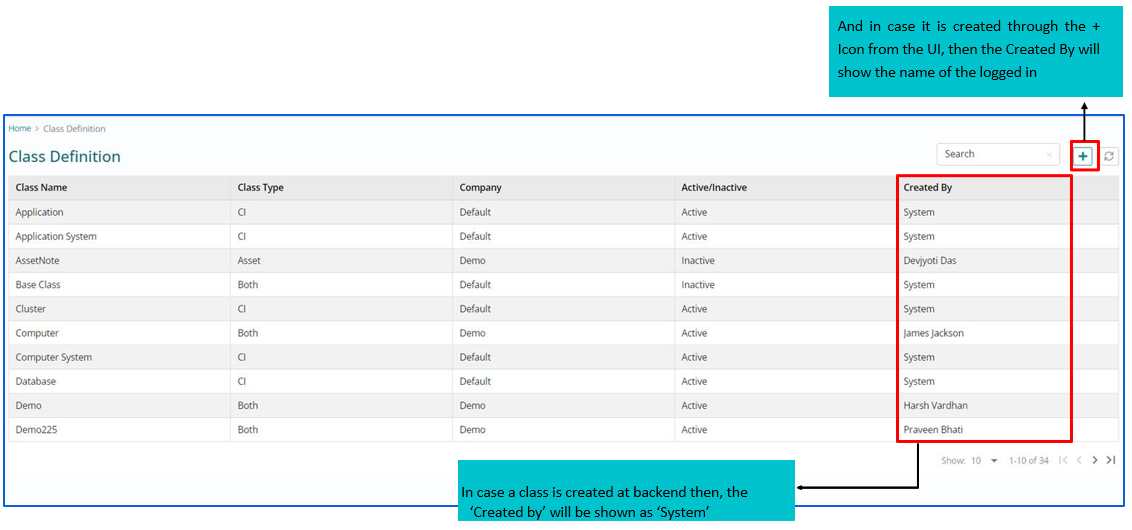
Class Definition Board
On the Class definition Board, all the classes existing at present in the system will be visible irrespective of whether they are Active or Inactive.
View/Edit a Class
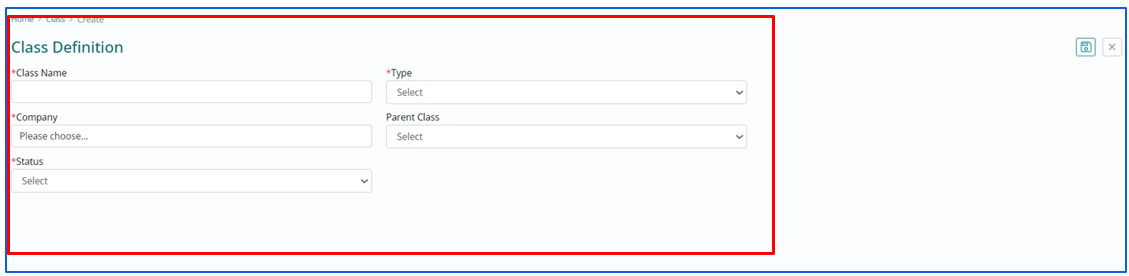
Create a New Class
Fill in all the mandatory fields on the form and click on save to create a new class