Navigation to Homepage
- Click on Home hyperlink on the top left of your screen to navigate back to the consumer
homepage / initial landing page.
Global Search
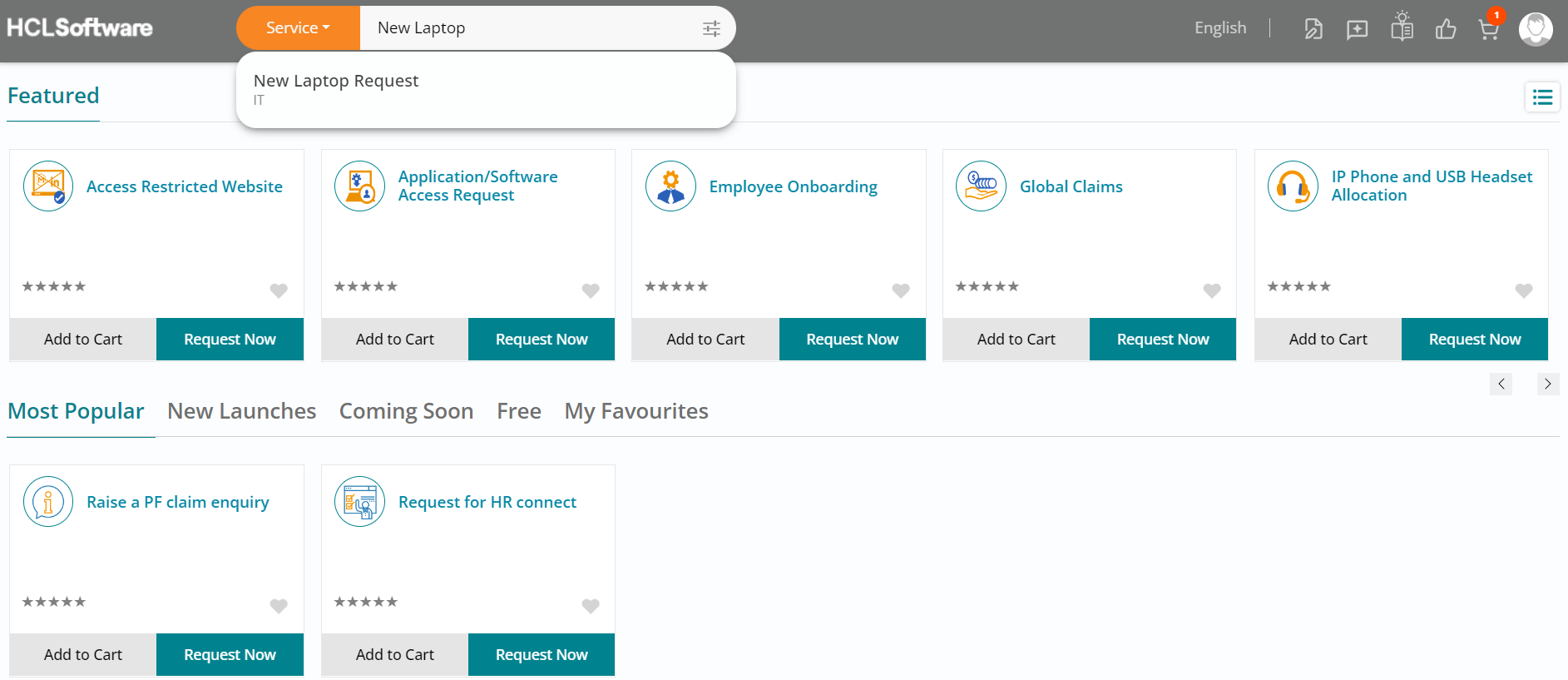
- Since we placed an order without approval the last time around, lets try doing that for another request which has an approval configured against it this time.
- Use the global search and type new laptop followed by selecting the New Laptop Request
offering.
Offering Details - Approval Required and Add to Favourites
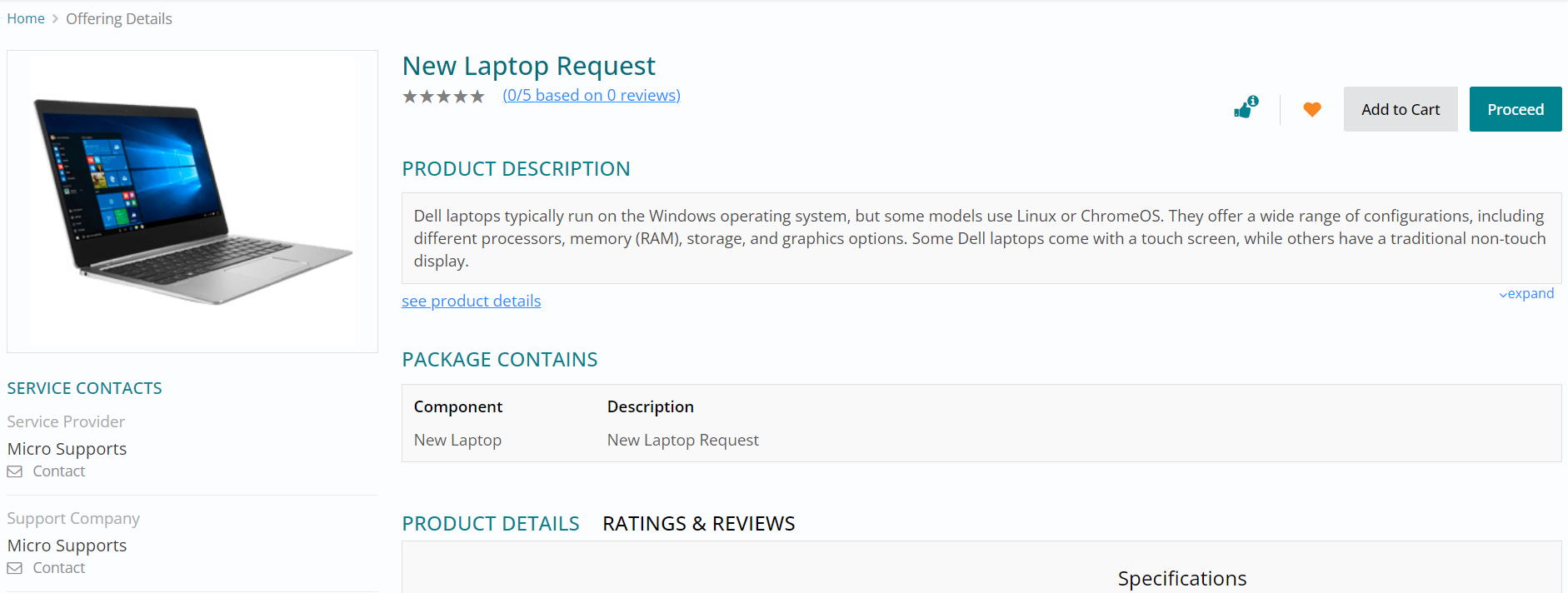
- You can view the offering details. The two options to the left of the Add to Cart and Proceed buttons indicate Approval Required (thumb with the information icon) and Add to Favourites (heart icon).
- Upon clicking on the heart icon, the offering is added to My Favourites section on your homepage.
- Click on Proceed.
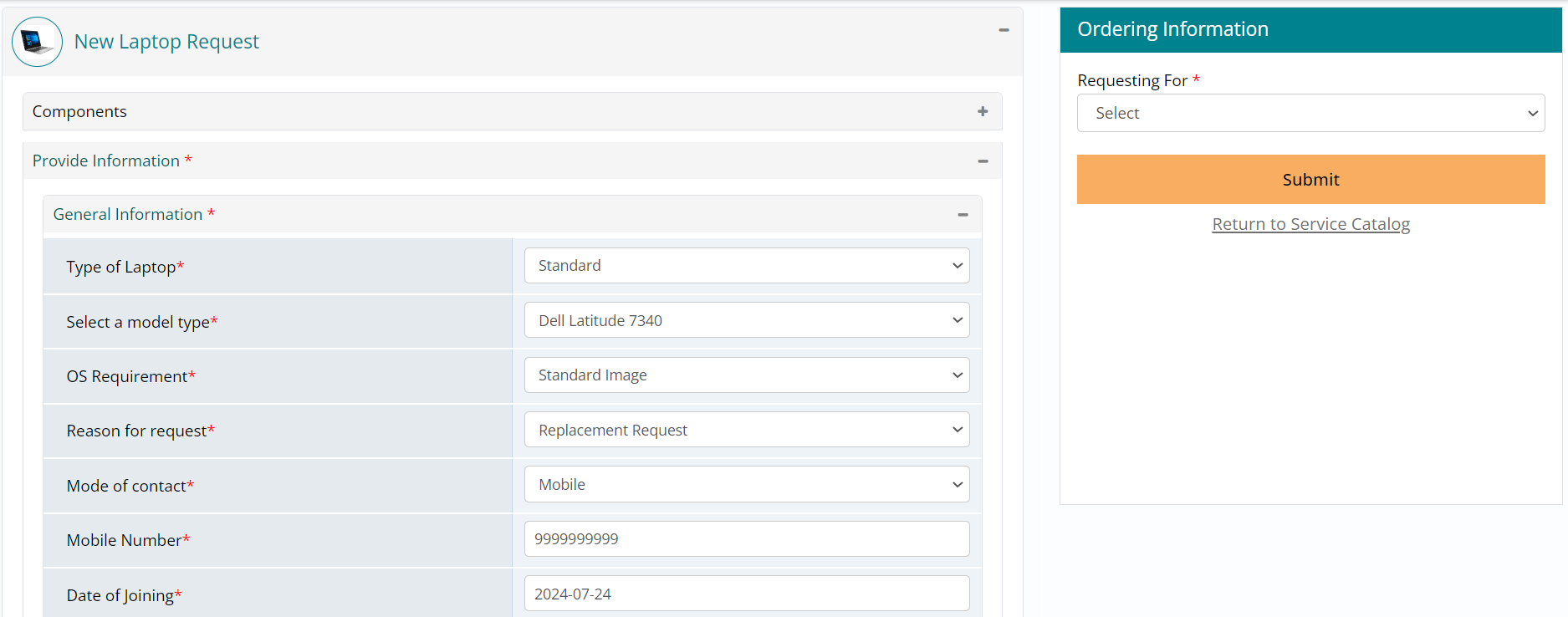
Provide Information - General Information
- Expand the General Information section and provide responses against each of the
mandatory questions.
Ordering Information
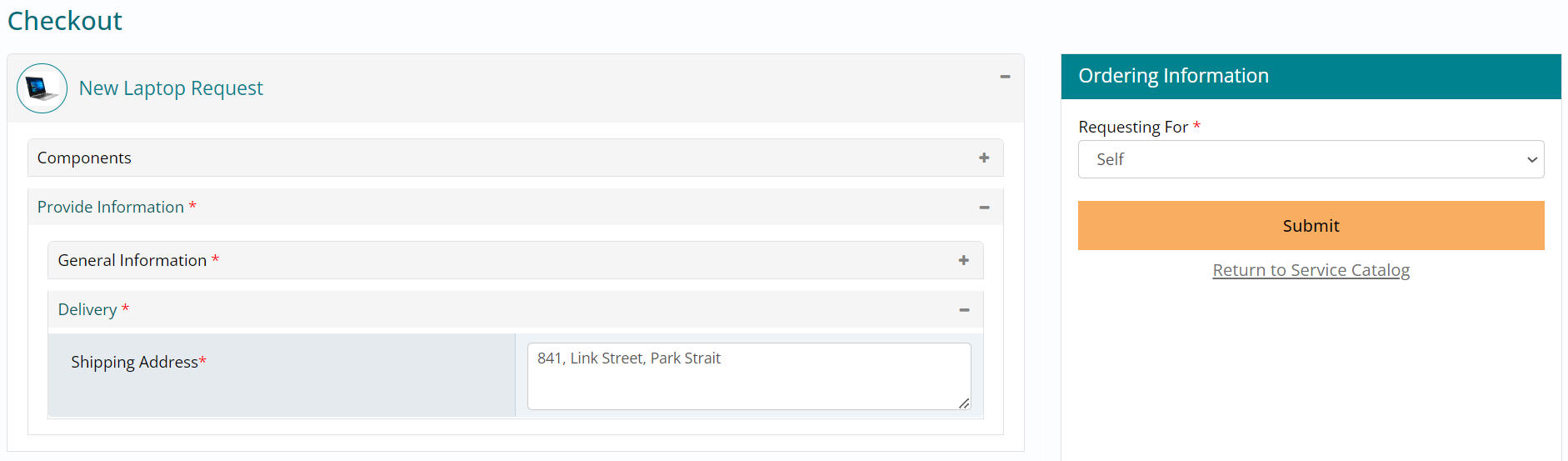
- Expand the Delivery section and type the shipping address to which the package needs to be delivered.
- Once done, under Ordering Information on the right of your screen, select Self in
Requesting For followed by clicking on Submit to place the order / request.
Approval Trigger
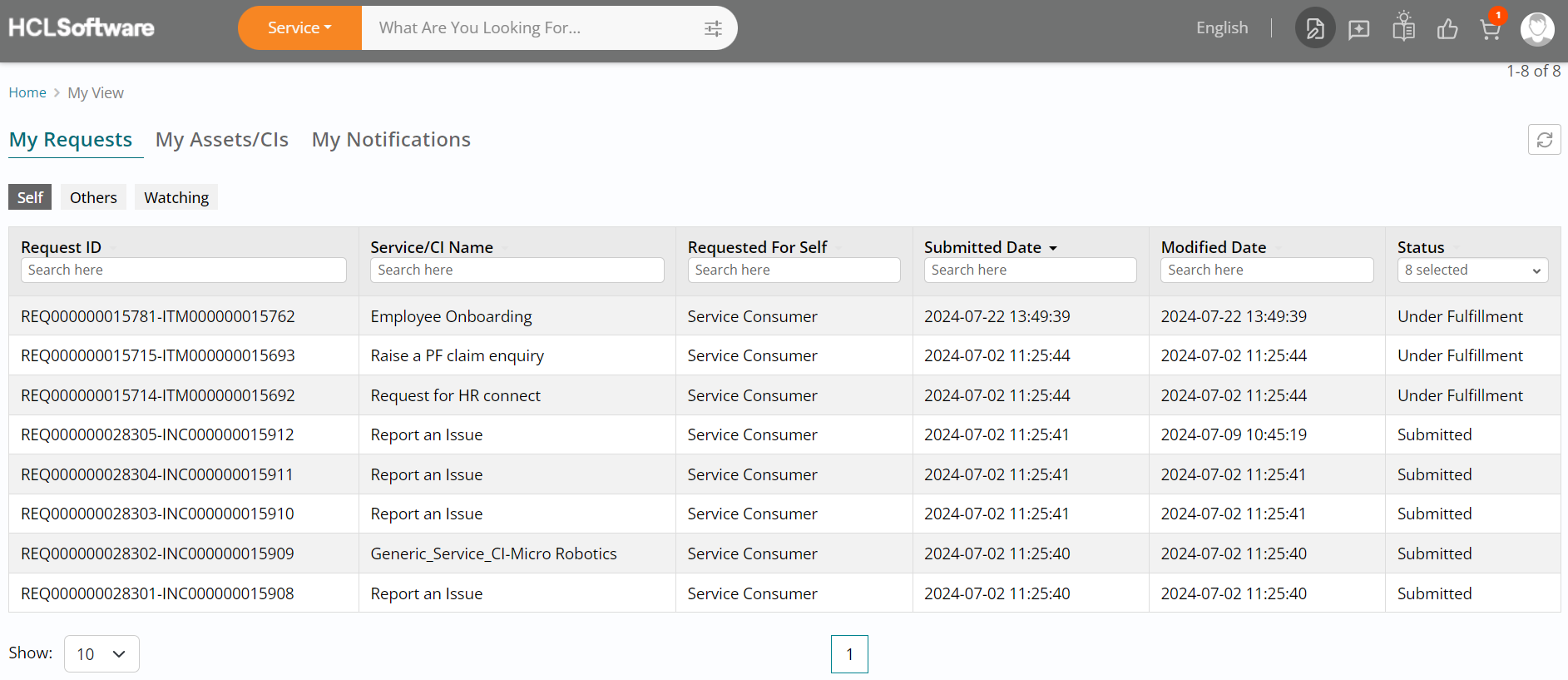
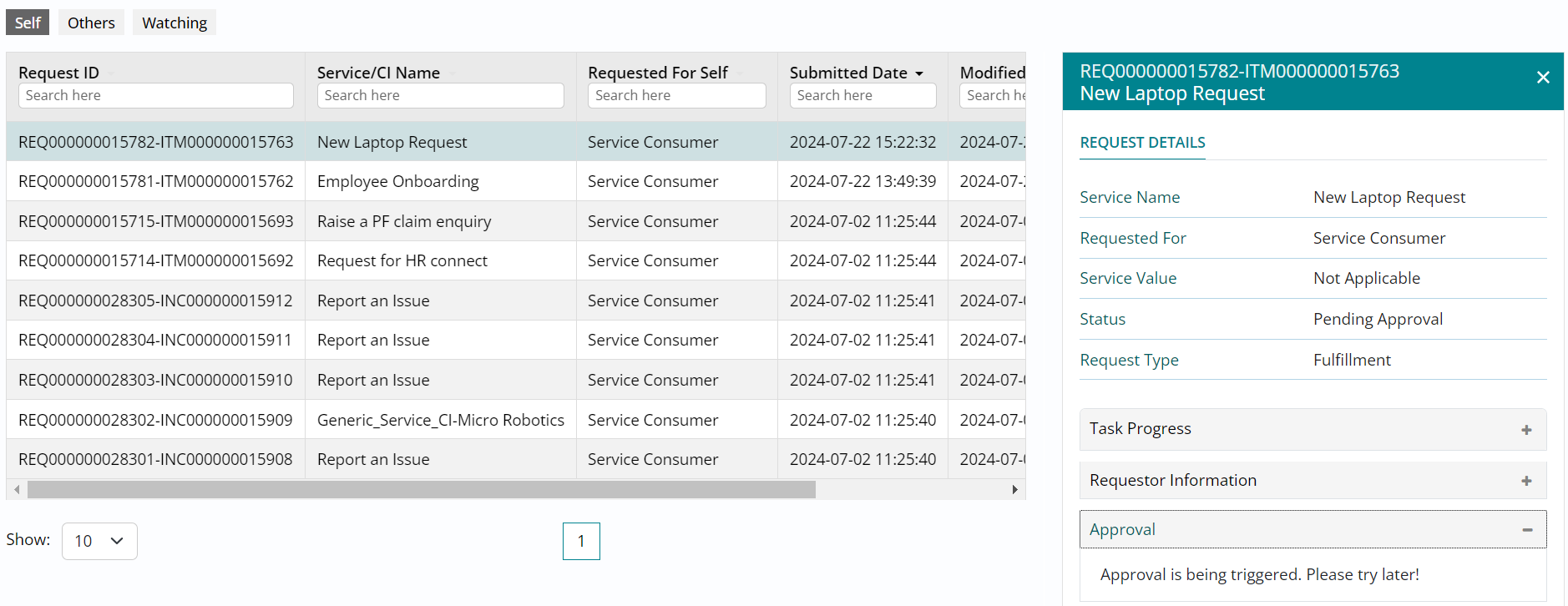
- Upon placing the order / request, you will be automatically navigated to the My Requests section wherein you can view the latest request on top of the list view.
- Click on the request to open its details on the right followed by expanding the approval
section. This offering had an approval configured which can be seen here since it is in
process of being triggered by the system.
Approval Details
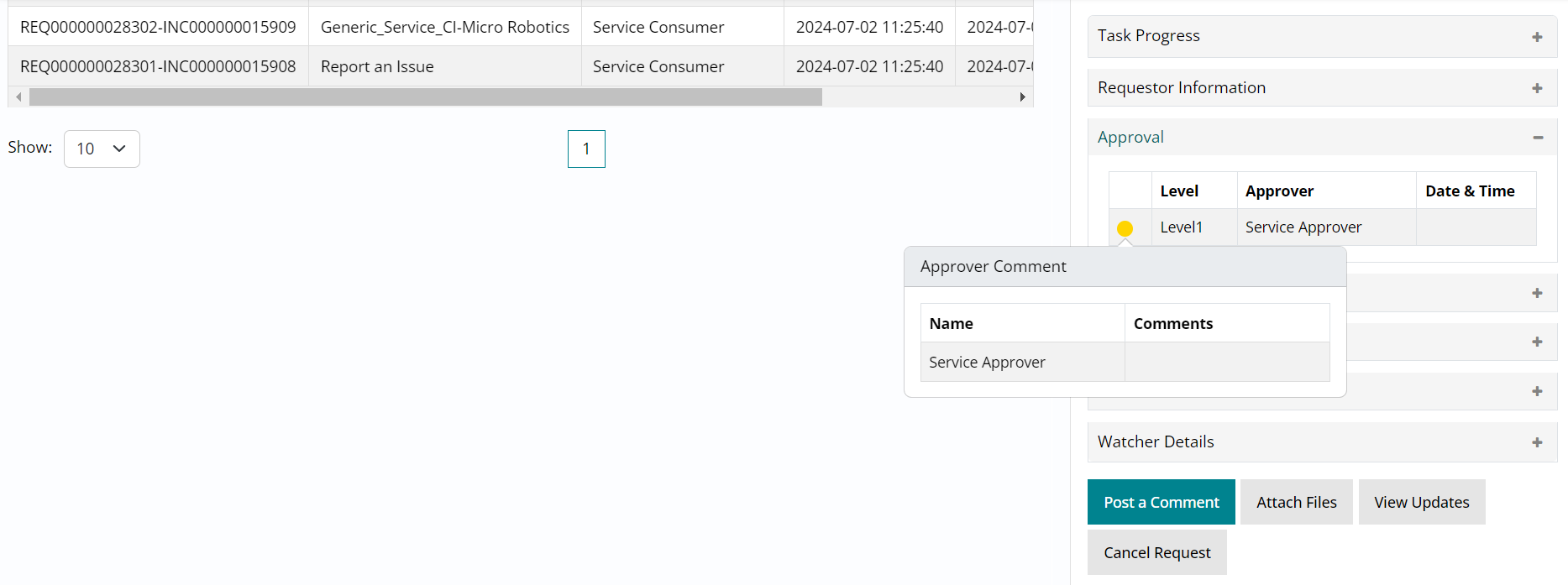
- Wait for a couple of minutes and refresh the page, post which you can scroll down the request details and expand the Approval section.
- Click on the amber indicator to view the name of the approval group / individual with
whom the approval is pending; in this case it is Service Approver i.e., the approval user
(one of the four role-wise login credentials passed onto you for this trial).