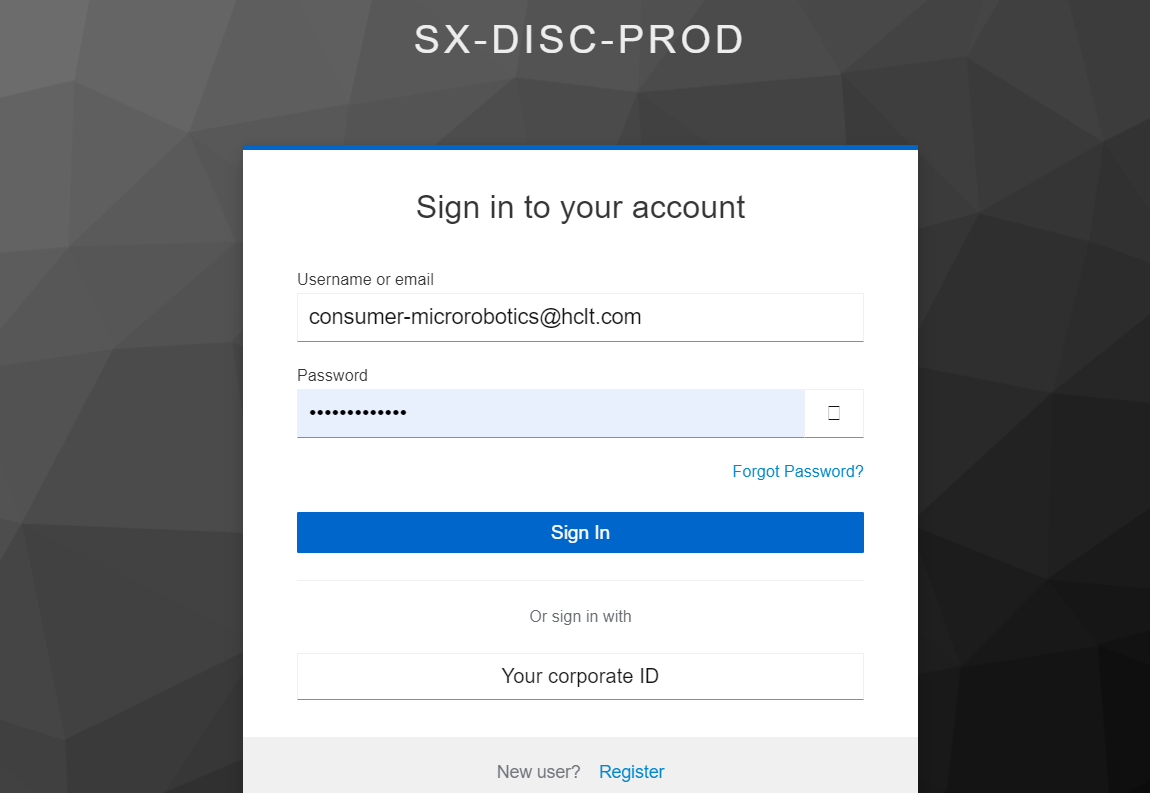
Login using Consumer Role
- Use the consumer role credentials to log into the instance.
- Click on Sign In upon entering the credentials.
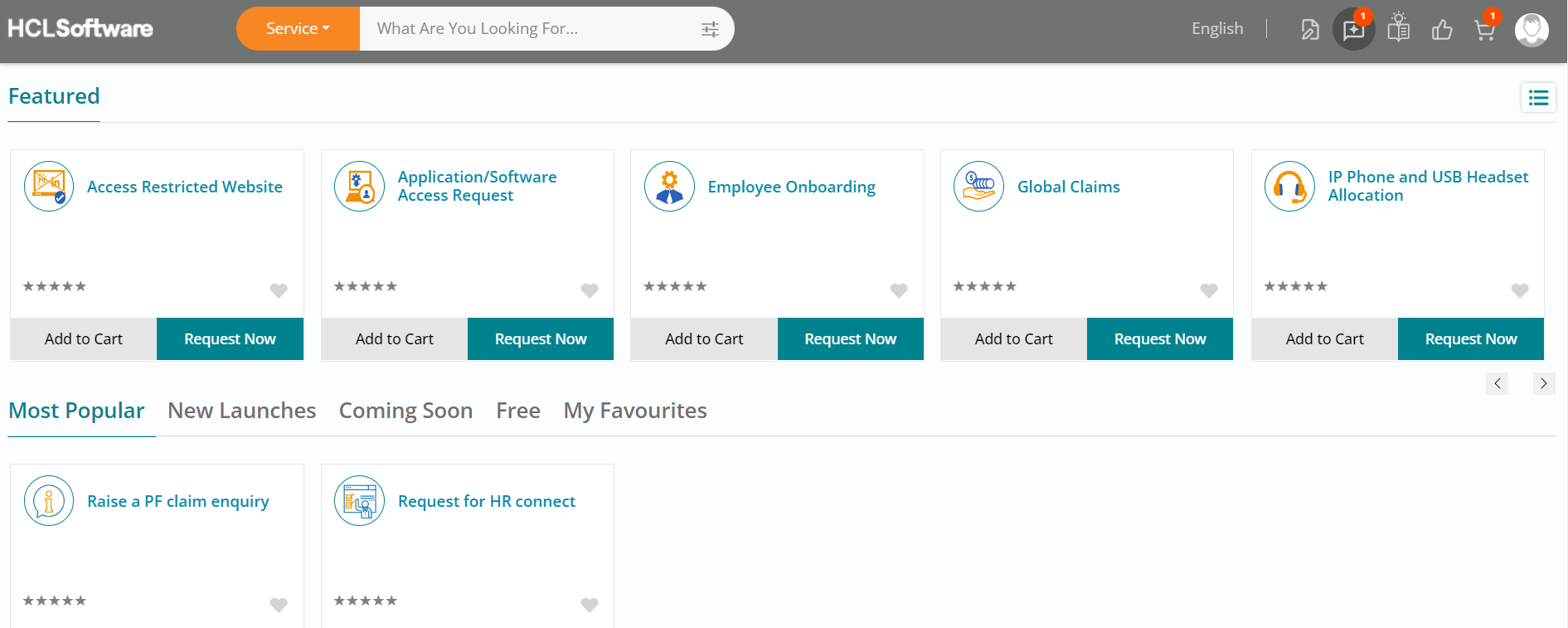
Landing Page
- Upon logging into the HCL BigFix Service Management consumer homepage, you will see all the service offerings available for consumption.
- Navigate to the top right of the BigFix Service Management page and click on Pending
Surveys button, to view the surveys pending for your response.
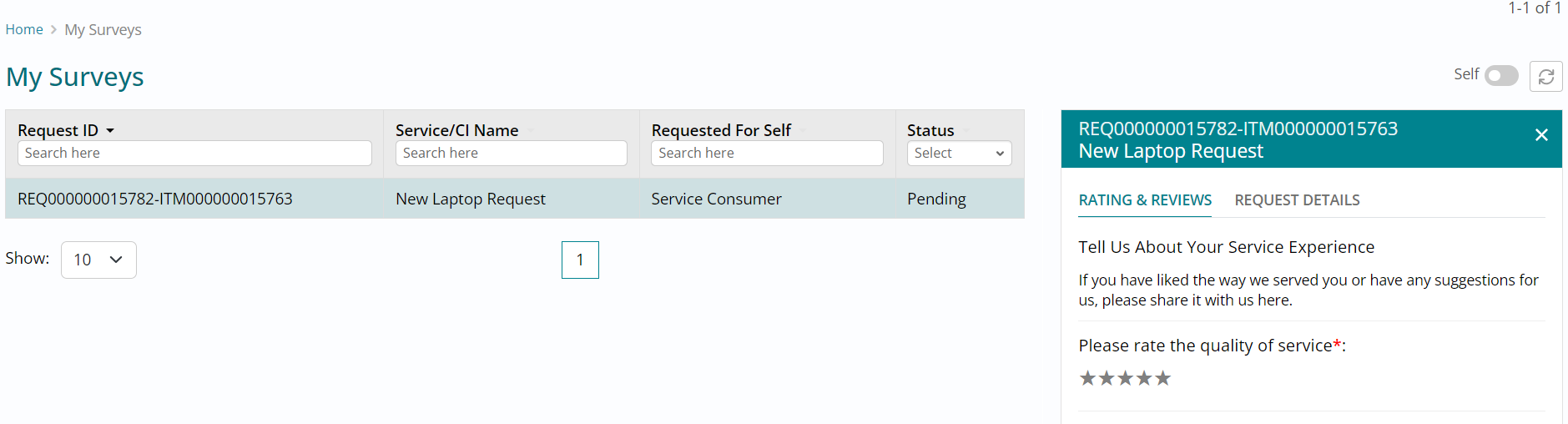
My Surveys
- Click on the request pending for survey response from the list view.
- You may choose to click on the Request Details section towards the right and browse through the ticket information.
- This is particularly useful if you have several requests pending for your survey to
avoid confusion.
- There are one of two actions that you can take on a request pending survey.
- The first is wherein you can give a rating of 4 or 5 stars via selection followed by providing satisfaction comments.
- Ignore this step so that you can view what happens when you give a lesser rating.
- You can always try giving a good rating in any of your future requests during this
trial.
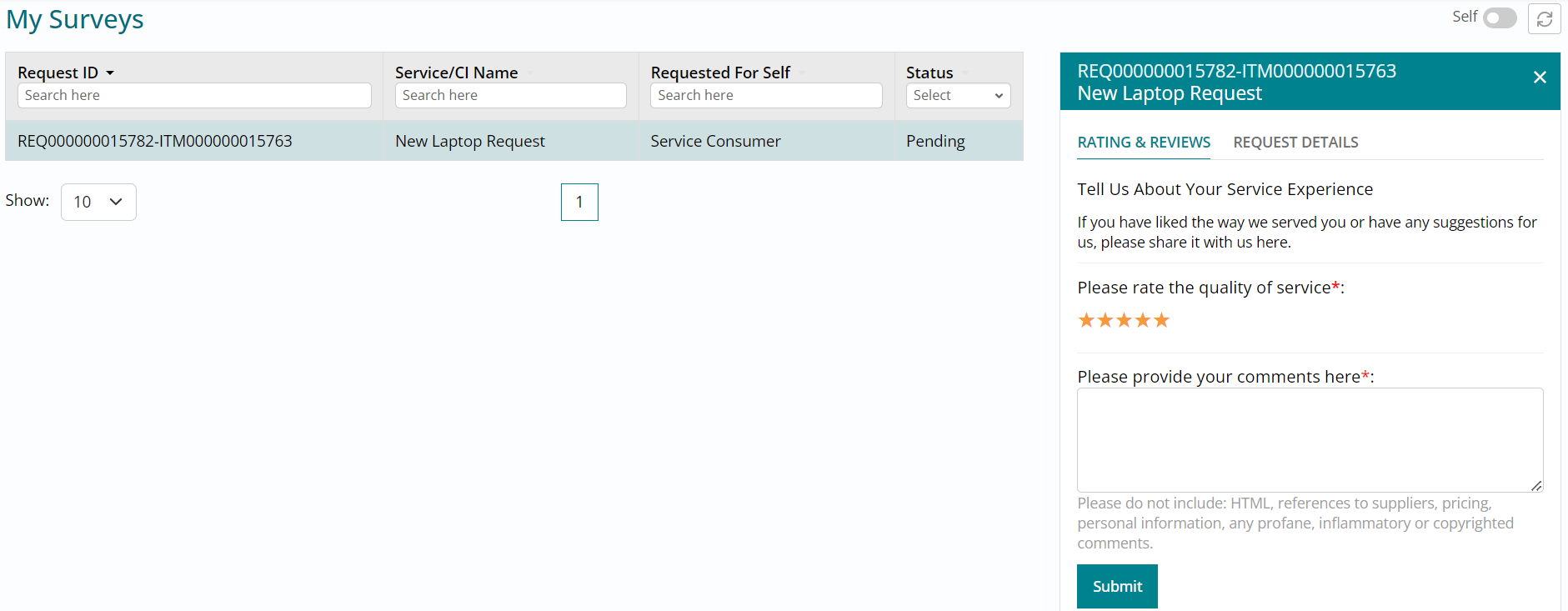
My Surveys - Reopening Request
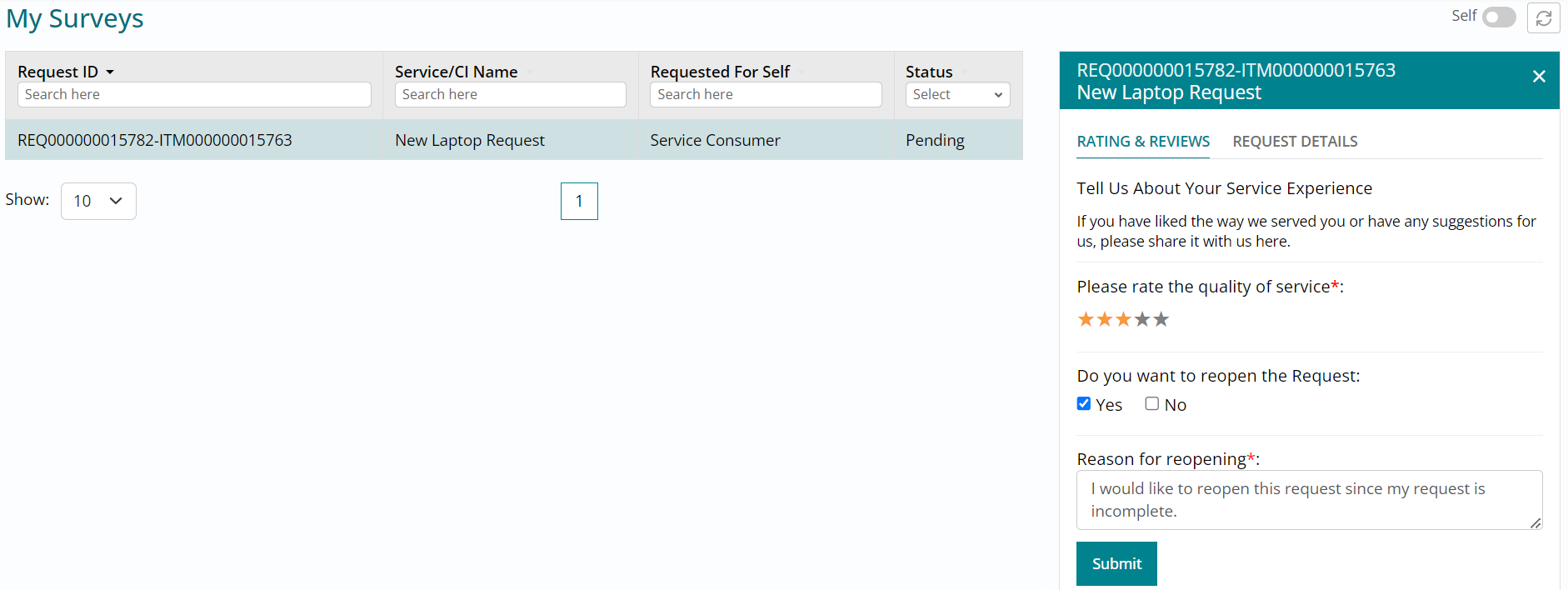
- The second action that is possible and which you must perform is, to try giving a rating of 3 or less than 3 via selection of stars, followed by clicking on Yes to reopen the request.
- Type the reason for reopening and click on Submit. The request will be reopened and
assigned to the same fulfillment group for further action.
My View
Navigate to the top right of your page and click on My View button which will provide you
an option to click and view the requests which you have raised for yourself or on behalf of
someone. 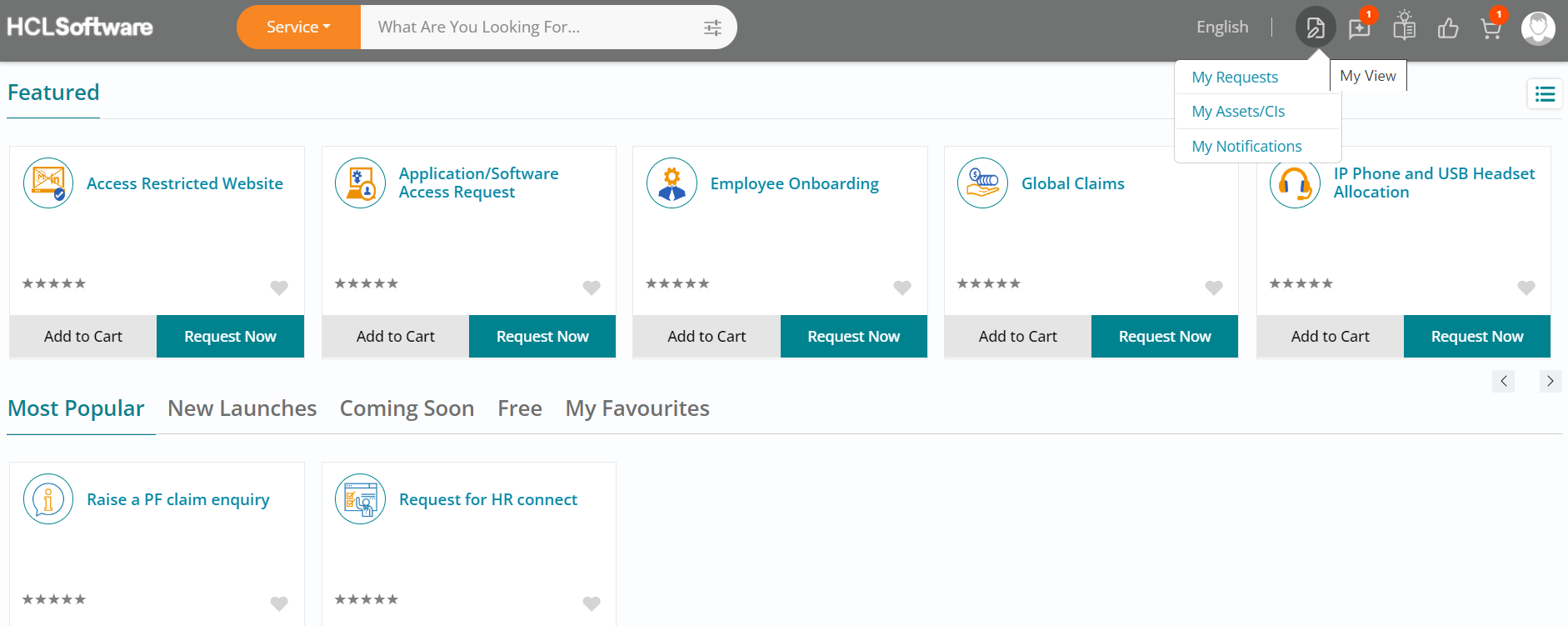
Knowledge Center
HCL BigFix Service Management also has a knowledge management module which can be accessed by navigating to the top right of your page, followed by clicking on Knowledge Center button.
- Click on this button to view the knowledge center.
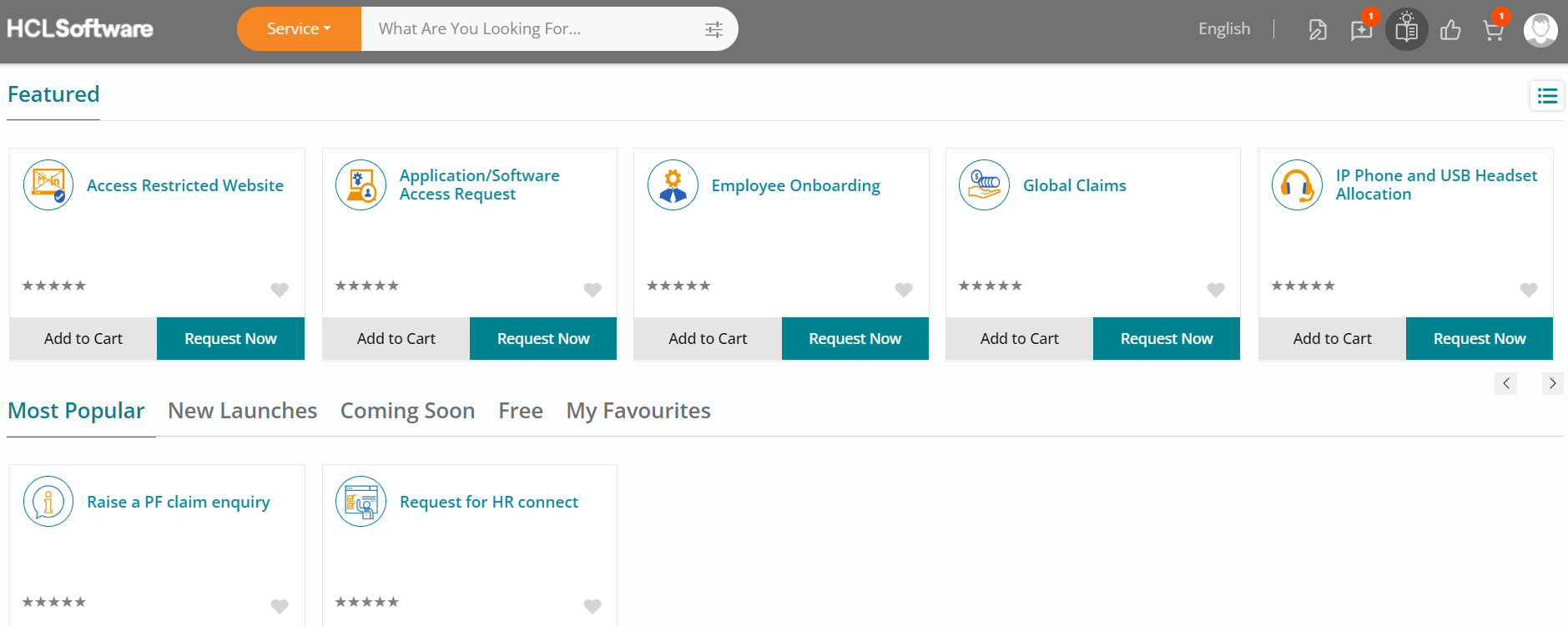
- The knowledge center will automatically open in a new tab on your browser.
- Click on Log In followed by typing ‘unable to access applications’ in the search bar on
the top right of the page, and then click on Enter.

- An article which matches the keyword entered in will appear.
- Click the article and it will open on your screen.

- The article will appear on your screen.
- HCL BigFix Service Management has this unique ability to use traditional knowledge management as well as crowd-sourced knowledge as a part of its knowledge management offering.
- Click on the other tab on your browser to navigate back to the consumer homepage of HCL
BigFix Service Management.
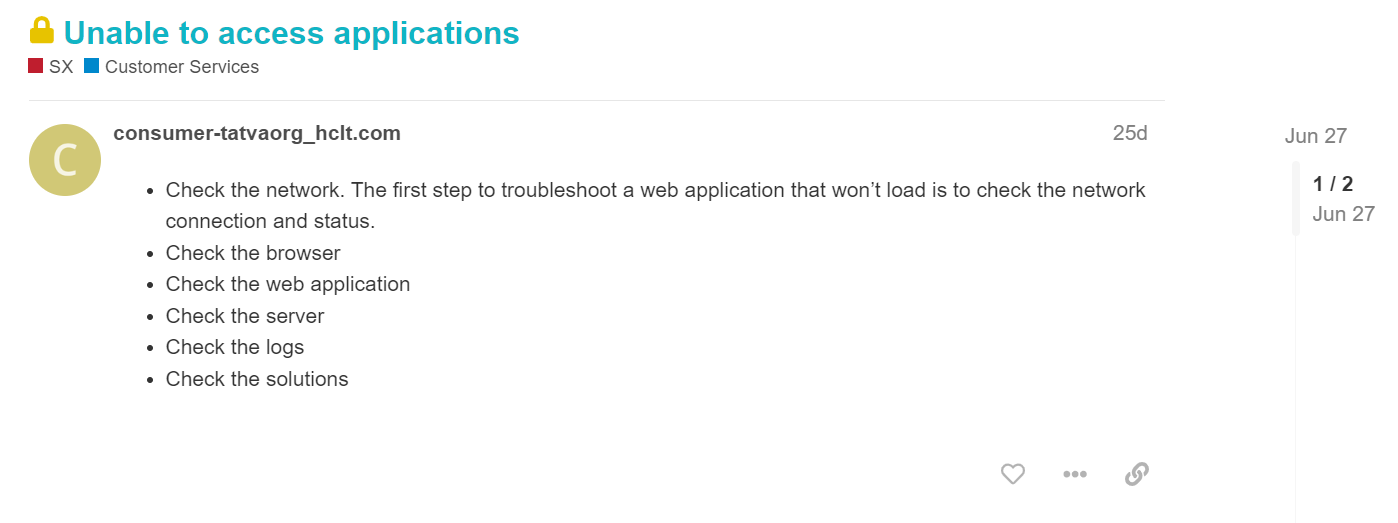
Landing Page
- Upon navigating back to the HCL BigFix Service Management consumer homepage, you will see all the service offerings available for consumption.
- Click on the Add to Cart button on the Global Claims offering under Featured section on
the screen.
.png)
Shopping Cart
- You will automatically receive a prompt to navigate to the Cart.
- Alternatively, you can navigate to the top right of your page and click on the Shopping
Cart option. This is the page that shows the offerings added to cart at any point in
time.
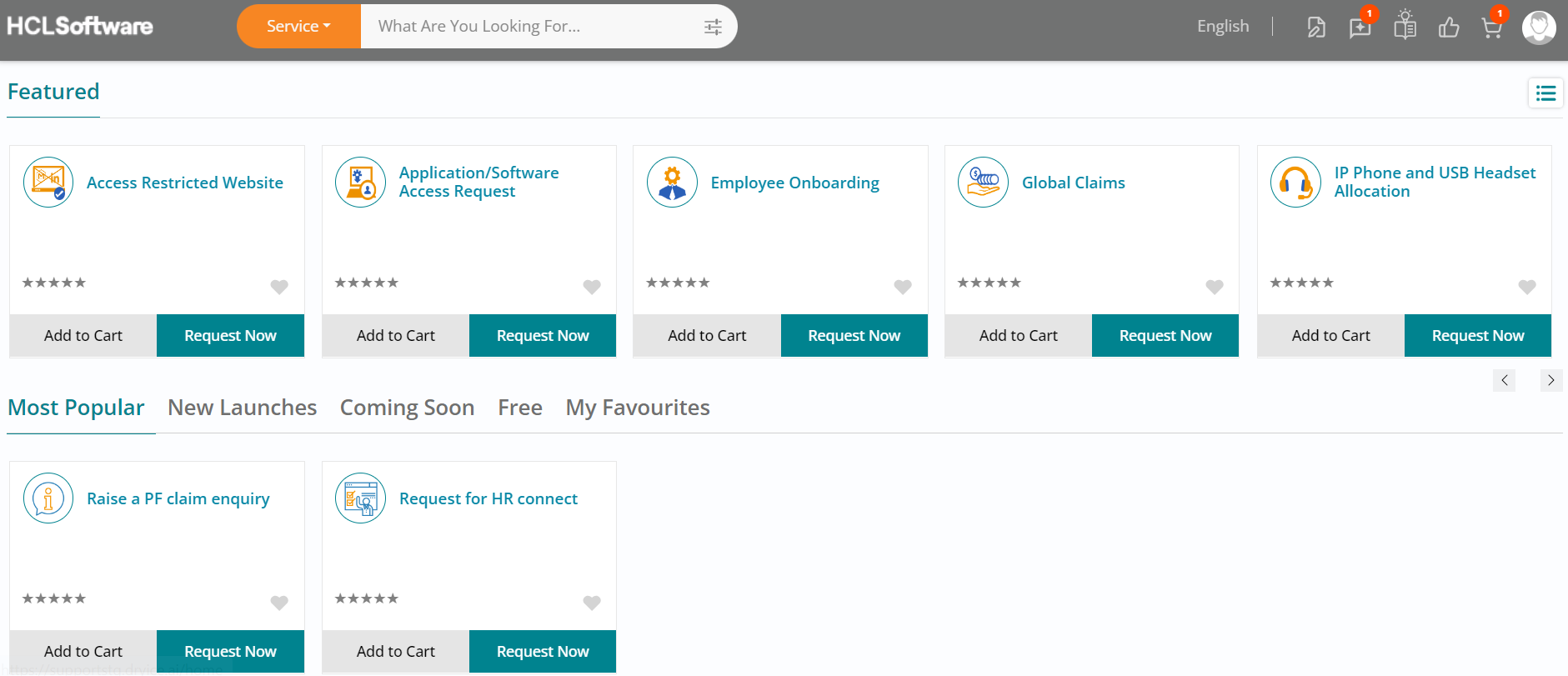
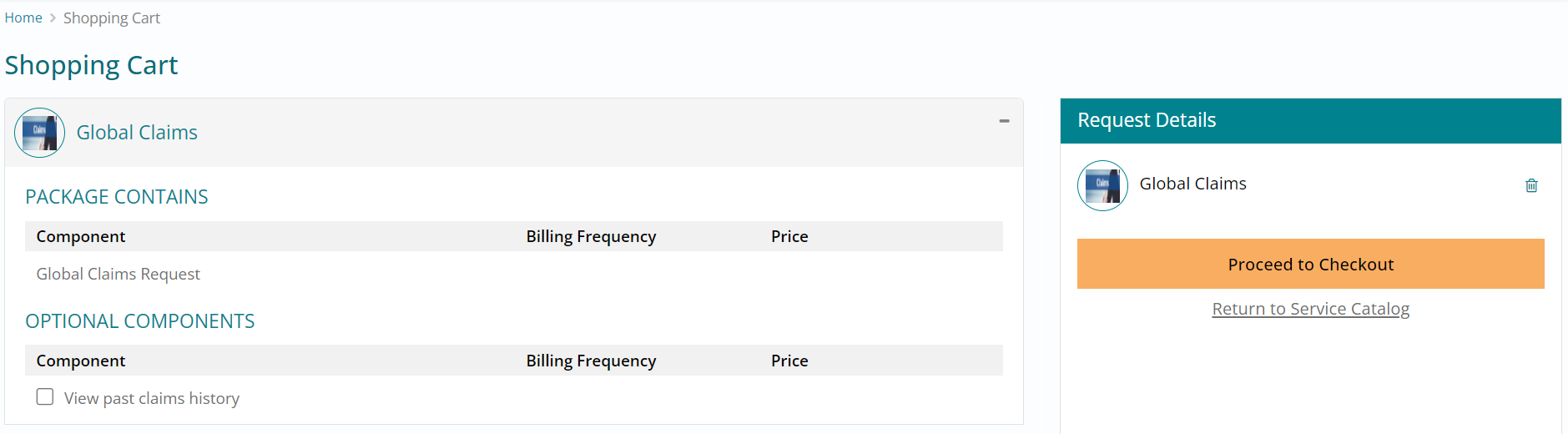
- Once you are in the shopping cart section, you can view the offering(s) added to cart and choose to Proceed to Checkout if required.
- At some point in your trial, feel free to utilize this option as well.
My Profile – Consumer
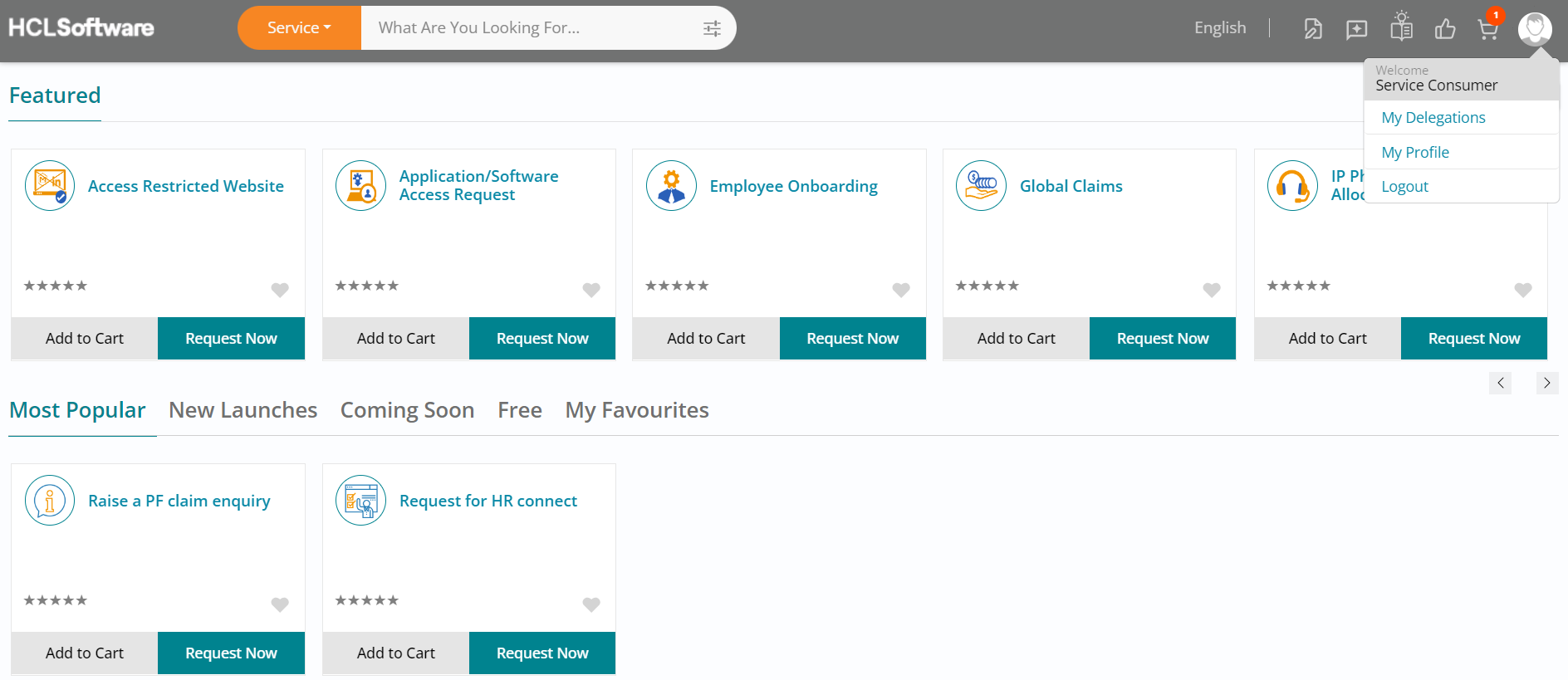
- Click on the My Account button (User icon) on the top right of your screen followed by
clicking on My Profile.
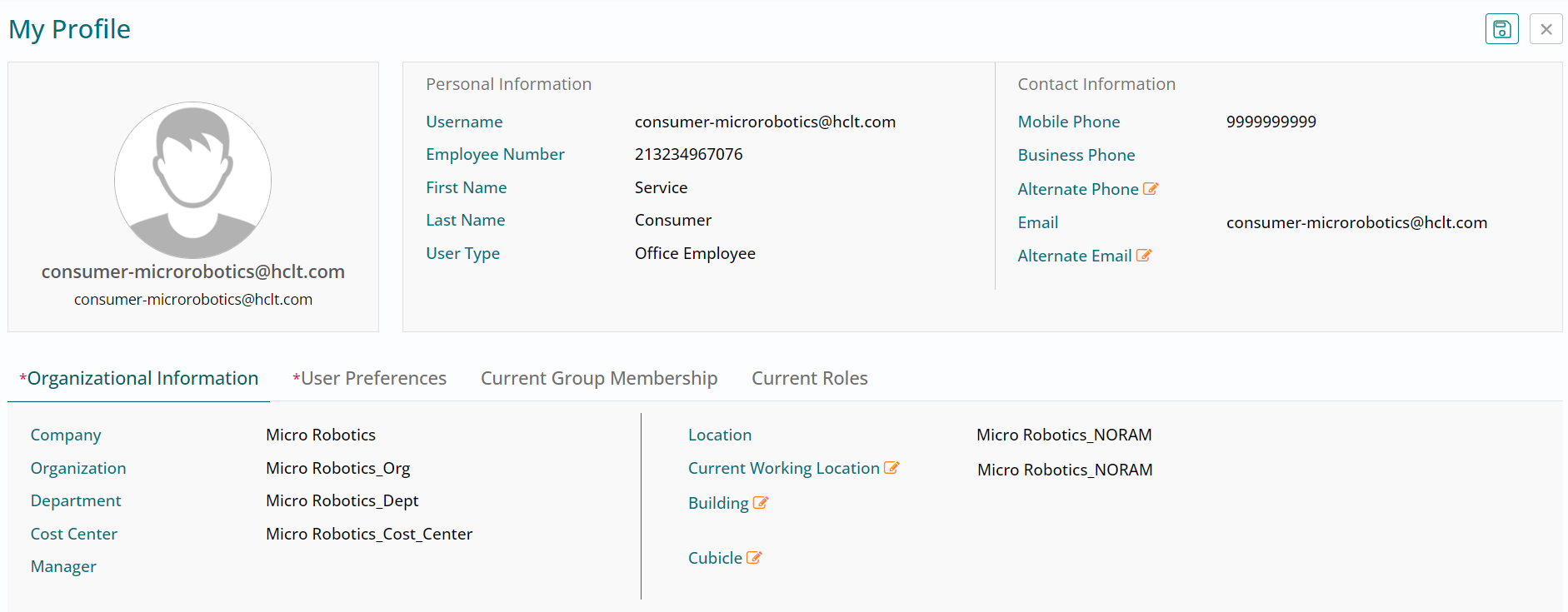
- You will land on the Organizational Information section, wherein you can view user organization details, personal and contact information. You also have the option of editing and updating a few details if needed.
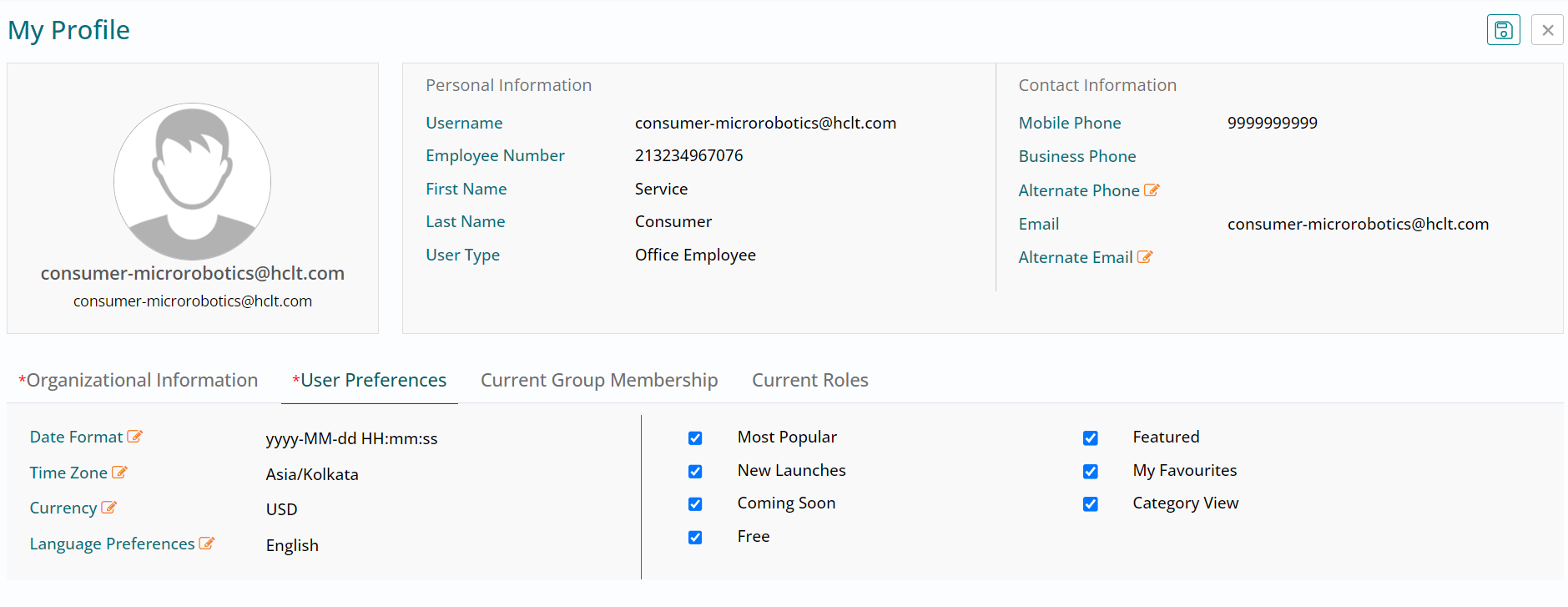
- Click on User Preferences section next.
My Profile - Consumer - User Preferences
- In the User Preferences section, you can view several options wherein you can update details such as date format, time zone, currency and language preferences to name a few.
- You can also view the options such as Most Popular, Featured etc. which can be checked / unchecked for visibility on the consumer homepage. By default, the Featured and Most Popular sections are made visible on the homepage.
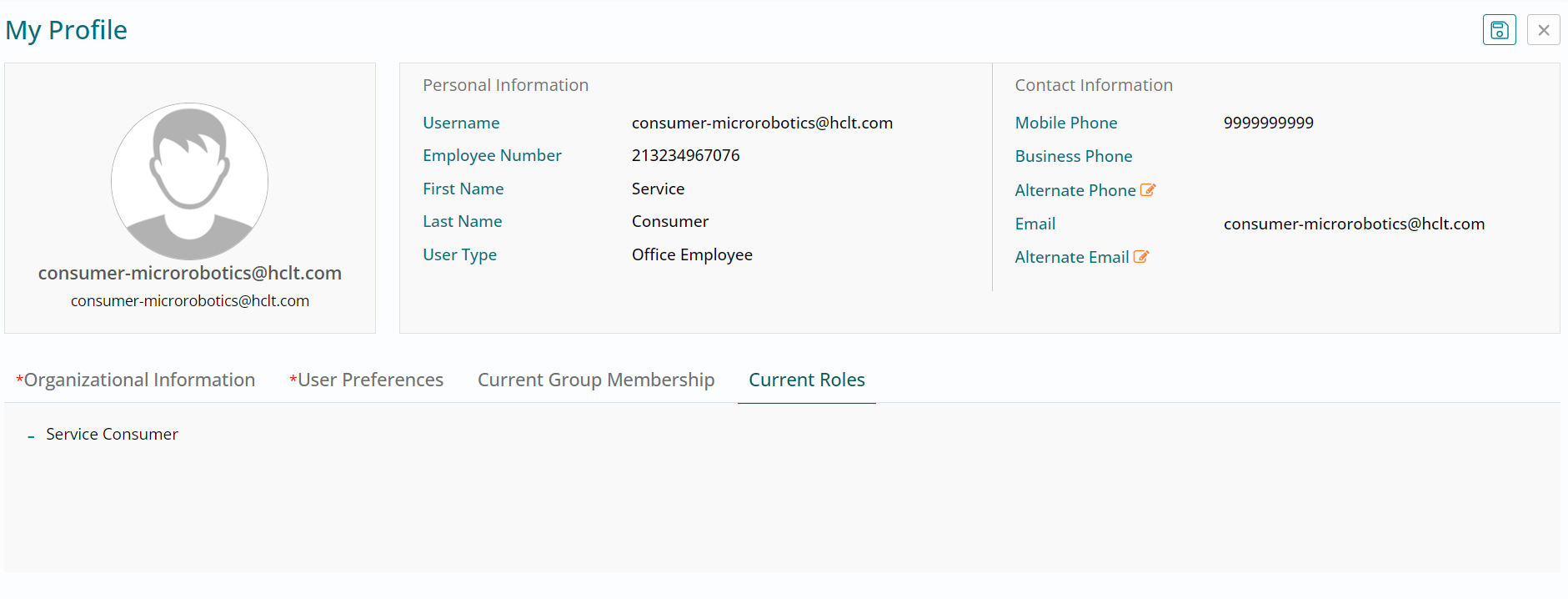
- Click on Current Roles section next.
My Profile - Consumer - Current Roles
- You can view the roles assigned to the Service Consumer user in this section.
- By default, every user will have a Service Consumer role in HCL BigFix Service Management.
- Click on close button to close this section and navigate back to the consumer
homepage.
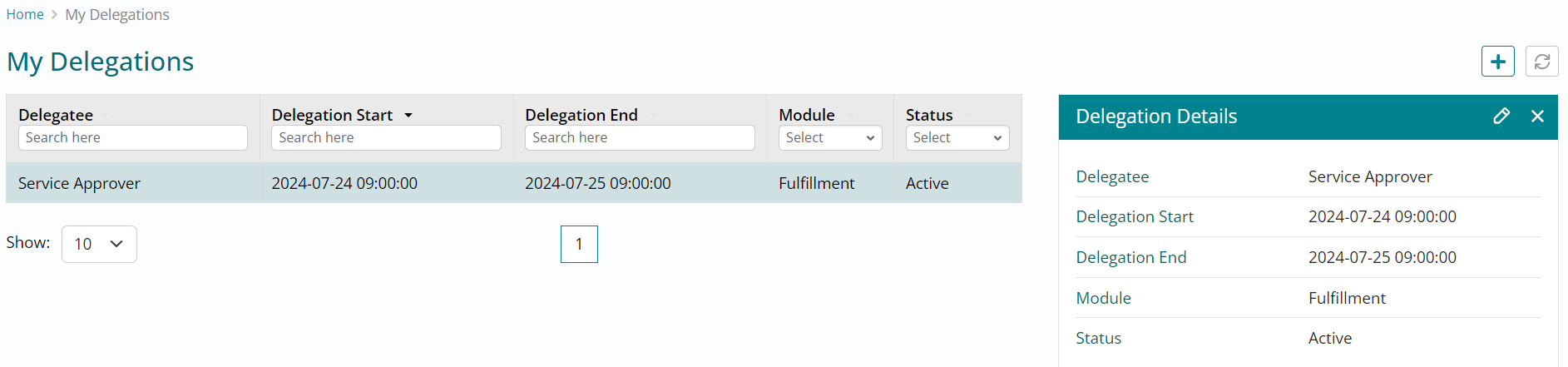
My Delegations
- Navigate to the top right of the page and click on the My Account button (User icon),
followed by clicking on My Delegations.
.png)
- HCL BigFix Service Management provides this useful feature to delegate service requests or change approvals for a specific time in your absence, via My Delegations page.
- Upon landing on this page, you can click on plus button and create a delegation.

- Type in ‘approver’ (the role you would like to delegate to) in the Delegatee field and
select the Service Approver user option.

My Delegations
- Select the module as Service Order from the drop down options.

- Choose the delegation start and end date and time followed by selecting status as Active.
- Click on Save button.

- The delegation will be saved, and you can click on it from the My Delegations list view to browse through its details.
- Click on close button to close this section and then navigate back to the consumer
homepage