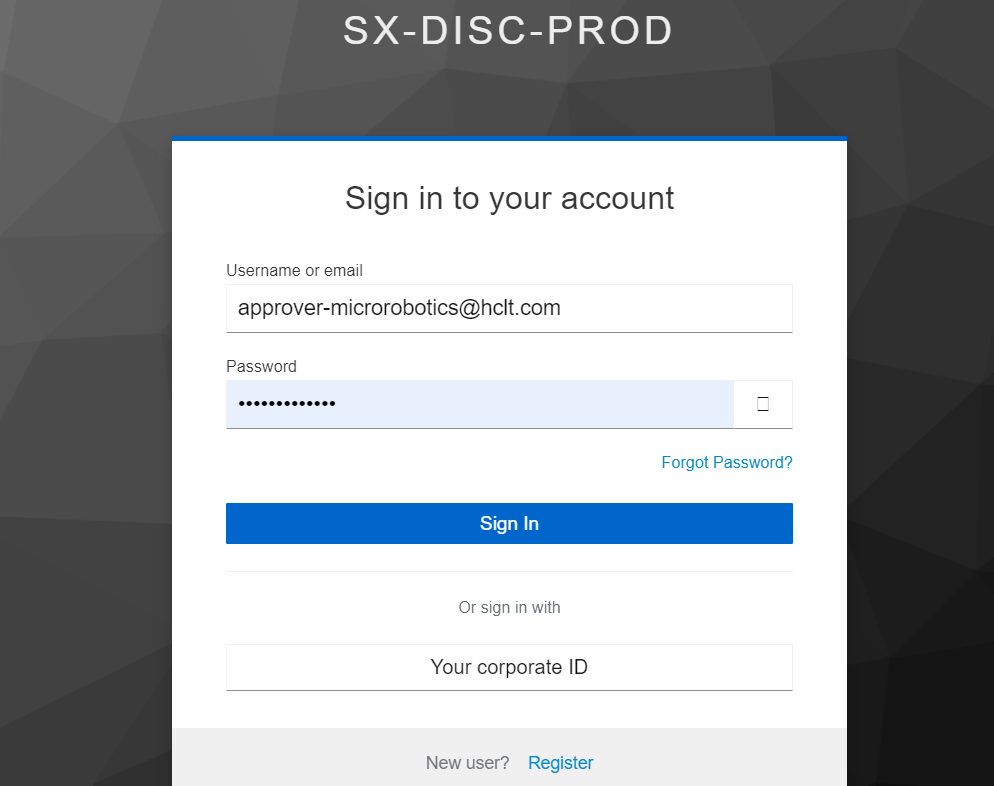
Login using Approver Role
- Use the approved role credentials to log into the instance.
- Click on Sign In upon entering the credentials.
Landing Page
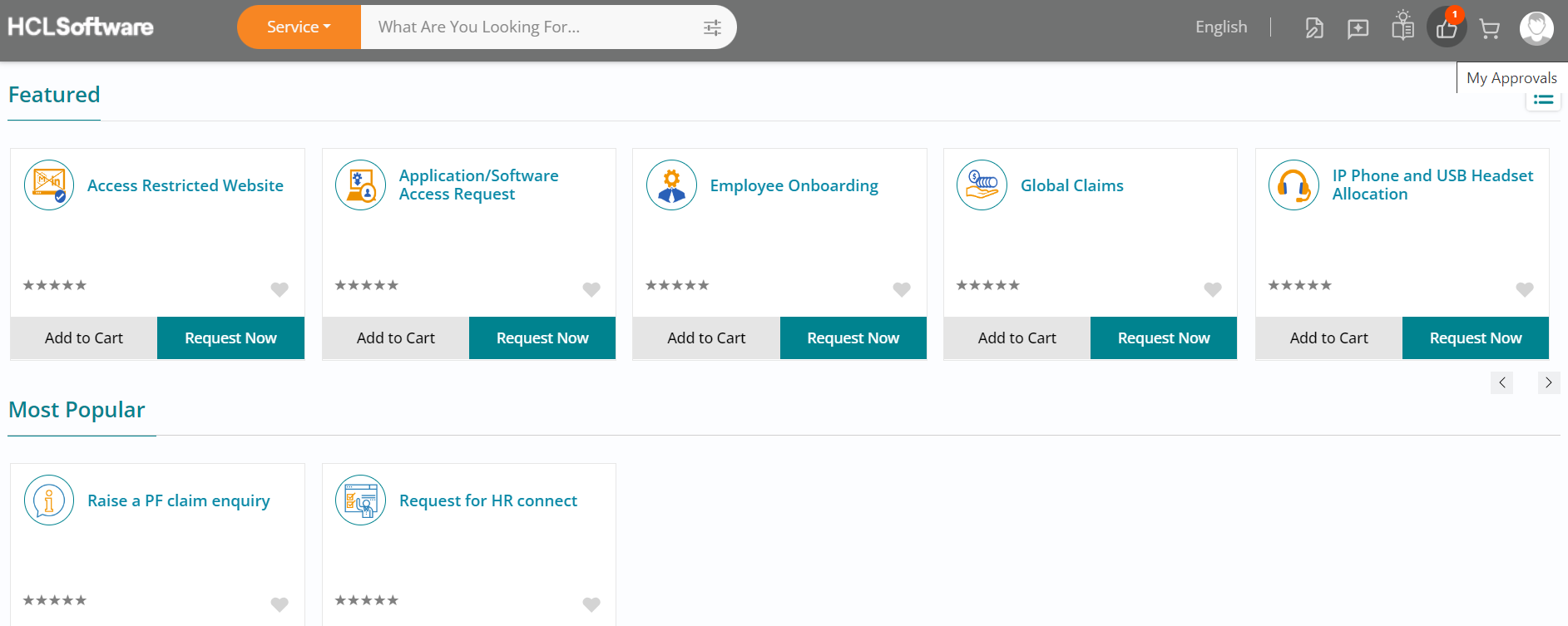
- Upon logging into the HCL BigFix Service Management consumer homepage, you will see all the service offerings available for consumption.
- Navigate to the top right of the BigFix Service Management page and click on My
Approvals button to view the requests pending for your approval.
My Approvals
- Click on the request pending for approval from the list view.
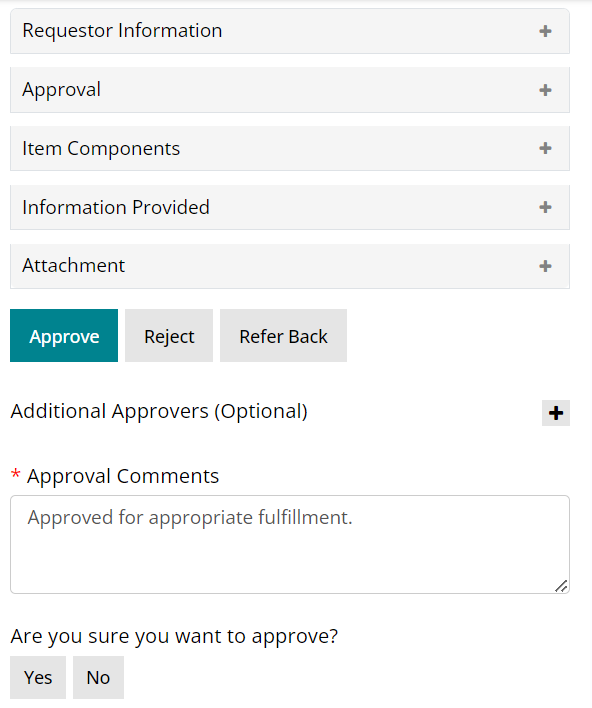
- You may choose to expand each section under the Request Details section to browse
through all the information.
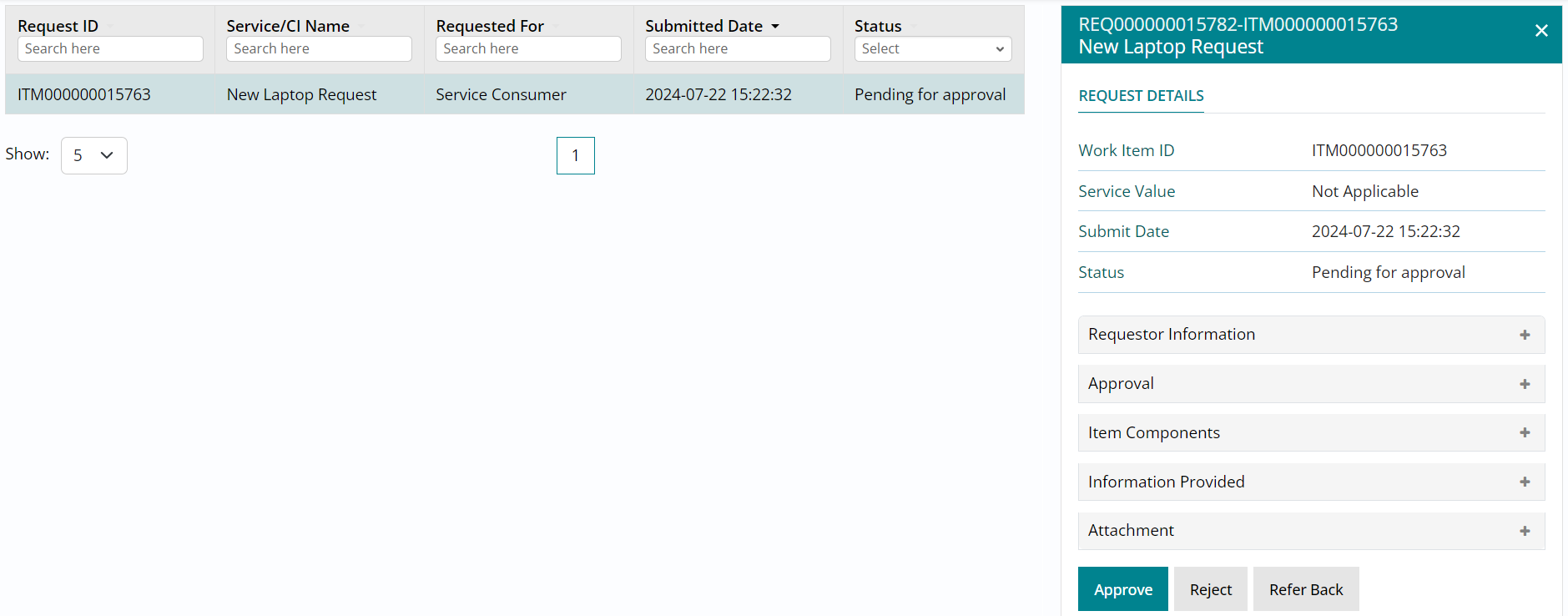
- There are one of three actions that you can take on a request pending approval, namely Approve, Reject and Refer Back.
- Click on Approve and type in your approval comments before clicking on Yes to provide
approval on the request.
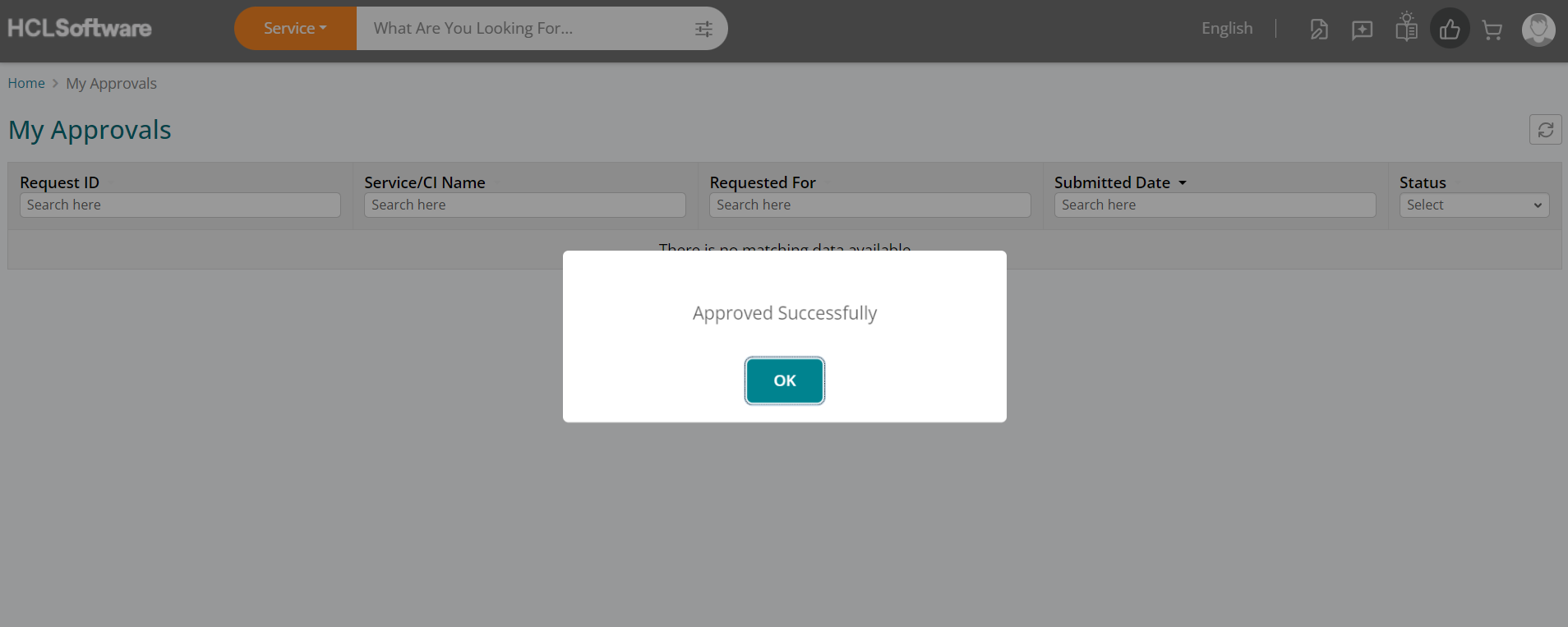
Approved Successfully
- Upon providing your approval, you will see a confirmation message stating that the request was approved successfully.
- Click on OK and you will navigate back to the My Approvals list view.
Approved Requests
-
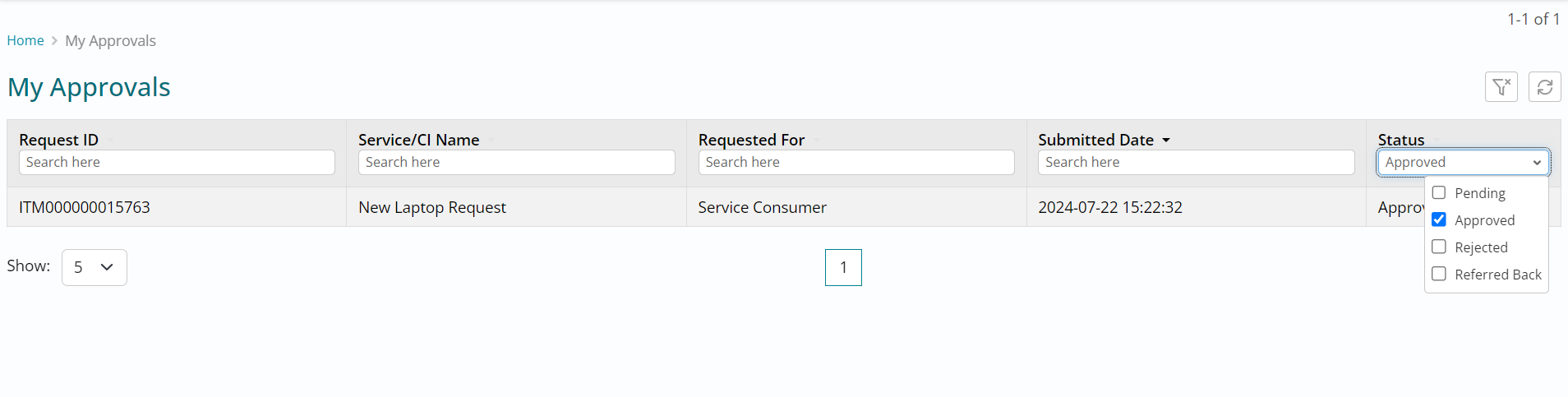
The filters on My Approvals list view show the requests pending approval by default.
- You can filter the Status column and choose to view the request you just approved.