Deploying CDP Admin UI Backend
This section provides detailed instructions on how to deploy HCL CDP Admin UI Backend using the Devtron in the OpenShift.
Prerequisites:
Make sure to create the UI secret with required data in the HashiCorp vault before
deploying the CDP admin UI. .png)
To create the UI secret in the HashiCorp Vault, follow the steps below:
- Create a UI secret sample key and value in the UI secret shown below, and update
the actual values.
{ "AKAMAI_HOST": "", "AKAMAI_KEY": "", "AKAMAI_KEY_NAME": "", "AKAMAI_PATH": "", "AKAMAI_PURGE_AUTH_KEY": "", "API_KEY_1": "", "API_KEY_2": "", "API_KEY_3": "", "API_KEY_4": "", "API_KEY_5": "", "API_KEY_6": "", "API_SECRET_1": "", "API_SECRET_2": "", "API_SECRET_3": "", "API_SECRET_4": "", "API_SECRET_5": "", "API_SECRET_6": "", "AUTH_TOKEN": "", "NEXT_PUBLIC_CLIENT_ID": "", "NEXT_PUBLIC_CLIENT_SECRET": "", "NEXT_PUBLIC_FROALA_SECRET": "", "NEXT_PUBLIC_GOOGLE_CLIENT_ID": "", "NEXT_PUBLIC_GOOGLE_CLIENT_SECRET": "", "NEXT_PUBLIC_RECAPTCHA_KEY": "", "REACT_APP_CLIENT_ID": "", "REACT_APP_S3_ACCESS_KEY_ID": "", "REACT_APP_S3_SECRET_KEY": "", "auAuthKey": "", "auEndpoint": "", "host": "", "muAuthKey": "", "muEndpoint": "", "password": "", "sesEmail": "", "sesPassword": "", "smtpFrom": "", "smtpHost": "", "smtpPassword": "", "smtpPort": "", "smtpUser": "", "usAuthKey": "", "usEndpoint": "", "user": "" } - Create a Kubernetes Secret with Vault credentials to fetch the secrets from the
vault.
apiVersion: v1 kind: Secret metadata: name: vault-creds namespace: cdp-dev-app type: Opaque data: username: <vault username> password: <vault password> - Create separate service account say cdp-dev-app-sa, with appropriate roles and permissions, and update ConfigMaps data with actual values.
Deploying CDP Admin UI Backend
To deploy the CDP admin UI backend, follow the steps below:
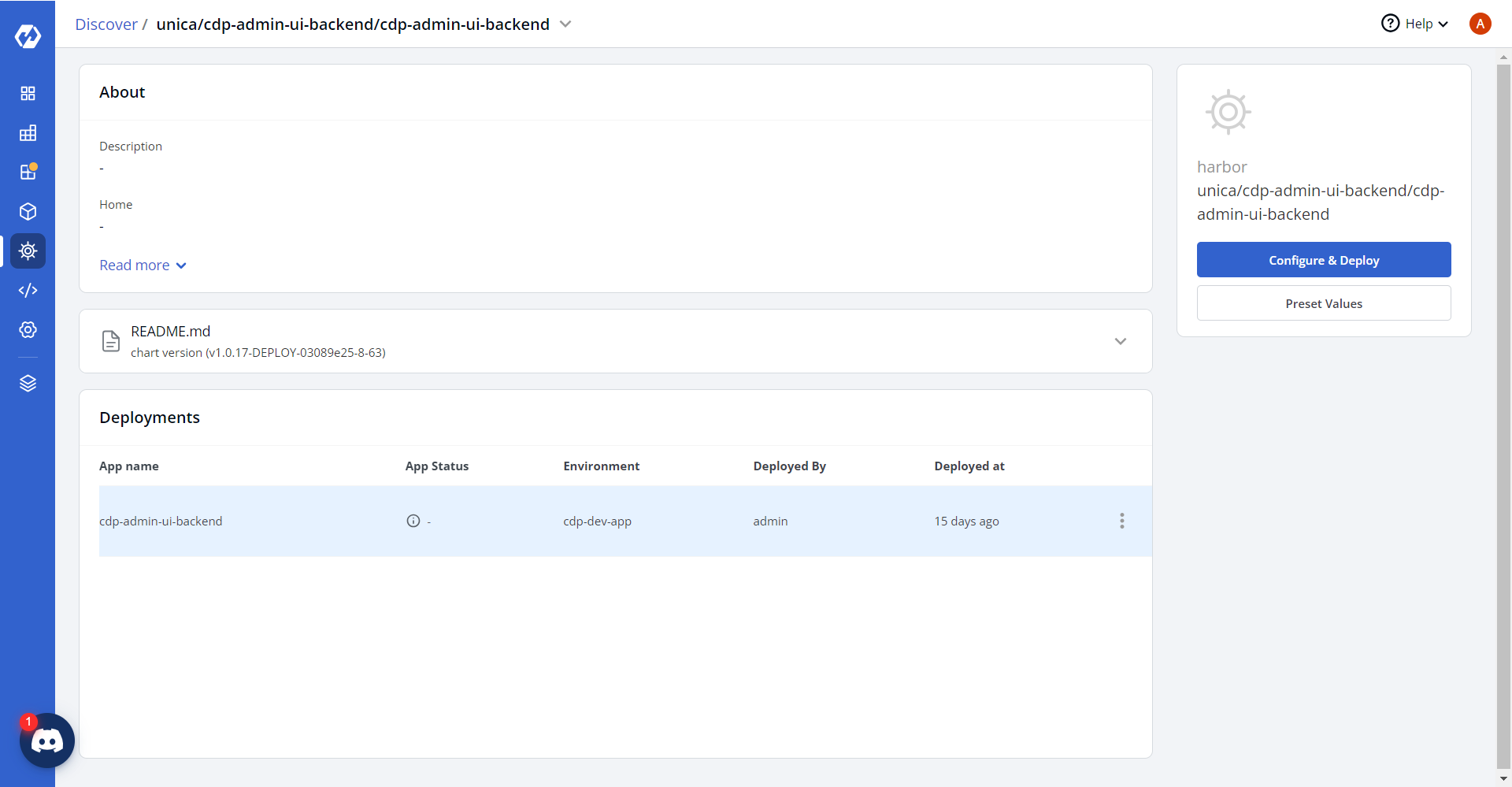
- Navigate to the Devtron Chart Store, and select the cdp-admin-ui-backend
chart to deploy.
.png)
- Now, configure and deploy the admin UI charts.
- In the YAML section, update the ConfigMap using below details and deploy
the
charts.
REACT_APP_S3_BUCKET_NAME: ''''''
allowedDomains: '[''hcl.com'', ''hcl-software.com'',''hcl.software'',''hclpnp.com'']'
bypassGoogleAuth: "false"
connectionLimit: "10"
database:< MySQL_DB_Name>
webAppURL: <WebApp_URL>
port: "<3306>"
smtpRejectUnauthorized: "false"
smtpSecure: "false"
useSmtp: "true"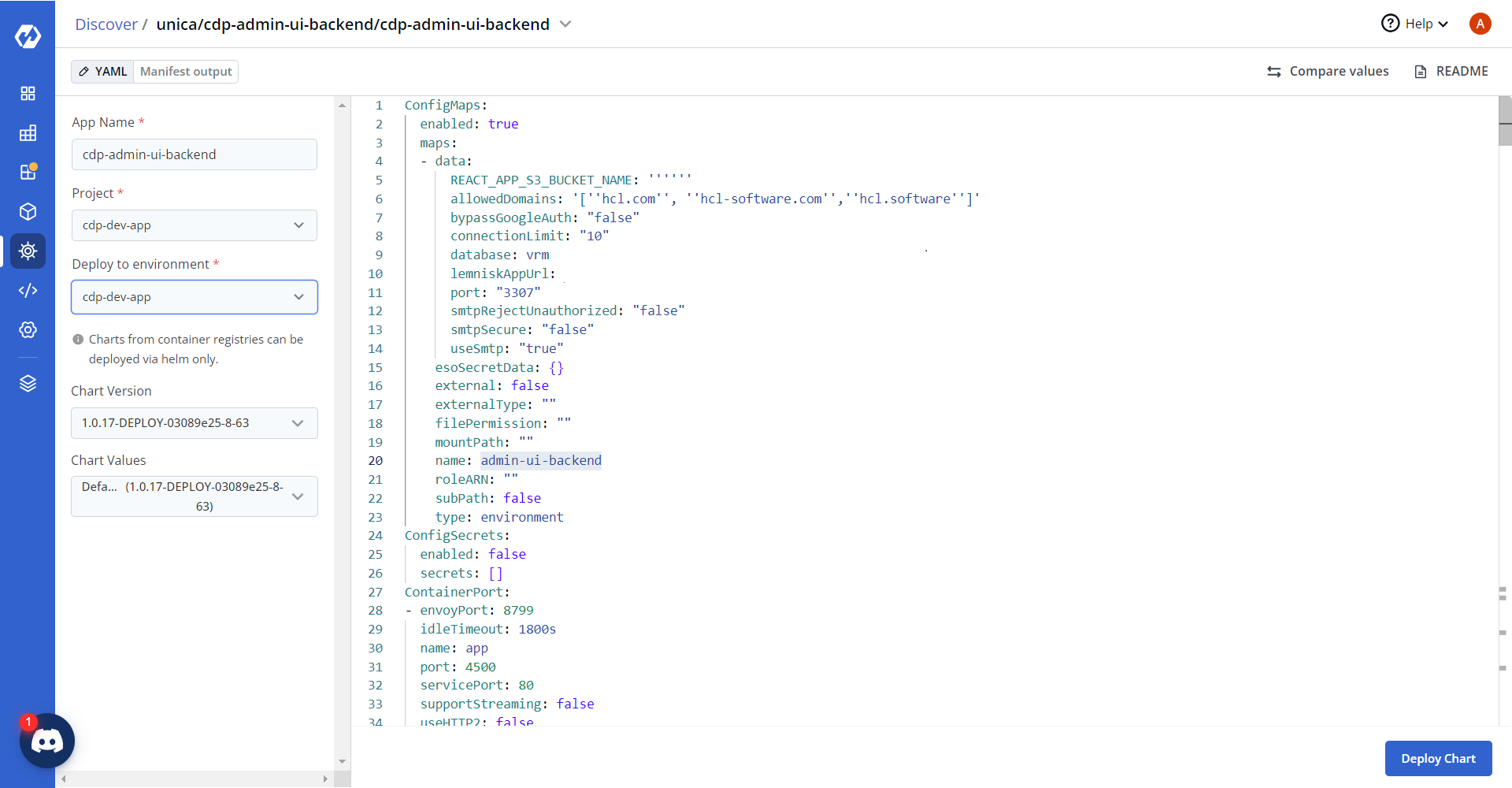
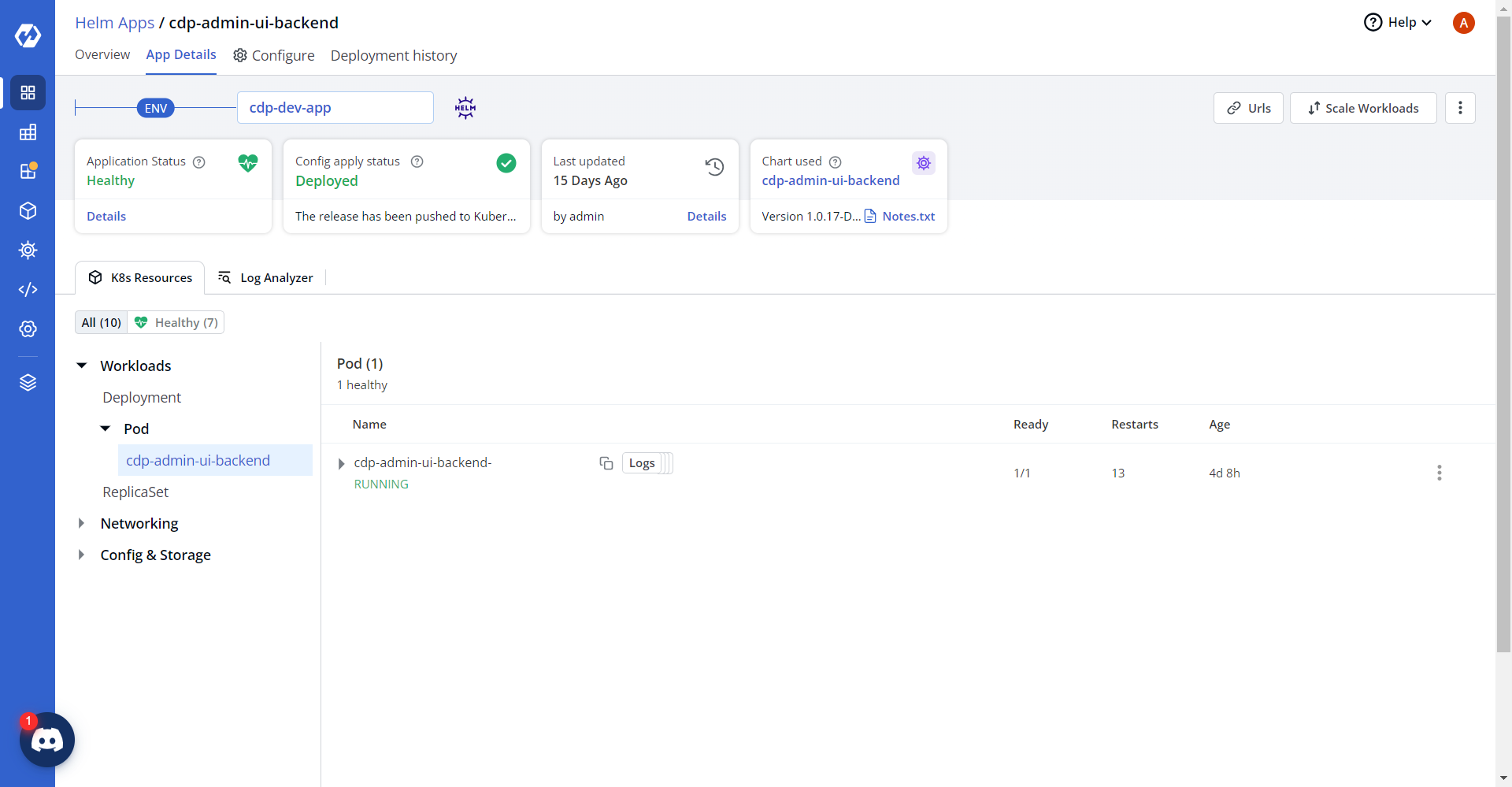
- On successful deployment, validate the deployment as shown below.