Generating Security report
The Security Report displays the roles of all users based on the teams or groups to which they belong.
Before you begin
About this task
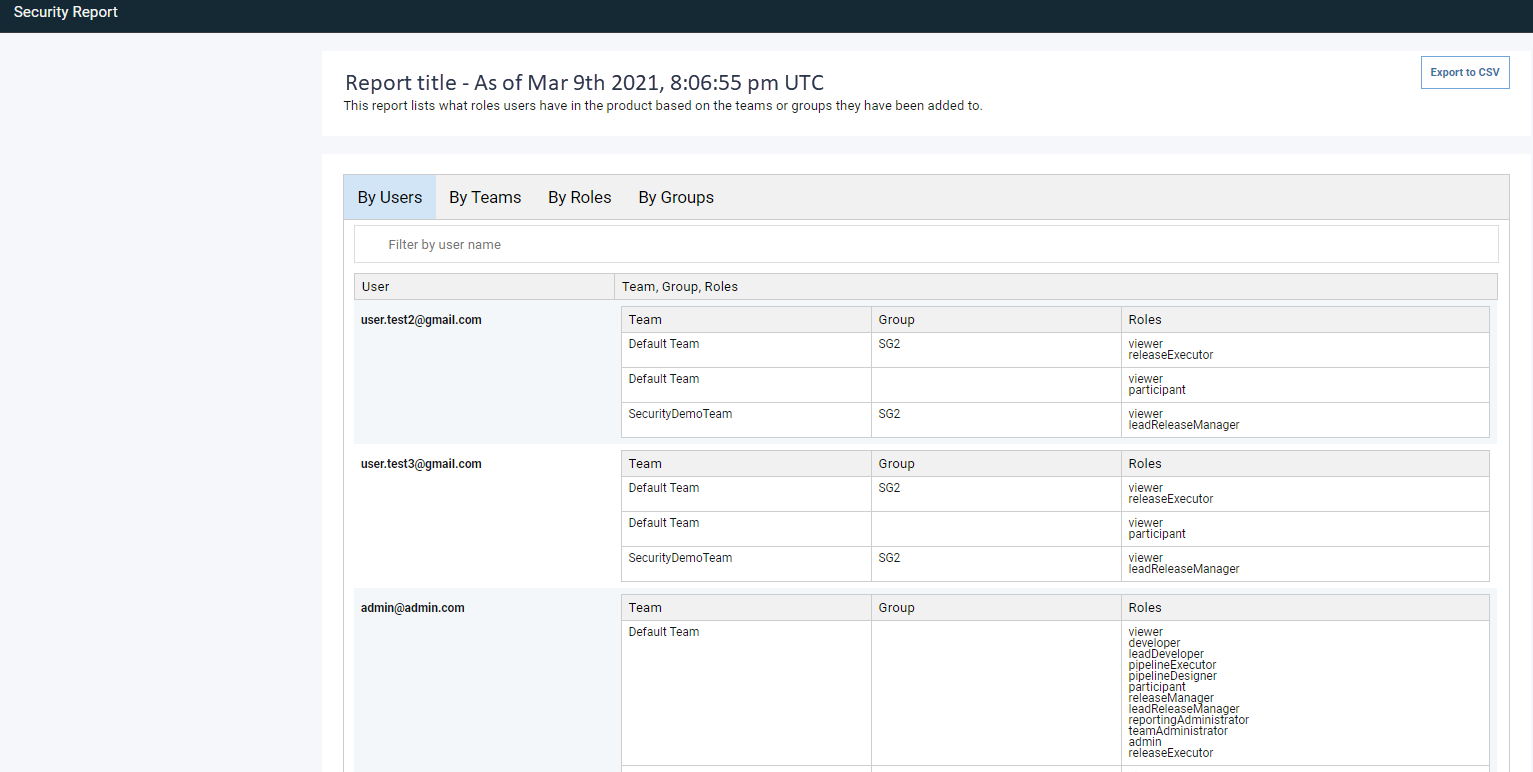
The Security Report provides a comprehensive list of all users with the teams to which they belong, the roles to which they are assigned, and the groups with which they are associated. Users can be filtered by categories such as By Users, By Teams, By Roles, and By Groups. With the security report, you can view users based on their roles, teams, and groups.
Procedure
- Click .
-
Select the Security Report field under the Report
Templates heading on the left side of the page.
Note: When the Security Report field is selected, a vertical blue bar is displayed on the left side of the field to indicate that it is the report to run.
- Click Run Report to open the RUN REPORT window.
-
Enter the security report title in the Report Title field.
Note: To set a report title as default, click Set as Default.
- Click Confirm to run the report.
Results
The Security Report page displays the following information about the report:
- Date: Shows the date, time, and email address of the user who ran the report.
- Status: Shows the color-coded status: Orange = STARTED, green = COMPLETE, and red = FAILED.
The following elements provide detailed information about the report:
- View log: When you click View log, the log details of the report are displayed.
- View parameters: When you click View parameters, the VIEW PARAMETERS OF EXECUTION window opens and displays the details used to run the report.
- Share: When you click Share, the URL is copied so you can share the report.
- Results: When you click Results, the Security Report page is displayed. You must then click Export to CSV to export the deployment audit report.
The security report is displayed with four categories:
- By Users: Type the user name in Filter by user name to filter users by user name.
- By Teams: Type the team name in Filter by team name to filter users by team name.
- By Roles: Type the role name in Filter by role name to filter users by role name.
- By Groups: Type the user name in Filter by group name to filter users by group name.
A sample Security Report page is shown below.