
Getting started
You can find the basic steps for setting up a workspace in the DevOps Code (Code) Browser IDE. You can find instructions for accessing and using the dev container environment. A video walkthrough is also available to visually guide you through the same process.
Accessing Code
You can access Code by using the switcher button located at the top-left corner of the interface.
Switching to your teamspace
Upon initial login, you might only see the default Starter dev container. To access your team-specific dev containers:
- Click the switch teamspace button in the top-left corner.
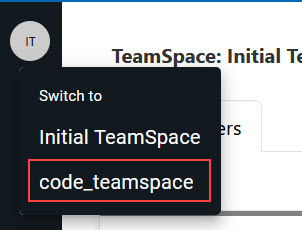
- Select the appropriate teamspace created by your team admin.
Note: If you do not see any teamspace listed, it means you are not added yet. Contact your team admin to request access to a teamspace.
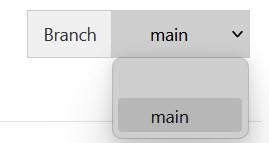
You can also switch to a different branch (other than main) using the Branch menu in the uper right corner of the IDE. This is useful for working on feature branches or reviewing specific versions.
Using the dev container
After you are added to a teamspace, you will be able to view additional dev containers on the landing page. You must click a dev container to open the container. The container might take some time to load initially.
Working in the IDE
After the browser-based IDE loads, perform the following tasks:
- Go to File > Open Folder to get started.
- Click Yes when prompted with "Do you trust the authors of the files in this folder?".
- Navigate to the workspace directory.
- You can now start working in your workspace. For example, you can clone a Git
repository to populate your workspace with the source code you want to work
with.
Note: This is just a quickstart example. As the environment runs on a VS Code Server, you can install extensions, debug applications with breakpoints and live logs, use terminals and Git integration, and fully customize your dev container with the dependencies you need. Use this as a starting point to explore the full development workflow.
Watching and learning
A video version of the above steps is also available for reference. It demonstrates the full workflow - from accessing Code to running your application in the browser IDE. Watching the video can help you follow along more easily. Learn more about dev containers here.