
WebUI IVR: Universal Vulnerability Ingestion (UVI) – File Import
The Universal Vulnerability Ingestion (UVI) – File Import feature enables users to import vulnerability reports into the IVR application using Tenable or generic CSV files. The process includes file upload, column mapping, data verification, and integration into the IVR system for analysis and reporting. Users can also manage imported data by deleting or updating reports as needed.
The Universal Vulnerability Ingestion (UVI) – File Import enhancements include:
- Import vulnerabilities and asset data from any
CSVformat - Match imported vulnerabilities with BigFix content
- Provide accurate remediation recommendations
- Replace or merge existing vulnerabilities
- Support uploading multiple files
- Navigate to Import Data in IVR Web UI.
Upload a CSV file using drag-and-drop or file selector.
- Choose Tenable/Qualys/Rapid7/CrowdStrike for pre-correlated data
- Choose General CSV File for other sources
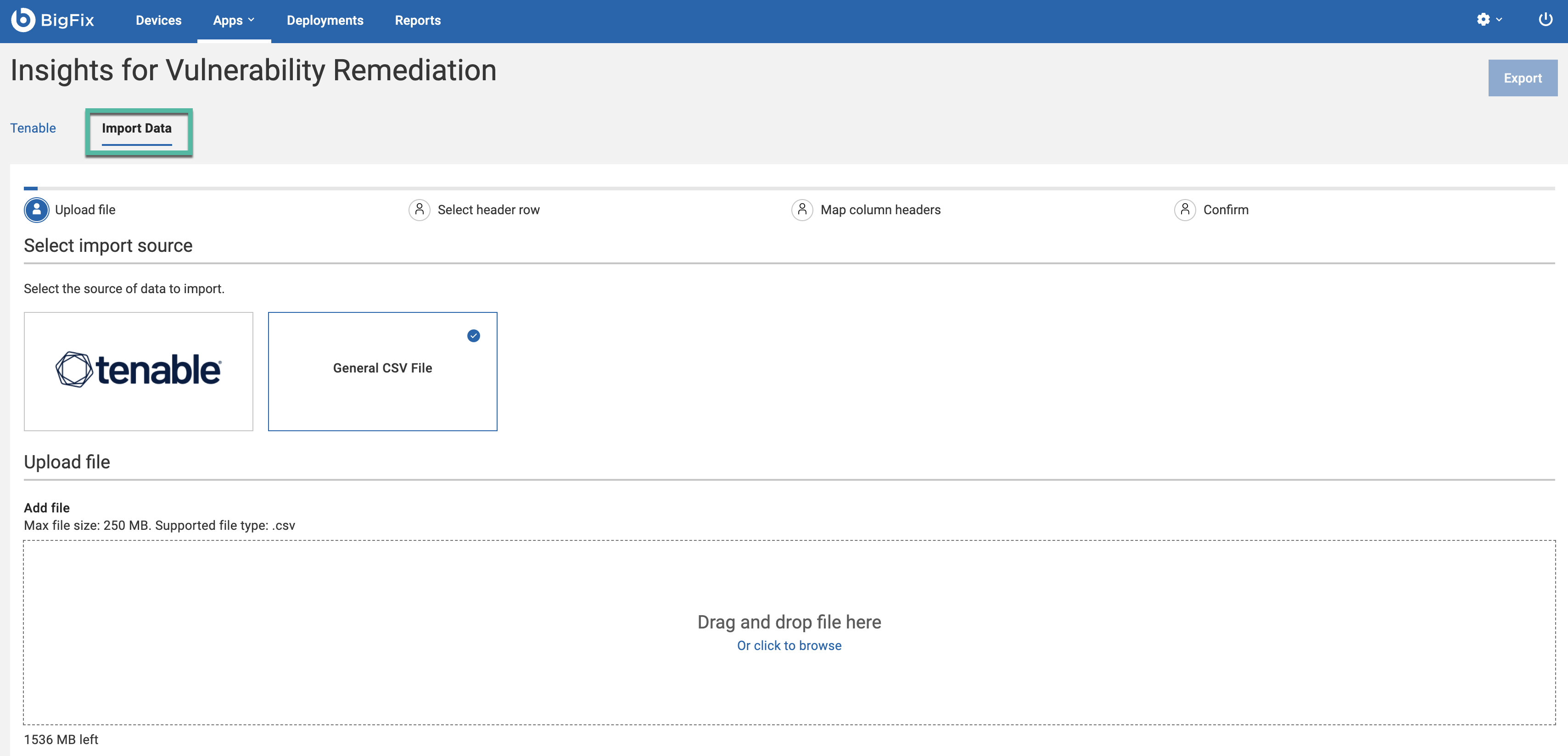 Note:The maximum file size allowed for each CSV import is
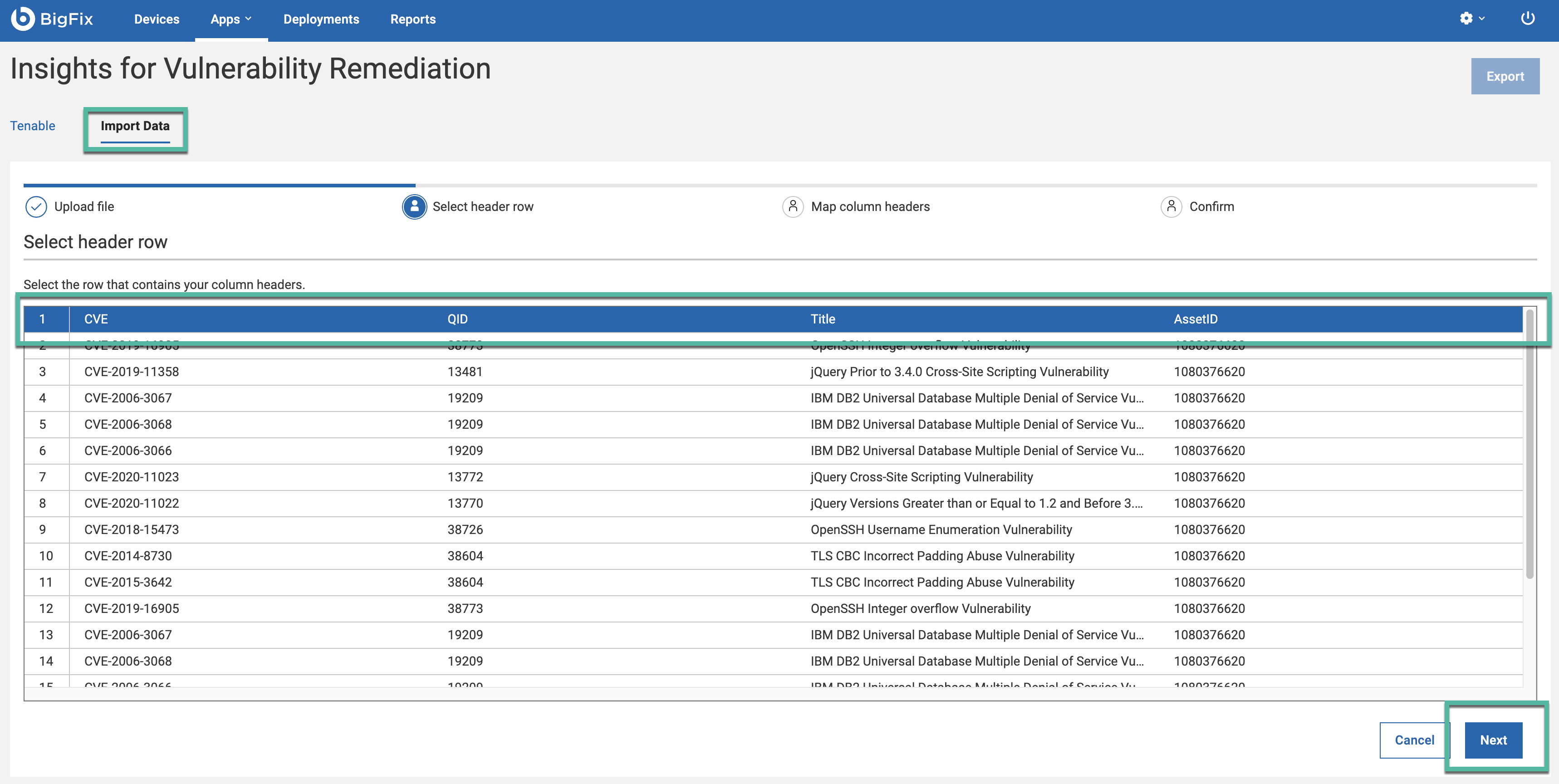
250 MB. A total upload limit is1.5 GB. You can see your remaining upload capacity in the lower left corner of the screen. These limits can be adjusted in the system settings. - Select header row that contains your column header. Click
Next.
- Map column headers. From each dropdown select the imported header to map the IVR
column headers. Click Next.Note:ID, Vulnerability Name and CVE IDs are mandatory fields. To exclude a non mandatory column, select “Do not include this column” from the dropdown list.
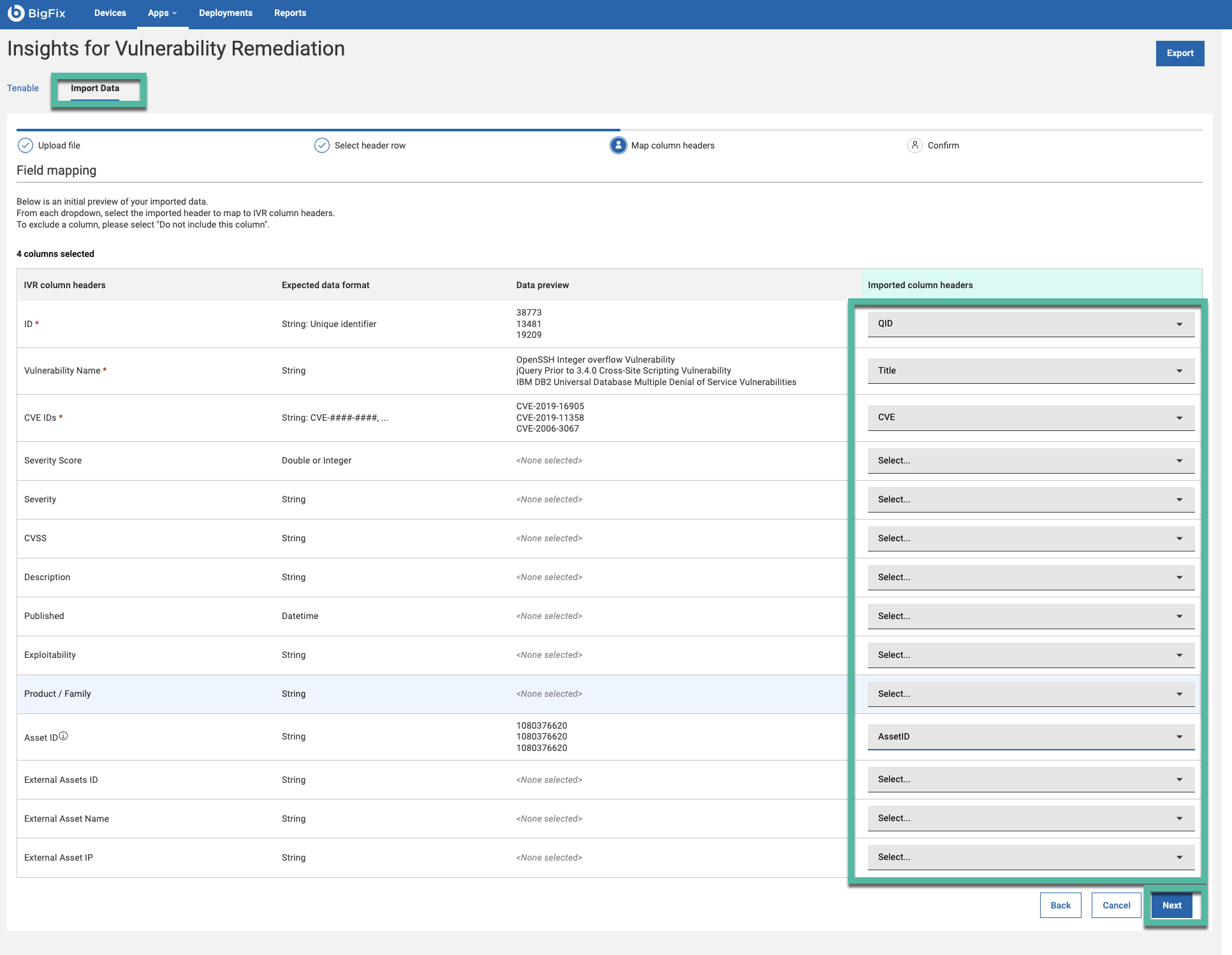
IVR column header includes following elements:
IVR Column Header List HCL Note Specific Definition ID* Mandatory for CSV import ID of vulnerability Vulnerability Name* Mandatory for CSV import Name of vulnerability CVE IDs* Mandatory for CSV import unique identifier for vulnerability (Ex : CVE-2023-35644) Severity Score Optional It helps prioritize vulnerabilities for action based on their severity levels: Critical, High, Medium, or Low Severity Optional Range given to vulnerability how priority is this CVSS Optional intrinsic risk of the a vulnerability across the system Description Optional Description about the vulnerability Published Optional Date on which vulnerability is found Exploitability Optional How easily a vulnerability is exploited (Ex : attack vector, user interaction) Product / Family Optional The Plugin/ Family describe how vulnerability and fixlets are mapped BigFix Computer ID Strongly recommended for CSV import Unique assets associated with each vulnerability External Assets ID Optional External system identifier from a vulnerability management tool (e.g., Tenable UUID) External Asset Name Optional Human-readable external asset name, as defined in the vulnerability management system (e.g., host/server name) External Asset IP Optional IP address of the external asset, as reported by the vulnerability management system - IVR app will present a summary of the imported data for your review. Verify the
accuracy of the information before finalizing the import. Click
Next.
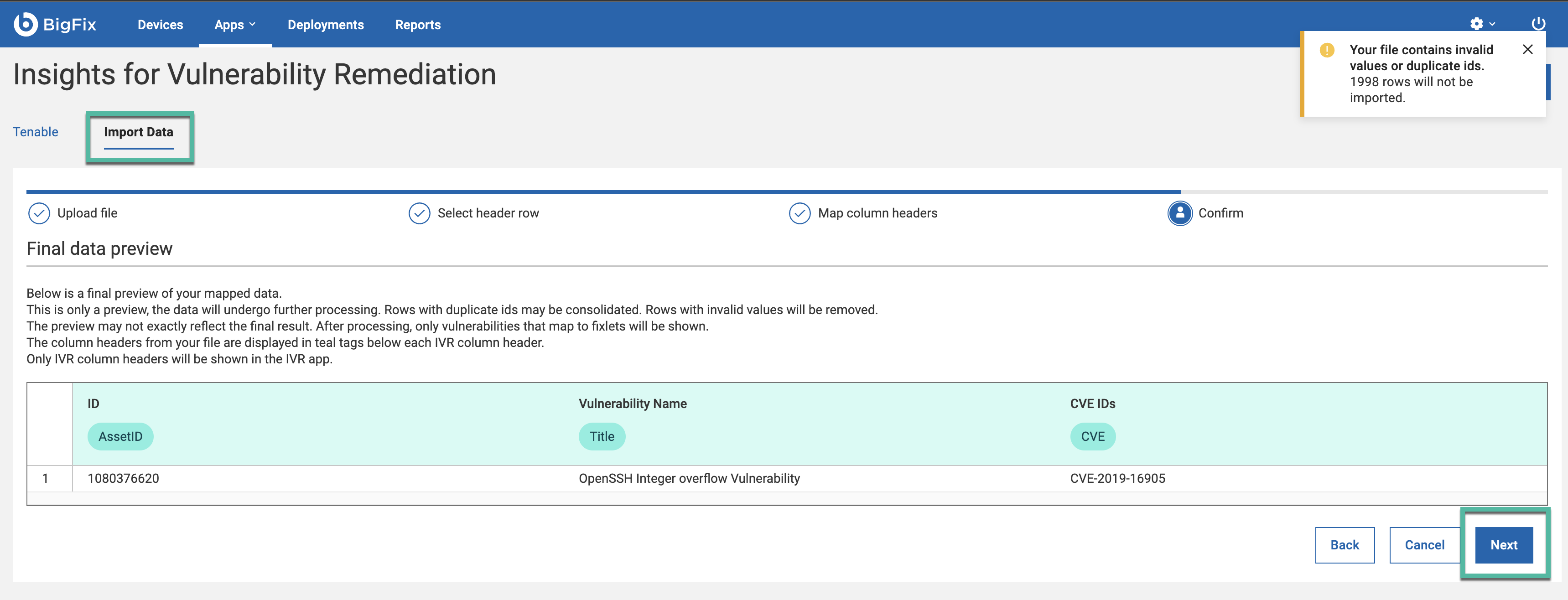 Note:The preview displays 20 rows of the report.Note:Rows with duplicate ids may be consolidated. Rows with invalid values will be removed.
 - Uploading CSV file.
After the upload begins, you will see the progress bar showing the upload status.
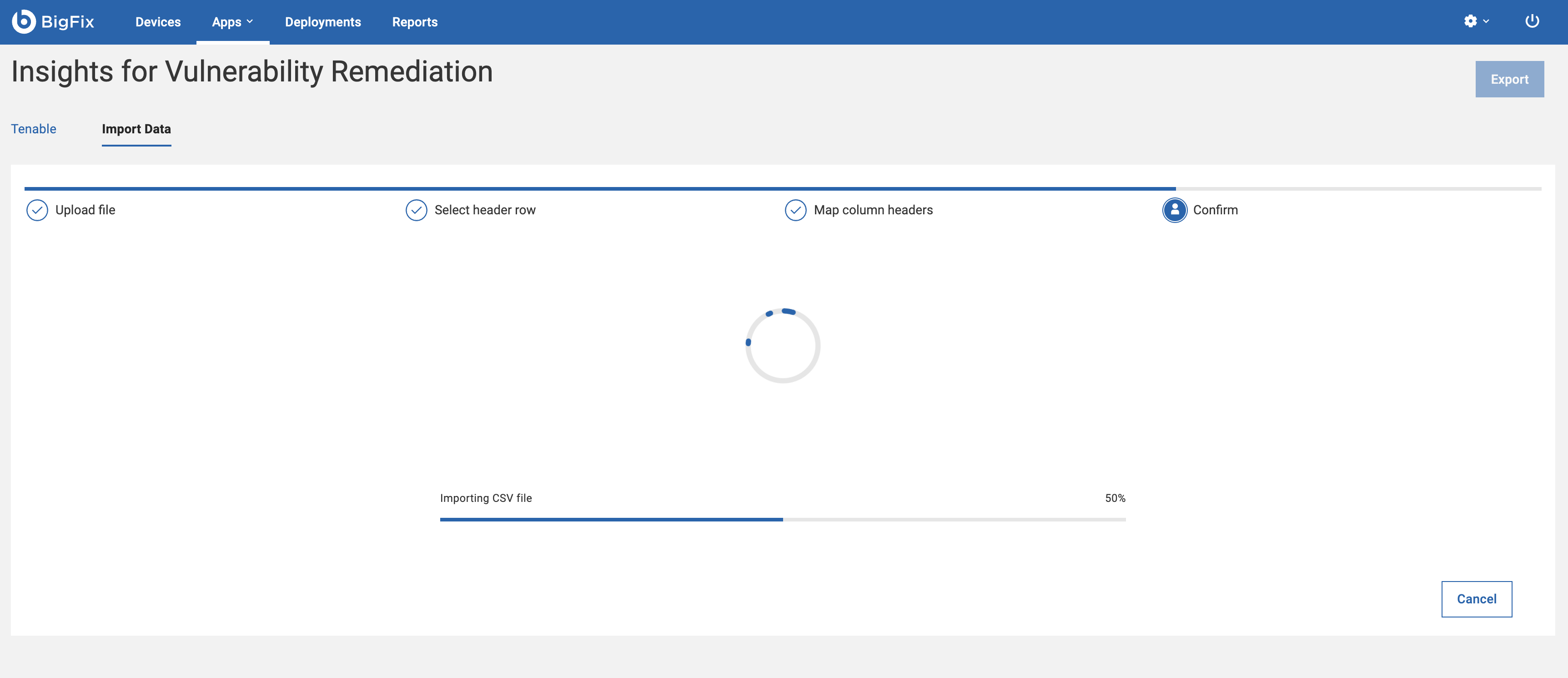
If you are uploading a large file, you can stop the upload at any time by clicking Cancel.
Note:If you cancel the upload, only part of the file will be uploaded.Important:Once the IVR service starts, it may take a few minutes for the background processing to complete. During this period, the File Import option will be disabled, and you will not be able to select any files. - Once confirmed, the IVR app will integrate the vulnerability report into its
database.
Imported vulnerabilities appear in both:
-
Vulnerabilities dashboard (list/grid view).
-
Devices dashboard (if BigFix Computer ID / Asset ID included)*
Note:To display data in the Device View using the File Import feature, add a BigFix Computer ID column to the CSV file. This column should contain the corresponding BigFix Client ID/Computer ID to map the imported data to the appropriate machines. -
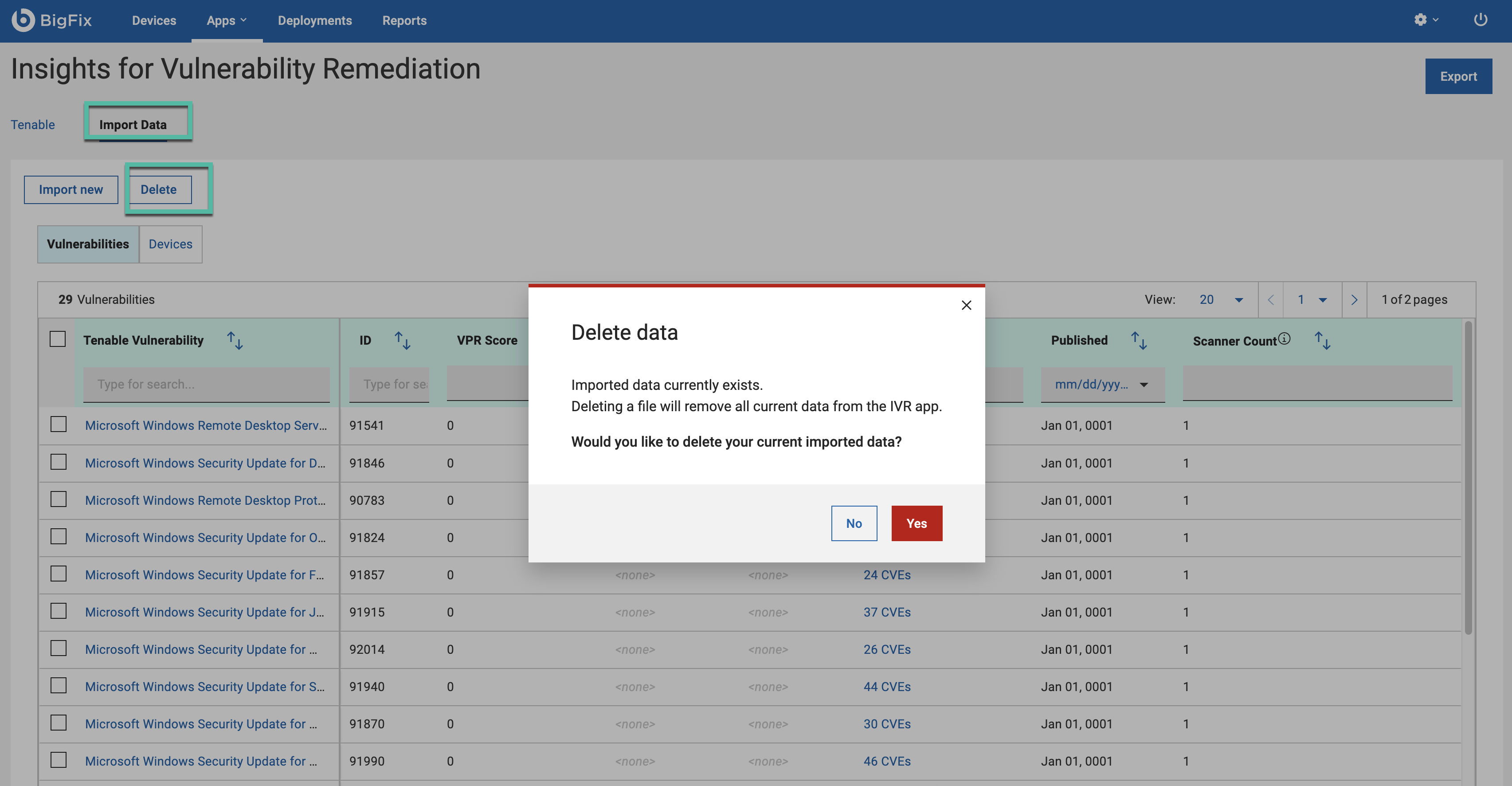
To delete the report, click Delete and confirm deletion. Deleting a file will remove all current data from IVR.
To import new data, click Import new. You can replace existing file or update it.
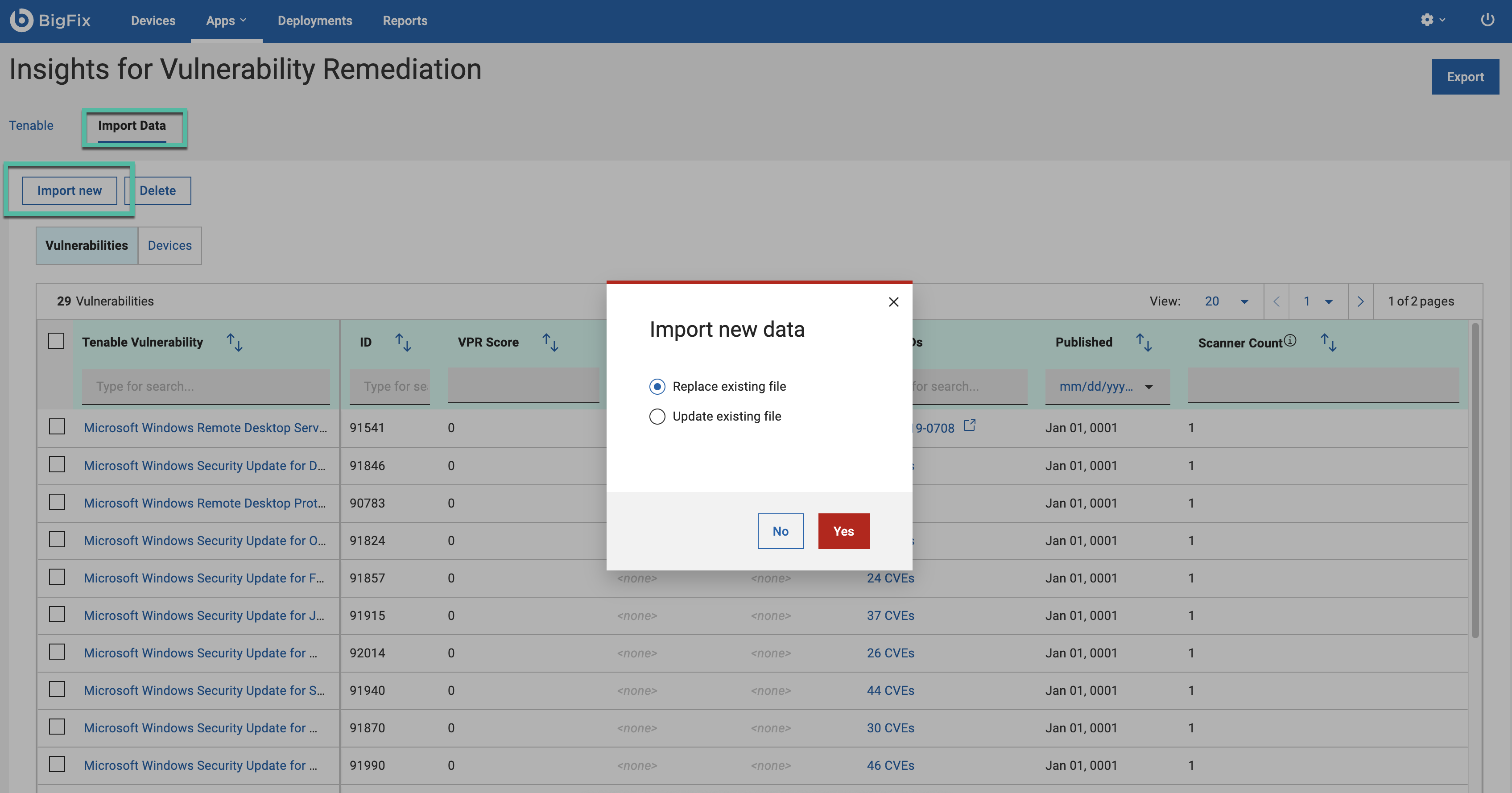
Replacing an existing file means you delete the current data and upload a new file in its place.
Updating an existing file works similarly to importing multiple files. This process allows you to add new content to an existing file without deleting its current contents. For example, if you have already uploaded a file and want to add more information to it, you can use the "Update Existing File" option. When you select the "Update Existing File" option, you will see the remaining storage space (in MB) displayed at the bottom left side of the screen. If you have uploaded five files, the system will calculate the total space used and show you how much storage is left. This helps you keep track of your available storage while updating files.
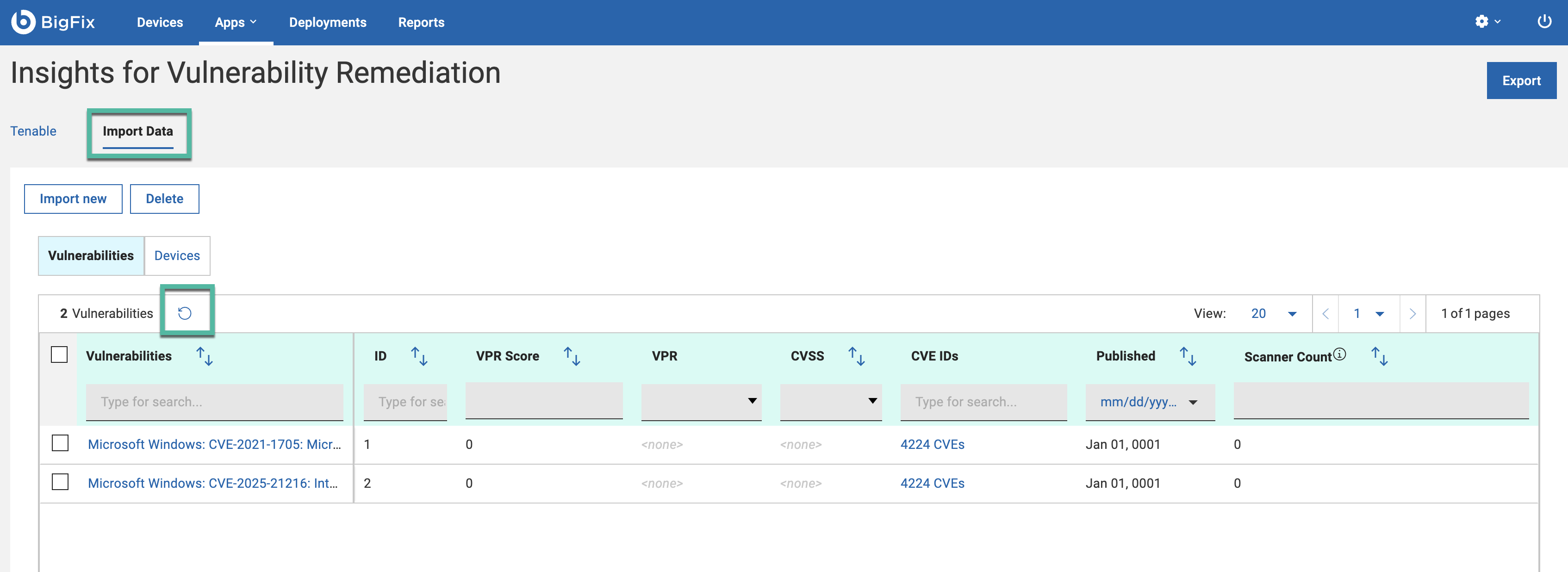
Click the Refresh button to view all vulnerabilities.
250 MB. A total upload limit is 1.5 GB. You
can see your remaining upload capacity in the lower left corner of the screen. These
limits can be adjusted in the system settings.