Read this topic to learn how to
to configure the
identity service.
About this task
You can also configure the authentication method used by the identity service for
your organization through this screen.
Procedure
-
From the WebUI main page, select .
-
On the Modern Client Management page, click Admin.
-
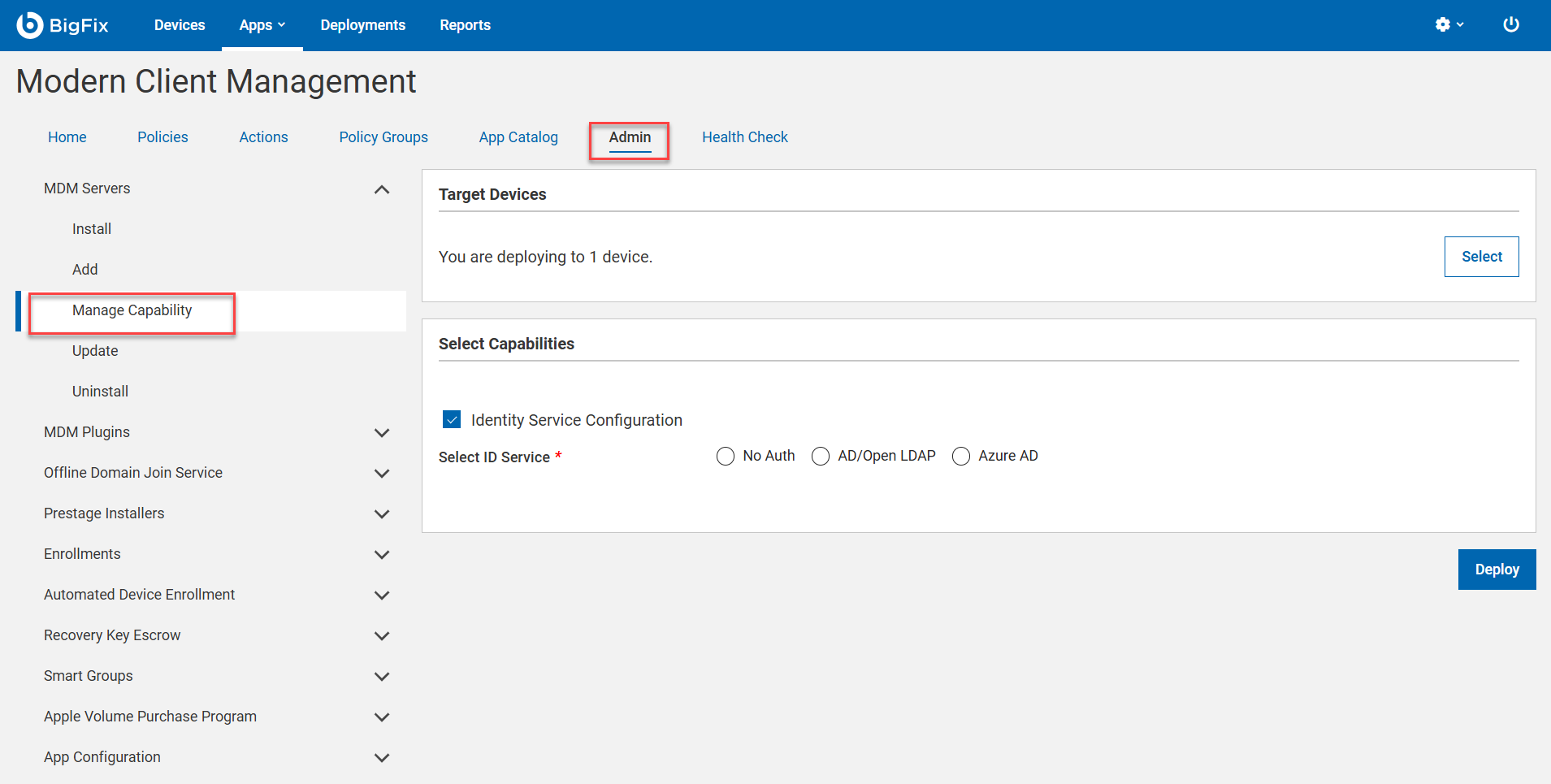
On the Admin page, select . The following page appears:
-
Click Select to select an MDM server on which you want
to configure the identity service.
-
Identity Service Configuration
-
Under the Select Capabilities section, select the Identity
Service Configuration checkbox. ID Service options
appear for you to select.
-
Select ID Service
- No Auth: Select this option if you do not want any
authentication. This means anyone can enroll for MCM service
without having to identify themselves through user credentials.
- AD/Open LDAP
- Enable SAML: This is optional. Select this
check box to enable SAML-authentication configuration.
Note: With MCM v3.0, Okta
is supported. Instructions below pertain to
Okta-specific setup.
- LDAP URL: This is mandatory. Valid format is
https://<server>:<port>. For more information on
LDAP URL formats, see https://ldap.com/ldap-urls/
- LDAP Base DN: This is mandatory. Valid format
"dc=example,dc=org"
Note: Configuring
multiple Base DNs is not supported.
- LDAP Bind User: This is mandatory. The root point to
bind to the server. For example,
CN=LdapCreds,DC=mydomain,DC=mycompany,DC=com.
"user@example.org"
- LDAP Bind Password: This is mandatory. Enter a
string.
- Azure AD
- Enable SAML: This is optional. Select this checkbox to
enable SAML-authenticated enrollment.
- Azure Credentials: This is mandatory. Upload the
.json file with Azure AD
credentials in the following
format:
{ "client_id": "06b6d920-xxxx-xxxx-xxxx-73792306xxxx",
  "tenant_id": "31ac2431-xxxx-xxxx-xxxx-6215b1c2xxxx",
  "client_secret": "d7bc6b2e-xxxx-xxxx-xxxx-b5c681e5xxxx"
 }
For information on how to fetch
this information, refer to the BigFix Wiki
documentation at Azure AD
registration and configuration.
-
Click Deploy.
Note: The Deploy button is enabled only when all the
required parameters for the selected capabilities are provided without
errors.
Results
Authentication method and the identity service are
configured.