
Install BigFix MDM Service for Apple
Learn how to install BigFix MDM Service for Apple through WebUI.
Before you begin
- You must be a Master Operator to perform this task through WebUI.
- You need an Apple Push Notification certificates PEM file that is obtained through the HCL vendor signing process and processed by Apple for this MDM Server deployment.
- You must have a Trusted CA TLS certificate.
- You must have the BigFix Agent version 10.0.2 or later running on the MDM Server target.
About this task
To install BigFix MDM server for Apple endpoints:
- From the WebUI main page, select .
- On the Modern Client Management page, click Admin.
- On the Admin page, from the left navigation, under MDM Servers, select Install.
- Select Target Device. Click Select and select an appropriate target to install the MDM server on.
- Select Target Device for Plugin. Click Select and
select an appropriate target on which you want to install the MDM
server.Note:
- You need MDM Plugin to set up a connection between the MDM Servers and the BigFix Plugin Portal. MDM Plugin communicate with the MDM Server through REST APIs and the AMQP protocol using client certificates.
- Ensure that the server host is running the Plugin Portal and that the BigFix agent is running locally. For details about installing the BigFix Client, see Installing the BigFix components.
- From MCM v3.4 onwards, the plugin can be installed from the same screen as the MDM server, making the process simpler and more convenient.
- Server Install Type: For Select OS, select
Apple.
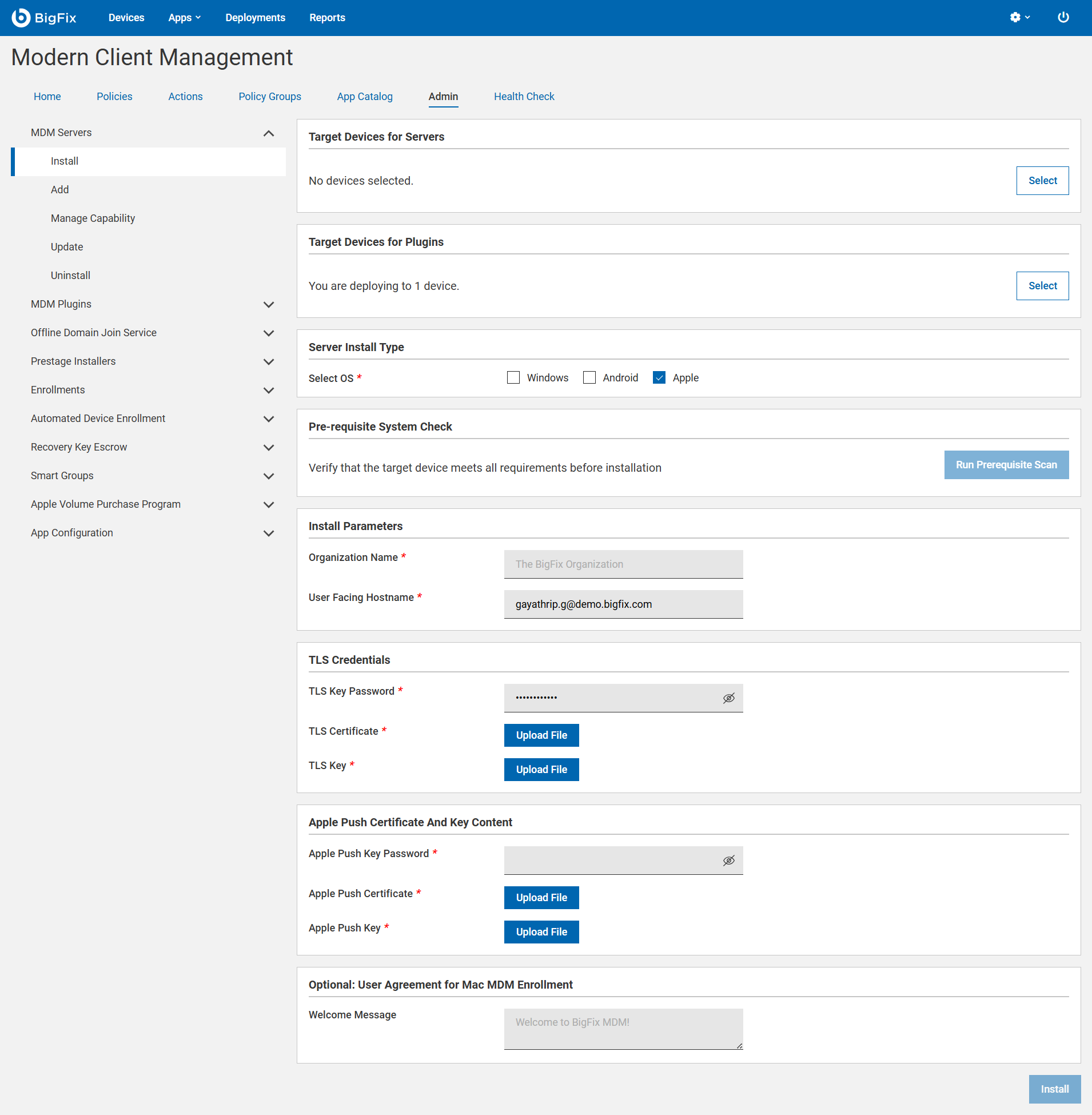
- Pre-requisite System Check: Click Run Prerequisite
Scan to scan the MDM target device and verify that all
prerequisites are installed or configured. Review the scan results and
ensure success before proceeding with the install parameters.Note: If the scan detects any issues, refer to Prerequisite & Connectivity Scan for more information to resolve the issues.
- Install Parameters:
- Organization Name: Enter a string. While enrolling a device, the organization name entered here displayed to the end users.
- User Facing Hostname: For over the air enrolls, this is the hostname
of the server where users can visit to enroll in MDM. The value must
be a valid FQDN that is accessible from the Internet. For example,
mdmserver.deploy.bigfix.com.Note: https:// should not be included here.
- TLS Credentials: Enter the details of the MDM Server TLS
certificate and key contents.
- TLS Key Password: Enter a string to set the password to encrypt the TLS key.
- TLS Certificate: Click Upload File and browse through the location to select the TLS .crt or .pem file.
- TLS Key: Click Upload File and browse through the location to select the unencrypted TLS .key file that was previously saved. Refer to BigFix MDM Server TLS Certificate Content.
- Apple Push Certificate and Key Content:
- Apple Push Key password: Enter the private key pass phrase that was used to encrypt the Push Certificate Private key as described in Generating APNs certificate.
- Apple Push Certificate: Click Upload File and browse through the file location to select the Push PEM file.
- Apple Push Key: Click Upload File and browse through the file location to select the encrypted Push key file as described in step 2 at Generating APNs certificate.
- User Agreement for Mac MDM Enrollment: This is optional. Enter a welcome message text for users to see prior to accepting enrollment into MDM. The message entered here is displayed to the end users to accept to proceed with enrollment of Apple devices through the enrollment process. This allows the organization to notify or warn device users of the terms and conditions of enrolling their devices. This message can include, for example, a warning about allowing remote management of the device or helpdesk contact information.
- Click Install.
Results: The action completes these activities:
- Downloads a set of Podman images from software.bigfix.com which is needed for the MDM installation.
- Installs the services and certificates including the Plugin certificates, the TLS certificate, and the Apple Push certificate on which the server runs.
- Applies all required configurations.
- After successful installation, you can find the MDM plugin files at this
location:
- Windows — C:\Program File (x86)\BigFix Enterprise\BES Plugin Portal\Plugins
- Linux
- Binaries — /opt/BESPluginPortal/Plugins
- Data files — /var/opt/BESPluginPortal