
OS Update Policy
The OS update policy allows you to manage system updates for Android, macOS, and iOS/iPadOS devices. You can configure to install OS updates automatically or during a maintenance window. This allows you to install system updates without user interaction.
Before you begin
- On iOS 10.3 and later, supported Software Update commands require supervision but not DEP enrollment. That means the device could either be OTA enrolled or DEP enrolled. If there is a passcode on the device, a user must enter it to start a software update.
- Prior to iOS 10.3, the supervised devices need to be DEP-enrolled and have no passcode.
- Updates will not be installed if the battery level falls below 50% unless plugged in.
About this task
Creating an OS update policy
To create an OS update policy, perform the following steps:
Procedure
- Log in to BigFix WebUI.
- Go to .
- Click Create Policy on the top right corner.
-
From the list of policy types, select OS Update Policy. The OS Update
Policy page appears.
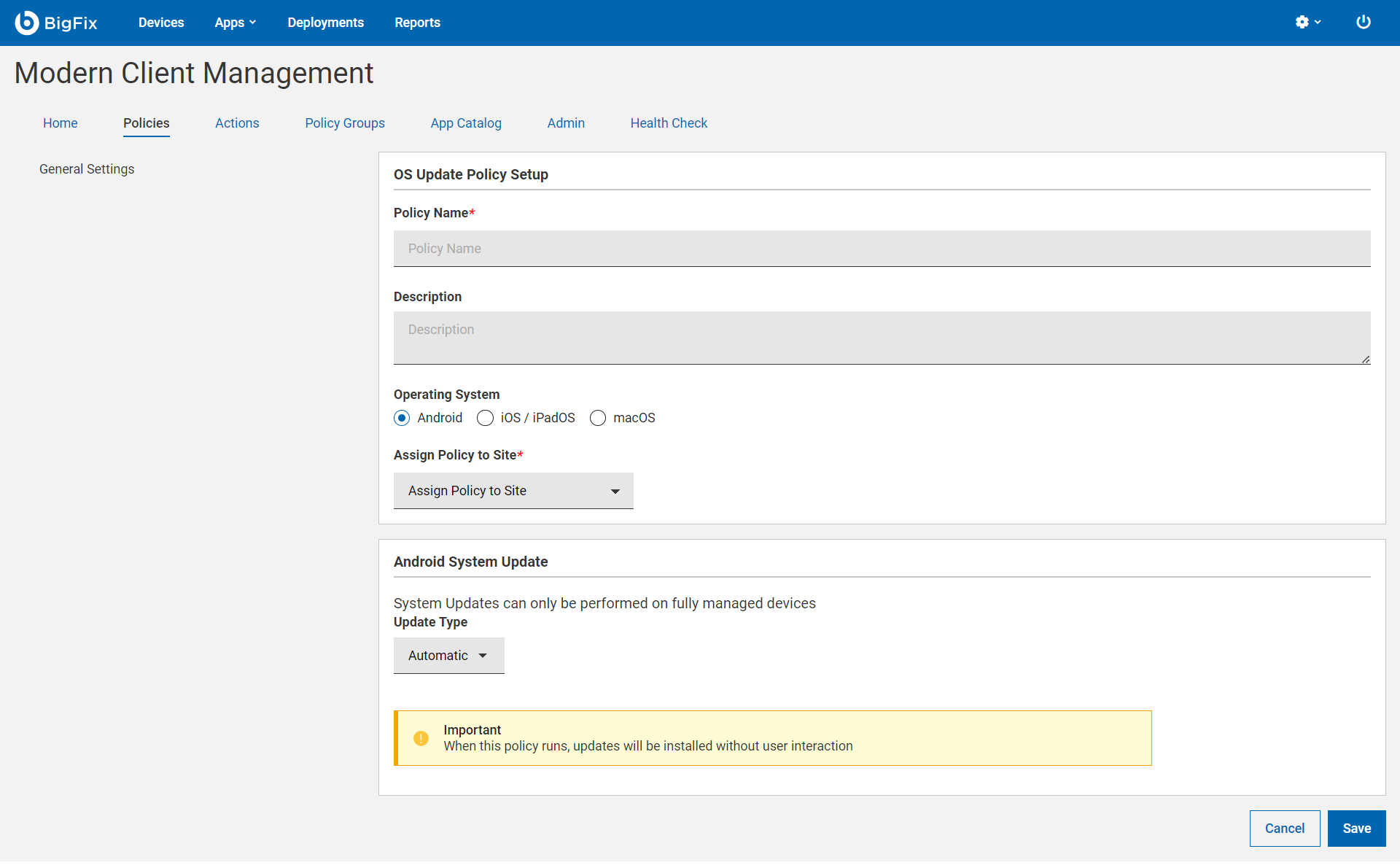
- Under the General Settings section, enter the OS update policy name and description.
- Select the Operating System.
- From the Assign Policy to Site dropdown, select the desired site.
-
Configure the OS specific settings.
- Android System Update
- This section appears when you have selected Android as the operating
system. This functionality is available only for fully-managed or
dedicated devices, and are running Android version 10 or later.
Select the required Update Type.
- Automatic: Installs system updates (without user interaction) once they become available. Setting this policy type immediately installs any pending updates that might be postponed or waiting for a maintenance window.
- Windowed: Installs system updates during a daily maintenance window (without user interaction). Set the start time and end time of the daily maintenance window to create a windowed policy.
- Postponed: Postpones the installation of system updates for 30 days. After the 30-day period, the system prompts the device user to install the update.
- iOS/iPadOS System Update
- This section appears when you have selected iOS/iPadOS as the
operating system. For iOS/iPadOS, system updates can only be
performed on supervised devices. An open action is created when
deploying this policy that will periodically perform the selected
update type.
- Version: This lists available versions found in the environment for updating to specific versions, or can chose "Latest" to update to latest regardless of version.
- Update Type:
- Download and Install: Downloads or installs the system update depending on state of device. Two applications of the policy action will be required for the update to be installed.
- Download Only: Download the software update without installing it.
- Install Only: : Installs a downloaded
update.Note: : If no passcode is set on the device, the device restarts without prompting end user when performing an install. If passcode is set, device user is prompted to install the update; user also can decline.
- Apply Frequency (Days): Select an option from the dropdown to set the frequency in which you want to run the system updates.
- macOS
- These sections appear when you have selected macOS as the operating
system.
- General macOS System Update Settings: Configure the macOS software update settings and specify whether Mac automatically checks for and downloads new updates.
- macOS Delay Update Settings: Configure the settings as needed to delay the appearance of new system software updates on supervised devices for a maximum of 90 days. This feature enables organizations to test critical applications and infrastructure with the new update before deploying it.
- ChromeOS
-
- Block Updates: Select this to enable complete blocking of OS updates on ChromeOS devices.
- Target Version: Select an option from the dropdown menu to define which OS version devices should run. This ensures devices remain on approved ChromeOS versions.
- Roll Back to Target Version: Allows administrators to roll devices back to the targeted OS version.
- Release Channel: Select the ChromeOS release channel (such as Stable, Beta, or Dev) to control the update stream and feature stability level for devices.
- Rollout Plan: Define how updates are distributed over time, allowing immediate deployment or staged rollout to reduce operational impact.
- Additional Blackout Windows: Specify time periods during which automatic updates are restricted to prevent disruption during critical business hours.
- Allow Auto-Reboots:: Enable this option to allow devices to automatically restart after an update is installed.
- Updates Over Cellular: Control whether devices are permitted to download OS updates using cellular data connections.
- Do not allow Peer-to-Peer auto update downloads: Enable or disable peer-to-peer sharing of update files between devices to optimize bandwidth usage.
- Minimum Version Enforcement: Configure whether devices must update to at least a specified ChromeOS version to remain compliant.
- Block Devices & User Sessions After : Enforce update compliance by restricting device access or user sessions if required updates are not installed within the defined timeframe.
- Final Automatic Update Alert Message Define a custom message displayed to users before update enforcement or device restriction occurs.
- Update Downloads Protocol Specify whether update downloads must use HTTPS (recommended) or allow HTTP, controlling the security of update delivery.
- Device Extended Auto Update Settings: Enable this option to allow ChromeOS devices to continue receiving updates during the extended auto-update support period, ensuring devices remain secure and up to date beyond the standard support lifecycle.
- Click Save.