
Network policy for ChromeOS
The Network Policy in BigFix MCM enables administrators to centrally configure and manage network settings for enrolled ChromeOS devices. This policy allows secure configuration of Wi-Fi and VPN connections to ensure devices connect to approved organizational networks.
About this task
To create a ChromeOS Network Policy:
Procedure
- Log in to BigFix WebUI.
- Go to .
- Click Create Policy on the top right corner.
-
From the list of policy types, select Network. The Network Policy
page appears.
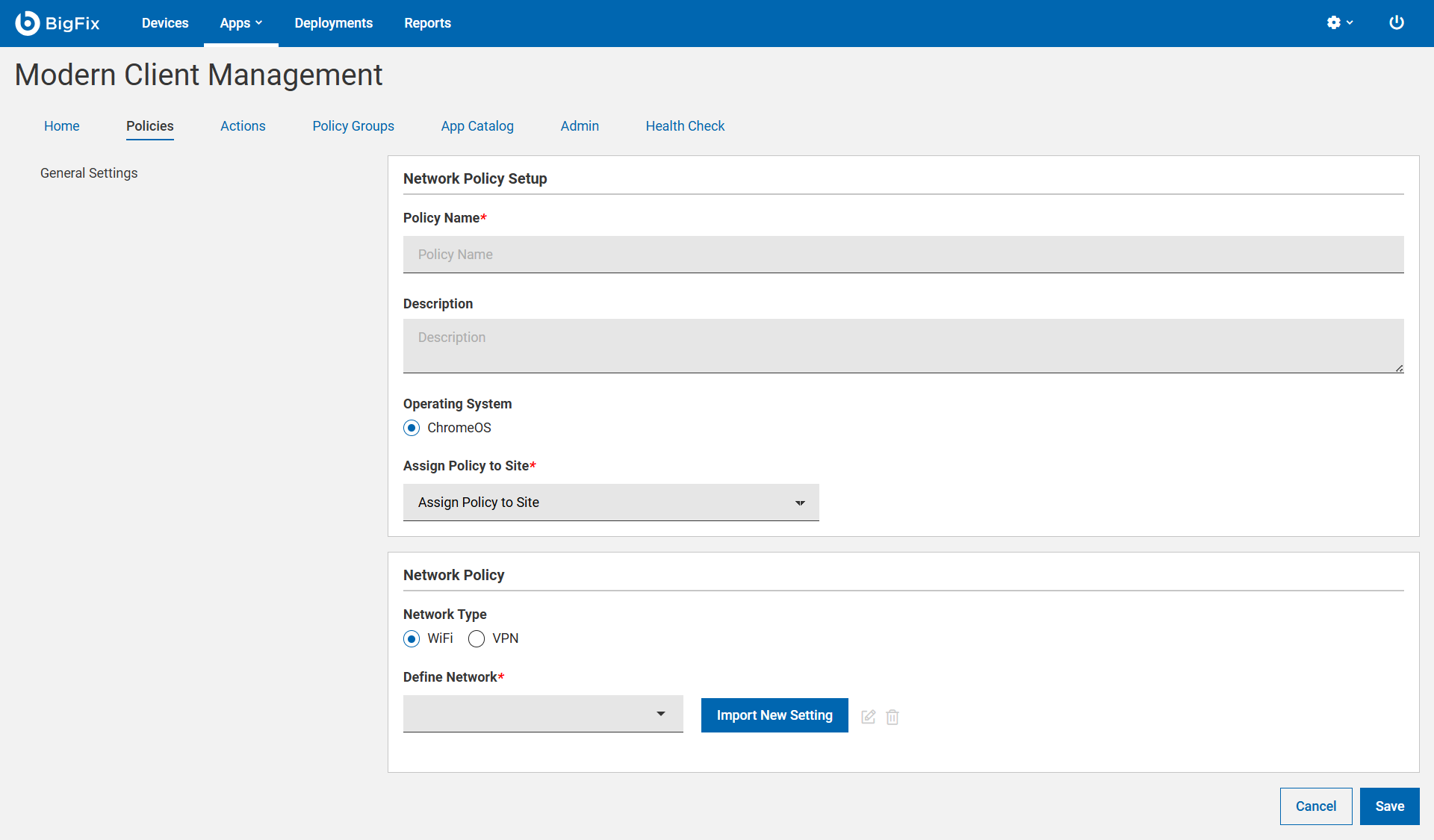
- Under the General Settings section, enter the OS update policy name and description.
- Select the Operating System.
- From the Assign Policy to Site dropdown, select the desired site.
-
For the network type, select the type of network configuration:
- Wi-Fi – Configure wireless network settings.
- VPN – Configure secure virtual private network settings.
-
Use the Define Network option to select an existing network
configuration profile. You can also select Import New
Setting to import and create a new network configuration
profile. Network settings include:
- SSID configuration (for Wi-Fi)
- Security type and authentication method
- Encryption protocols
- Proxy settings (if applicable)
- VPN server details and authentication credentials
- Click Save.
What to do next
- Deploy directly to selected ChromeOS devices or device groups.
- Or add the policy to Policy Groups for broader deployment.