Manage SMTP server profiles
Edit a saved mail server profile, retest its connection, or remove a profile that you no longer need.
Before you begin
At least one SMTP server profile must exist. To add one, see Add an SMTP server profile.
About this task
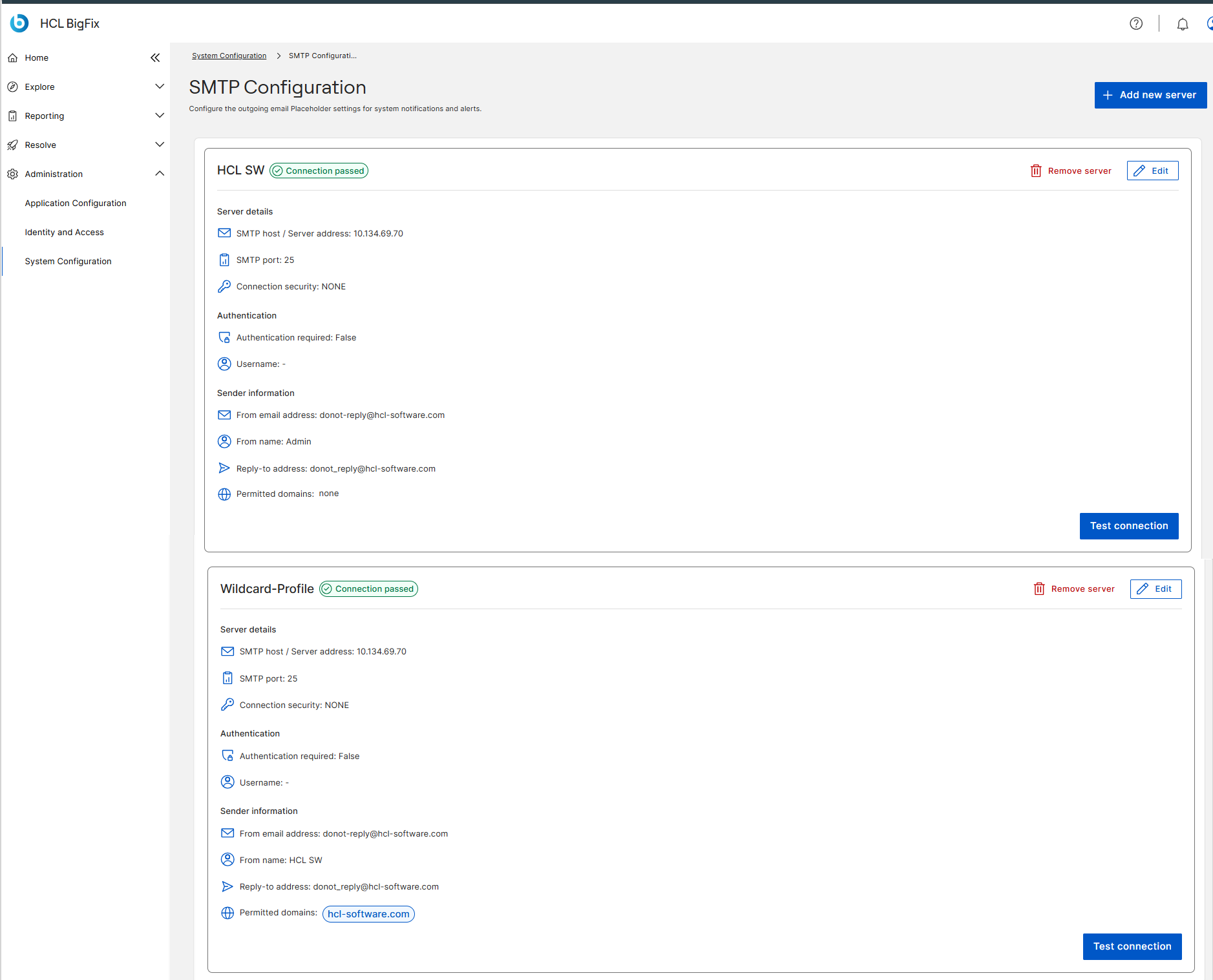
Each saved profile appears as a card on the SMTP Configuration page. Open the page by expanding Administration in the side navigation, selecting System Configuration, and then selecting the arrow on the SMTP Configuration card.
Procedure
-
To edit a profile, select Edit on its card.
The card is replaced by the profile form. Change the values that you need, select Test connection, and then select Save changes. As with a new profile, BigFix UI does not enable Save changes until the test succeeds.
To return the form to the last saved values, select Reset inputs. To leave the profile unchanged, select Cancel.
-
To verify that a saved profile still works, select Test
connection at the bottom of its card.
Retest a profile after your mail administrator changes the server, the credentials, or the connection security. The status next to the profile name reflects the result of the most recent test: Connection passed or Connection failed.
If the status is Connection failed, a notification asks you to check the server details. Select Edit, correct the values, and test the connection again. For the values to check, see Connection status.
-
To remove a profile, select Remove server on its card.
Restriction: BigFix UI requires at least one SMTP server profile. Remove server appears only when two or more profiles are configured. If only one profile exists, you cannot remove it. To replace it, select Edit and change its values, or add the replacement profile first and then remove the original.