
System configuration
Use System configuration to manage the global settings that every application in BigFix UI shares. In this release, System configuration contains the SMTP settings that BigFix UI uses to send email.
A global setting applies to the whole product rather than to one application. Because BigFix UI sends scheduled reports, alerts, and system notifications by email, it needs a mail server to relay those messages. You define that mail server in System configuration, and every application then uses it.
To open the page, expand Administration in the side navigation, and then select System Configuration.
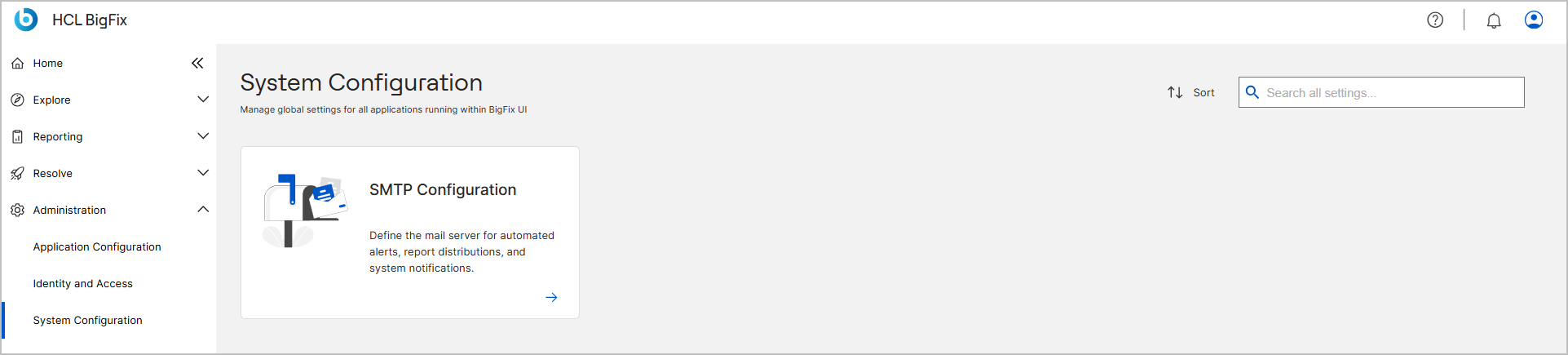
Settings catalog
The page shows one card for each group of global settings that you can manage. Select the arrow on a card to open its settings. Use Search all settings to find a card by name, and Sort to change the order of the cards.
This release provides one card:
- SMTP Configuration – Define the mail server for automated alerts, report distributions, and system notifications.
SMTP Configuration page
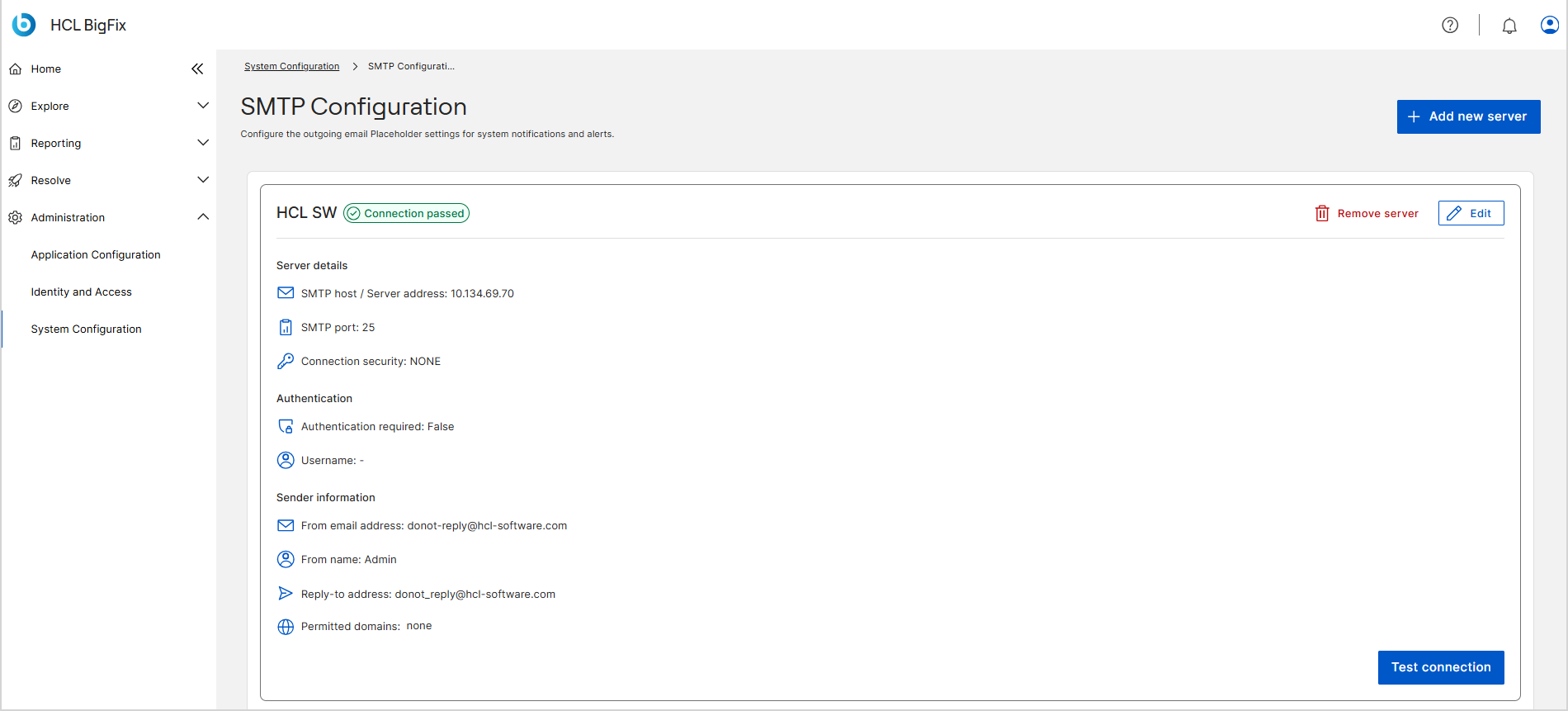
The SMTP Configuration page holds the mail server profiles that BigFix UI can use. A profile is one named set of server, authentication, and sender settings. You can configure more than one profile, which lets you relay mail for different recipient domains through different servers.
Each saved profile appears as a card. The card heading is the profile name, and a status shows whether the last connection test succeeded. The card summarizes the profile in three groups: Server details, Authentication, and Sender information. For a description of every field, see SMTP configuration reference.
Connection tests
BigFix UI does not save a profile until you test it. When you select Test connection, BigFix UI sends a message from the address in From email address to that same address and reports the result. If the test succeeds, the profile shows Connection passed and you can save it. You can run the test again at any time from the profile card.
The test confirms that BigFix UI can relay mail through the server. It does not confirm that a mailbox exists for the sender address.
Permitted domains
A profile can restrict the recipient domains that it serves. Add one or more domains under Permitted domains, and the profile sends mail only to addresses in those domains. If you add no domains, the profile allows all domains.
What you can do
- Add a mail server profile and test it before you save it. See Add an SMTP server profile.
- Edit, retest, or remove an existing profile. See Manage SMTP server profiles.
- Look up each field, its allowed values, and its default. See SMTP configuration reference.