
Add an SMTP server profile
Add a mail server profile so that BigFix UI can send scheduled reports, alerts, and system notifications by email. Test the connection before you save the profile.
Before you begin
Collect the following information from your mail administrator:
- The host name or IP address of the SMTP server, and the port that it listens on.
- The connection security that the server requires.
- The user name and password, if the server requires authentication.
- The sender address that the server accepts.
About this task
You can add more than one profile. BigFix UI does not enable Save changes until a connection test succeeds, so complete every field before you run the test.
Procedure
- Expand Administration in the side navigation, and then select System Configuration.
-
On the SMTP Configuration card, select the arrow.
The SMTP Configuration page opens.
-
Select Add new server.
A blank profile form opens above the existing profile cards.
-
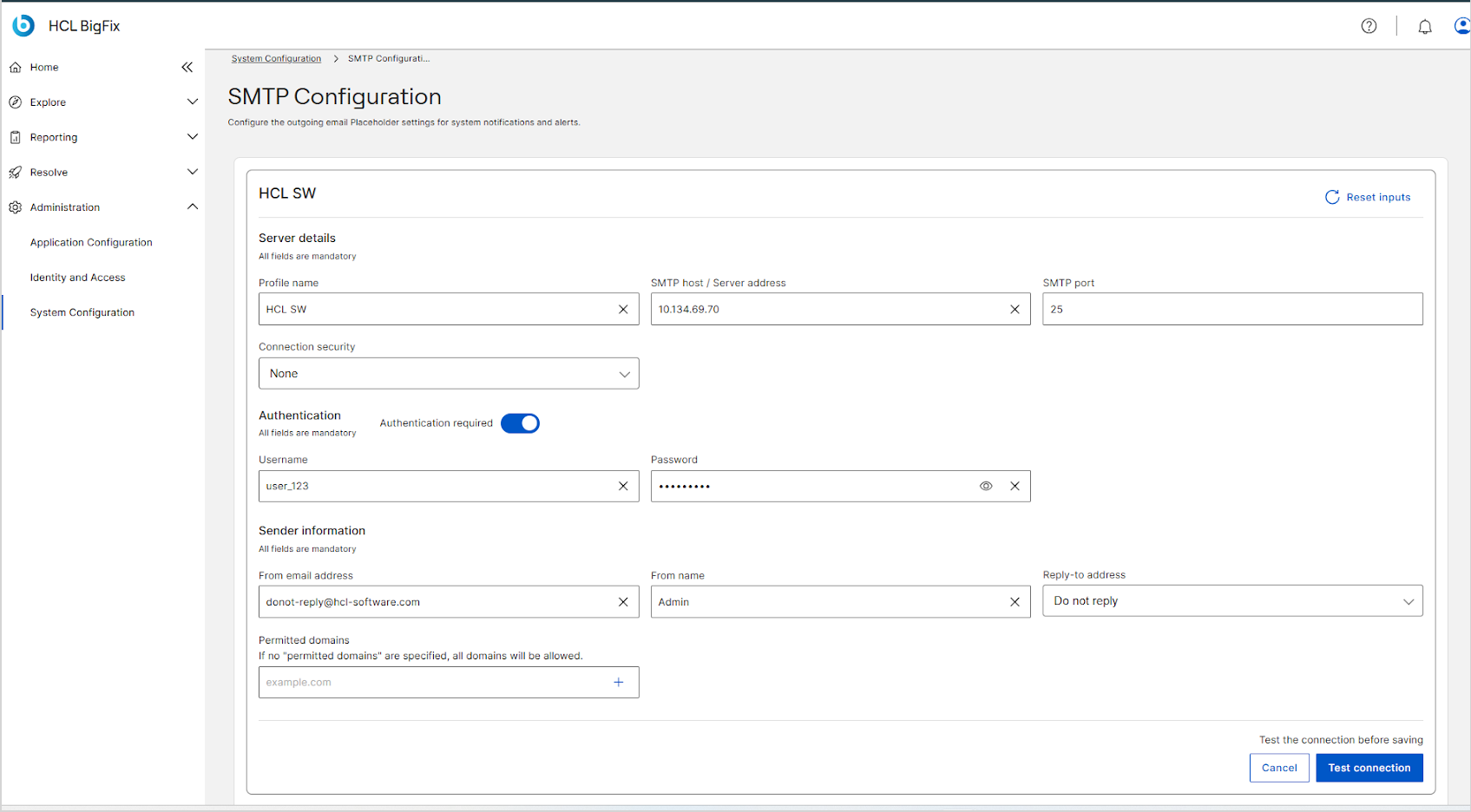
Under Server details, identify the mail server.
-
Under Authentication, set Authentication
required.
- If the server requires credentials, leave the toggle on, and then enter the Username and Password. Select the eye icon to show or hide the password.
- If the server accepts unauthenticated relay, turn the toggle off. BigFix UI hides the Username and Password fields.
Note: BigFix UI encrypts the password before it sends it. The password is never transmitted or stored in plain text.Restriction: If you leave the toggle on while Connection security is None, the Connection security field shows Select TLS when authentication is enabled and you cannot save the profile. Return to the previous step and select TLS. See SMTP authentication requires TLS. -
Under Sender information, define the sender.
- Optional:
Under Permitted domains, restrict the recipient domains that
this profile serves.
If you add no domains, the profile allows all domains.
-
Select Test connection.
BigFix UI sends a message from the address in From email address to that same address.
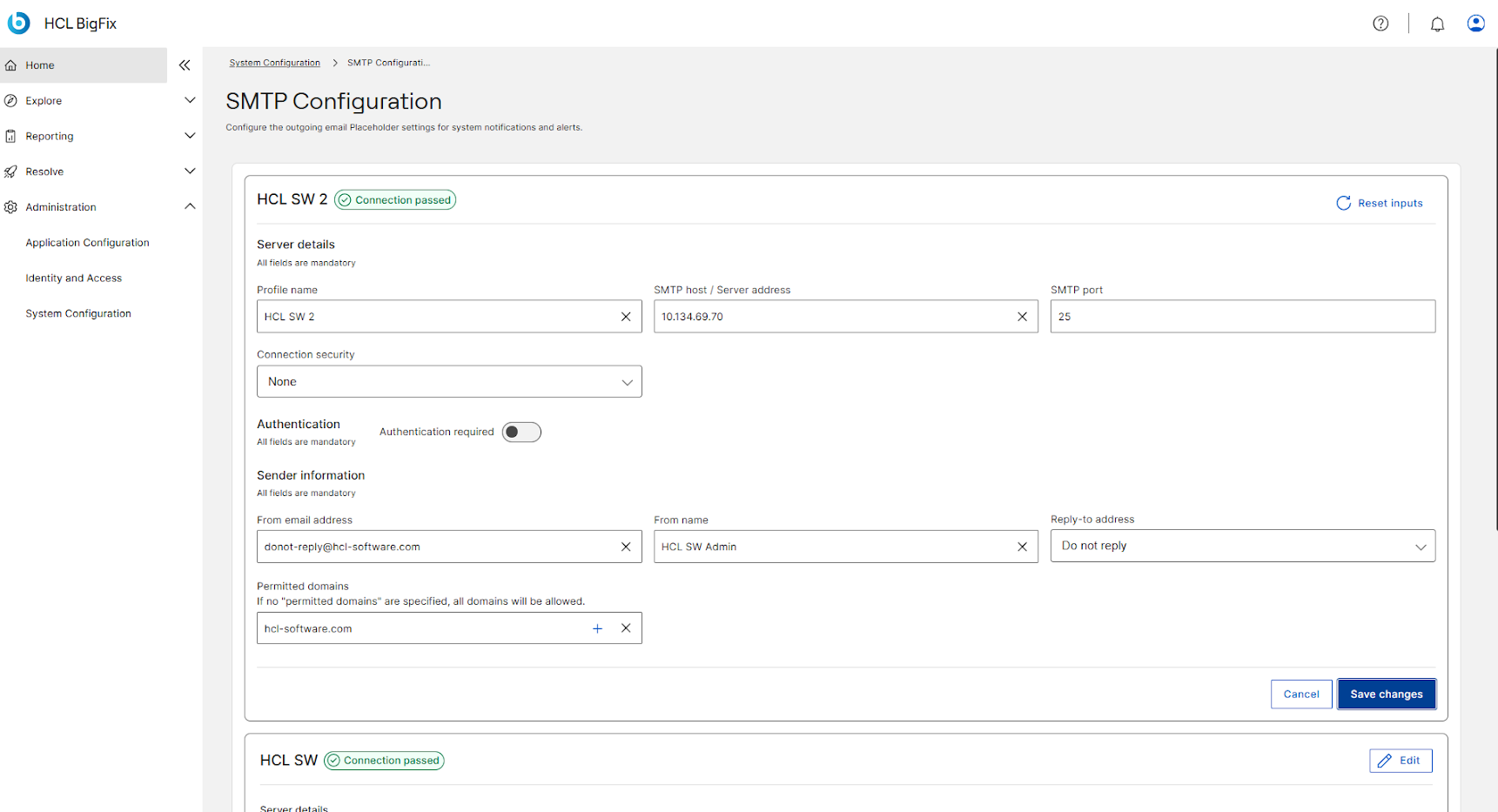
If the test succeeds, Connection passed appears next to the profile name, and Test connection is replaced by Save changes.
If the test fails, Connection failed appears next to the profile name, and a notification in the upper right corner asks you to check the server details. Correct the values, and then select Test connection again. You cannot save the profile until the test succeeds.
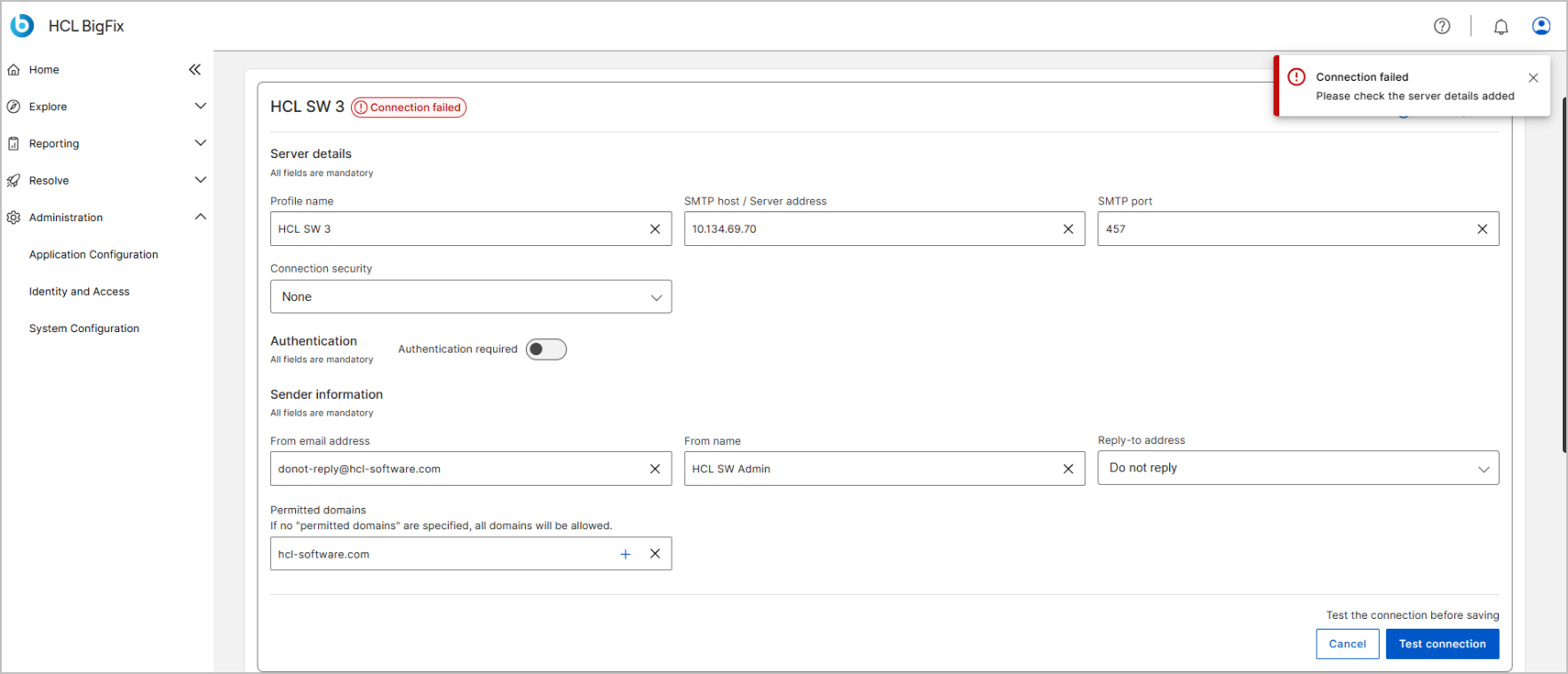
A failed test usually points to a wrong server address, a port that does not match the connection security, missing or invalid credentials, or a sender address that the server rejects. See Connection status.
If the profile uses TLS and the test still fails, the mail server certificate might not be trusted by the machine certificate store on the BigFix UI server. See SMTP authentication requires TLS.
- Select Save changes.
Results
The profile is saved and appears as a card on the SMTP Configuration page with the Connection passed status. BigFix UI can now send email through this server.
What to do next
To discard the profile before you save it, select Cancel. To clear every field and start again, select Reset inputs.