
Application Configuration
The Application Configuration page is a central administrative hub for the modular applications and integrations that BigFix UI hosts. It lists each application as a card and shows whether the application is configured, so that you can open the configuration page that the application team owns.
Use the Application Configuration page to set up a newly integrated application or to reach the settings of an application that is already configured. The page groups every hosted application into a Not Configured section and a Configured section, so you can see at a glance which applications still need attention.
- The page is a configuration directory, not an application launcher.
- Each application team owns and implements its own configuration page. The options that you see depend on the application.
- The cards that appear depend on your site subscriptions, your environment setup, and your role. An application that is not installed or not entitled does not appear.
Key capabilities:
- Lists every hosted application configuration in one directory.
- Sorts applications by their current setup status, Configured or Not Configured.
- Opens the configuration page of each application directly from its card.
- Manages integration parameters and feature policies for modular applications from a single place.
Open the Application Configuration page
Open the page to review the status of the hosted applications and manage their settings.
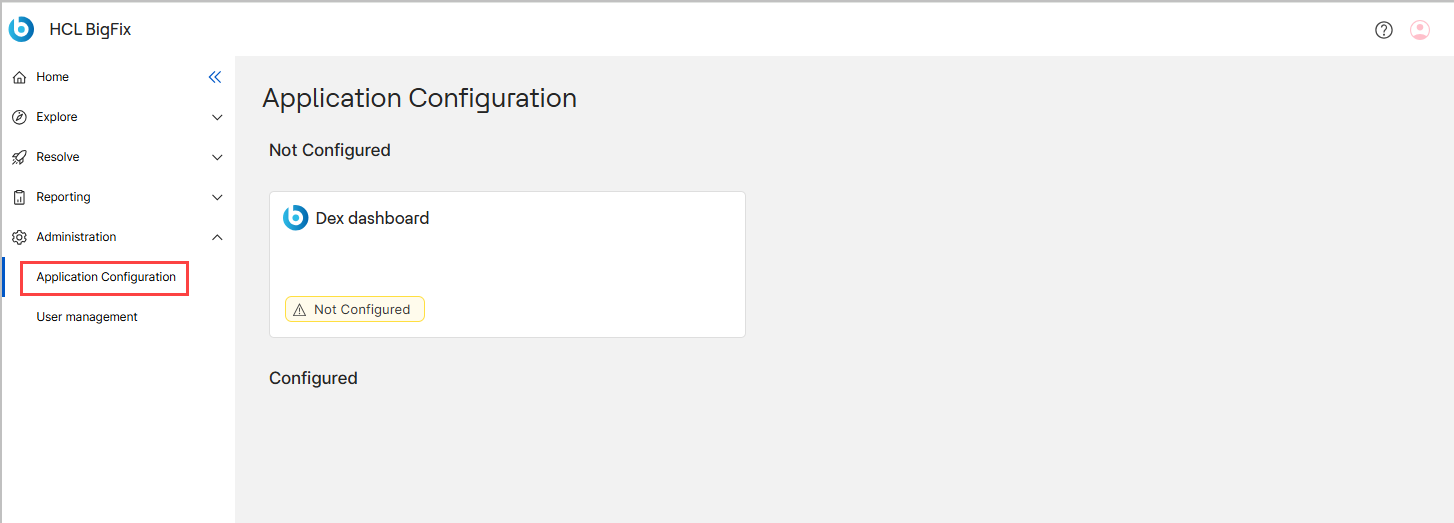
- In the side navigation, expand Administration.
- Select Application Configuration.
The page opens and loads the list of application configurations. Use the search box in the upper-right corner to find an application by name.
Configure an application
Select an application card to open the configuration page of that application.
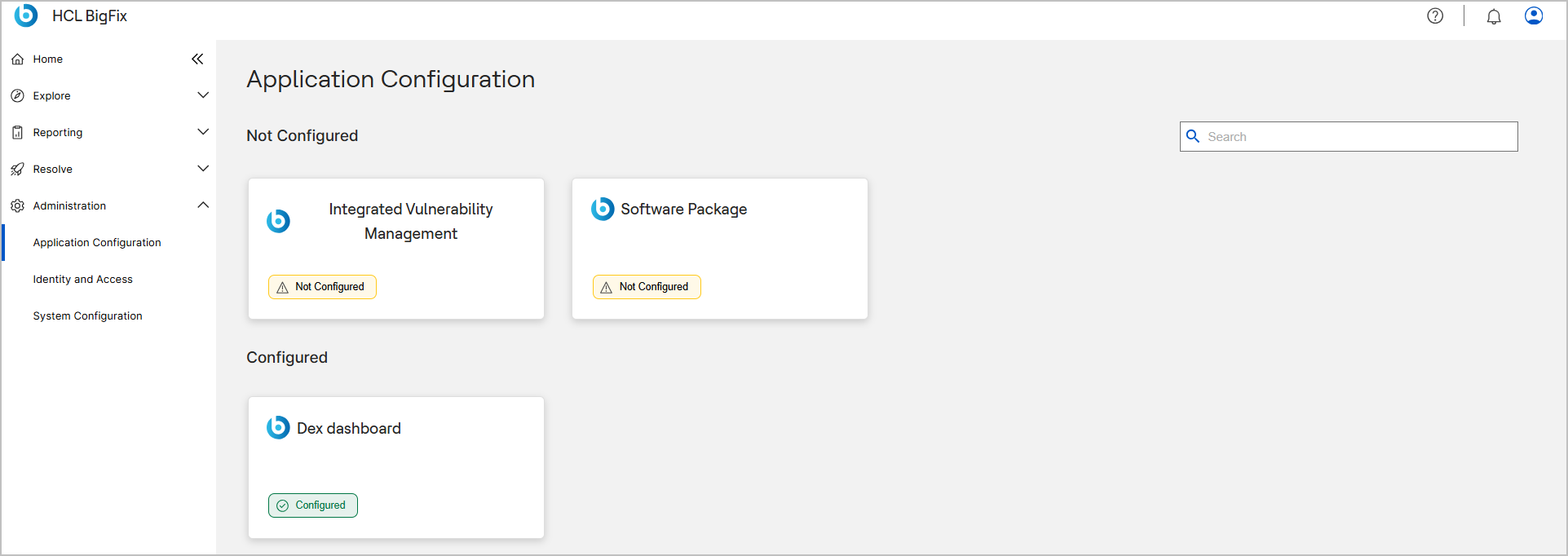
- To set up a new application, select a card in the Not Configured section. Complete the settings that the application requires. When the setup is complete, the card moves to the Configured section.
- To review or change an existing setup, select a card in the Configured section. BigFix UI opens the configuration page of that application.
Applications that you can configure
The cards that appear depend on your site subscriptions and your environment. The hub can host the following applications and integrations. More applications are added in each release.
| Application | What you configure |
|---|---|
| Software Package | Software Distribution and BigFix Self-Service Application (SSA) settings. Migrate legacy software packages that were created in the BigFix Console or the classic WebUI into BigFix UI. Define the allowed download and source URLs, the whitelist, that packages can use to add external files. Set the platform-level SSA options, such as branding, client name, custom tabs, and support links, and the notification and user prompt rules. BigFix UI creates or updates the SSA configuration Fixlets that send these settings to all entitled endpoints. |
| Integrated Vulnerability Management | Settings and connectivity for BigFix Insights for Vulnerability Remediation (IVR). The card appears only when the IVR site is enabled. It shows the configuration status and links to the administrator setup. See IVR settings. |
| Dex dashboard | Global settings for BigFix Digital Employee Experience (DEX). See Global DEX settings. |
Other hosted applications and external integrations, such as the Compliance dashboard, Patch, Software Explorer, Workflow Builder, and Remote Control parameters, expose a card here as they become available. The card appears when the matching site is enabled in your deployment.
Interface reference
The page groups the application cards by configuration status. Use the following table to understand the elements of the interface.
| UI element | Description |
|---|---|
| Not Configured | A section that lists the applications that need setup before you can use them. Each card carries a warning icon and a Not Configured label. |
| Configured | A section that lists the applications that are set up. Each card carries a check icon and a Configured label. |
| Application card | A tile that shows the application name and its status. Select the card to open the configuration page of the application. |
| Search | Filters the cards as you type an application name. |
Access control and role permissions
Access to the page is limited to administrators.
- Master operators and local administrators can open the page. A custom role can open it when the role has explicit access to the Application Configuration app.
- To grant access, expand Administration, select Identity Management, and then select the User & Role Management card. When you create or edit a role, turn on Application Configuration in the Applications step, under What applications should this role access?. See Creating a new role.
- If your role does not have this access, the Application Configuration entry does not appear in the navigation.