
Fixlet Streams
Fixlet Streams help to automate the process of remediating endpoint vulnerabilities, such as patch and update deployments, while offering flexibility for manual intervention when critical issues arise. The feature ensures routine security and compliance tasks are handled efficiently, freeing up IT teams to focus on strategic initiatives. Additionally, it allows for ad-hoc remediation, enabling swift responses to urgent issues like zero-day vulnerabilities.
It offers a unique blend of routine automation and emergency flexibility, which is not fully available in existing BigFix features. It adds real-time response capabilities, more efficient emergency patch handling, and enhanced time-saving measures, making it a powerful tool for modern IT and security teams.
Key Benefits
- Increased Efficiency: Automates routine patch and update deployments, reducing the manual effort required and allowing IT teams to focus on higher-priority tasks.
- Faster Response to Emergencies: Provides the flexibility to deploy critical patches and updates immediately in response to urgent threats, such as zero-day vulnerabilities.
- Improved Security and Compliance: Ensures endpoints are consistently updated with the latest security patches, reducing the risk of vulnerabilities being exploited.
- Strategic Focus: By handling the majority of remediation tasks automatically, IT teams can dedicate more time and resources to strategic initiatives that add value to the organization.
- Reduced Risk of Human Error: Automation reduces the likelihood of manual errors in patch deployment, ensuring consistency and reliability across the organization’s endpoints.
Content requirements
Fixlet Streams work only with patch content from external patch content sites. An external patch content site is an external site whose name begins with Patches for, Updates for, ESU Patching, or Known Exploited Vulnerabilities Content Pack for.
A Fixlet is included in a stream only when all of the following are true:
- It is a Fixlet, not a task.
- It has a default action.
- It is not superseded.
- It comes from an external patch content site.
The Fixlet Streams landing page
To open the landing page, expand Resolve from the side navigation, and then select Fixlet Streams.
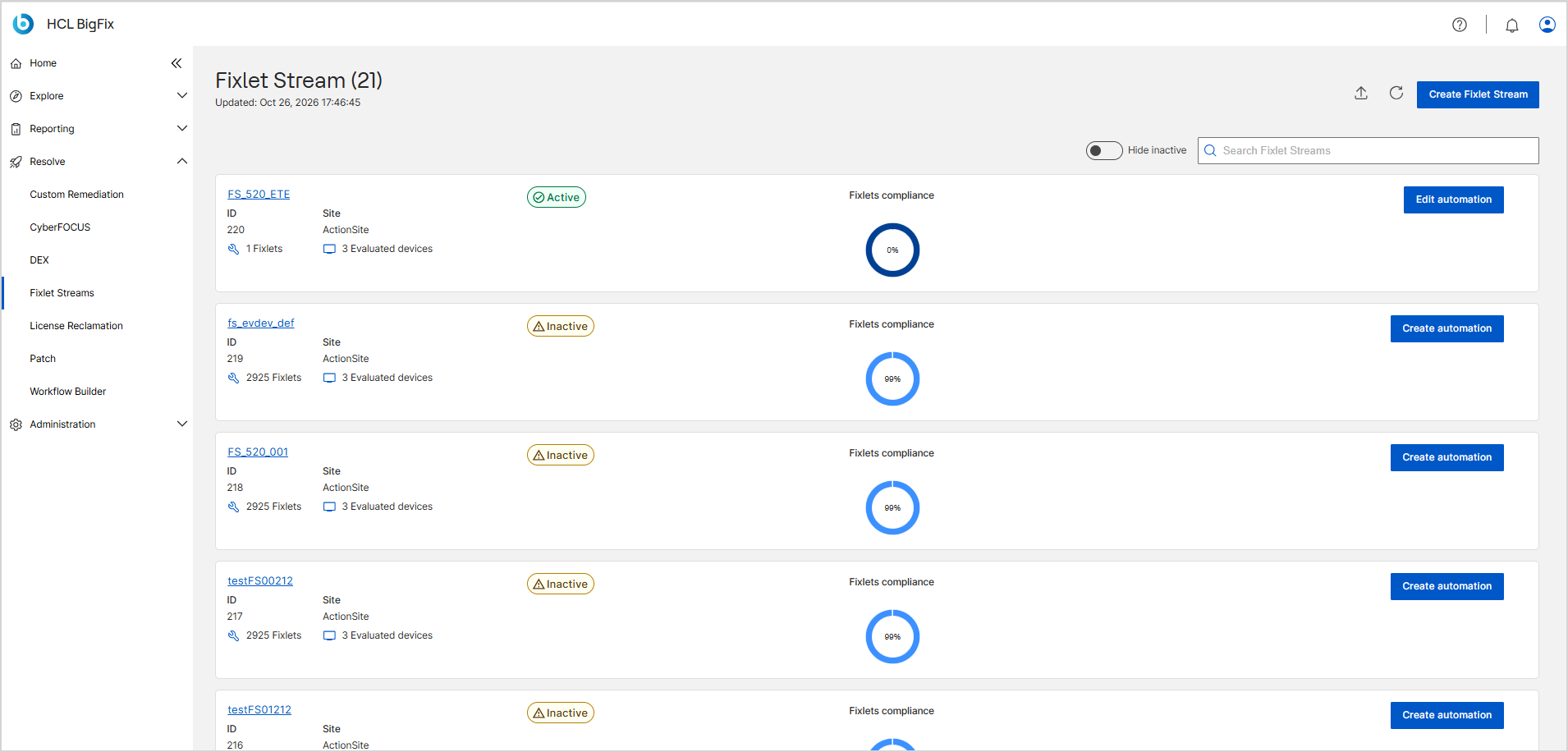
The page heading shows the total number of streams and the time the list was last updated. Each stream appears as a card that shows:
- Name of the Fixlet Stream, as a link to its details page.
- Status, either Active or Inactive.
- ID and Site that the stream draws its Fixlets from.
- The number of Fixlets and Devices in the stream.
- Fixlets compliance, shown as a percentage in a ring chart.
- An action button, either Create automation for an inactive stream or Edit automation for an active one. See Creating an automation for a Fixlet Stream and Editing a Fixlet Stream automation.
Use the following controls to manage the view:
- Hide inactive: Turn on this toggle to list only active streams. Turn it off to show all streams again. The setting applies to the current session only.
- Search fixlet streams: Type all or part of a stream name to filter the cards as you type. Clear the field to restore the full list.
- Export: Click the export icon to download the list as CSV or Excel. The export always includes every Fixlet Stream, both active and inactive. The Hide inactive toggle and the search filter change only what the page displays, not what the file contains. See Exporting Data.
- Refresh: Click the refresh icon to reload the list with the latest stream data, such as status, Fixlet and device counts, and compliance. The Updated timestamp below the page heading changes to the time of the refresh.
- Create Fixlet Stream: Start the wizard that builds a new stream. See Create Fixlet Stream.
To open a stream and review its devices, Fixlets, and deployments, click its name. See Fixlet Stream Details Page.
Device subscription
You define which devices a Fixlet Stream targets on the Devices step of the Create Fixlet Stream wizard. The conditions you set there form a dynamic filter that BigFix evaluates continuously. For step-by-step information, read Create Fixlet Stream.
Key Notes:
-
Dynamic Filters: Filters will continuously evaluate device subscriptions, ensuring that newly added devices meeting the criteria are included in the deployment automatically.
-
Multiple Conditions: You can refine your subscriptions by adding multiple conditions, creating complex filters to target specific device groups.
The Device subscription panel on the stream's Overview tab shows the conditions that are in force. See Fixlet Stream Details Page.
Monitoring
-
Fixlet Compliance: The Fixlet compliance percentage shows the proportion of devices that have successfully applied the patch or update from the Fixlet Stream. Regular monitoring of this metric ensures that devices are keeping up with your desired compliance levels. If the compliance percentage is lower than expected, investigate why certain devices are not compliant. This could be due to errors in the deployment or devices that didn’t meet the dynamic filter criteria.
Note: If a Fixlet in the stream is a dynamic Fixlet, the Fixlet compliance percentage does not change after a deployment. A dynamic Fixlet is one that can be applied to the same device again and again, so it stays relevant on the device even after the action succeeds. For example, the Fixlets compliance ring chart can continue to show 0% while the Deployment progress ring chart shows 100%. This behavior is expected and does not indicate a failed deployment. To confirm the outcome, review the deployment state on the Deployments tab. -
Deployment Progress: The Deployment progress ring chart on the stream's Overview tab shows how far the deployment has advanced.
- Track status: Use the chart to monitor the deployment and to spot delays or issues during roll out.
- Adjust Deployment Timing: If you see that deployment is not progressing as planned, you can adjust future schedules or rerun the deployment for specific device groups.
Best Practices
- Regularly Review Device Subscriptions: Ensure that new devices matching your criteria are automatically subscribed and that conditions remain relevant over time.
- Monitor Compliance Metrics: Stay proactive by checking Fixlet compliance and deployment progress to address issues early.
- Keep Automation Up to Date: Revisit and refine automation definitions as organizational needs evolve.
Automation States
A Fixlet Stream is either Active or Inactive. The state controls which management actions are available.