
Create Fixlet Stream
The Create Fixlet Stream feature enables you to set up custom Fixlet streams to meet specific organizational needs by defining conditions and selecting targeted devices for updates. The guided workflow helps you specify Fixlet criteria, scope target devices, and review the configuration before creating the stream, which can later be automated for continuous remediation.
Before you begin:
- You must have permission to create Fixlet Streams.
- Your role must have access to at least one external patch content site. An external
patch content site is an external site whose name begins with one of the
following:
- Patches for
- Updates for
- ESU Patching
- Known Exploited Vulnerabilities Content Pack for
- Device properties used for filtering must be reported by agents.
Fixlet Streams can include only content that meets all of the following conditions:
- The content is a Fixlet, not a task.
- The content has a default action.
- The content is not superseded.
- The content comes from an external patch content site.
Content that does not meet every condition is not added to the stream, even if it matches the Fixlet criteria that you define. BigFix UI restates these conditions in the Fixlet Streams criteria dialog each time you start the wizard.
Steps to Create a Fixlet Stream
-
Open the Create Fixlet Stream Widget
From the BigFix UI navigation, go to Resolve → Fixlet Streams.

Click Create Fixlet Stream in the top-right corner.
The Fixlet Streams criteria dialog opens and lists the characteristics that content must have to join a stream.
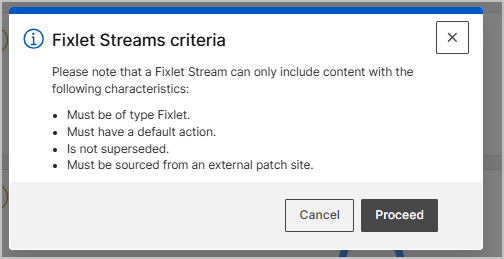
Review the conditions, and then click Proceed to open the wizard, or Cancel to return to the landing page.
The Create Fixlet Stream wizard opens on the Properties step.
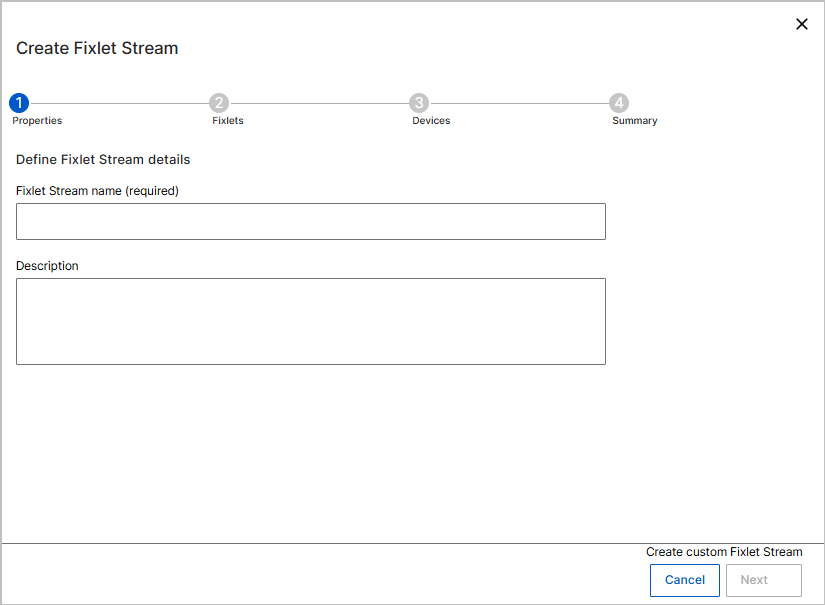
- Properties: Define Fixlet Stream properties.
- In Fixlet Stream name, enter a meaningful name for the stream. For example: Windows Critical Security Updates.
- (Optional) In Description, enter additional details to explain the purpose of the stream.
- Click Next to continue.
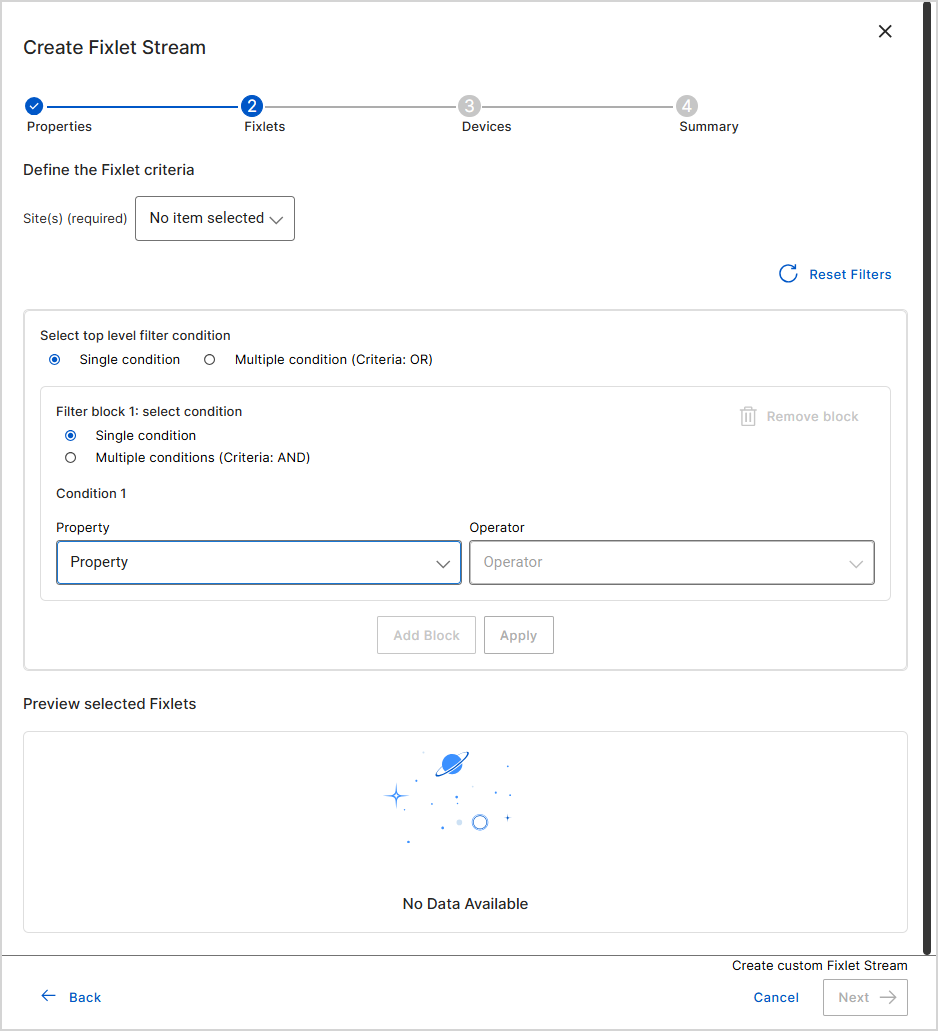
- Fixlets: Select Fixlets for the stream.
-
On the Fixlets step, click the Site(s) list and select one or more sites that supply the Fixlets. This field is required.
The list opens as a panel of checkboxes, one for each site that your role can access, for example:
- Known Exploited Vulnerabilities Content Pack for Windows
- Patches for Windows
- Updates for Windows Applications
- Updates for Windows Applications Extended
Work with the panel as follows:
- Type in the search box at the top of the panel to find a site by name.
- Select the checkbox of each site that you want to include. The panel shows Max items limit: 10, so you can select up to 10 sites.
- Click Reset to clear the selection and start again.
- Click Apply to confirm the selection and close the panel.
The field label reports how many sites you chose, for example 1 items selected, and the Selected values row lists them. Click Reset Filters to clear the site selection and the Fixlet criteria together.
Important: The Site(s) list shows only the external patch content sites that your role can access, such as Patches for Windows. If the list is empty, your role does not have access to any external patch content site, and you cannot continue creating the stream. Ask your administrator to grant your role access to at least one external patch content site. See Managing Roles. - Under Define the Fixlet criteria, build the conditions that select the Fixlets. Select a Property such as Name, Severity, or CVE, an Operator, and a Value. The controls work the same way as the query filter elsewhere in BigFix UI, including the Single condition and Multiple condition options and Add Block. See Filter by query.
- Click Apply. The system evaluates the criteria and identifies matching Fixlets.
- Review the Preview selected Fixlets section to confirm that the expected Fixlets are included. The footer shows the running count, for example Create Fixlet stream with 7 Fixlets.
- Click Next.
-
- Devices: Define target devices.
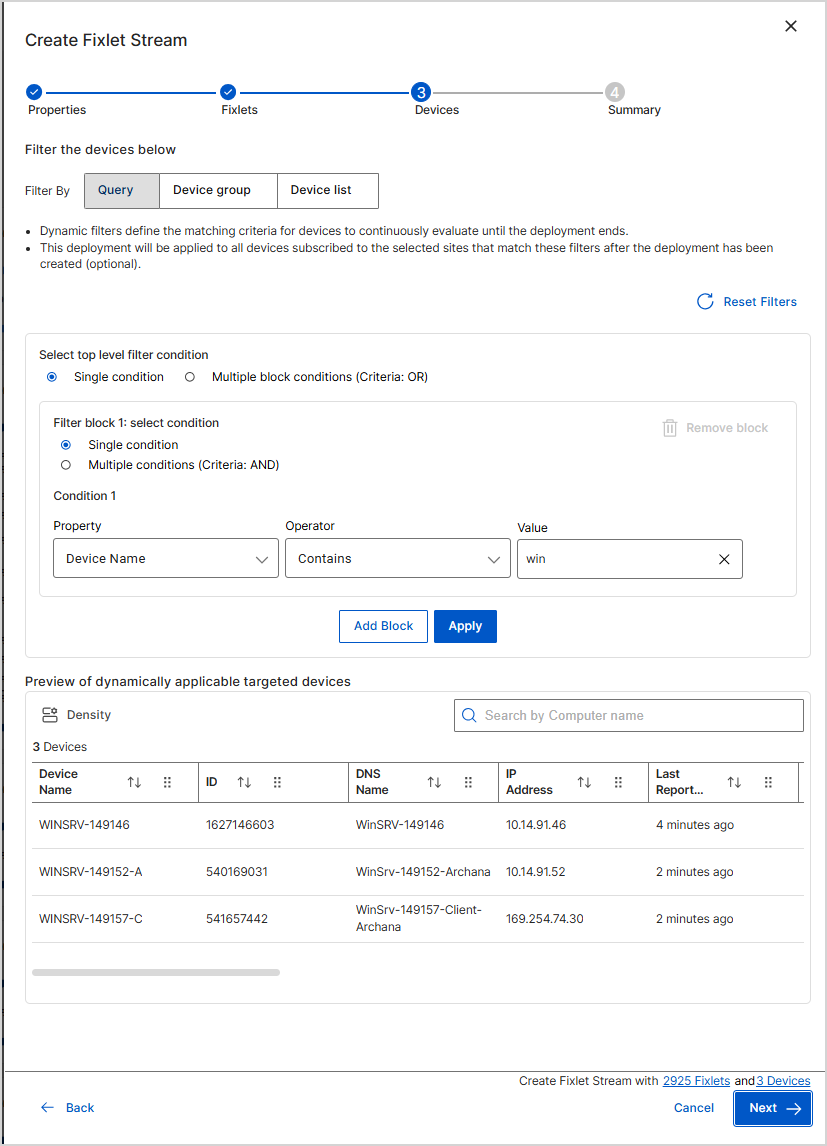
- On the Devices step, use Filter By to choose how
devices are selected:
- Query – Build conditions from device properties, such as Device Name.
- Device group – Select an existing device group.
- Device list – Select individual devices.
- Build the conditions that select the devices. The controls work the same
way as the query filter elsewhere in BigFix UI. See Filter by
query. Use the following controls to shape the dynamic
filter:
- Single condition: Matches devices on one condition.
- Multiple condition (AND): Requires every condition in the block to match.
- Multiple condition (OR): Matches devices that satisfy any block.
- Property: Select the device attribute to test, such as Device Name, OS Family, or ID.
- Operator: Select the comparison, such as equals or contains.
- Value: Enter one or more values to match.
- Add Block: Adds another block of conditions.
- Remove block: Deletes a block that you no longer need.
- Reset Filters: Clears all the conditions so that you can start again.
- Click Apply to evaluate the filters.
- Review the Preview of dynamically applicable targeted devices section to verify which devices match the criteria.
- Click Next.
- On the Devices step, use Filter By to choose how
devices are selected:
- Summary: Review and create the Fixlet Stream:
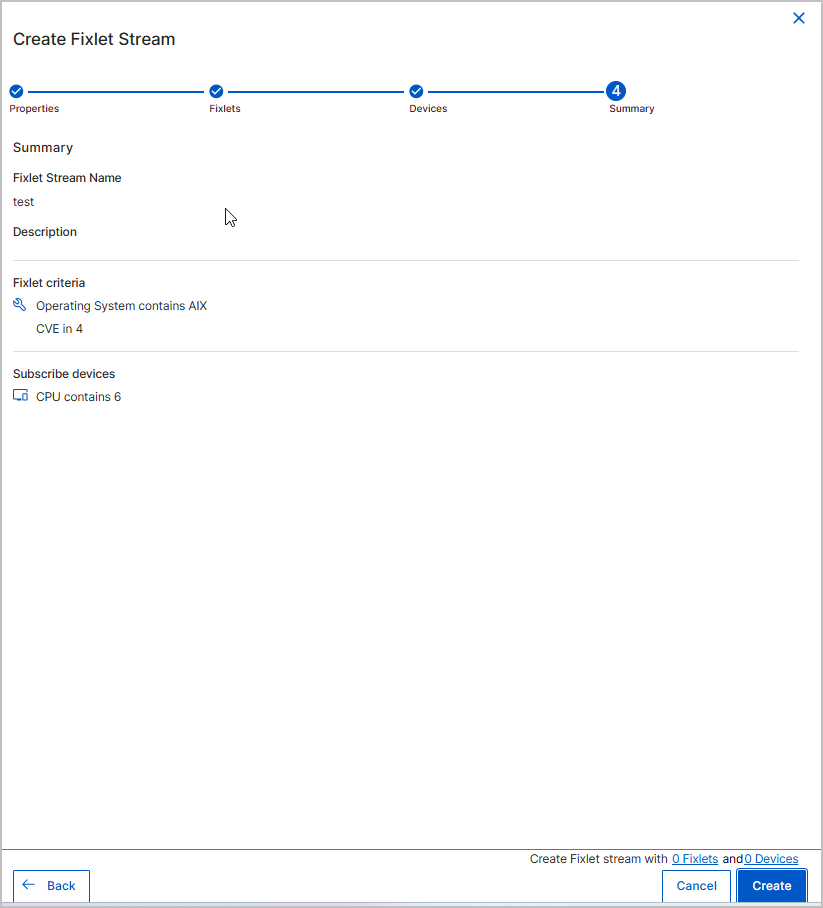
- On the Summary step, review all configured details
- Fixlet Stream name and description
- Fixlet selection criteria
- Device filtering criteria
- Confirm that the configuration matches your intended scope. Click
Create.
-
The Fixlet Stream is created and appears on the Fixlet Streams landing page.
-
The stream does not deploy Fixlets until devices are subscribed and automation is configured.
-
You can now proceed to set up the Fixlet Stream for remediation.
-
- On the Summary step, review all configured details
-
Edit Fixlet Stream
- To adjust conditions, click your Fixlet Stream on the landing page to open the Fixlet Stream Details Page, and then edit the settings as needed.
-
If the stream is active, deactivate it first. The Edit Fixlet Stream button is unavailable while a stream is active. See Editing a Fixlet Stream.
What to do next
- Confirm that the devices you defined on the Devices step appear on the All targeted devices tab. See Fixlet Stream Details Page.
- Create automation to schedule and control Fixlet deployments. See Creating an automation for a Fixlet Stream.
- Activate the stream, and manage it later from the details page. See Managing Fixlet Streams.
- Monitor compliance and deployments from the Fixlet Stream details page.