
Protection Level Agreement (PLA)
Protection Level Agreements are a set of baselines that combine device contexts, and desired patch levels and compliance standards for a given set of Fixlets against agreed-to organisational service levels by key stakeholders including IT, Security, and the overall organization.
With PLAs, organizations can ensure consistent and enforceable security measures for devices by making informed business decisions to reduce risk.
Before you begin
Access to this application is controlled by the role that your administrator assigns to you. If your role does not grant the application, it does not appear in the side navigation, and the actions described in this topic are unavailable or dimmed.
- Your role must grant access to the Protection Level Agreement (PLA) application, which is an optional application. See Managing Roles.
- Your operator permissions determine which actions you can complete, such as activating or deactivating a PLA. For a description of each permission, see Permissions reference.
How to access PLA report
To view the PLA report in the BigFix UI application:
- Navigate to the left pane.
- Expand Resolve from the side navigation, and then select
Protection Level Agreement (PLA).
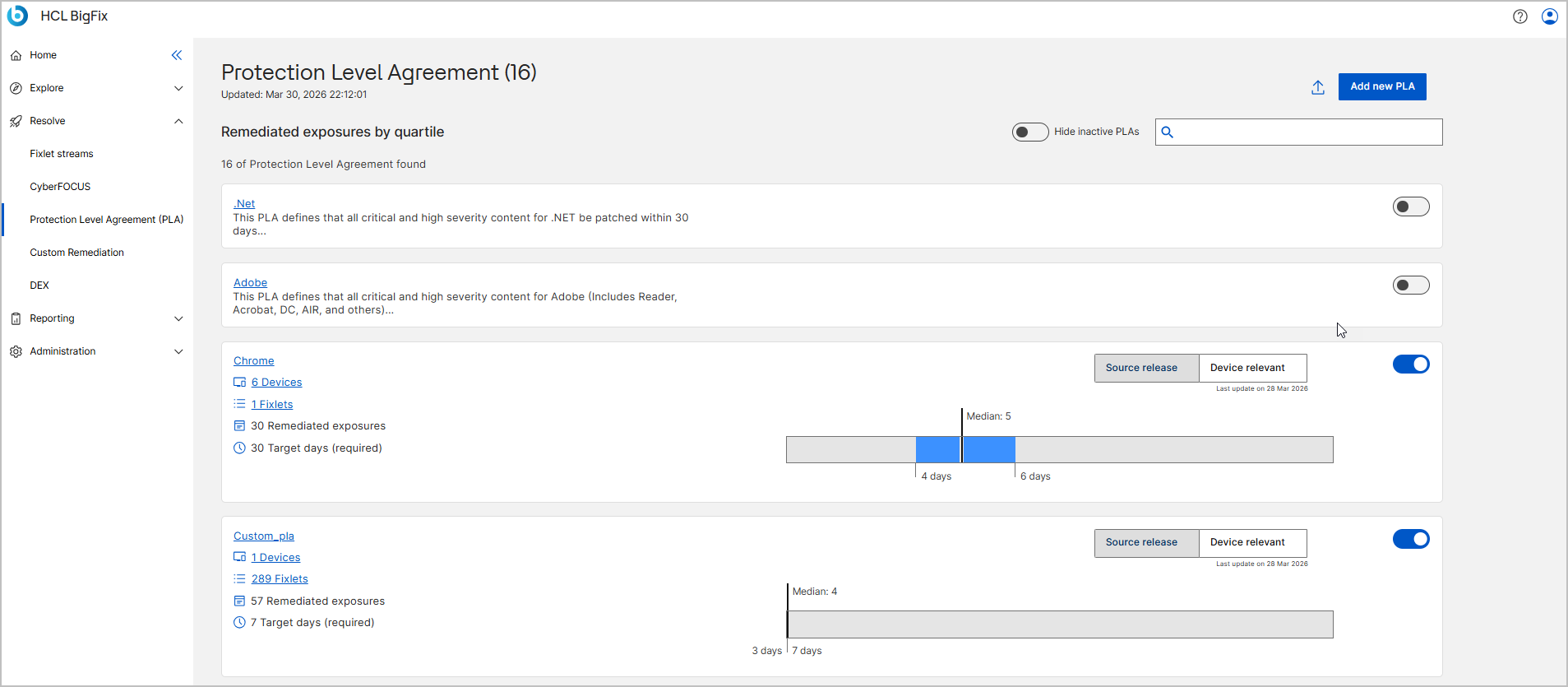
What PLAs show
- Median
-
- This is the middle value of a dataset when all data points are arranged in ascending order.
- It represents the typical or average performance level,
splitting the dataset into two equal halves:
- 50% of the endpoints perform below this value.
- 50% of the endpoints perform above this value.
- For example: If the median remediation time is 4 days, it means half of the vulnerabilities are remediated in 4 days or fewer, and the other half take longer than 4 days.
- 25% Quartile (Lower Quartile)
-
- This is the value below which 25% of the data lies.
- It represents the shorter remediation timelines, showing the endpoints or vulnerabilities remediated quickly.
- Example: If the 25% quartile is 3 days, it means that 25% of remediations are completed within 3 days.
- 75% Quartile (Upper Quartile)
-
-
This is the value below which 75% of the data lies.
-
It reflects the majority of remediation timelines, showing the endpoints or vulnerabilities remediated with longer timelines.
- Example: If the 75% quartile is 8 days, it means that 75% of the remediations are completed in 8 days or fewer, while the remaining 25% take longer than 8 days.
-
- Source Release vs Device Relevant (Remediation Timeline Reference)
-
This feature allows you to switch the reference point used to calculate remediation timelines in a Protection Level Agreement (PLA).
By default, remediation progress can be viewed based on either the source release date or the device-relevant date. Switching between these options recalculates the remediation duration and updates the quartile and median values displayed in the PLA progress chart.
The timeline below the progress bar shows two important reference points:
- Source release:
When Source release is selected, remediation time is calculated from the date the vendor releases the patch.
This view provides a consistent baseline across all devices and is typically used to evaluate compliance with organizational security policies and regulatory requirements.
- Device relevant:
When Device relevant is selected, remediation time is calculated from the date the vulnerability becomes applicable to each device. This view reflects the actual exposure window for devices and helps assess how quickly vulnerabilities are addressed after they affect an endpoint.
PLA uses these reference points to accurately calculate remediation timelines.
- Source release:
Example in a PLA context
Assume a PLA report analyzes the patch compliance of 1,000 endpoints. The results might look like this:
- 25% Quartile: 3 days (25% of remediations are completed within 3 days)
- Median: 4 days (50% of remediations are completed in 4 days or fewer)
- 75% Quartile (Q3): 8 days (75% of remediations are completed within 8 days)
These statistics provide a comprehensive view of the distribution of remediation timelines, allowing organizations to identify trends, outliers, and areas for improvement in the remediation process.
Activating or deactivating a PLA
The Activate/Deactivate PLA (Protection Level Agreement) feature allows administrators to enable or disable specific security and compliance policies within a system or application. This feature provides flexibility in managing protection levels based on operational needs while ensuring compliance with security standards.
- When to Activate PLA?
- Activating PLA enforces security controls to protect sensitive data and
maintain compliance. Consider enabling PLA in the following
situations:
- Protecting sensitive data – Prevents unauthorized access to critical information.
- Ensuring compliance – Aligns with legal and regulatory requirements such as GDPR, HIPAA, or ISO 27001.
- Mitigating security threats – Strengthens defenses when potential vulnerabilities or attacks are detected.
- Enforcing enterprise-wide security policies – Standardizes protection measures across the organization.
- When to Deactivate PLA?
- In certain scenarios, disabling PLA may be necessary to improve
performance, enable troubleshooting, or support system transitions.
Consider deactivating PLA in the following cases:
- Optimizing performance – Reduces resource consumption in low-risk environments.
- Conducting system maintenance or debugging – Temporarily removes security restrictions for troubleshooting.
- Supporting non-production environments – Allows flexible testing and development without strict security controls.
- Transitioning to a new security framework – Simplifies policy adjustments during system upgrades or migrations.
- How to activate or deactive a PLA
- You can activate or deactivate a PLA using either of the following
methods:
- From the PLA List: Toggle the activation button next to the PLA to enable or disable it directly from the list view. [or]
- From the PLA Details Page: Click on a PLA to open its details page, then use the activation toggle to enable or disable it.
View all or hide inactive PLAs
 – Displays
both active and inactive PLAs.
 –
Filters out deactivated PLAs, allowing administrators to focus only on
currently enforced security and compliance policies.
- Use the search bar to quickly locate a specific Protection Level Agreement (PLA) by its name or keyword.
Custom PLA report
A custom PLA is a user-defined report that helps organizations implement a proactive patching strategy while ensuring compliance and security align with their specific needs. For instructions on creating and editing a custom PLA, refer to Custom PLA.
Export PLA report
Users can export the PLA report as a CSV or excel file. For more information, refer to Common Functionalities.
Insights gained from the PLA report
-
Device Vulnerability Distribution:
- Spot devices with minimal vulnerabilities, showing those that are remediated relatively quickly (remediations completed in 3 days or fewer).
- Understand the typical state of devices in the environment, reflecting the average remediation time (remediations typically closed in 4 days).
- Identify clusters of devices with high vulnerability counts, indicating devices that are not being remediated quickly (remediations taking longer than 8 days).
-
Vulnerability Trends:
- Compare the quartiles over time to see if the security posture is improving or deteriorating, with a focus on whether the median and upper quartile remediation times are decreasing, and the lower quartile is showing improvement.
- Highlight areas needing urgent attention (for example, devices consistently taking longer than 8 days for remediation).
Performance Gaps:
Analyze the disparity between the 25% and 75% quartiles to measure variability in device security.- A smaller gap suggests consistent security across devices, with remediations being resolved in a similar time frame.
- A larger gap indicates uneven protection levels, with some devices being addressed quickly, while others take longer to remediate.
Decisions a user can make using the PLA report
-
Prioritize Remediation Efforts:
- Focus first on the highest risk devices (devices with remediation times longer than 8 days).
- Allocate resources effectively by targeting the most vulnerable devices that take the longest to remediate.
-
Set Realistic Security Goals:
- Use the median to establish achievable remediation baselines for the organization (for example, 50% of devices remediated within 4 days).
- Gradually aim to shift more devices towards the 75% quartile for better overall security (for example, reducing the number of devices that take longer than 8 days to remediate).
-
Monitor Progress and Effectiveness:
- Track changes in quartile metrics over time to measure the impact of patching, configuration changes, or other security measures.
- Use the report to validate whether security initiatives are improving the posture of the devices, ensuring remediation times are reduced.
-
Segment and Tailor Strategies:
- Use the quartiles to segment devices by performance levels and apply
different strategies to each group:
- Low performers: Intensive remediation and stricter monitoring to quickly address vulnerabilities.
- Median performers: Routine updates and maintenance to ensure continued compliance.
- High performers: Focus on maintaining compliance and ensuring ongoing protection.
- Use the quartiles to segment devices by performance levels and apply
different strategies to each group:
-
Identify Outliers and Exceptions:
- Spot devices significantly outside the normal range (for example, remediation times lower than 3 days or above 8 days) and investigate unusual patterns.
- Determine if certain device types, configurations, or departments consistently under perform and require focused attention.
-
Justify Resource Allocation and Investments:
- Present quartile data to stakeholders to justify funding for tools, staff, or processes that improve endpoint security.