
Scheduled Reports
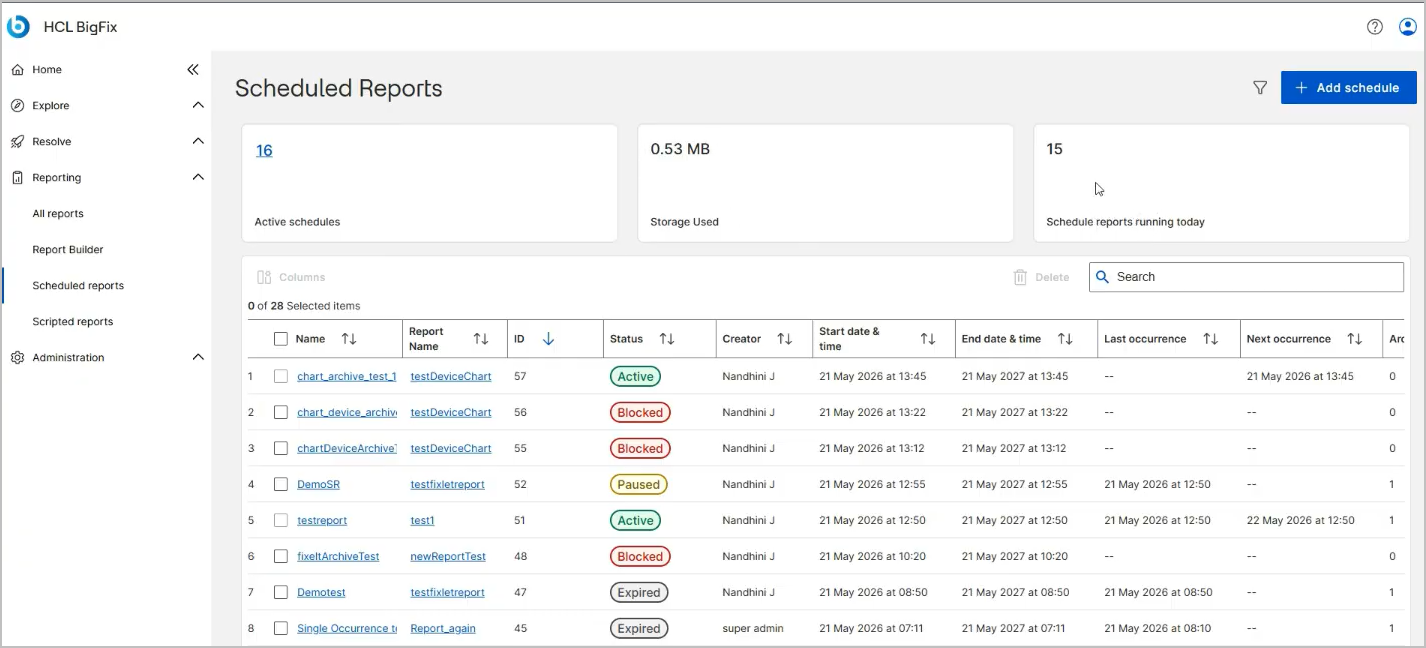
Use Scheduled Reports to run a saved report automatically at a time that you choose, send the result by email, and keep an archive of each run. The Scheduled Reports page lists every schedule that you have access to and shows its status and next run.
A schedule (also called a scheduled activity) links one existing report to a recurrence pattern. Each time the schedule runs, BigFix UI generates the report, compresses the output and stores it as an archive, and sends an email notification if you configured one.
You can schedule a report only if the report is listed on the All Reports page and you are its owner, that is, you created the report. You cannot schedule reports that other users own. Scheduling supports reports from the following sources:
- Device Explorer
- Fixlet Explorer
- Analyses
- Deployment
- Report Builder
A schedule is independent of the report that it runs. Deleting a schedule does not delete the report, and you can create more than one schedule for the same report.
To open the page, expand Reporting in the side navigation, and then select Scheduled Reports.
Before you begin
Access to this application is controlled by the role that your administrator assigns to you. If your role does not grant the application, it does not appear in the side navigation, and the actions described in this topic are unavailable or dimmed.
- Your role must grant access to the Reports application with the Users or Admin access level. With Read only access, Scheduled Reports is not available to you. See Managing Roles and Scheduled Reports with Read only access.
- Your operator permissions determine which actions you can complete. For a description of each permission, see Permissions reference.
Summary cards
Three cards above the table summarize your schedules:
- Active schedules – The number of schedules in the Active status. Select the number to filter the table so that it shows only those schedules.
- Storage used – The total size of the compressed report archives that are kept for your schedules, for example 0.53 MB. Deleting schedules or archives frees this storage.
- Schedule reports running today – The number of schedules that have a run planned for the current day.
Toolbar and table
The toolbar above the table contains Filter to narrow the list and Density to set the row height to Standard, Compact, or Comfortable. It also contains a selection counter such as 0 of 5 List of scheduled reports, Delete, which is enabled when you select one or more schedules that are not active, and Search. For more information about filters, see Table filter.
The page header contains the page title and + Add schedule.
Each row is one schedule. Select the value in the Name column to open the schedule details page, or select the value in the Report Name column to open the report itself. Select a column heading to sort the table. For the description of each column and status, see Scheduled Reports reference.
Scheduled Reports with Read only access
The Scheduled Reports page lists only the schedules that you created. It is not a view of every schedule on the system.
If your role grants Read only access to the Reporting application, the Scheduled Reports application is not available to you. Scheduled Reports is not shown under Reporting in the side navigation, so you cannot open the page or create a schedule.
You can still open an archived report if you have a valid report link, for example the View Report link in a notification email that was sent or forwarded to you. The link works until it expires. See Email notifications.
To create and manage schedules, ask your administrator for the Users or Admin access level for the Reporting application. For more information about access levels, see User & Role Management.
What you can do
- Create a schedule with the four-step Add schedule wizard. See Add a schedule.
- Review the configuration, the runs, and the archives of one schedule. See Schedule details page.
- Pause, resume, edit, or delete a schedule, and open or delete its archives. See Manage scheduled reports.
- Look up the table columns, the statuses, and the wizard fields. See Scheduled Reports reference.