
Schedule details page
The schedule details page shows the configuration and run history of one schedule on the Overview tab, and the generated report archives on the Archives tab. From this page you pause, resume, edit, or delete the schedule.
To open the page, select the schedule in the Name column of the Scheduled Reports page. The breadcrumb Scheduled Reports > schedule name returns you to the list.
Page header
The header shows the schedule name and the following controls in the upper-right corner:
- Delete (trash icon) – Deletes the schedule and all of its archives after you confirm. Enabled only when the schedule is not active.
- Pause or Resume – Suspends an active schedule or restarts a paused one. The button that is shown depends on the current status.
- Edit – Opens the schedule in the wizard. Enabled only when the schedule is not active.
To edit / delete an active schedule, please pause it first before making any changes.is shown.
Overview tab
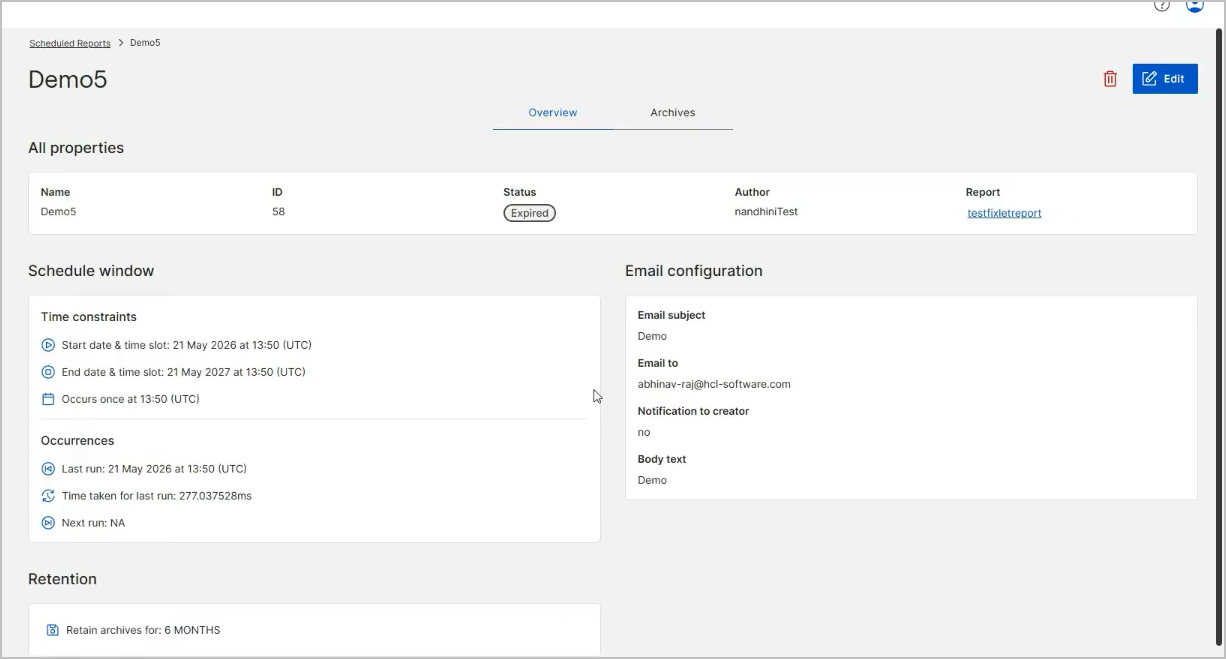
The Overview tab groups the schedule settings into four panels:
| Panel | Fields |
|---|---|
| All properties | Name, ID, Status, Author, and Report. Select the report name to open the report. |
| Schedule window | Time constraints: Start date & time slot, End date & time slot, and the recurrence, for example Occurs once at 13:50 (UTC). The End date & time slot shows the end condition of the schedule, for example After 10 occurrences on 30 Sep 2026 at 16:50 (Client). Occurrences: Last run, Time taken for last run, and Next run. Time taken for last run shows N/A before the first run, and Next run shows NA when no further run is planned. |
| Email configuration | Email subject, Email to, Notification to creator (yes or no), and Body text. |
| Retention | Retain archives for, for example 6 MONTHS. |
Archives tab
The Archives tab lists one archive for each completed run of the schedule, together with the time that the run took and the date on which the archive is deleted according to the retention period.
Select an archive name to open the archived report. The report opens in the standard report view, with the report name prefixed by the app that created it, such as Report Builder - testfixletreport or Device explorer - Device Report with chart, an Updated date and time, and the report content below. A report that contains charts also shows a Charts panel.
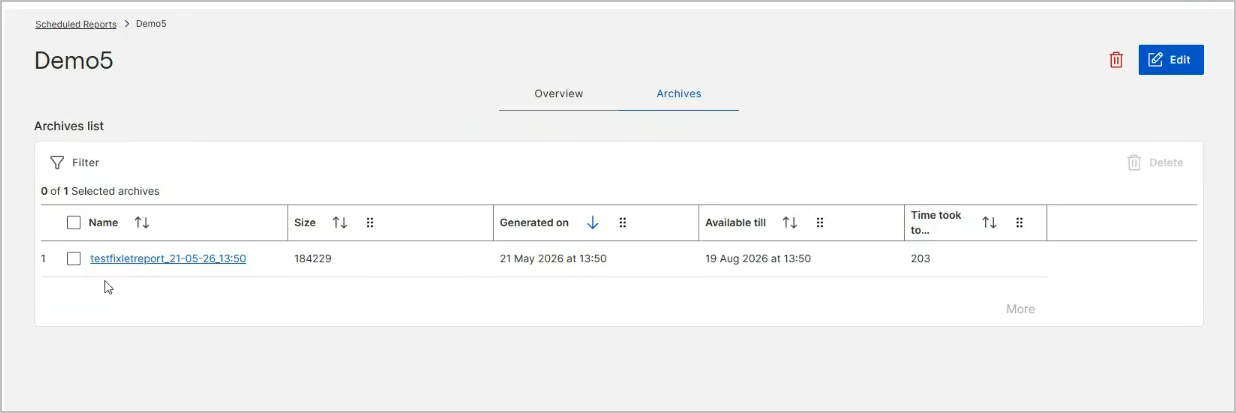
The toolbar contains Filter, a selection counter such as 0 of 1 Selected archives, and Delete, which is enabled when you select one or more archives. A view selector labeled Archives sits above Archives list. Select More below the table to load additional archives. To delete archives, see View and delete report archives.
| Column | Description |
|---|---|
| Name | The archive name, built from the report name and the execution date and time, for example testfixletreport_21-05-26_13:50. The date and time are always recorded in UTC, even when the schedule uses client time. Select the name to open the archived report. |
| Size | The size of the compressed archive, shown in the most appropriate unit, such as B, kB, or MB. The sum of these values is reported in the Storage used card on the Scheduled Reports page. |
| Generated on | The date and time when the run completed. |
| Available till | The date and time after which the archive is no longer available, according to the retention setting of the schedule. |
| Time took to... | The time that the run took to generate the report. The value is displayed using the most appropriate unit, such as milliseconds, seconds, or minutes. |