
Configure HCL BigFix MDM in Azure portal
By configuring BigFix MDM server, when a user from your organization joins the Azure AD, then the device is enrolled using Autopilot configurations.
Before you begin:
- Ensure you have an active Azure AD Premium license for automatic enrollment
- Ensure the premium license is assigned to the users who perform automatic enrollment.
About this task: To configure BigFix MDM in Azure portal, complete the following steps:
- Sign in to the Azure portal, and select Azure Active Directory. MDM supported
applications are listed here. To add BigFix MDM application, click Add
application.
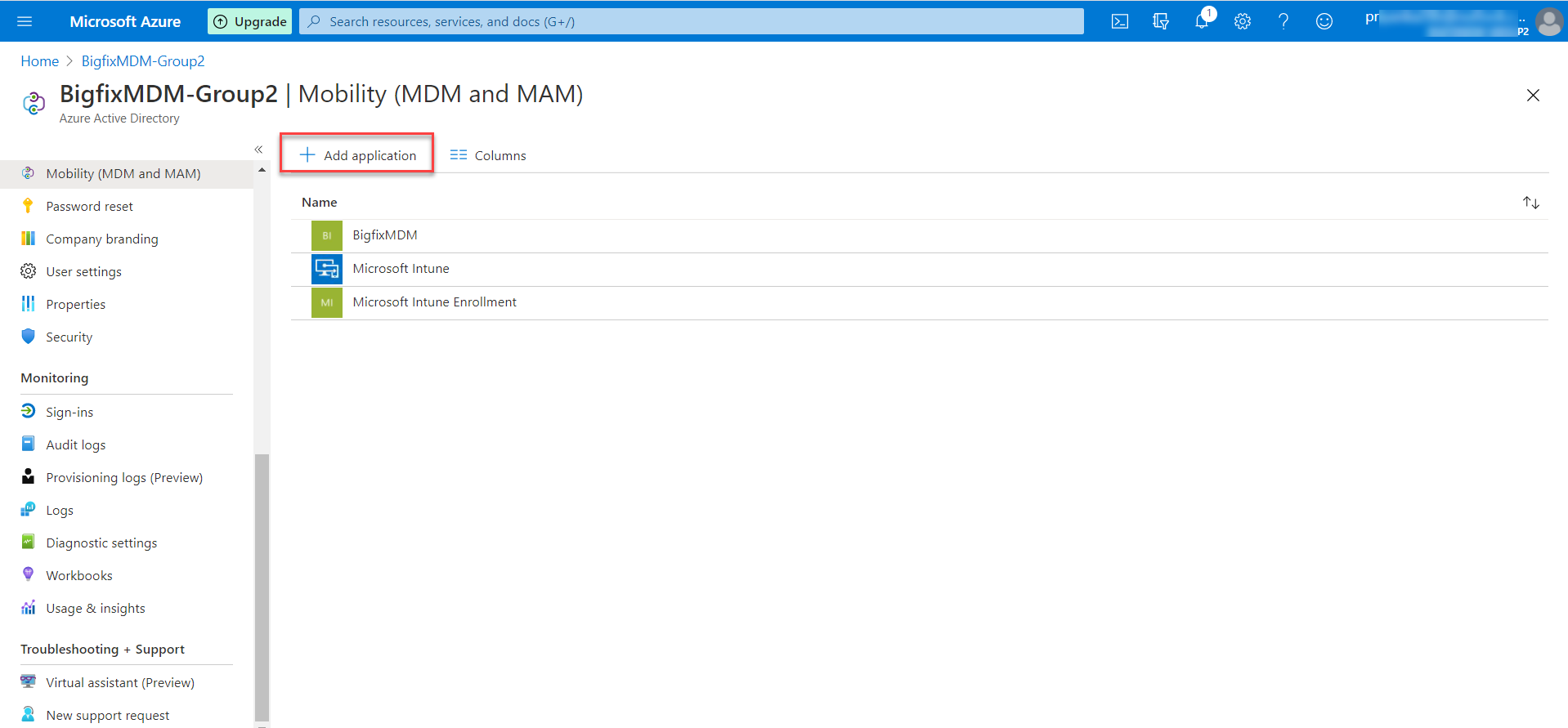
- On the Add an application screen:
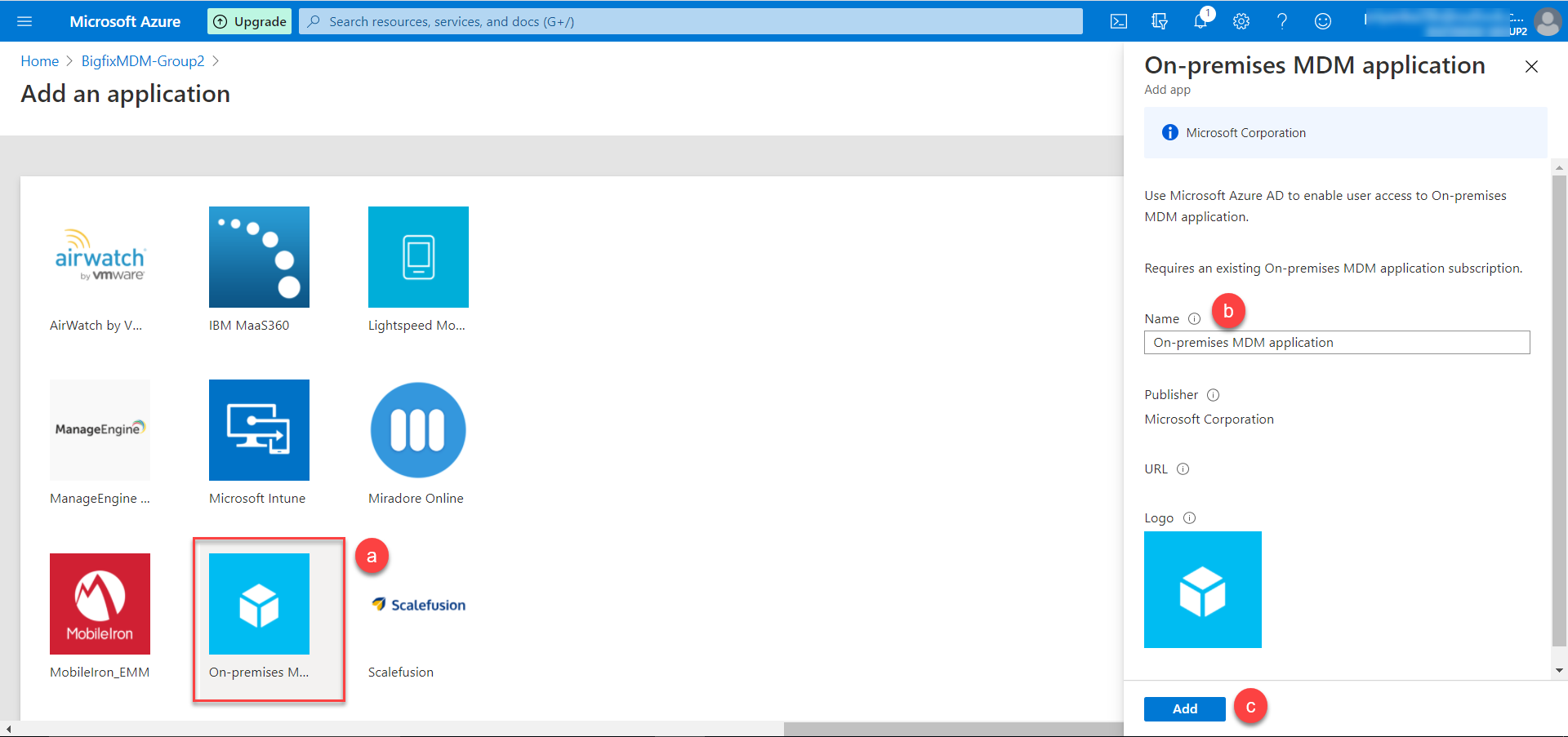
- Click On-premises MDM application.
- On the on-premises MDM application screen, enter the Name.
- Click Add. The MDM application is added.
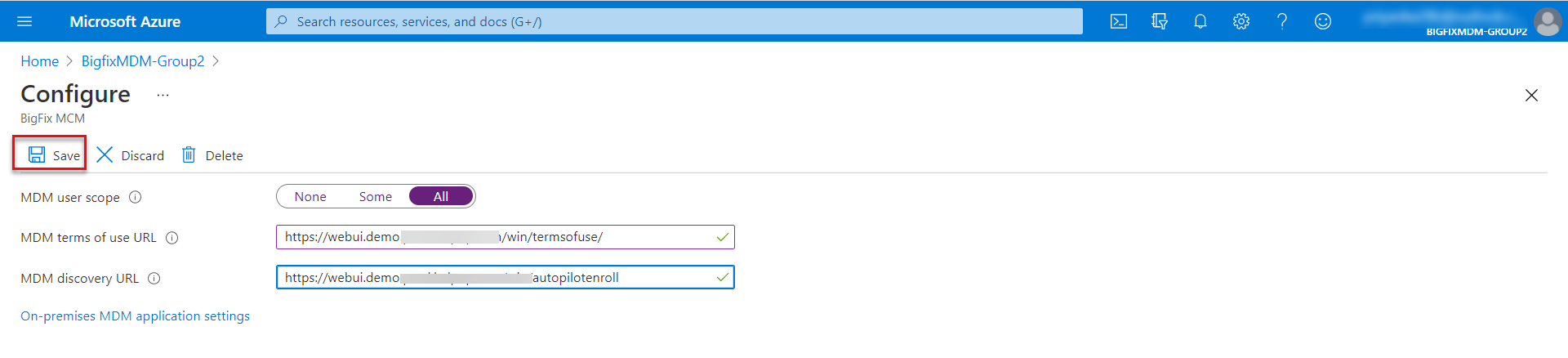
- Select the created application, and in the next screen, do the following:
- For MDM user scope, select All.
- Enter MDM Terms of use URL. For example, https://webui.demo.prod.hclpnp.com/win/termsofuse/
- Enter MDM Discovery URL For example, https://webui.demo.prod.hclpnp.com/win/autopilotenroll
- Click Save.
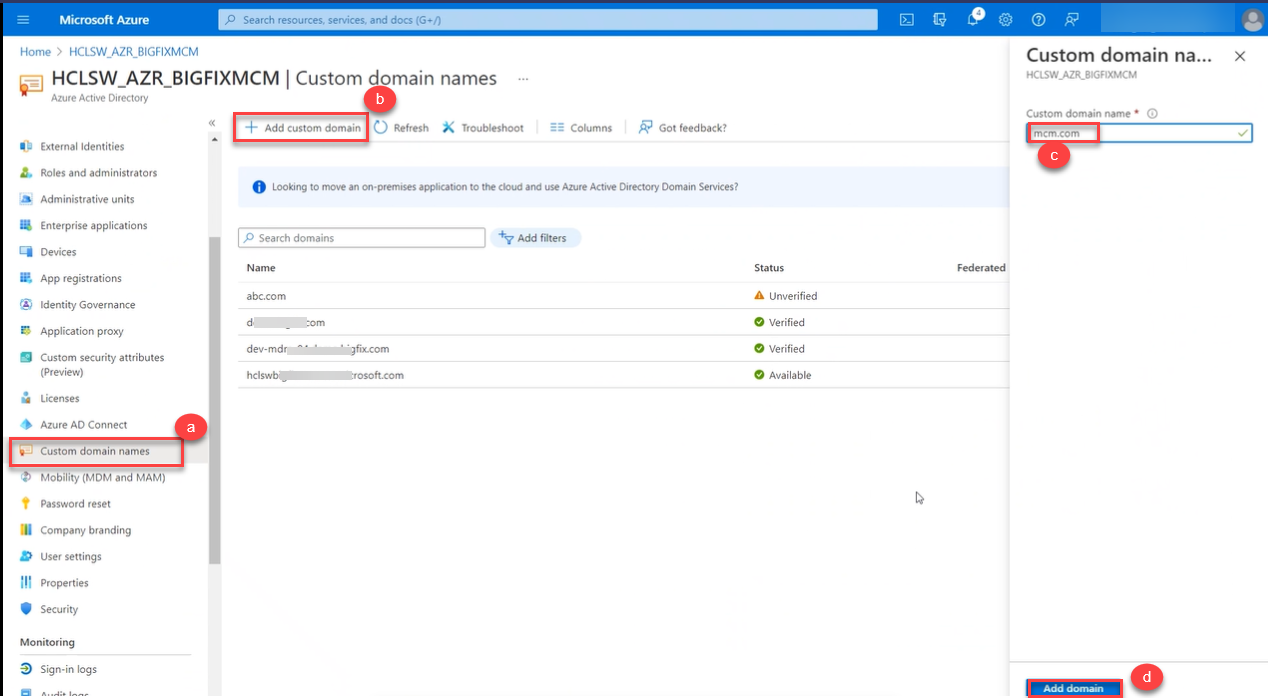
- To add custom domain, on the Active Directory page do the following:
- From the left pane click Custom domain names.
- Click Add custom domain.
- On the right side, in the Custom domain name text box, enter the domain name.
- Click Add domain.
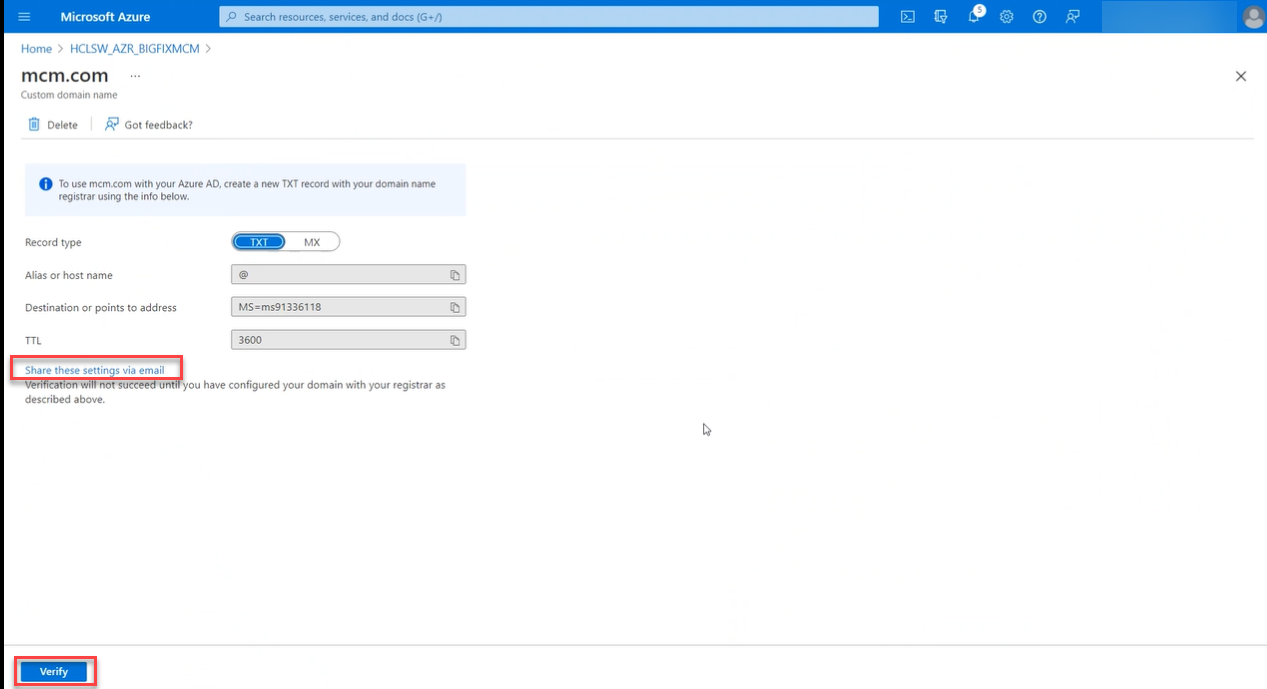
- The domain name gets added to the Active Directory, and the domain settings
are displayed. Click the link Share these settings via email.
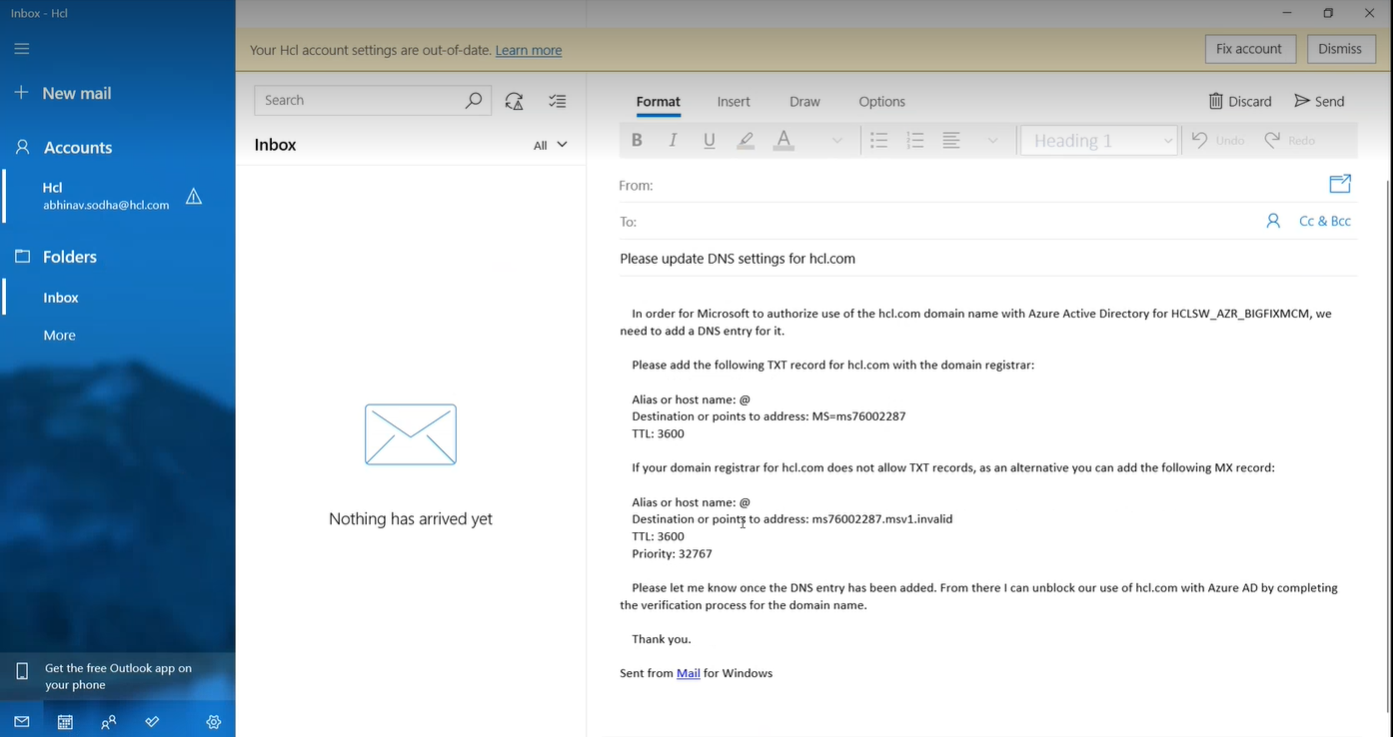
- It populates a mail with the necessary information. Send the mail to the
person responsibile in your organization to register the domain to the
Active Directory.
- Once the domain is added to the Active Directory register, click Verify on the page where the domain information is displayed. The domain name is verified and a green tick mark appears next to the domain name.
- To configure Application ID URI and Redirect URI:
- Click the On-Premises MDM application settings link.
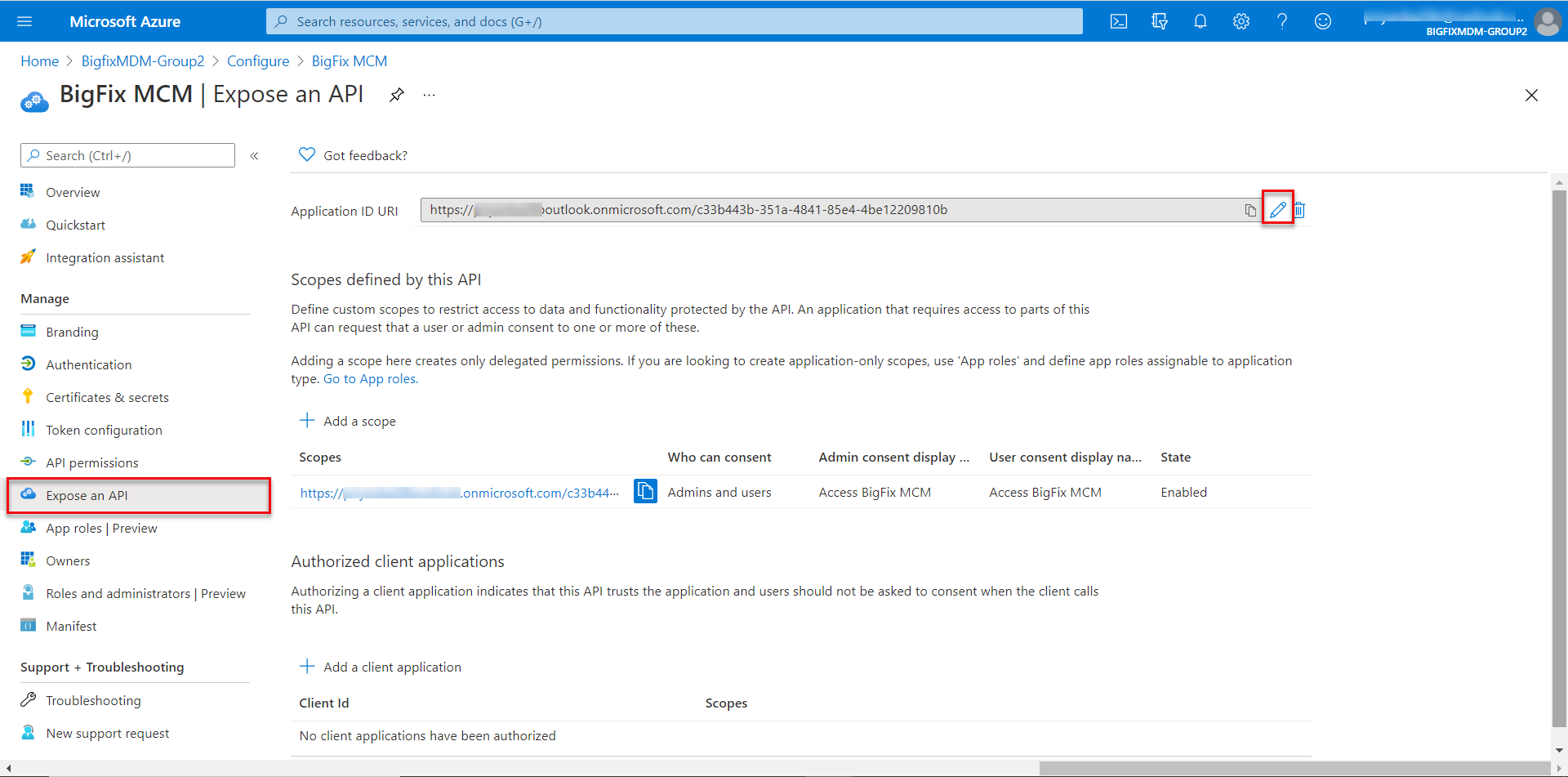
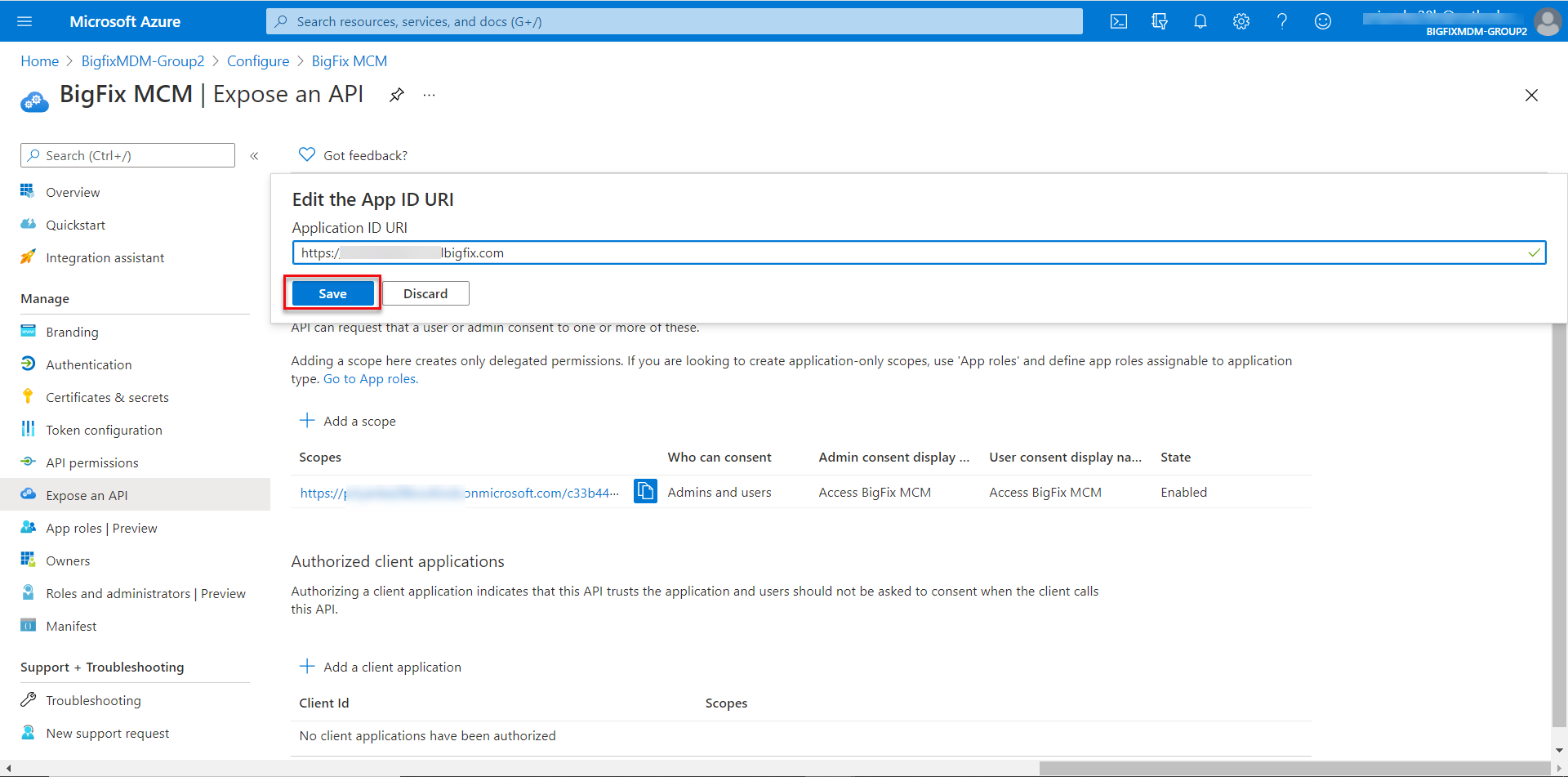
From the navigation pane, select Expose an API,and in the next screen, click the Edit button next to Application ID URI. Edit the URI and click Save.
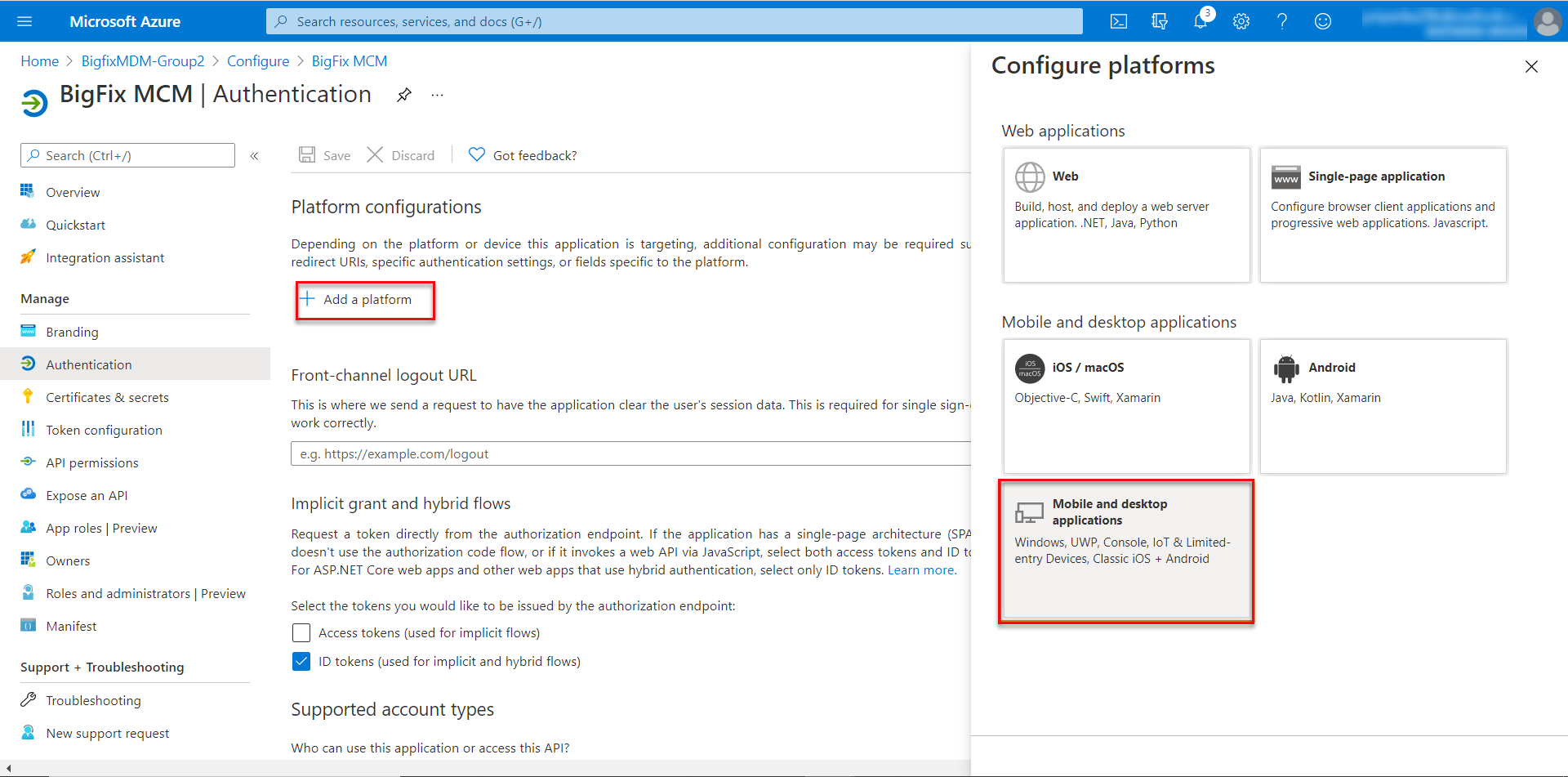
- To configure Redirect URIs, from the navigation pane, select
Authentication. In the next screen, click Add a platform
and select Mobile and desktop applications, enter a valid URI and
click Configure.
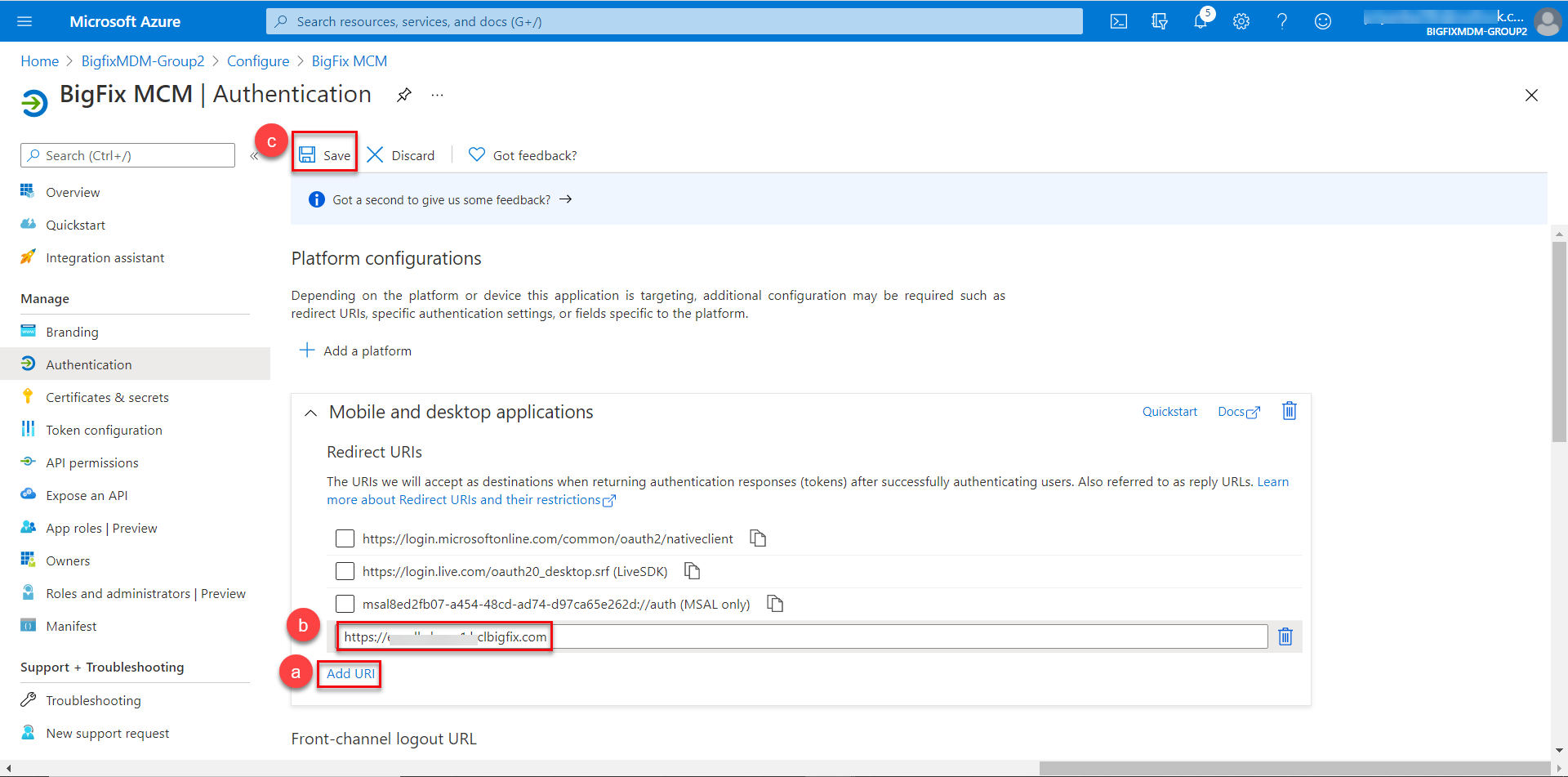
- Add URI, enter the URI, and click Save. You can also click Add URI
to add another URI and click Save.
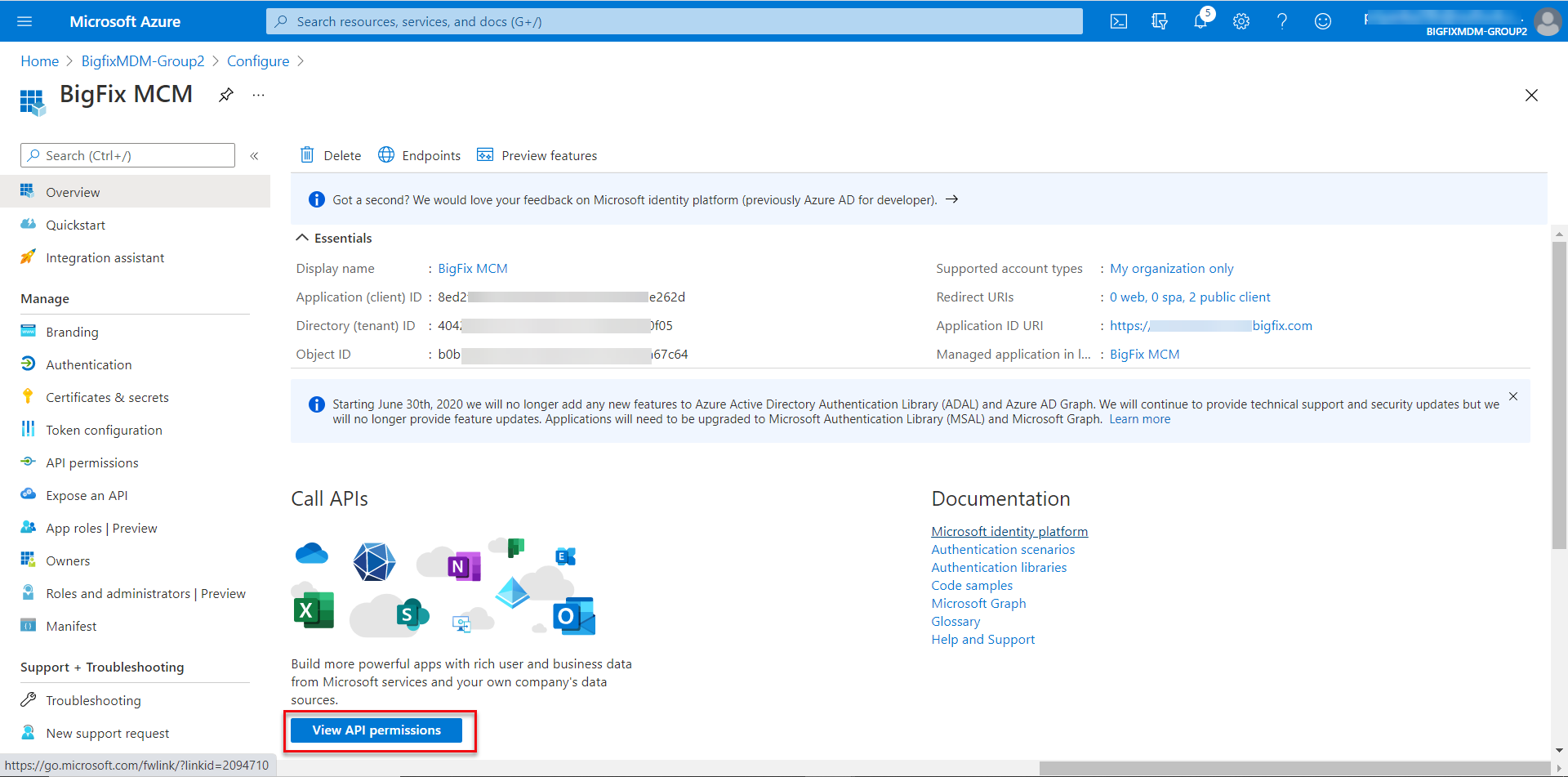
- Grant Admin Consent to BigFixMDM application. From the Overview page, click
View API permissions.
In the next screen do the following:
- Click Add a permission tab, select Microsoft APIs > Microsoft
Graph, select the following Application permission and Delegated
permission APIs, and click Add permissions at the end of that page.
- Application permissions
Expand Device, select Device.Read.All and Device.ReadWrite.All
Expand DeviceManagementServiceConfig, select DeviceManagementServiceConfig.Read.All and DeviceManagementServiceConfig.ReadWrite.All
Expand Directory, select Directory.Read.All and Directory.ReadWrite.All
Expand User, select User.Read.All and select User.ReadWrite.All
- Delegated permissions
- Expand DeviceManagementServiceConfig, select DeviceManagementServiceConfig.Read.All and DeviceManagementServiceConfig.ReadWrite.All
- Expand Directory, select Directory.AccessAsUser.All , Directory.Read.All, and Directory.ReadWrite.All
- Application permissions
-
Select Grant admin consent for BigFix MCM application and click Yes to confirm. You can view all the APIs along with its permission details.
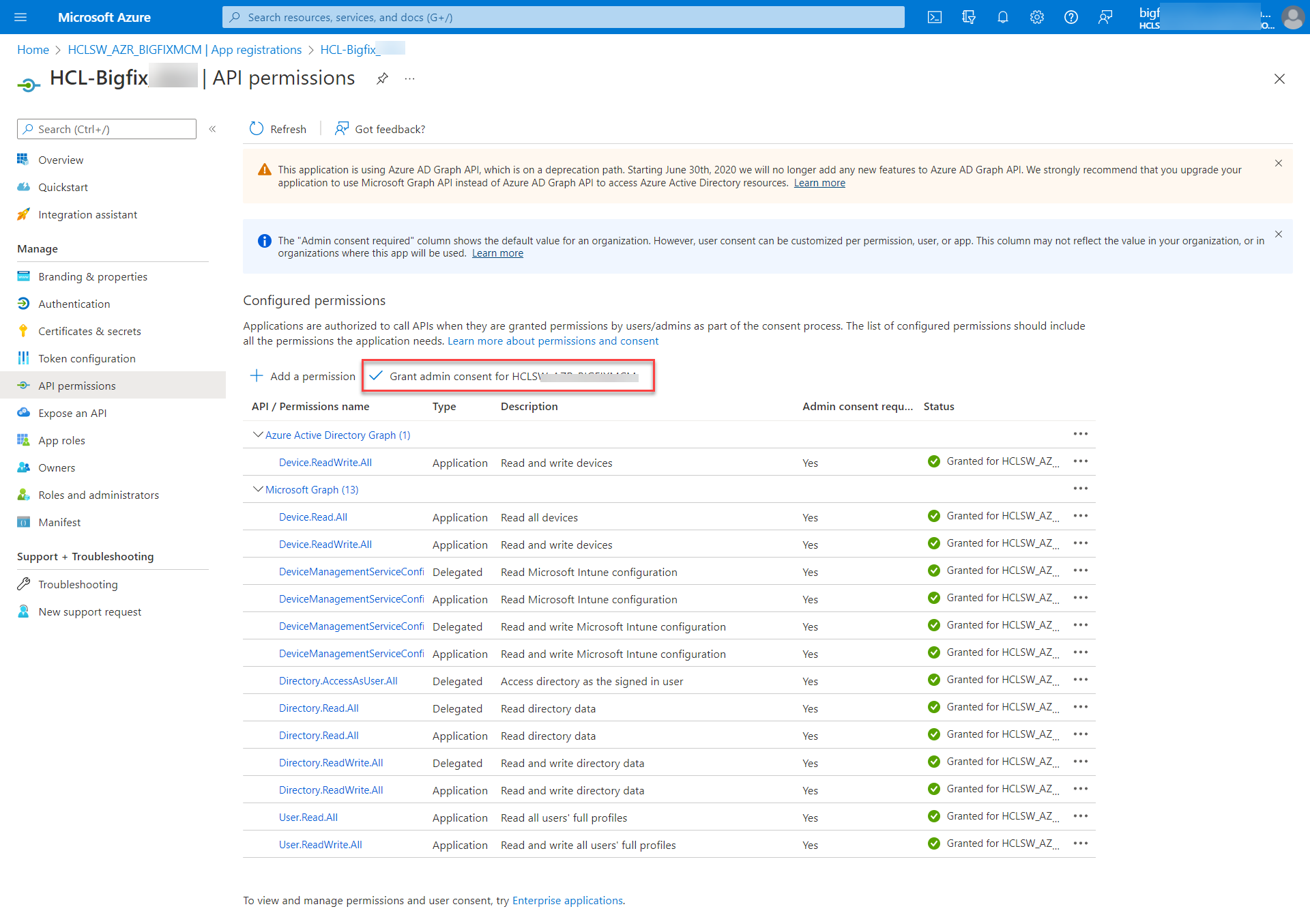
- Click Add a permission tab, select Microsoft APIs > Microsoft
Graph, select the following Application permission and Delegated
permission APIs, and click Add permissions at the end of that page.
- Switch the scope of Microsoft Intune application to None, if it was configured
previously.
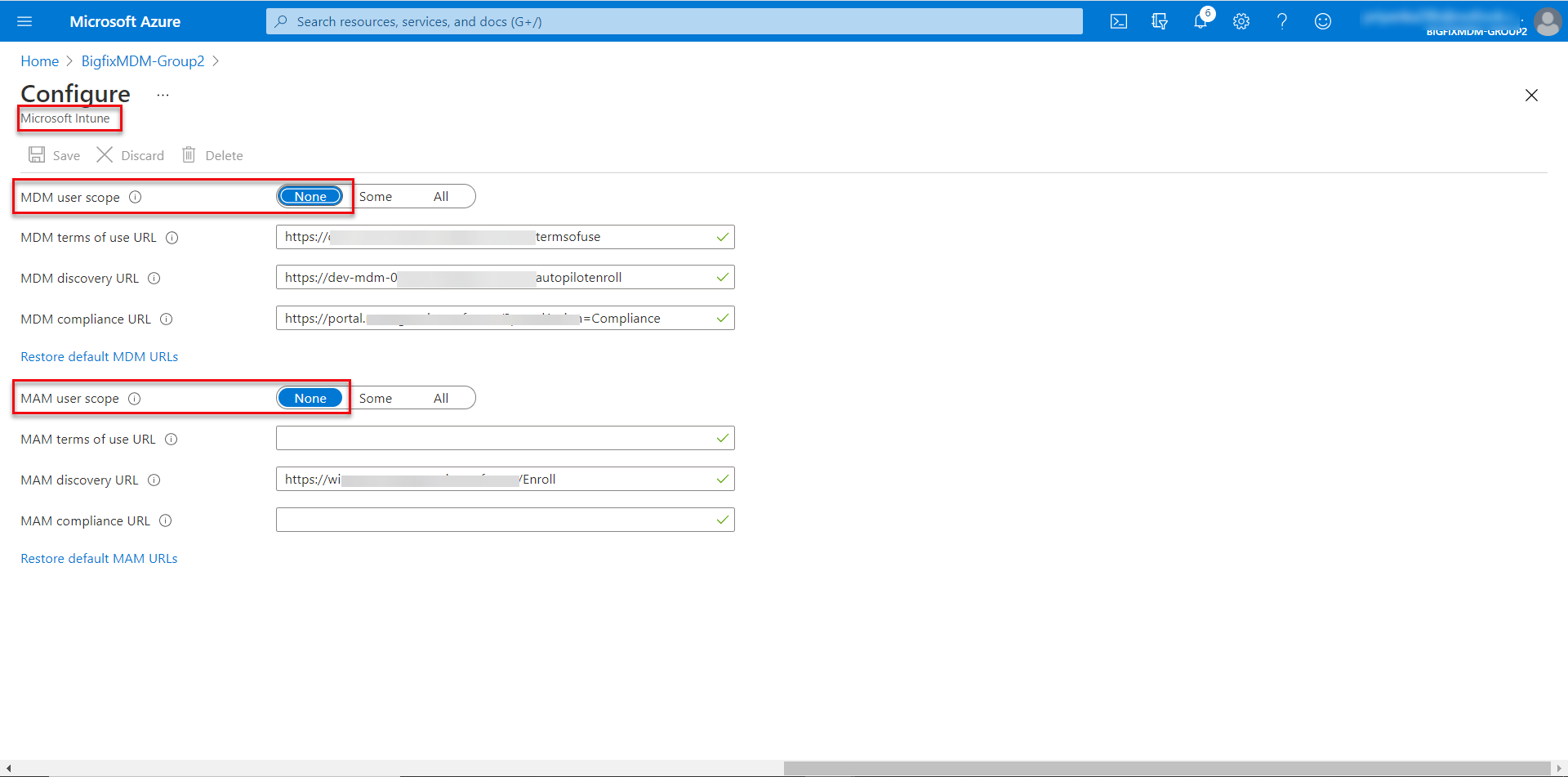
Results: The BigFix MDM application is added as configured.
Next step: Configure Autopilot group