
Configure Autopilot group
Configuring an Autopilot group in the Microsoft Azure portal allows you to organize and manage devices by assigning them to dynamic groups based on specific rules. This process streamlines device management by automatically adding devices to the group as they are imported. Once configured, the Autopilot group is ready for further deployment profile setup.
Configuring Autopilot group enables you to assign devices to a created group and manage the devices by group.
About this task: To configure Autopilot group:
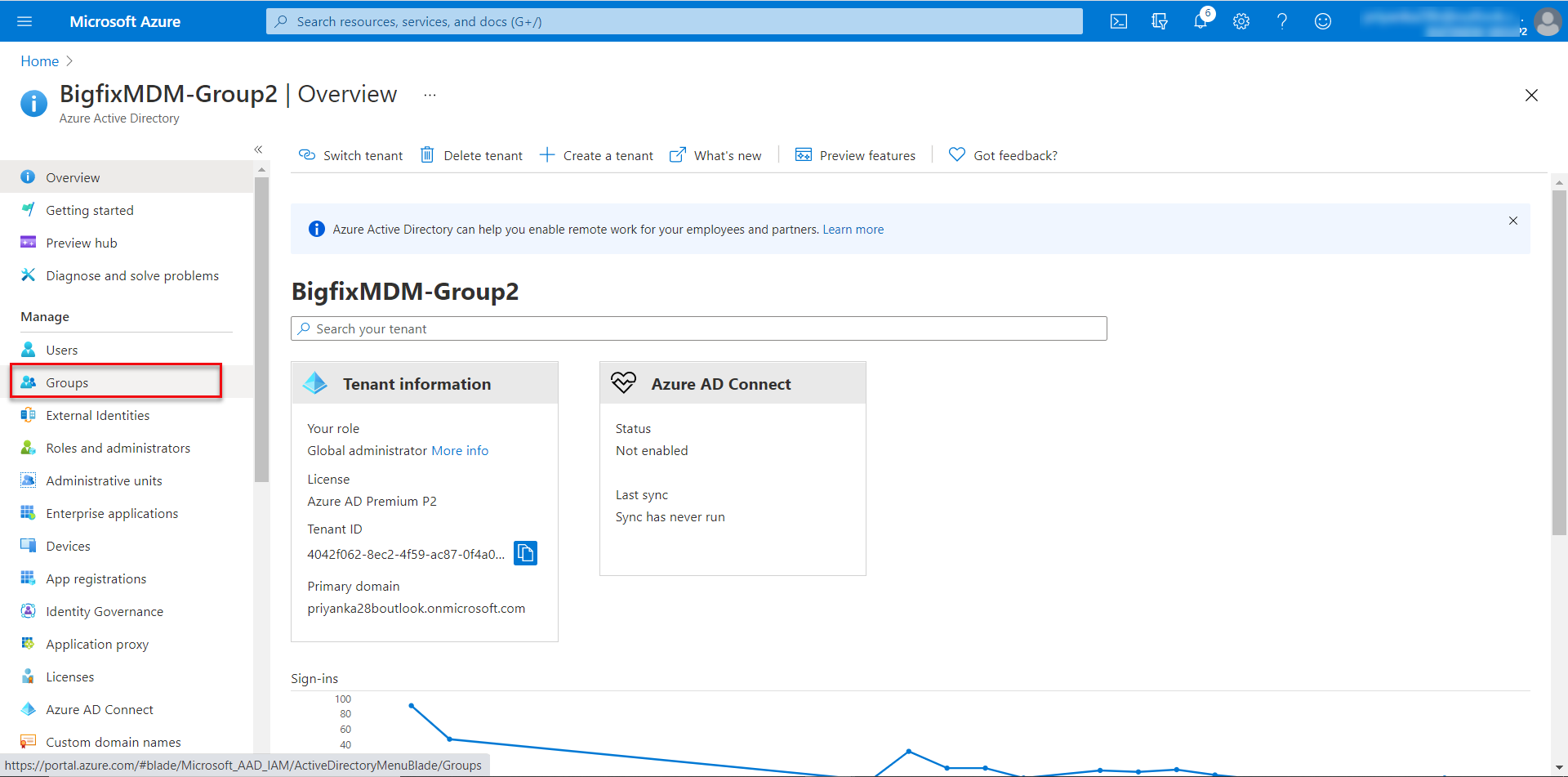
- In the Microsoft Azure portal, on the left navigation, click Groups.
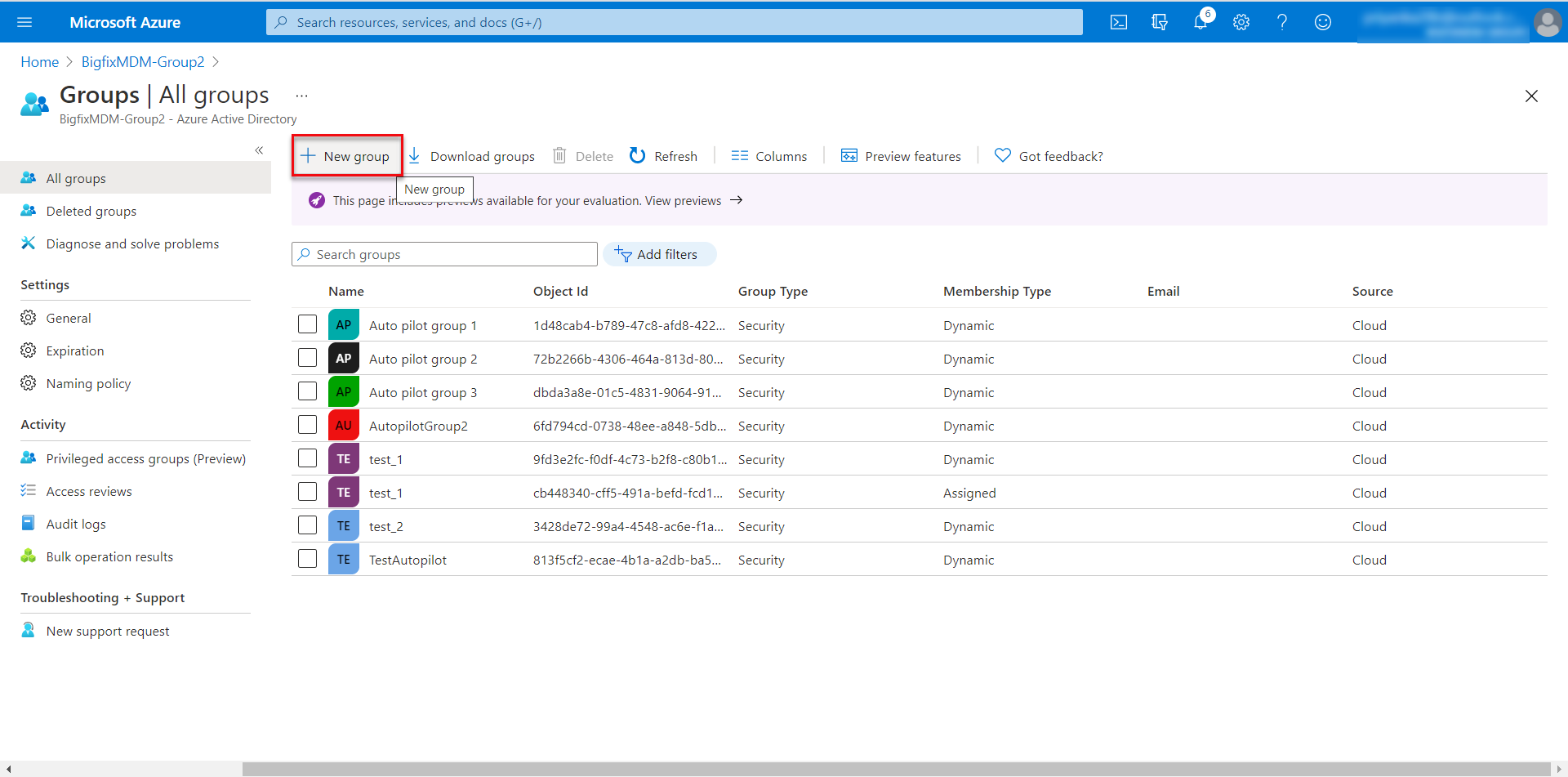
- In the next screen, click New group.
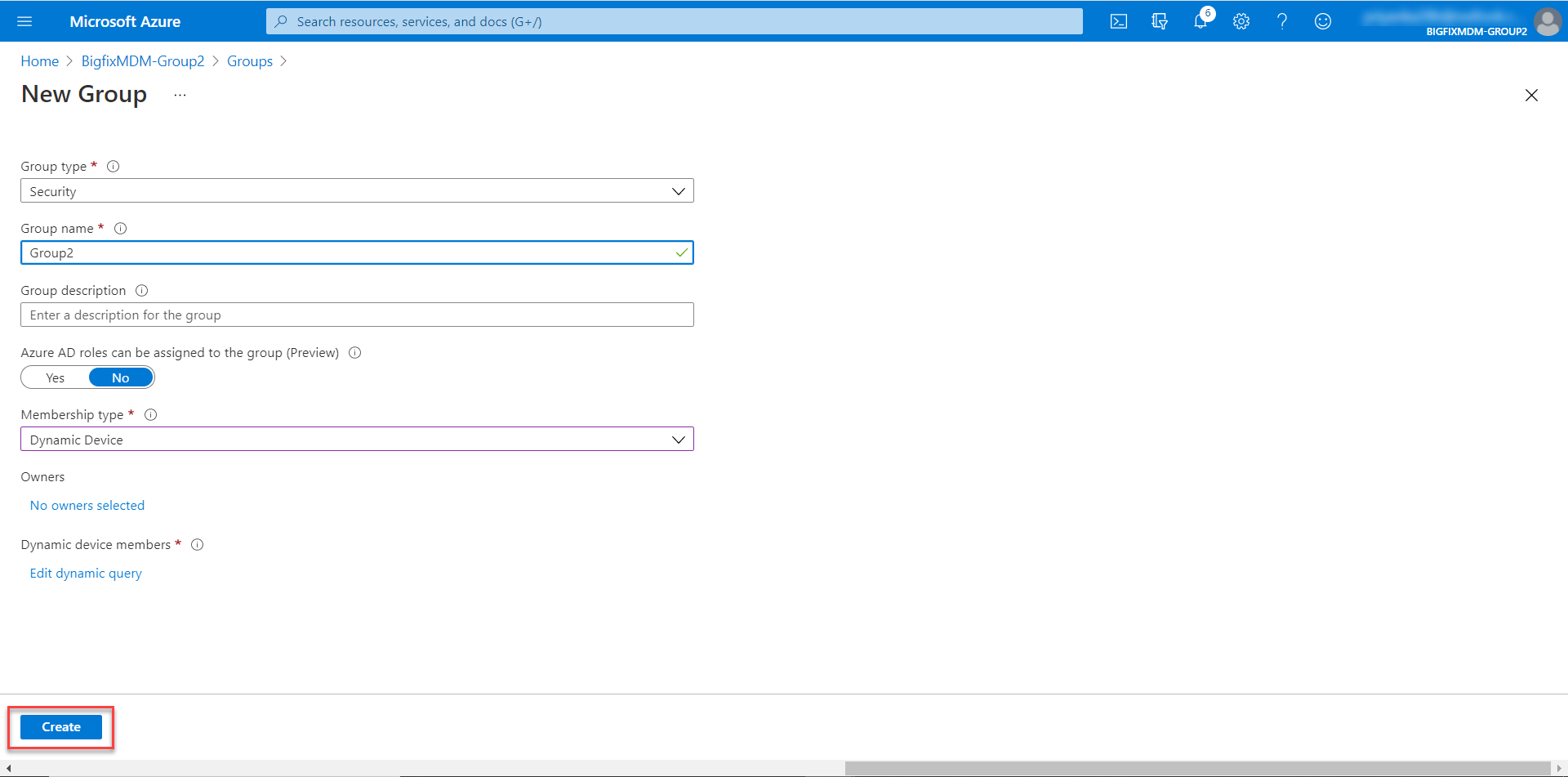
- In the New Group screen, do the following:
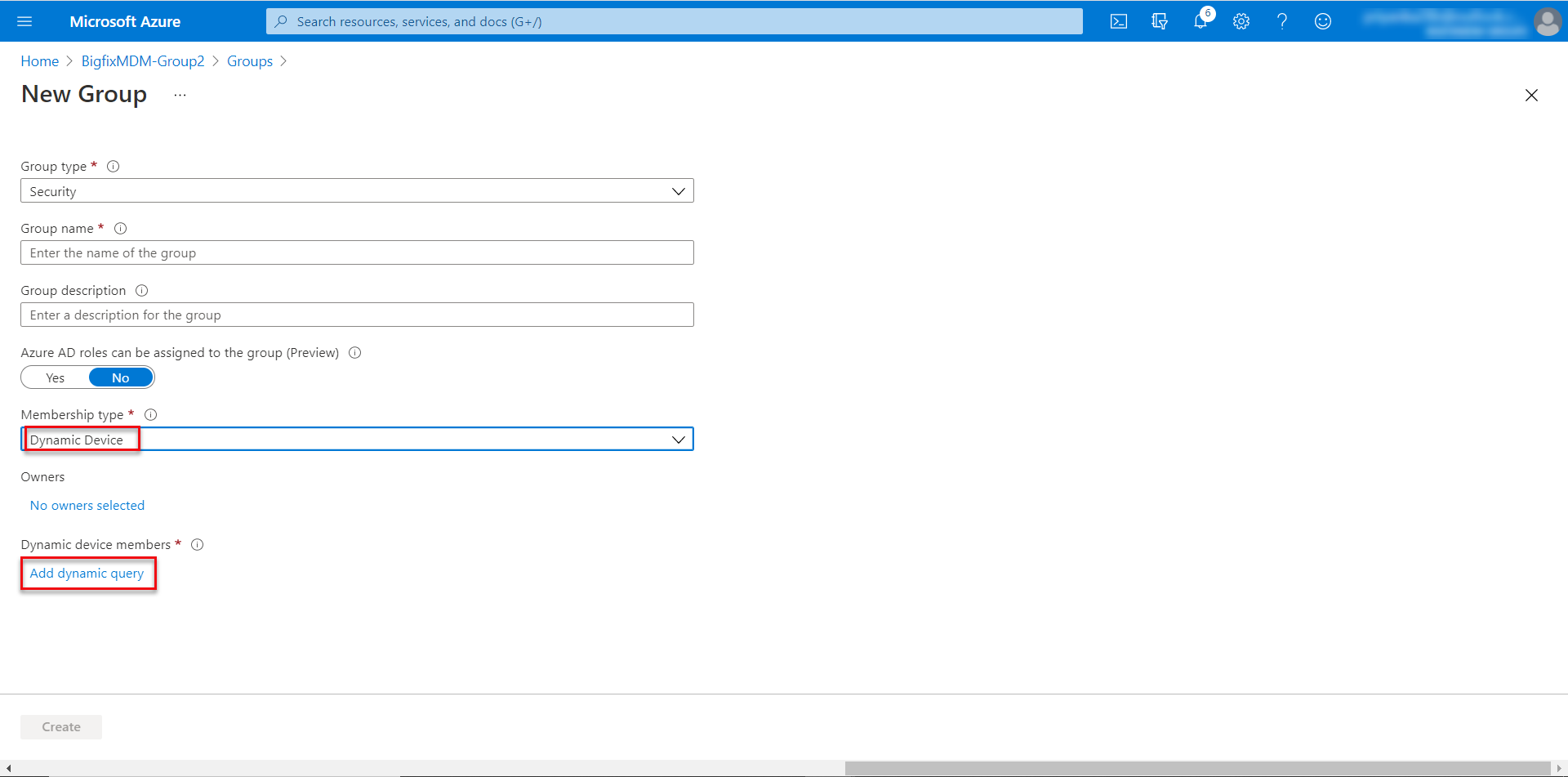
- Enter Group type, Group name, Group description.
- For Membership type, select Dynamic Device.
- Click Add dynamic query.
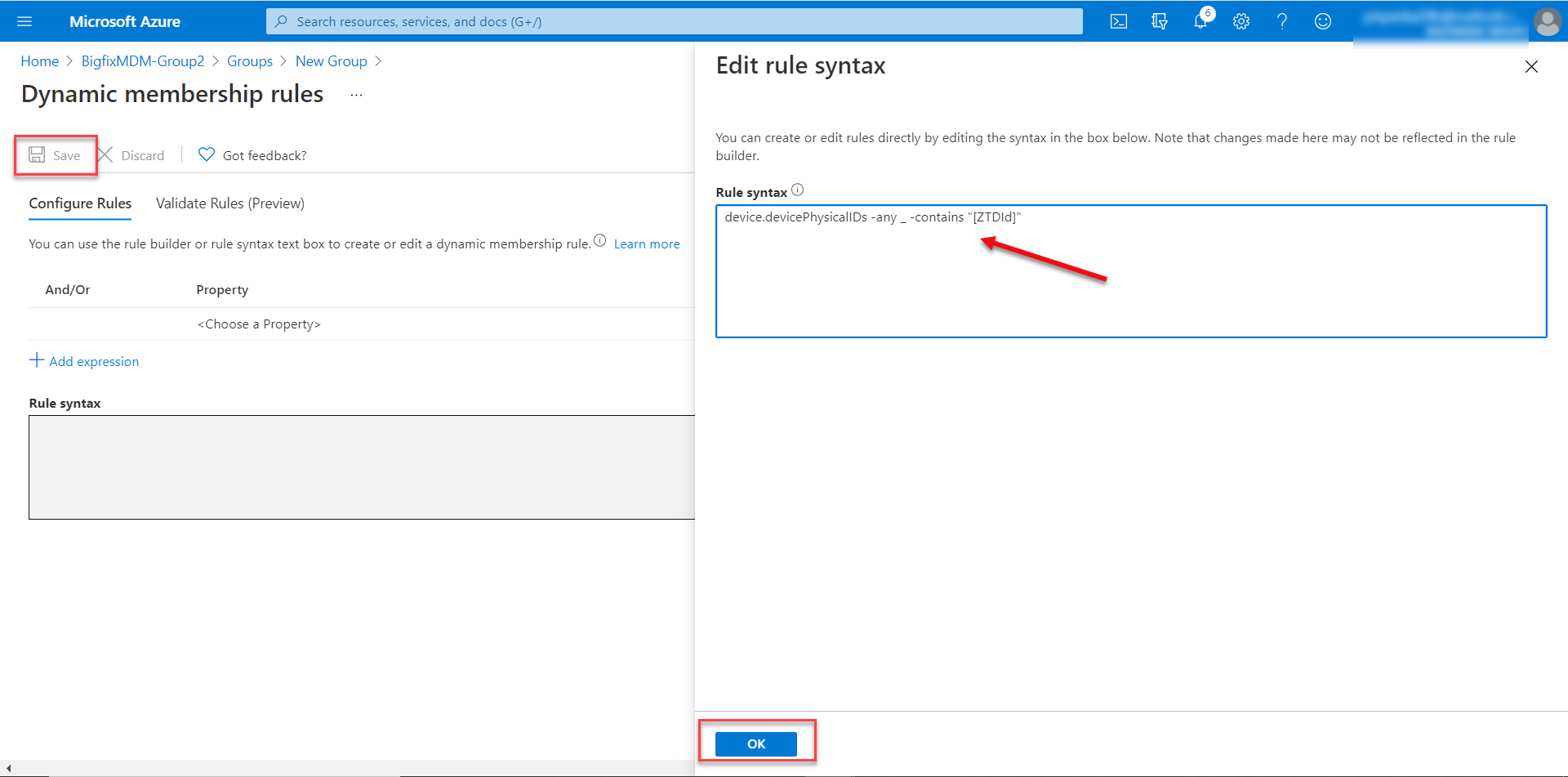
- On the Dynamic membership rules screen, click Edit.
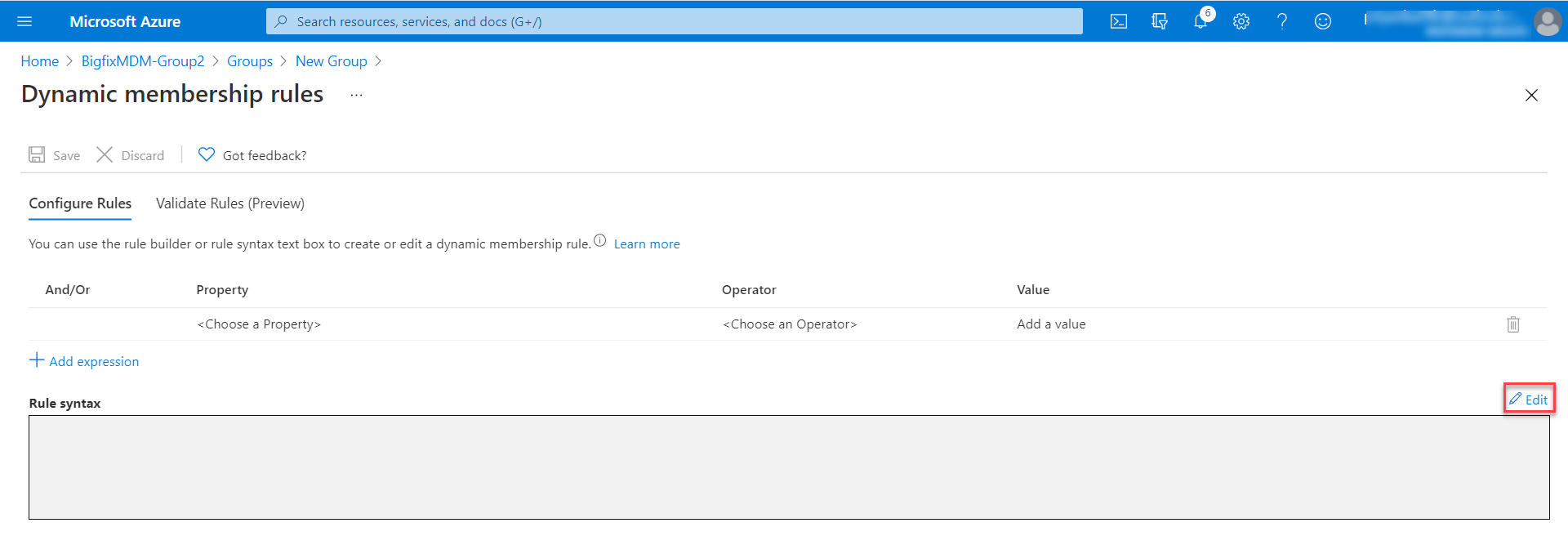
- On the Edit rule syntax screen, to add the devices dynamically to this group as soon
as devices are imported, in the Rule syntax text box, enter the rule and
click OK > Save. For example, the rule device.devicePhysicalIDs
-any _ -contains "[ZTDId]" dynamically adds the devices which contain the string
"ZTD" in the ID.
- Click Create.
Results: The Autopilot Group is created as configured.