Configuring the Self Service Application from the BigFix UI
Use the Configure Self Service Application wizard from the Software Explorer page to
generate a BigFix deployment task that installs, upgrades, and configures the Self Service
Application (SSA) on endpoints — controlling notifications, offerings, behavior, and appearance
from a guided four-step wizard.
Before you begin
Before configuring the Self Service Application, ensure that:
You have administrator access in the BigFix UI.
Software packages with SSA-enabled tasks (with labels and icons) have been created so
that end users can see and request software offers. See Managing Packages — Adding Files and
Tasks.
About this task
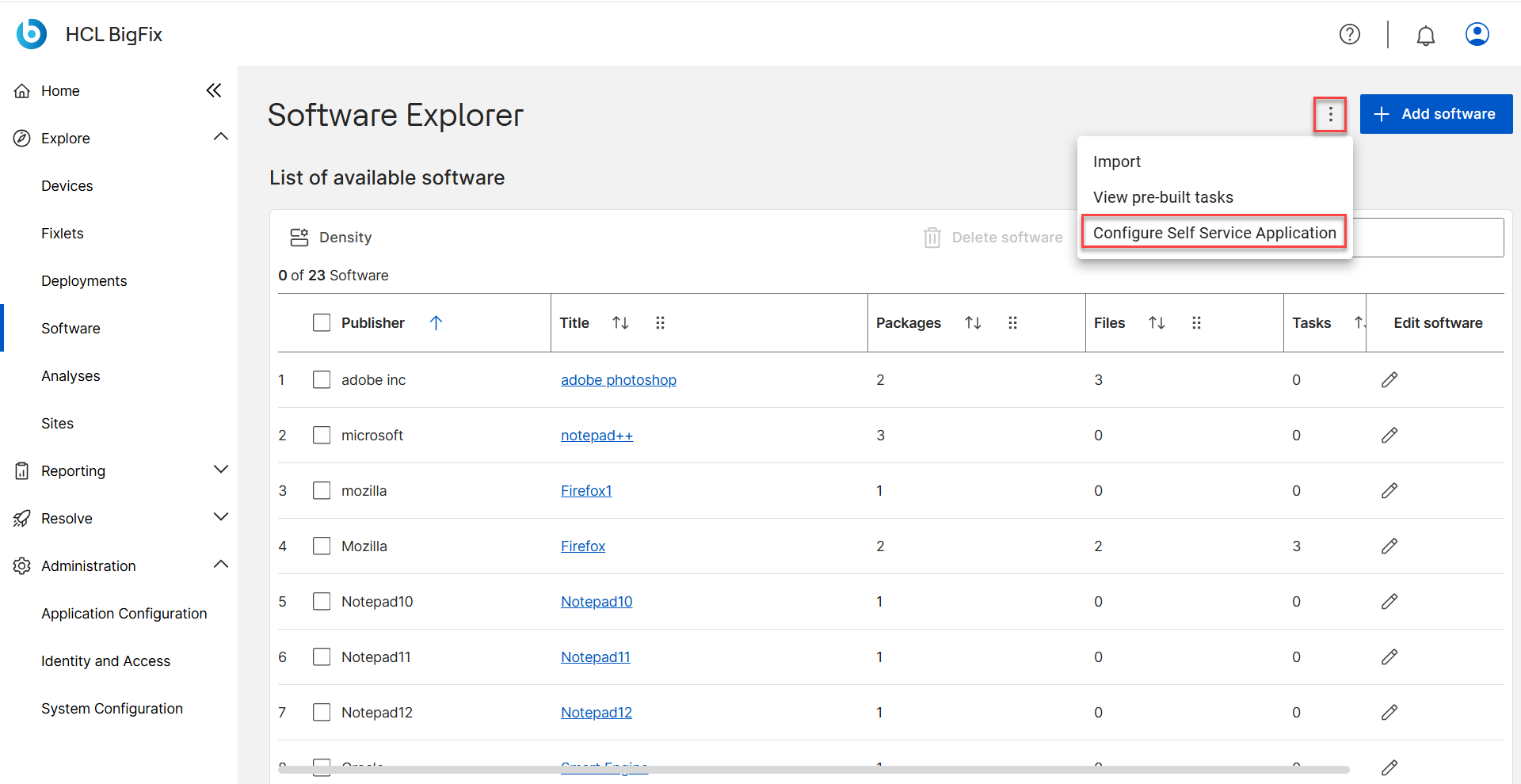
The Self Service Application Configuration wizard is accessible from
the three dots (More) options icon on the Software
Explorer page in the BigFix UI. The wizard generates an Install and
Configuration BigFix Task that, when deployed to endpoints, installs or upgrades the
SSA application with the settings you define.
The behavior of this wizard is equivalent to the SSA Configuration page in the legacy BigFix
WebUI, making the migration from the legacy tool straightforward for administrators already
familiar with that workflow.
Procedure
On the Software Explorer page, click the three dots
(More) icon and click Configure Self Service
Application.
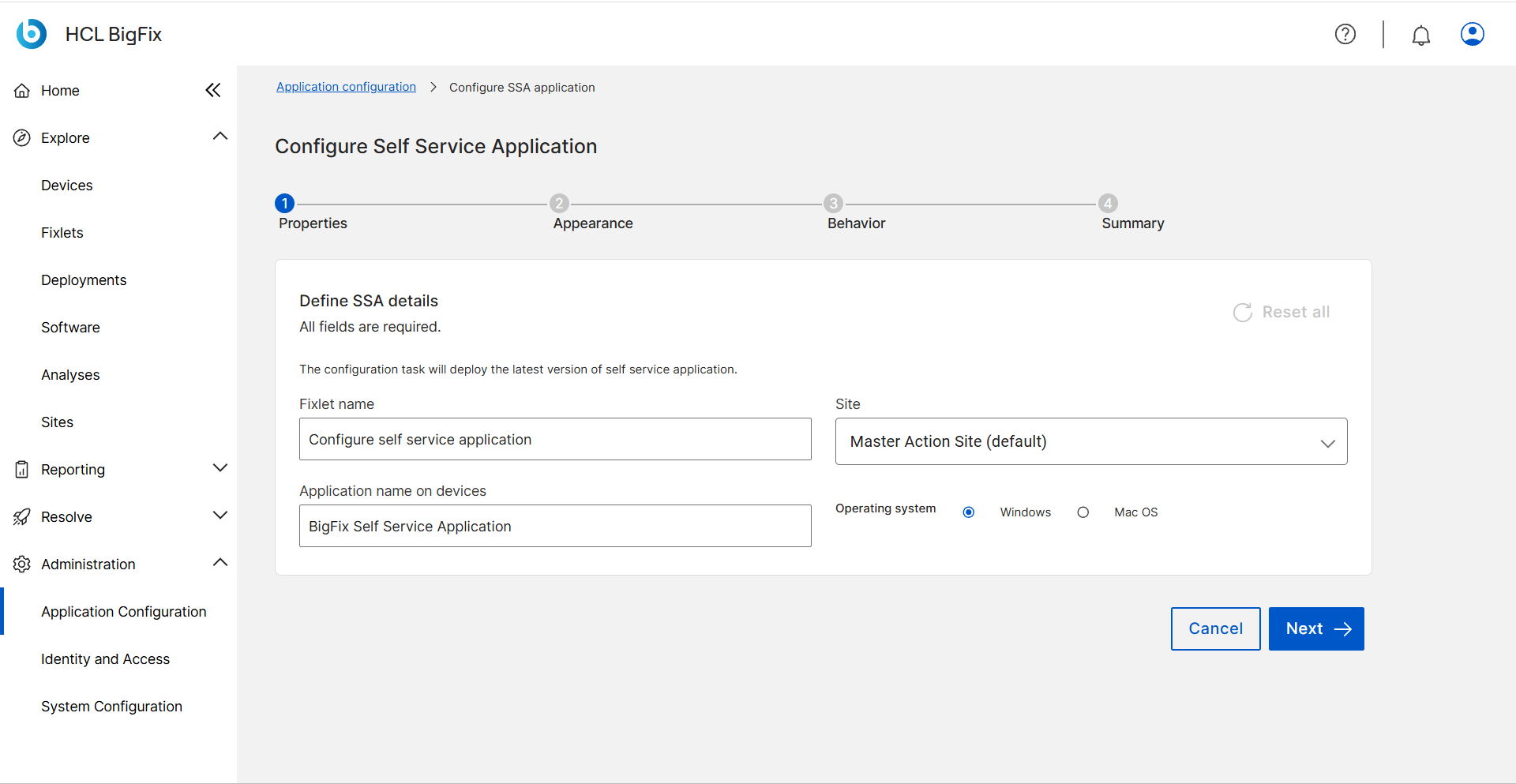
The wizard opens at the Properties step (Step 1 of 4).
On the Properties step (Step 1), configure the SSA installation
properties and define which version of the SSA will be deployed.
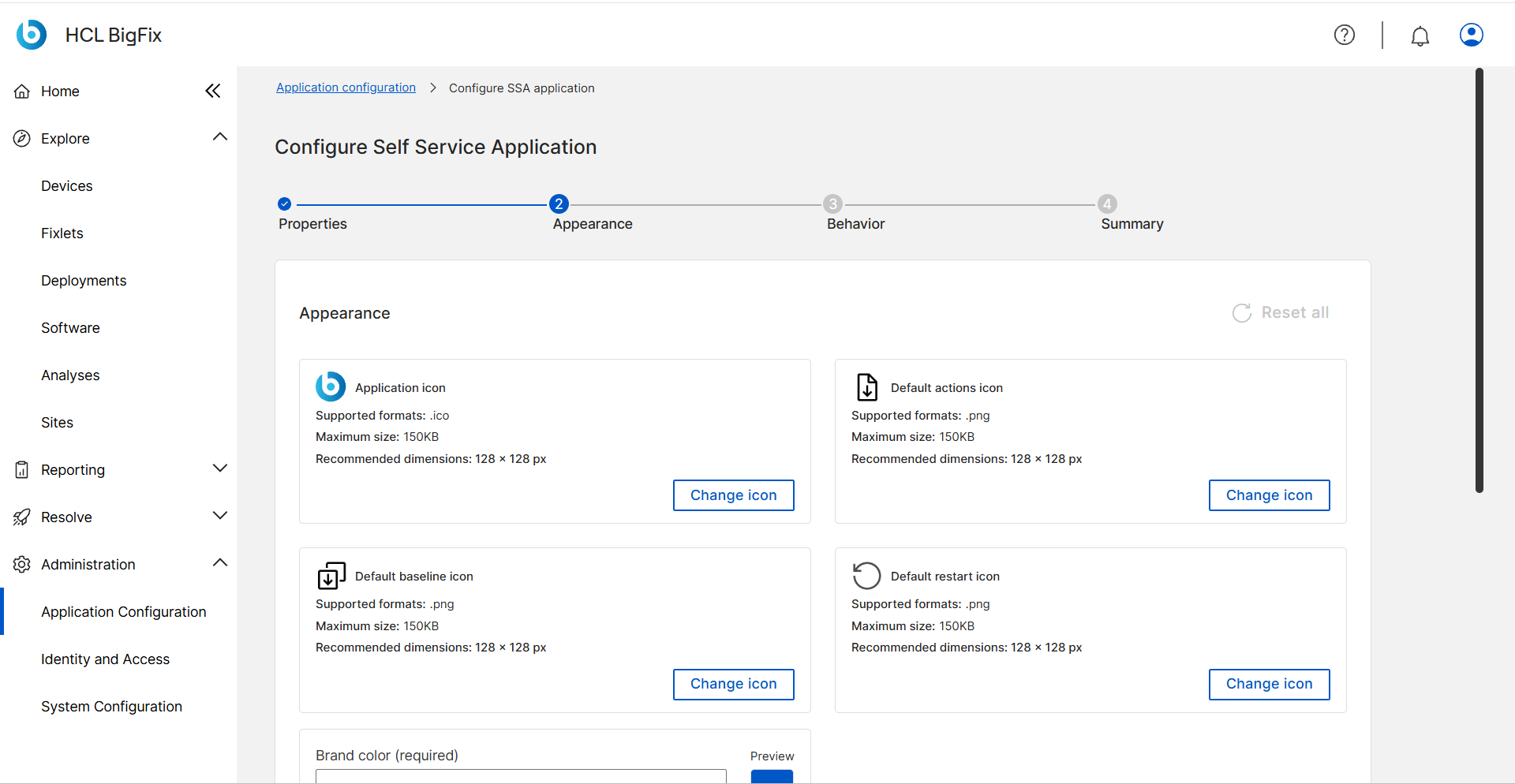
On the Appearance step (Step 2), customize the visual look and
feel of the SSA as it will be presented to end users on their devices.
Figure 3. SSA Configuration Wizard — Step 2: Appearance Appearance settings may include branding elements, color themes, and layout
preferences visible to device owners using the SSA.
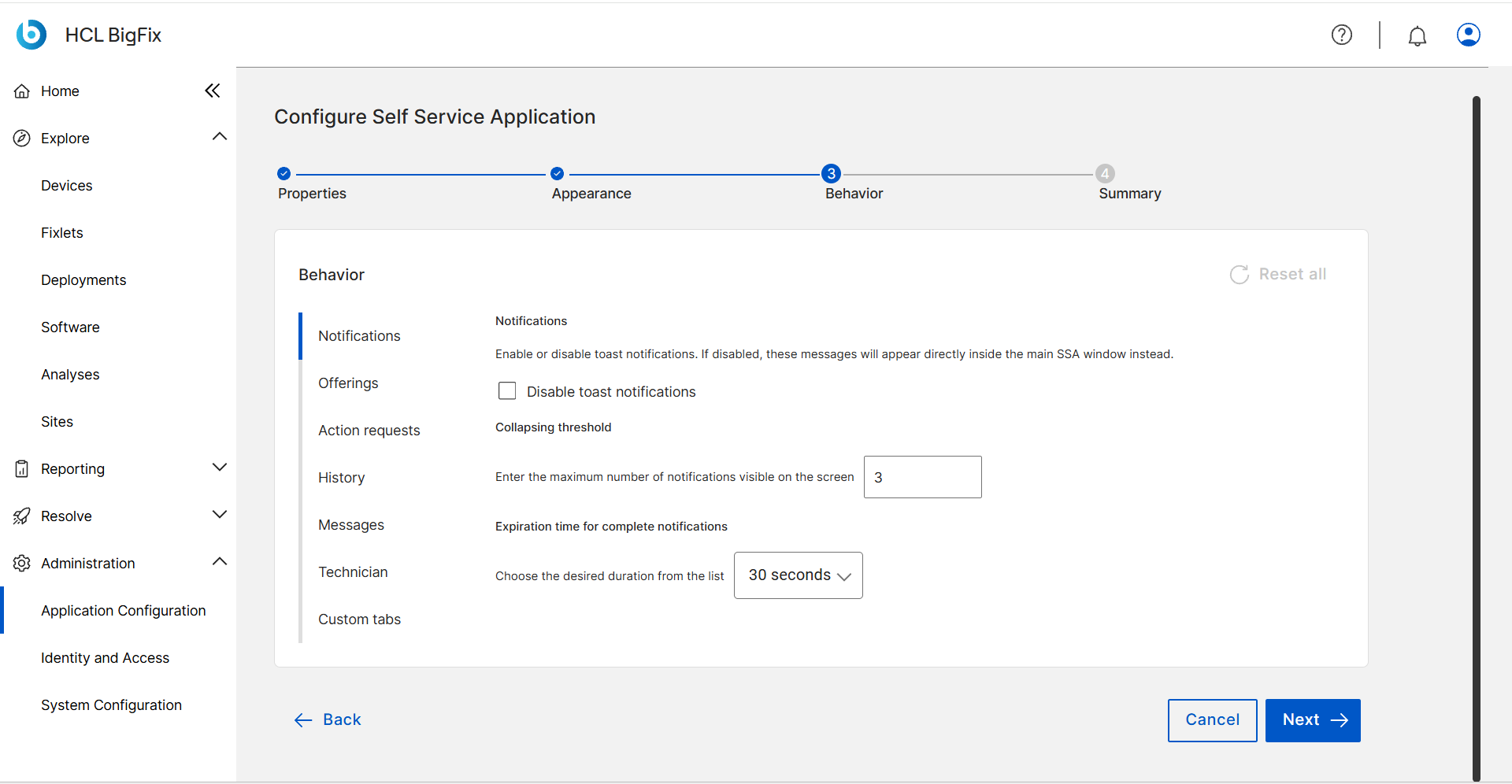
On the Behavior step (Step 3), configure SSA runtime behavior
settings using the sub-sections in the left panel:
Enable or disable toast notifications. When disabled, messages appear
directly inside the SSA window instead of as desktop toasts. Set the
collapsing threshold (maximum number of notifications visible on screen
simultaneously) and the expiration time for completed
notifications.
Offerings
Configure how software offerings and offers are presented in the SSA
catalog including visibility behavior. Also, enable the Get
all button from here and set this tab as default in SSA.
Action Requests
Enable minimization of SSA main window at deadline and also set this tab as
default in SSA.
History
Configure the action history view available to end users, including how far
back the history extends. Also, enable the Admin actions
toggle and set this tab as default in SSA.
Messages
Enable Messages to receive Administrator messages
and set this tab as default in SSA. Messages tab allows the logged in user to
view and manage messages.
Technician
Enable the Technician tab for SSA technician users.
A Technician dashboard in SSA is hidden by default. It is often used to provide
diagnostic information available to an endpoint administrator.
Custom Tabs
Add and configure custom tabs that appear in the SSA navigation, for
example to surface internal links, web portals, or custom content to end
users.
Tip:
Use Reset all on the Behavior step to revert all
settings to their factory defaults without having to reconfigure each sub-section
individually.
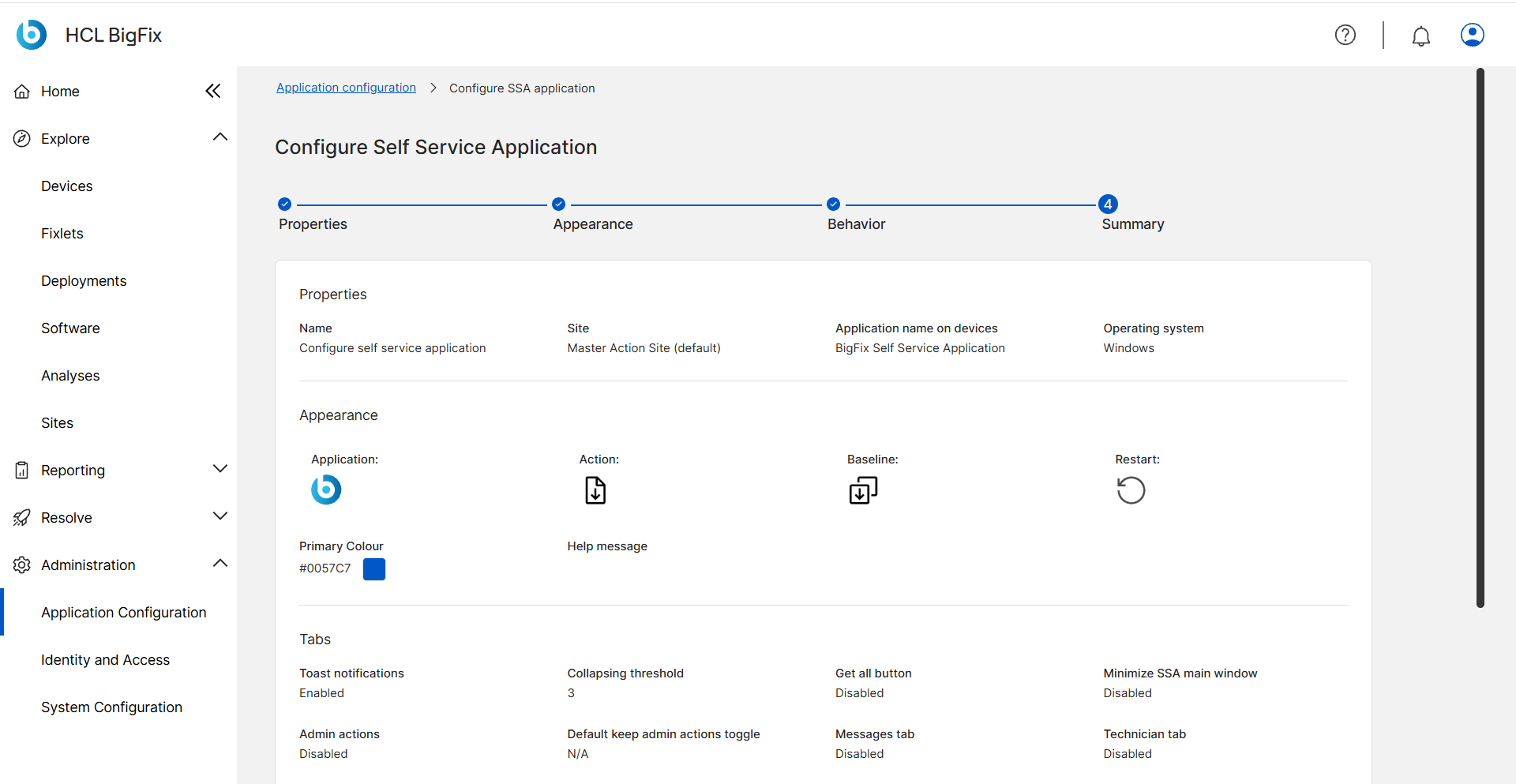
On the Summary step (Step 4), review all configured settings
across Properties, Appearance, and Behavior.
Click Submit on the Summary step to generate and save the
Install and Configuration BigFix Task.
The task is stored in the BigFix Platform and is ready to deploy to target
endpoints.
Deploy the generated Install and Configuration task to your target endpoints using the
standard BigFix deployment workflow.
Results
The Self Service Application is installed or upgraded on target endpoints with the settings
defined in the wizard. Device owners can now open the SSA on their endpoints to browse
available software offerings, submit action requests, and view their action history.
What to do next
After deploying the SSA, ensure your deployment tasks have been configured with SSA labels
and icons so that they appear as visible offers in the SSA catalog. See Managing Packages — Adding Files and Tasks for
SSA task configuration details.