Start a browser-based remote control session in the Lite Web Portal by selecting
Start with Web Controller App. You can request a new code, extend the timeout, or cancel,
and the remote desktop opens in the browser when the target accepts.
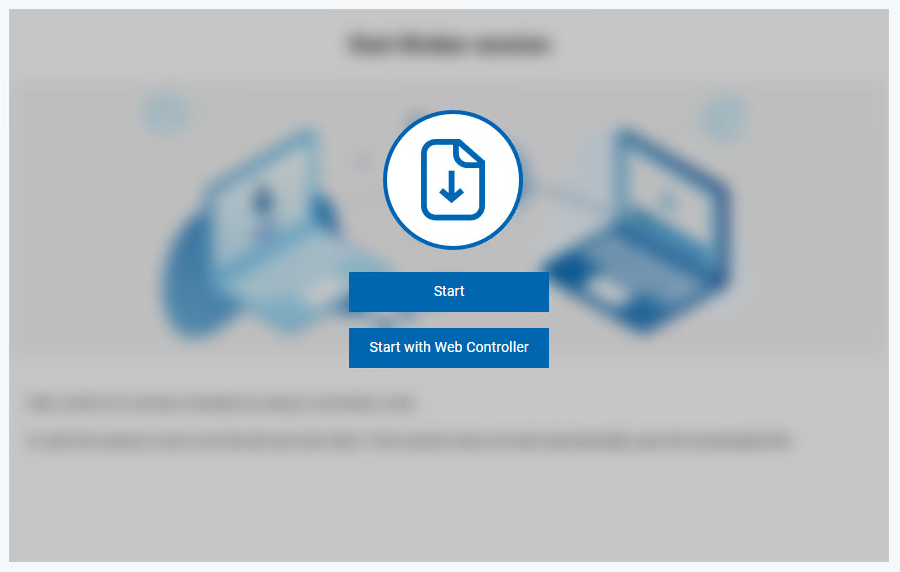
To start a browser-based Remote Control
session, open Lite Web Portal and select Start with
Web Controller App.Figure 1. Start with Web Controller App
The session request is created and Lite Web Portal displays the
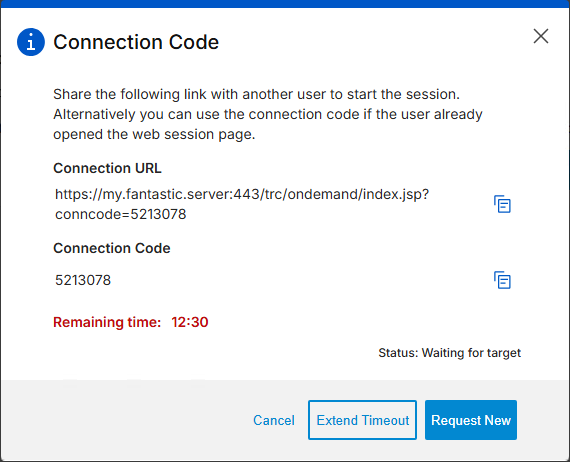
connection information that must be shared with the target user. The connection window
displays the following information:Figure 2. Connection Code Window
Connection URL
Connection code
Remaining time before the request expires
Current session status
The connection code is used by the server to authenticate the session and match the
correct controller session with the correct target session.
The connection URL can be shared with the target user so that they can open the page that
is required to establish the remote control session. While the connection window is
displayed, the following options are available:
Request New
Generates a new connection code and session request. The remaining time is
reset when a new request is generated.
Extend Timeout
Increases the amount of time that is allowed for the session connection to
take place. The remaining time is reset when the timeout is extended.
Cancel
Removes the connection window and cancels the session request.
When the target user connects and accepts the session, the remote desktop opens
directly in the browser window.