The Remote Control
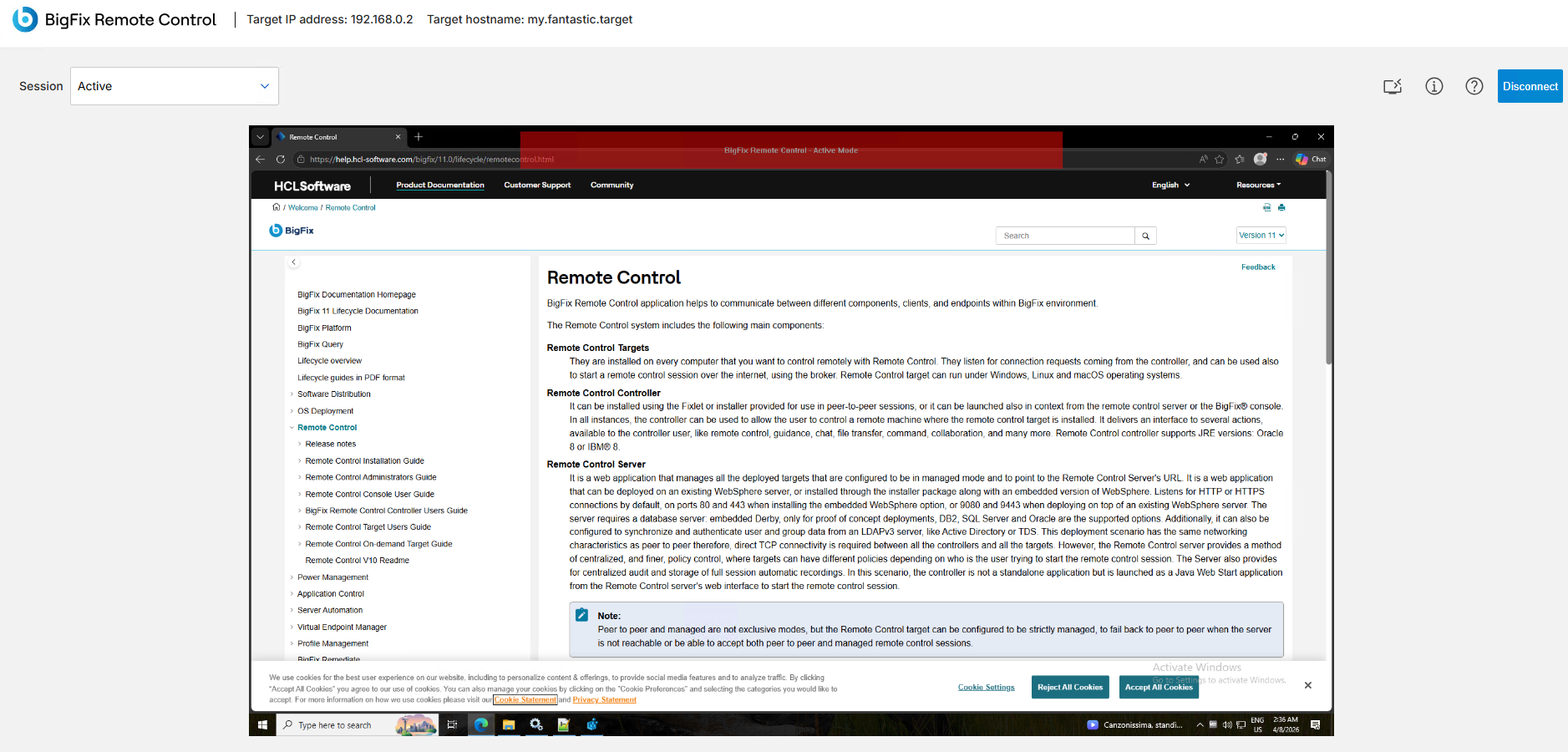
Web Controller interface provides browser-based access to the remote target desktop. The
interface contains a session header, a remote desktop area, a session mode selector, and
menus that provide quick access to common actions. The main session area displays the
desktop of the remote target, and the user can interact with the remote target directly
from the browser by using keyboard and mouse input while the remote desktop is updated
in real time during the session.Figure 1. Web Controller user interface
Session header
The session header is displayed at the top of the page. The header contains the
following information:
Target IP address
Target hostname
Current session mode
Session control buttons
The session control buttons include:
Information
Help
Disconnect
The information icon opens the BigFix Remote Control product documentation. The
help icon opens information about the Remote Control Web Controller interface,
including copyright information and the current build number. The help window
displays information such as:
Product name
Copyright information
Trademark information
Third-party code information
Build number
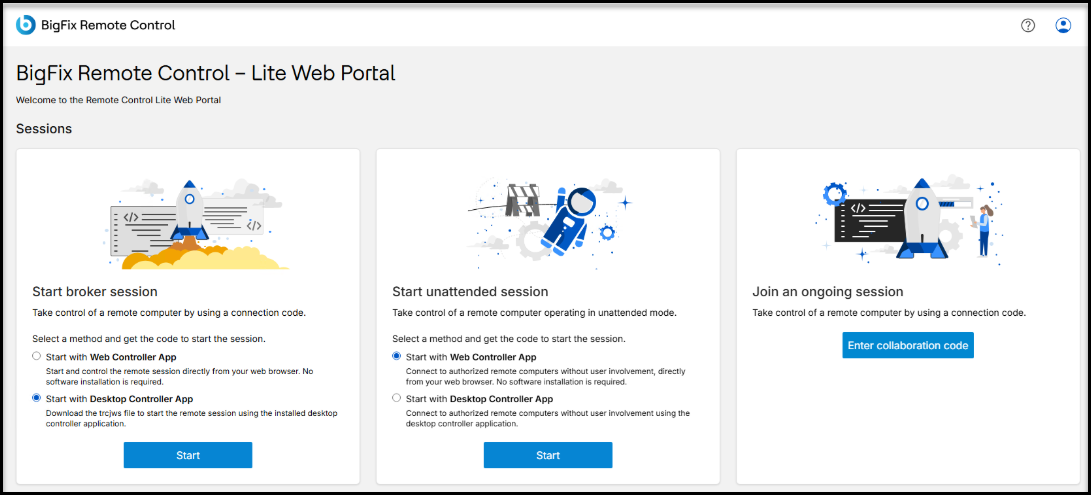
The Disconnect button ends the current remote control session. When the session
is disconnected, the browser-based session is terminated, and the user can return to
Lite Web Portal and start another session.Figure 2. Start Broker Session
Session mode selector
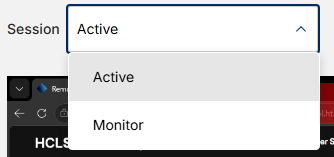
The session mode selector is displayed above the remote desktop area. The selector
can be used to change the current session mode. The available modes depend on the
configured policies and target capabilities.Figure 3. Session Modes The available modes include:
Active
Monitor
When the session mode is changed, the remote target session behavior is updated
immediately.
Session actions menu
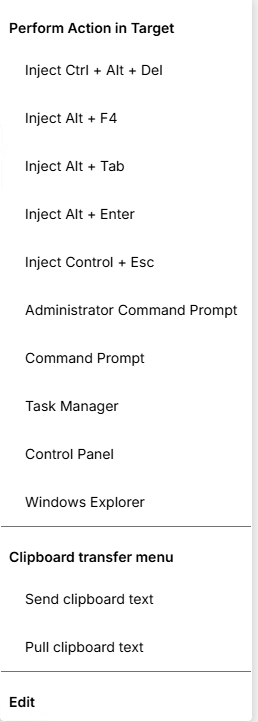
The session actions menu provides quick access to commonly used remote control
actions.Figure 4. Session Actions Menu icon Typical default actions include:
Inject Ctrl + Alt + Del
Inject Alt + F4
Inject Alt + Tab
Inject Alt + Enter
Inject Control + Esc
Open Administrator Command Prompt
Open Command Prompt
Open Task Manager
Open Control Panel
Open Windows Explorer
Figure 5. Perform Action in Target These actions can be used to perform common operating system tasks on the
remote target without manually typing the keyboard combinations.
Clipboard transfer menu
The clipboard transfer menu provides options for clipboard sharing between the
controller and the remote target. The available options include:
Send clipboard text
Pull clipboard text
Clipboard actions can be used to transfer text between the local system and the
remote target during the session.
Edit
It allows the user to edit the browser window title.