
Software Classification panel
 Available from 9.2.7. Software Classification panel provides an
overview of your software inventory and the relations between the discovered software
components and licensable products. It provides a flat structure with software installations
broken into single components, which makes it easier to view your software assets and manage
relations between them.
Available from 9.2.7. Software Classification panel provides an
overview of your software inventory and the relations between the discovered software
components and licensable products. It provides a flat structure with software installations
broken into single components, which makes it easier to view your software assets and manage
relations between them.
 From version 11.0.9, Discovery Facts section renamed to Discovery
Evidence
From version 11.0.9, Discovery Facts section renamed to Discovery
EvidencePermissions
 You must have the Manage Software Classification permission to view
the panel and classify software. To view some additional columns related to
computers on which the components are installed, you also need the View
Endpoints permission.
You must have the Manage Software Classification permission to view
the panel and classify software. To view some additional columns related to
computers on which the components are installed, you also need the View
Endpoints permission.Panel overview
Before you start working with the discovered components, see the details of the Software Classification panel to understand the available options and columns.
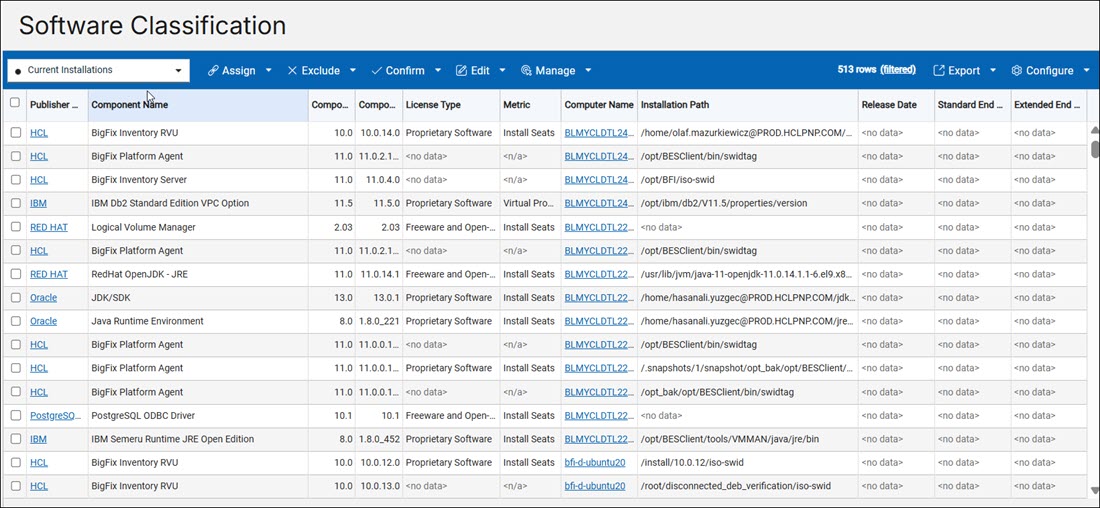
The Software Classification report is one of the most crucial reports in BigFix Inventory. You can view your software assets and manage relations between them. The software classification is reflect on the All IBM Metrics report and thus, ensures the currency and accuracy of the audit snapshot.
Menu
- Assigning components to products and IBM product bundles
- (Deprecated) Assigning products to Flexpoint Bundles
- (Deprecated) Assigning products to Cloud Paks
- Excluding and suppressing software instances
- Confirming assignment of software components
- Adding and removing tags
- Managing the uninstallation of software
Apart from the options that are available in the menu, you can also create custom rules to automatize the software classification process. For more information, see: Creating and managing custom rules
Report columns
The list of the default columns is limited. However, you can customize the report view and add or remove the columns according to your needs by using the Configure View option, under the Configure menu.
For more information about the columns, see: Report columns
- Component Name shows components that were discovered on your computers.
- Component Detailed Version shows the version of the software component that is installed on the computer. For more information, refer to Component Detailed Version.
- Product Bundle shows if a Product Bundle is associated with the publisher.
- Version shows version of the component.
 License Type shows the licenses associated with software products.
For more information, refer to License Type.
License Type shows the licenses associated with software products.
For more information, refer to License Type.-
Software Category shows the classification of software components
within the catalog. For more information, refer to Software Category.
-
Software Subcategory shows the sub-classification of software
components within the catalog. For more information, refer to Software Category.
- Product Name shows products under which the components are licensed based on the software catalog.
- Metric shows license metric that is assigned to the product.
- Computer Name shows the computer where a component was discovered.
- Installation Path shows details about an installation
path of products.
 If the installation path is provided by any matched detection
except package (file, a software identification tag or an extended
signature), then package path is not taken into account as instance
installation path. If the installation path is not provided by any
matched detection except package, then the package installation path is
shown as the instance installation path.
If the installation path is provided by any matched detection
except package (file, a software identification tag or an extended
signature), then package path is not taken into account as instance
installation path. If the installation path is not provided by any
matched detection except package, then the package installation path is
shown as the instance installation path. The
installation path shows where a product is installed on a system.
This information is provided to help customers, but it may not be
available for all products. The way the installation path is shows explains the following:
The
installation path shows where a product is installed on a system.
This information is provided to help customers, but it may not be
available for all products. The way the installation path is shows explains the following:- File-based components → always available.
- Package-based components → shown if the software vendor provides the path in package data.
- Extended Signatures / Scanner-based components → shown if the signature definition includes the $INSTALL_PATH variable.
- Software built into the operating system (no separate install folder).
- Software installed across multiple directories (no single path to show).
- Vendor does not allow choosing an installation folder.
- Software does not save its path in the registry or package manager.
Note: Before BigFix Inventory version 10.0.2, installation path was available only for IBM products. From version 10.0.2 and higher, installation path is available for all products. - The Details panel includes three sections; Component, Instance
Details, and Discovery Evidence. The sections include details, such as
publisher, component, installation path, and signatures.
 Starting from version 10.0.2, the details view shows only matched
detection. It does not show signatures that does not match. If a product has
been installed in different locations, the details view shows only the
relevant path of the selected row. It also includes a link with a complete
list of signatures. The Details panel shows the Package Installation
Path and Package Installation Date details for matched
Windows package data.
Starting from version 10.0.2, the details view shows only matched
detection. It does not show signatures that does not match. If a product has
been installed in different locations, the details view shows only the
relevant path of the selected row. It also includes a link with a complete
list of signatures. The Details panel shows the Package Installation
Path and Package Installation Date details for matched
Windows package data.  The Details panel includes a
Discovery Evidence section which inlcudes the new evidence
details. The details include the version, installation path,
installation tag details, license and publisher details.
The Details panel includes a
Discovery Evidence section which inlcudes the new evidence
details. The details include the version, installation path,
installation tag details, license and publisher details.  Release Date shows the date of a component release, also called the
general availability or start date.
Release Date shows the date of a component release, also called the
general availability or start date.-
Standard End of Support shows the mainstream end date of the
component support, also called the premier support end.
-
Extended End of Support shows the date when extended support
ends.
The Release Date, Standard End of Support, and Extended End of Support columns are read-only, come from the Software Catalogand and are not displayed by default. You can select them from the Configure View option. See also.
- Discovery Facts is renamed to Discovery Evidence
- Always Not Charged indicates whether a component is always not charged.
- Bundling Tag Used shows whether the product assignment is based on a bundling tag.
- Charged indicates whether the component is charged, or not charged based on its license.
- Comment shows a comment that was entered while excluding, or suppressing the software instance from pricing calculations.
- Component Tags are defined on the Software Components panel. These tags are common for all discovered instances of the same component.
- Computer Deletion Date shows the date and time when the computer stopped being discovered, for example because the computer was removed from the infrastructure, the data source was removed, or the BigFix client was uninstalled.
- Component GUID is a unique identifier, typically a 128-bit number, that is used to identify a specific component within the report columns. The column is not displayed by default. It is sortable and filterable.
- Confirmed indicates whether the software classification was manually confirmed.
- Discovery End indicates when the component instance was
reported for the last time. If the component is still detected, the column shows
<n/a>. - Discovery Start indicates when the component instance was reported for the first time.
 End of Support indicates the date when the software
component reaches EOS (End of Support). For information about how to change the
date, see: Changing end of support date.
End of Support indicates the date when the software
component reaches EOS (End of Support). For information about how to change the
date, see: Changing end of support date.  The EOS date of Microsoft products, such as Microsoft SQL Server,
Microsoft Excel, Windows OS, and Visual Studio has been updated. The EOS of
non-IBM components has also been updated. The updated EOS of the Microsoft
products have been merged with the non-IBM components.
The EOS date of Microsoft products, such as Microsoft SQL Server,
Microsoft Excel, Windows OS, and Visual Studio has been updated. The EOS of
non-IBM components has also been updated. The updated EOS of the Microsoft
products have been merged with the non-IBM components. Vulnerability Risk (Preview) shows Common Vulnerabilities
and Exposures (CVEs) that were matched with the particular software component
through its detailed version. The column can contain multiple values that are
displayed after expanding. For more information about CVEs, see: Preview: Checking Common Vulnerabilities and Exposures (CVEs).
Vulnerability Risk (Preview) shows Common Vulnerabilities
and Exposures (CVEs) that were matched with the particular software component
through its detailed version. The column can contain multiple values that are
displayed after expanding. For more information about CVEs, see: Preview: Checking Common Vulnerabilities and Exposures (CVEs).- Excluded indicates whether the product on a particular computer is currently excluded from pricing calculations.
-
Product Bundle shows the Product Bundle to which the
product is assigned.
- IBM-provided Bundling Option indicates whether the product has the selected component listed as a bundling option in the software catalog provided by IBM.
- Imported Part Numbers shows the part numbers that you imported to BigFix Inventory.
- Instance Tags are discovered for individual instances of a software. These tags are independent from component tags in catalog. Discovered tags are set by using the dedicated option.
 IBM Product
Bundle Eligible column indicates whether the product and metric of the
given software instance have a possibility to be reassigned to an and IBM
Product Bundle.
IBM Product
Bundle Eligible column indicates whether the product and metric of the
given software instance have a possibility to be reassigned to an and IBM
Product Bundle.- One to One indicates whether the product to which the component is currently assigned is the only bundling option that is available in the software catalog.
- Present indicates whether the component instance is currently installed.
- Shared indicates whether a component instance is shared between multiple products.
- Suppressed indicates whether the component is currently
suppressed from the inventory. For more information on suppression, see Excluding and suppressing software instances.Note:
With improvements for ISO SWID tags processing
in versions 10.0.2 and 10.0.4, BigFix Inventory is capable to read
information from most ISO SWID tags released by vendors. This includes the
ability to recover from issues within the tag itself.
Reporting of software through ISO SWID tags is not normalized and the reports are shown as usual. Currently, the following ISO SWID tags were identified that results in duplicate discovery of existing software catalog entries with below names:
- with the published defined as: Adobe Systems Incorporated
- with the published defined as: Microsoft Corporation
- with the component name of: Red Hat Enterprise Linux
Starting from version 10.0.4, predefined custom rules have been
created to suppress the duplicate discovery of software which have been
already discovered once.  With version 10.0.9, the issue of not marking already
discovered software have been addressed. In future releases, there might
be added capability to reject ISO SWID tags overlapping with catalog
content.
With version 10.0.9, the issue of not marking already
discovered software have been addressed. In future releases, there might
be added capability to reject ISO SWID tags overlapping with catalog
content.  Product Publisher Name indicates the name of the publisher of a product
that a software instance is assigned to. The column is empty if no product
assigned.
Product Publisher Name indicates the name of the publisher of a product
that a software instance is assigned to. The column is empty if no product
assigned. Uninstall Supported identifies software instances for which minimum
criteria for automatic uninstallation are met.
Uninstall Supported identifies software instances for which minimum
criteria for automatic uninstallation are met.-
Processed - Indicates whether the continuous discovery has completed
processing the component instances. If the discovery is not complete, details
may be unavailable until the next data import is complete.
-
Product Tags - These tags are defined on the Products & Metrics
panel. These tags are common for all discovered instances of the same
product.
Customization
- Sorting
- You can adjust the view by sorting the displayed data by as many columns as
you need. To sort the data by multiple columns, hold
SHIFT, and click the columns. The column you choose first takes precedence in sorting. Other columns are sorted in the order of the selection. In this way, if the data in a single column is the same (for example, BigFix Platform Agent), you can choose another column to further sort it by (for example, by version and product name).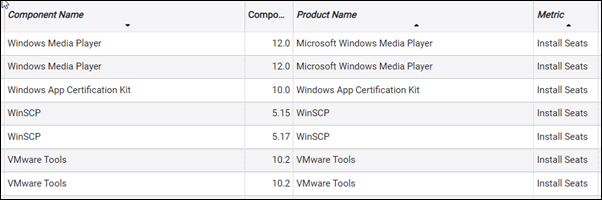
To clear a sorted column, holdCTRLorCMDon Mac, and click on this column. To clear all, click any of the columns. - Multiselect
- To simplify your actions, you can select multiple items at once. To select
multiple components:
- Hold
CTRL, orCMDon Mac, to add another item to the current selection. - Hold
SHIFTand select two items to extend the selection to all items in between (any previous selection is canceled). - Select all instances by using
CTRL+A, orCMD+Aon Mac.
Restriction: You can select up to 250 000 components at once. - Hold
Limitations
- When you exclude, or suppress instances, the notification informs you whether the action was successful or not. However, the notification does not provide the number of instances affected, or any further details.
- When you exclude multiple products or products on multiple computers, the exclusion window lists these items separately. The order does not reflect the relation between the computer and the product. The lists are limited to display up to three items.
- When you reassign the component to the different release of the same product, and this component is currently assigned to the excluded release of the product, the exclusion flag is not cleared.
- If you created and saved a custom report filtered by Exclusion Status in the versions before 9.2.6, the report is not replicated when you upgrade to the newest version of BigFix Inventory.
- <Before > Installation path is provided only for IBM products.
- When you reach the limit of unique custom rules, and create an additional rule without applying a different filter, or refreshing the Software Classification panel view, the additional rule is added.
- When you sort components by metric, components with the same metrics are grouped together, but metrics are not sorted alphabetically.
- Going to the first and last row by using the
HOMEandENDkeys is not supported.