The checks grid
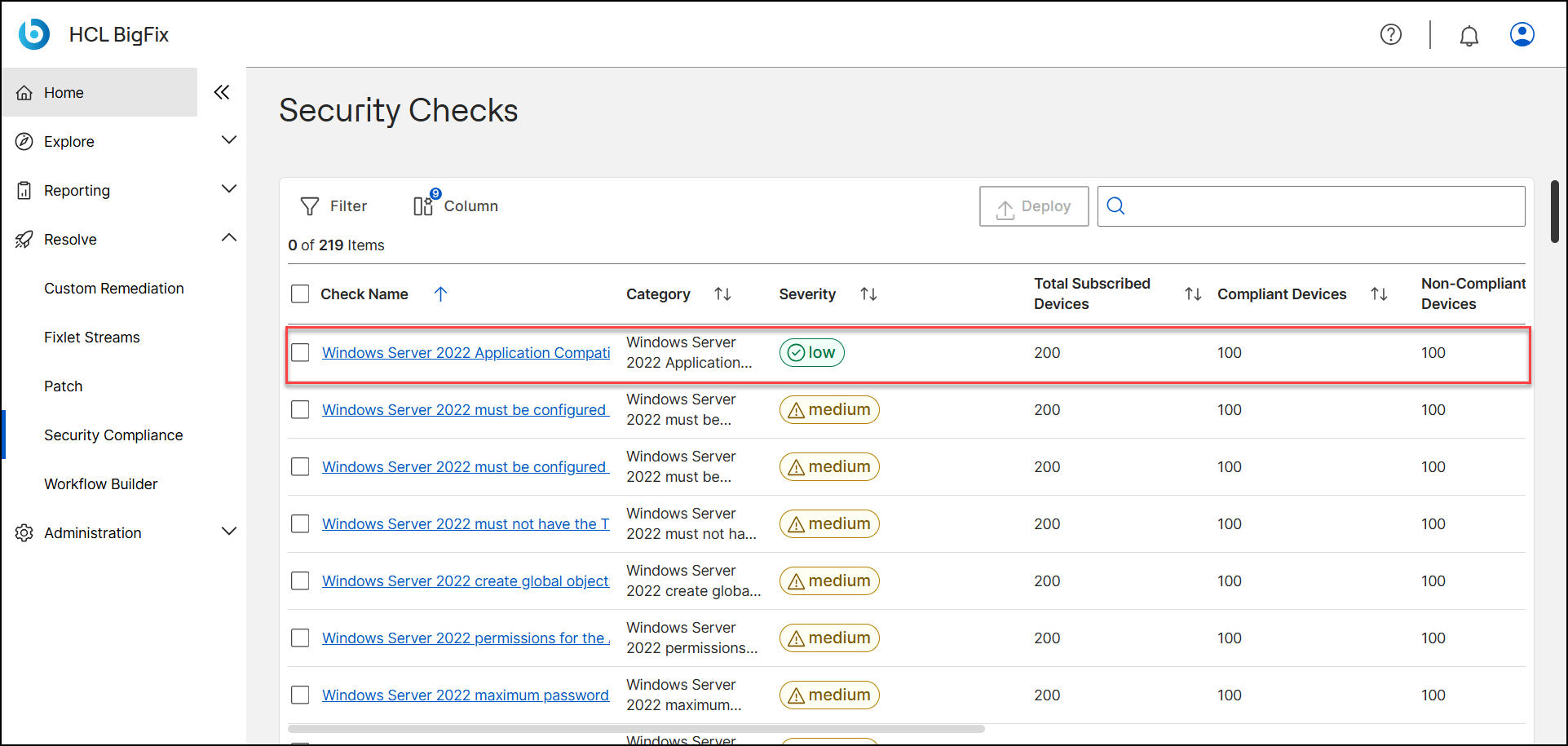
Below the charts, the Checks grid lists every Check in the Checklist with its current compliance data.
The toolbar contains Filter, Column, Deploy, and a search box. The count label shows how many Checks are selected out of the total.
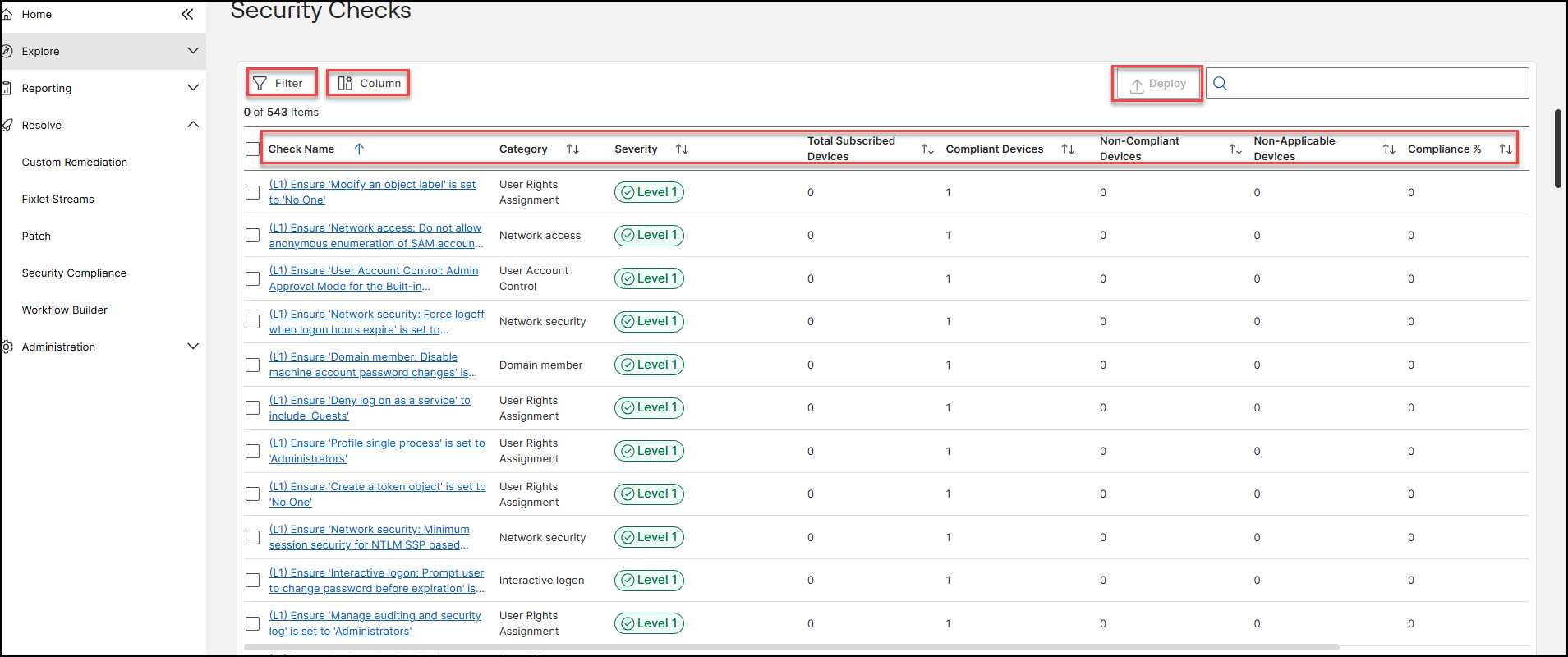
Default columns
The Compliant Devices, Non-Compliant Devices, Non-Applicable Devices, and Compliance % columns are specific to this grid; they are not available on the standard Fixlet Explorer List View, which shows the same Checks with standard Fixlet columns instead.
| Column | Description |
|---|---|
| Check Name | Name of the Check. Click it to open the Check (Fixlet) detail page. |
| Category | Check category, for example Password Policy or DNS Client. For DISA STIG Checklists this shows the STIG rule reference. |
| Severity | Color-coded badge from the Check definition. Chip values can include Critical, Medium, Low, Level 1, and Level 2. |
| Total Subscribed Devices | Devices subscribed to the Checklist to which this Check applies. |
| Compliant Devices | Devices reporting Compliant for this Check. |
| Non-Compliant Devices | Devices reporting Non-Compliant for this Check. |
| Non-Applicable Devices | Devices for which the Check is not applicable. |
| Compliance % | Percentage of applicable devices that are compliant. |
| Status | Overall status badge for the Check. |
Finding and organizing checks
- Search: type in the search box to filter the grid by Check Name as you type.
- Sort: click a column header to sort ascending; click again for descending.
- Filter: click Filter to open the inline filter panel and add Property, Operator, Value conditions, for example Status Is Compliant. Click Remove All to clear.
- Column: click Column to open the Configure View panel and add or remove columns. Columns are grouped into Check (static metadata such as ID, Description, Desired Values, Source, and DISA/XCCDF fields) and Scoped Compliance (live counts). DISA and XCCDF columns are empty for Checklists that are not based on DISA STIGs.
- More: the grid loads 100 Checks at a time; click More to load the
rest.
Figure 2. Find and organize checks 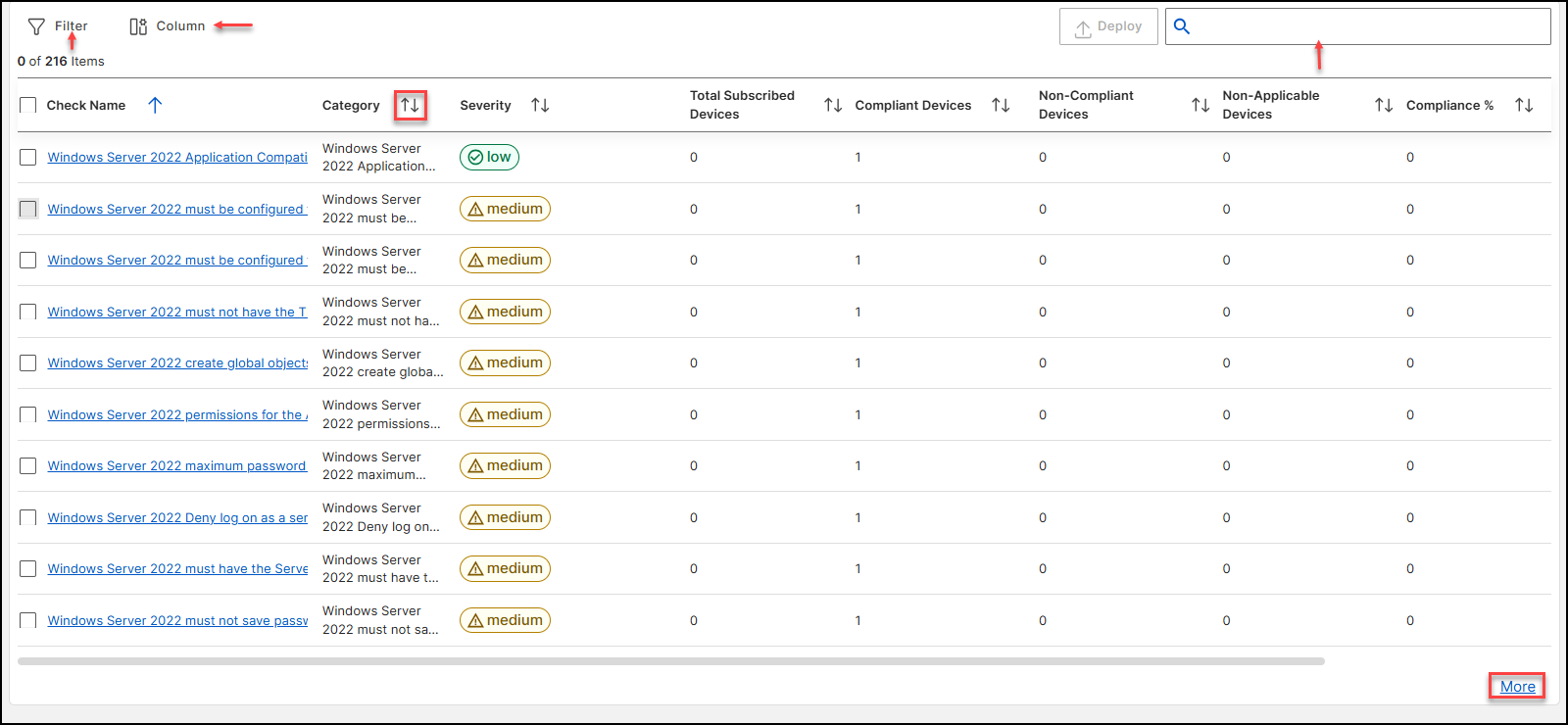
Check details
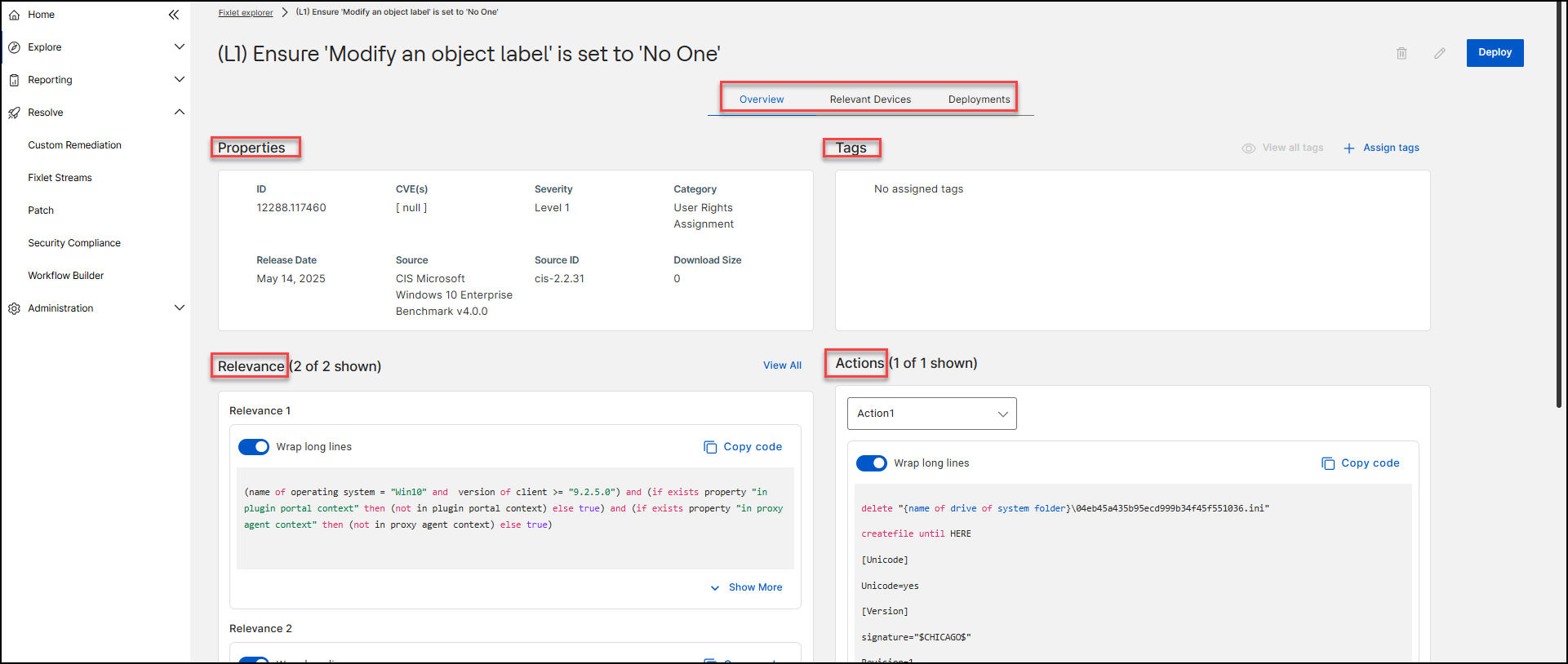
Click a Check Name to open the Fixlet detail page in Fixlet Explorer.
The Overview tab shows properties, tags, relevance, and actions; the Relevant Devices and Deployments tabs show where the Check applies and its deployment history. You can also deploy a single Check from this page.