
SAST GitHub Action
The AppScan SAST Github Action enables you to run static analysis security testing (SAST) against the files in your repository. The SAST scan identifies security vulnerabilities in your code and stores the results in AppScan on Cloud.
Register
If you don't have an account, register on HCL AppScan on Cloud (ASoC) to generate your API key and API secret.
Setup
- Generate your API key and API secret on the API page.
- The API key and API secret map to the
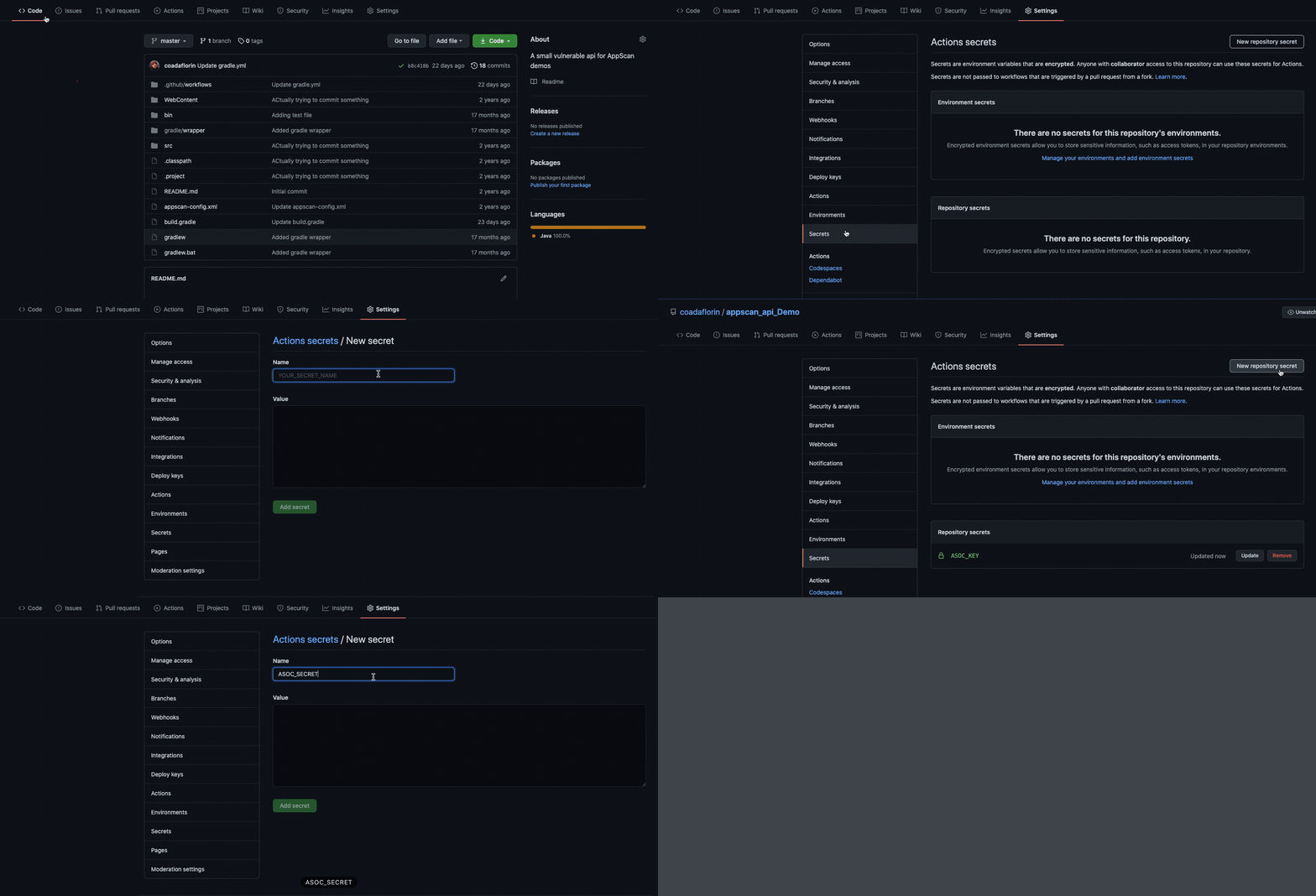
asoc_keyandasoc_secretparameters for this action. Store the API key and API secret as secrets in your repository.
- The API key and API secret map to the
- Create the application in ASoC.
- The
application IDin ASoC maps toapplication_idfor this action.
- The
Required inputs
| Name | Description |
|---|---|
asoc_key |
Your API key from the API page |
asoc_secret |
Your API secret from the API page |
application_id |
The ID of the application in ASoC. |
Optional inputs
| Name | Description | Default |
|---|---|---|
scan_name |
The name of the scan created in ASoC. | The GitHub repository name |
incremental_scan |
Only scan files that were added or modified in a pull request. | false |
personal_scan |
Make this a personal scan. | false |
sast_scan_id |
The ID of an existing SAST scan to use for running a rescan. | null |
sca_scan_id |
The ID of an existing SCA scan to use for running a rescan. | null |
static_analysis_only |
Only run static analysis. Do not run SCA (Software Composition Analysis). | false |
open_source_only |
Only run SCA (Software Composition Analysis). Do not run static analysis. | false |
secrets_only |
Only scan for secrets. Do not run static analysis or SCA (Software Composition Analysis). | false |
scan_build_outputs |
By default only source code files will be analyzed. Enabling this option will result in build output files for Java and .NET to be analyzed (.jar/.war/.ear/.dll/.exe). Additionally, Maven, Gradle, and Visual Studio solutions will be built if the build environment is available. | false |
wait_for_analysis |
By default this action will initiate the scan in ASoC, but it will not wait for analysis to complete. Enabling this option will cause the action to wait for analysis to complete. Note that this will cause the action to run longer. | false |
analysis_timout_minutes |
If wait_for_analysis is
true, the number of minutes to wait for
analysis to complete. |
30 minutes |
fail_for_noncompliance |
If wait_for_analysis is
true, fail the job if any non-compliant
issues are found in the scan. |
false
|
failure_threshold |
If fail_for_noncompliance is enabled, the
severity that indicates a failure. Lesser severities will not be
considered a failure. For example, if
failure_threshold is set to
medium, informational
and/or low severity issues will not cause a
failure. medium, high, and/or
critical issues will cause a
failure. |
low |
proxy_host |
The hostname of the proxy server, if required. | null |
proxy_port |
The port of the proxy server, if required. | null |
proxy_user |
The username of the proxy server, if required. | null |
proxy_pwd |
The password of the proxy server, if required. | null |
proxy_https |
True to use an HTTPS proxy. False for an HTTP proxy. | false |
comment |
A comment to associate the scan with. |
Snapshots
Both the build and pull request (PR) comment summary captures information about the
following:
- Type of scan executed
- The scan id generated
- Associated application name in ASoC or AppScan 360°
- Repository scanned
- Scan time
- Downloadable report link for the scan type executed
The following snapshot shows the scan summary output on the job summary page.
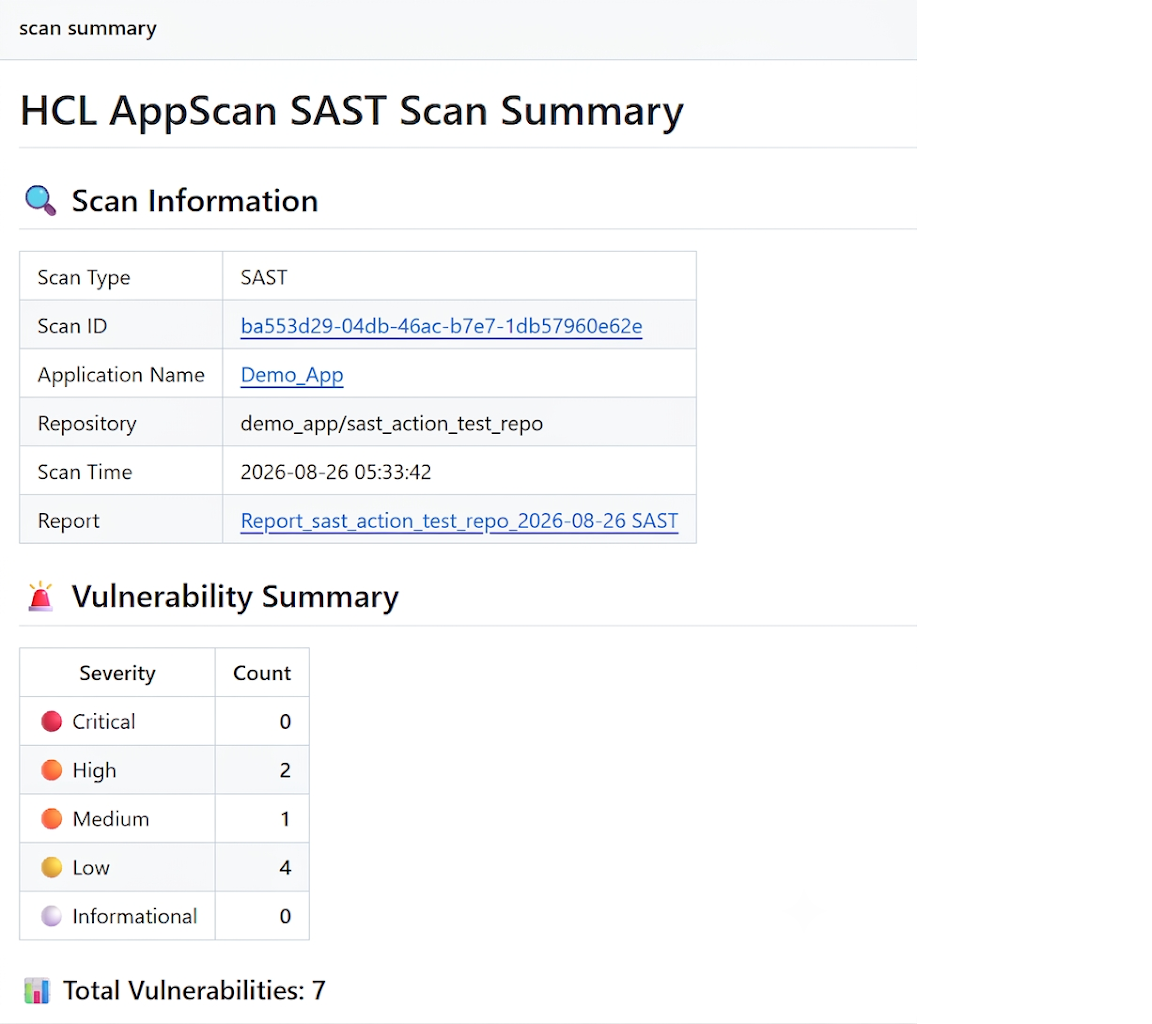
- To view the Scan ID and Application name, click on the respective hyperlinks.
- Scan security report for SAST or SCA can be downloaded directly from the Report section in the summary table.
The following snapshots show the scan summary output in the request comment
section.
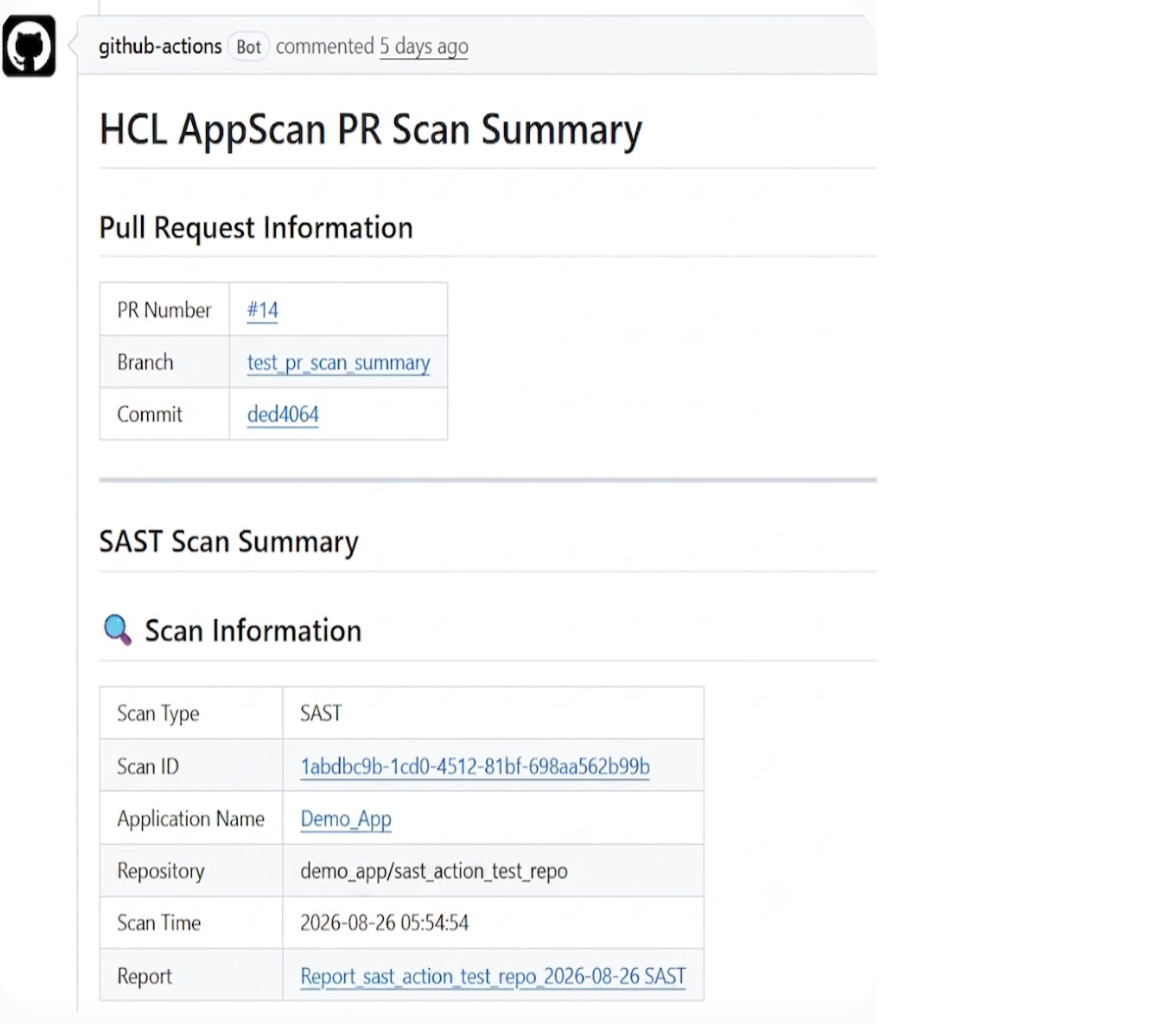
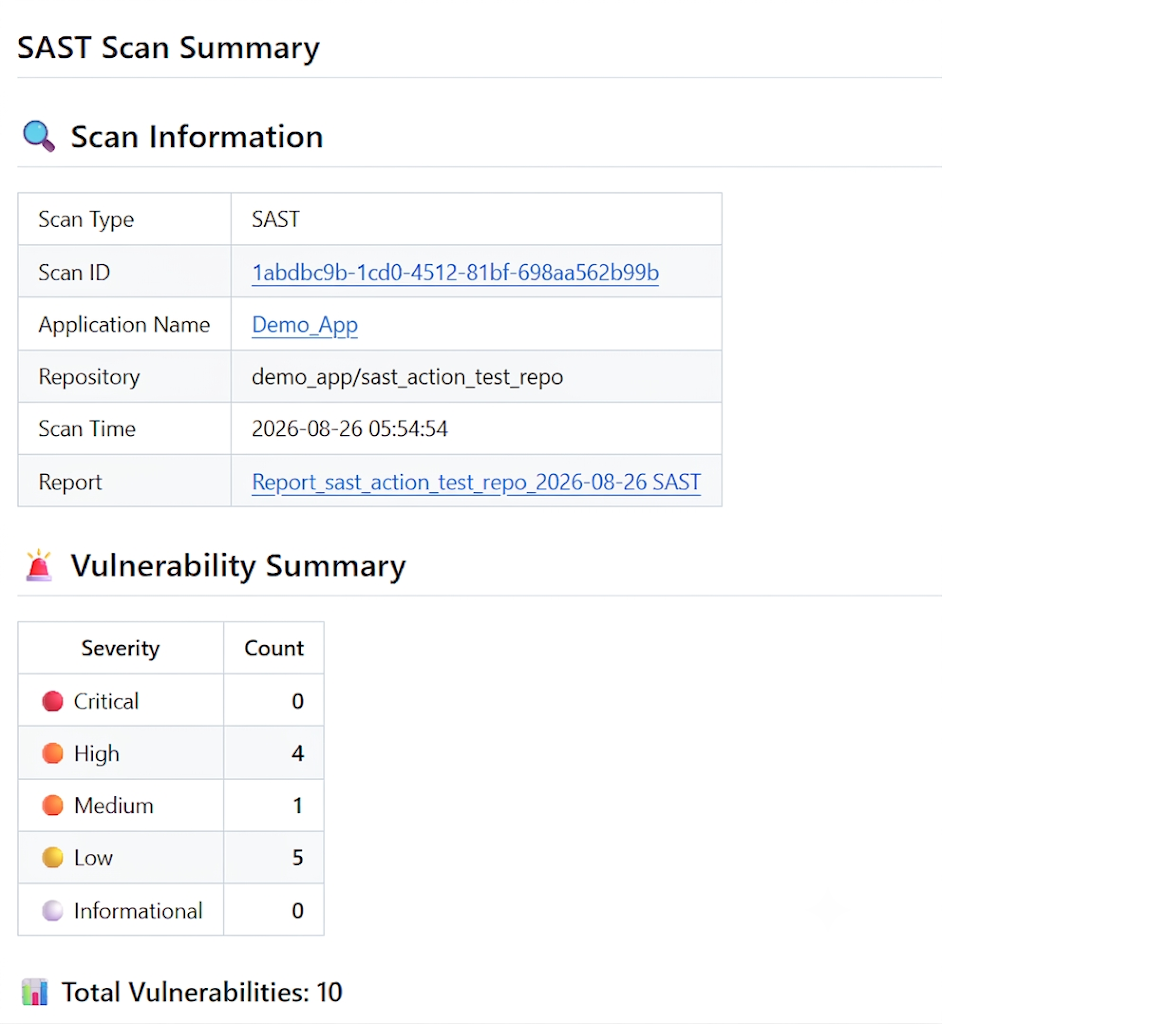
- Under the Pull Request Information table you can directly view the details about the pull request, branch and commit by clicking on their respective hyperlinks.
- To view the Scan ID and Application name, click on the respective hyperlinks.
- Scan security report for SAST or SCA can be downloaded directly from the Report section in the summary table.
Example
The pull_request trigger and permissions block
(pull-requests: write,
issues: write, contents:
read) follow standard GitHub Actions syntax.
name: "HCL AppScan SAST"
on:
  workflow_dispatch:

  push:
    branches:
      - main
  pull_request:

permissions:
  contents: read
  pull-requests: write
  issues: write

jobs:
  scan:
    runs-on: ubuntu-latest
    steps:
      - name: Checkout
        uses: actions/checkout@v6
      - name: Run AppScan SAST scan
        uses: HCL-TECH-SOFTWARE/appscan-sast-action@v1.1.3
        with:
          asoc_key: ${{secrets.ASOC_KEY}}
          asoc_secret: ${{secrets.ASOC_SECRET}}
          application_id: e35ea96d-cae0-499a-a3ed-7a4efd77b269