
DAST templates
The DAST templates feature streamlines the management and use of Dynamic Application Security Testing (DAST) scan templates. You can upload AppScan Standard scan files (.scant) or DAST templates directly to ASoC. This centralizes templates and makes them available to all ASoC users for reuse, rather than storing them on individual desktops.
Template management is available to users with the Admin or Manager role. Each template can be associated with specific asset groups or with all asset groups. You can create a scan using a predefined template from the Create scan dialog if your application belongs to the asset group(s) associated with that template.
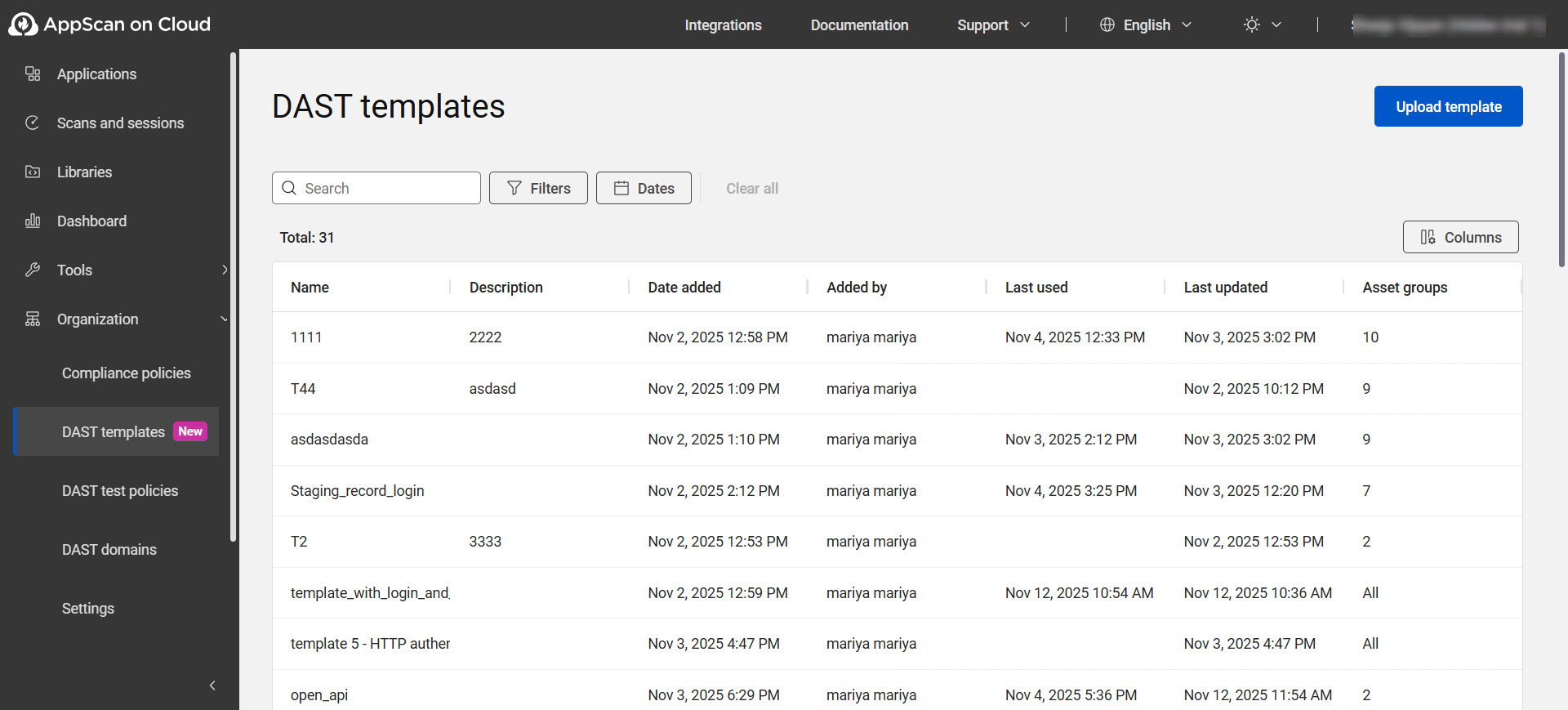
DAST templates page options
| Option | Description |
|---|---|
| Upload template | In the Template details tab, select the template file
(.scant) created using AppScan Standard. The
file name is prepopulated. Optionally, rename the file and add a
description. In the Asset groups tab, choose whether to assign the template to all asset groups or to specific asset groups. Click Summary to review the scan configuration imported from the uploaded template. After you verify the details, click Save. The template is now available for use when you create a DAST scan. |
| Search | Search for the uploaded templates by entering keywords. |
| Filters | To filter the list of templates, click Filters, select the applicable filters and then click Apply. To remove all applied filters, click Clear all. |
| Columns | By default, all columns are displayed You can:
|
| Row actions: Click any row to perform the following actions: | |
| Details | |
 |
Click this icon to edit the details of the template. |
| Manage |
|
| Configuration | |
| Summary | Displays the scan configuration of the uploaded template. |
| Asset groups | |
| All asset groups | Select to make the template available to all asset groups. |
| Specific asset groups | Select to assign the template to specific asset groups. |