Search: navigate your canvas without scrolling
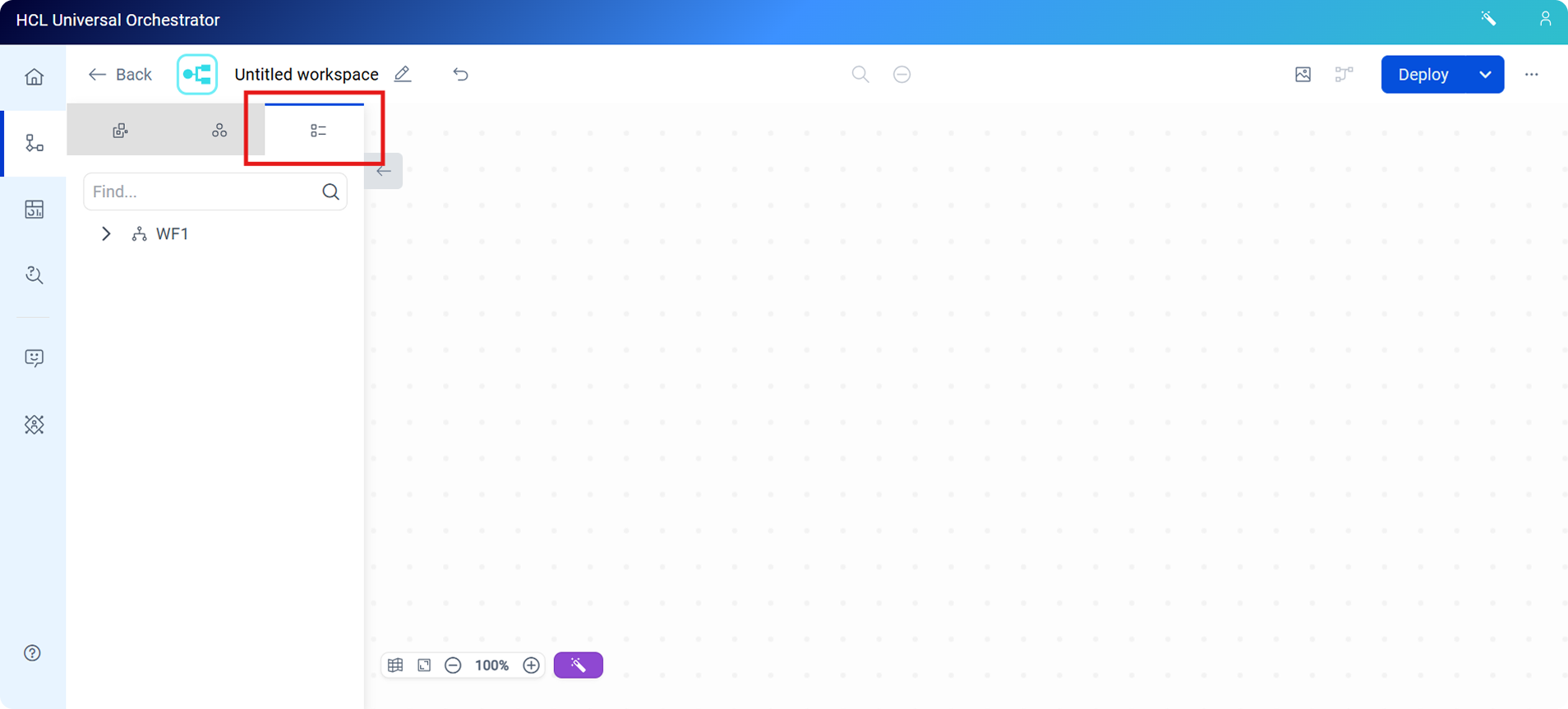
The new Search tab in the Graphical Designer palette displays all workflows, tasks, and AI agents on the canvas in a hierarchical list, enabling you to find and select items without scrolling the canvas.
As workspaces grow in size, locating a specific workflow or task by scrolling the canvas becomes time-consuming. The Search tab, a new addition to the palette, solves this with a filterable index of everything currently on the canvas. The tab is identified by a hierarchical-list icon — the third tab in the palette, to the right of the element and connection tabs.
- Your entire workspace, at a glance
-
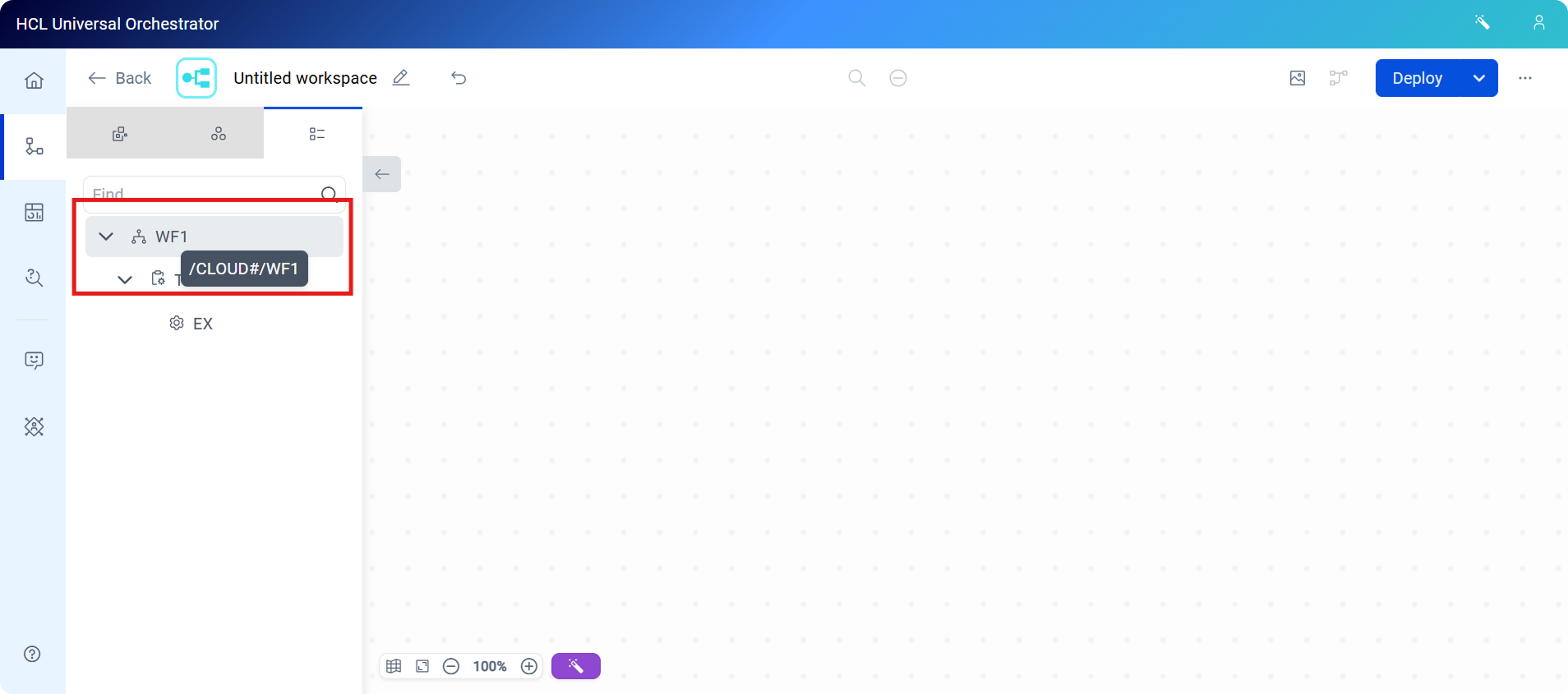
Opening the Search tab reveals the full structure of your workspace as it currently stands, every workflow, nested task, and AI agent, organized to reflect how they relate to one another. Complex designs that take minutes to survey by scrolling become immediately legible. Each workflow expands to show its nested tasks indented below; hovering over an item reveals its full path identifier.
- Click to jump, not scroll to find
-
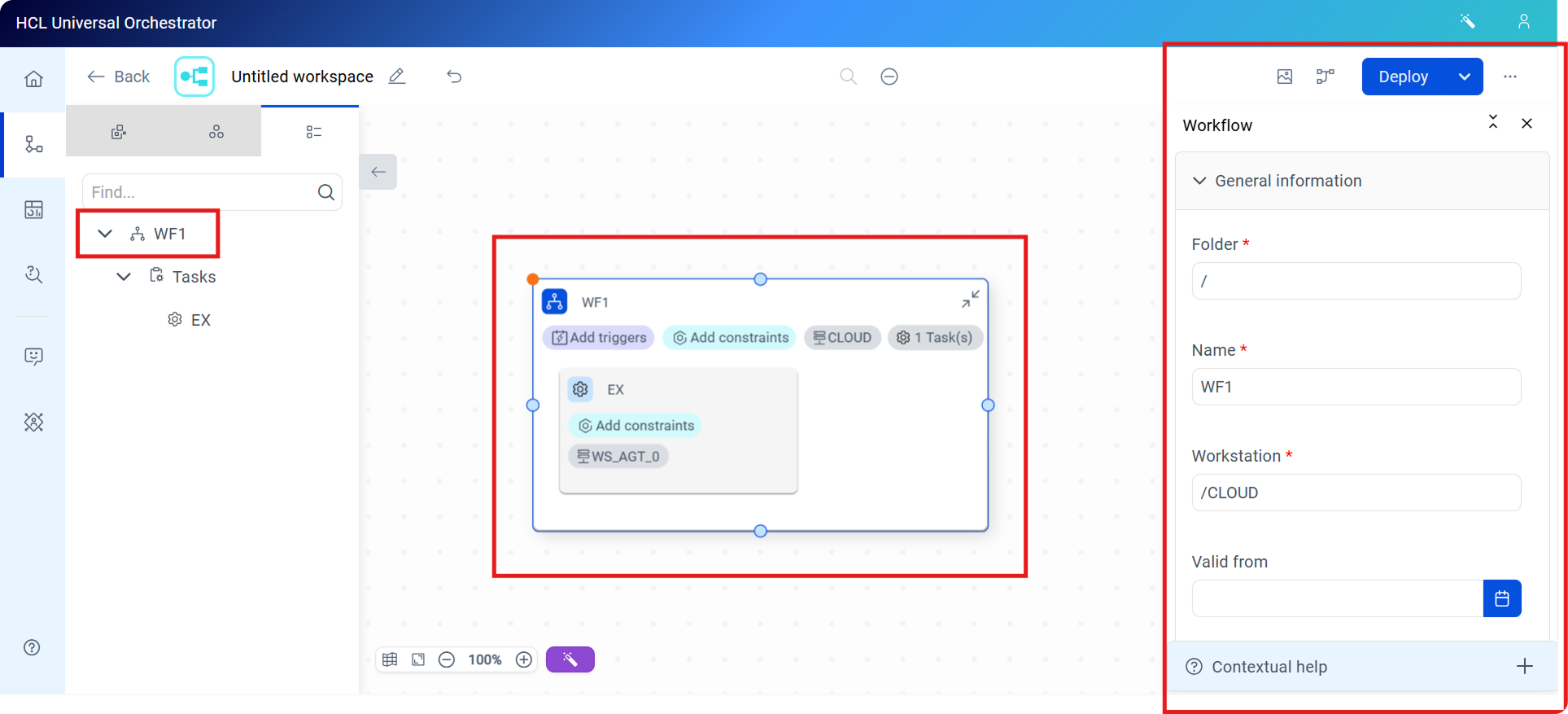
Filter by name and click an item, the canvas centers on it instantly. It does not matter whether the item is tucked into a corner of a large workspace or nested inside another element; the Search gets you there in a single click. Clicking a workflow in the Search tab centers it on the canvas and opens its properties panel on the right, so you can inspect or edit it in a single action.
For more information, see Designing on the UI and Finding items on the canvas using the Explorer tab.