
Installing the Z and I Emulator for Web
Find the below procedure to Install Z and I Emulator for Web using GUI Mode:
- For Windows, right click on the ZIEWeb_Windows_x64.exe.Note: For other OS use approriate file to launch the installer.
- Click Run as Administrator, the following HCL Z and I Emulator for Web is
preparing to install screen displays
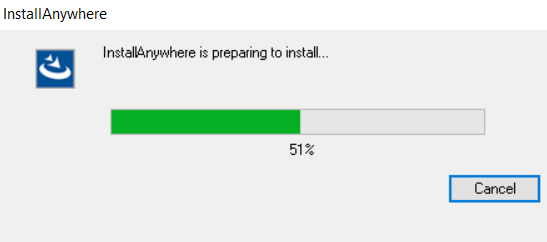
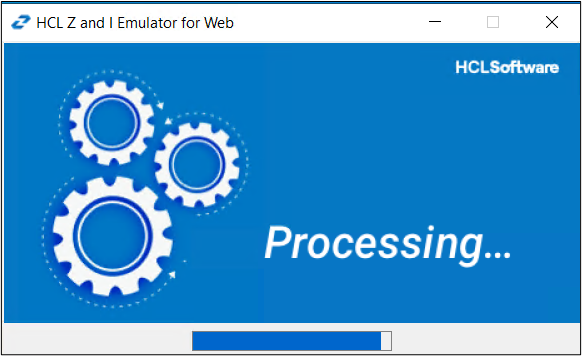
- Click OK. The Introduction screen displays to configure.
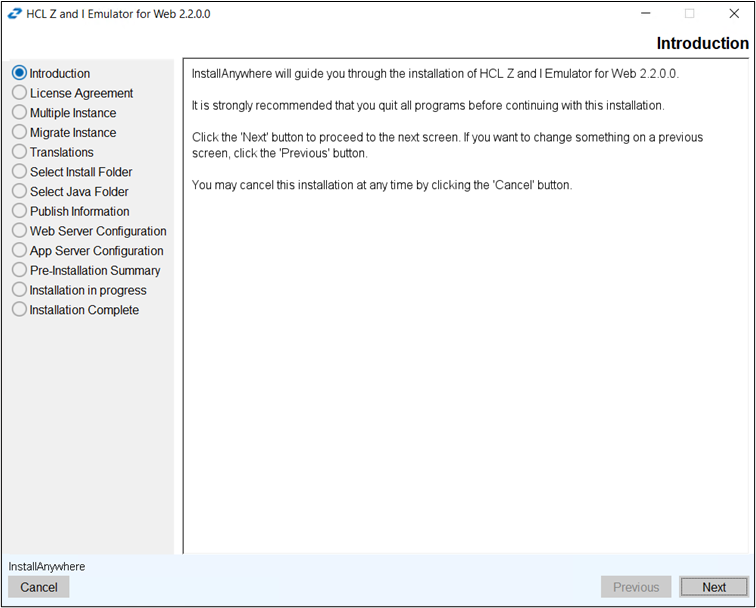
- Click Next.
- The License Agreement screen displays. Click I accept the items of the License
Agreement.
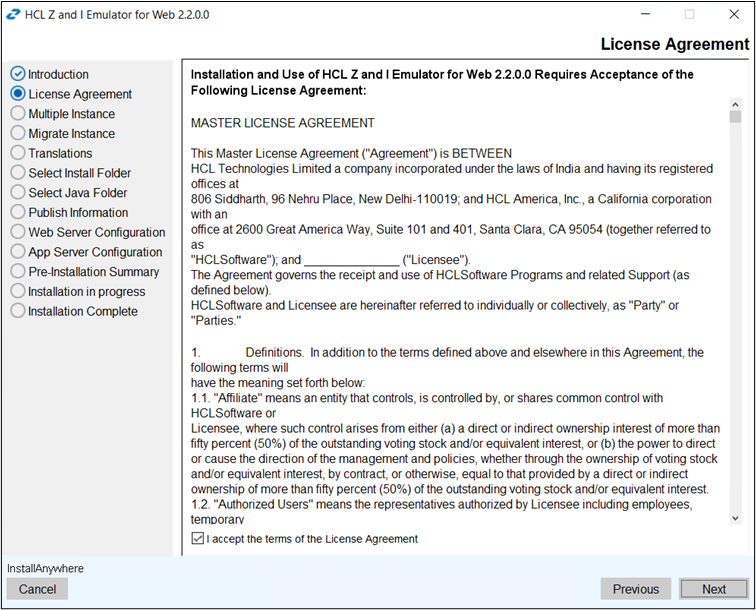
- Click Next. The Multiple Instance screen displays to choose:
- Installed Instance.
- New Instance.Note: For more information refer to Muliple Instance or Upgrade Installation.
- Click Next. Migrate Instance screen displays.
- Select the Z and I Emulator for Web New
Instance. Click Next. Note: For more information refer to Migrate Installation for Z and I Emulator for Web
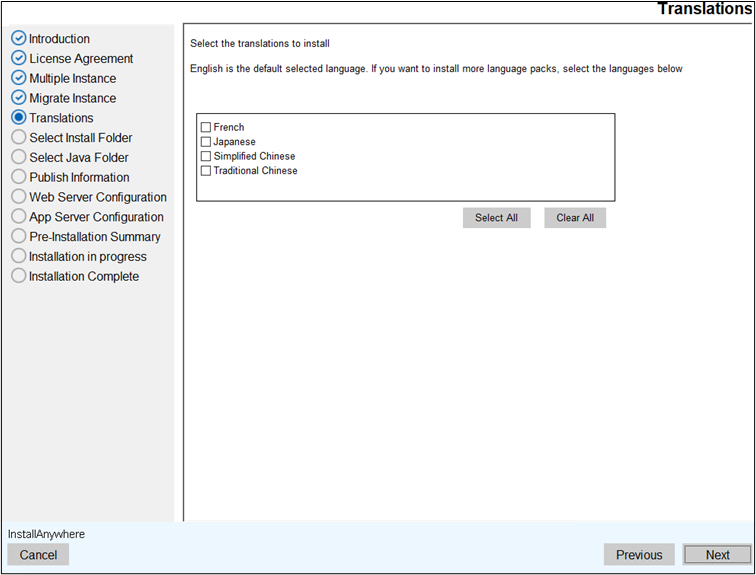
- Click Next. Translation to install screen displays
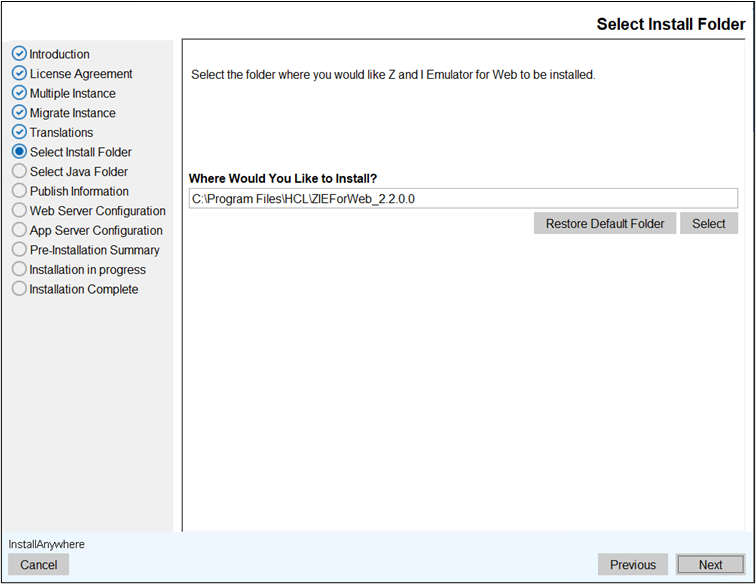
- The Choose Install Folder to install the product screen displays. (Here, the user
can choose the customized folder).
 Note:
Note:- A user can restore the default folder.
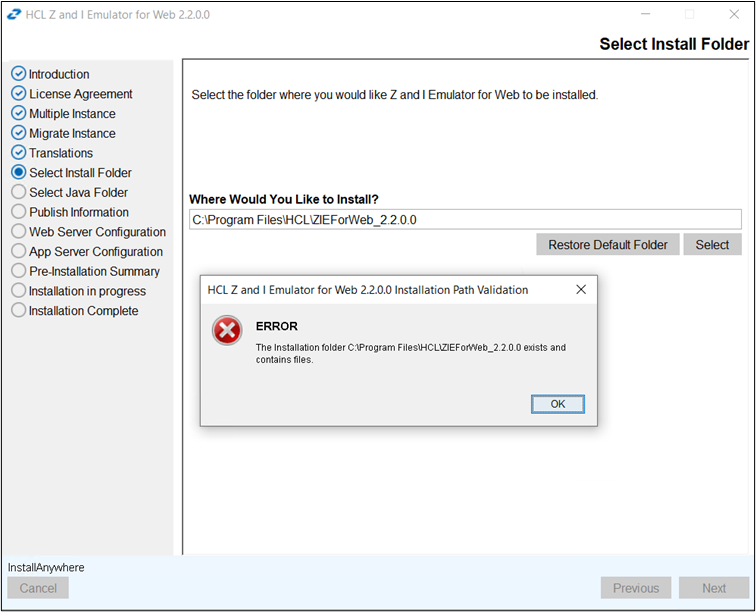
- If the install folder is already existing then the error message get displayed.
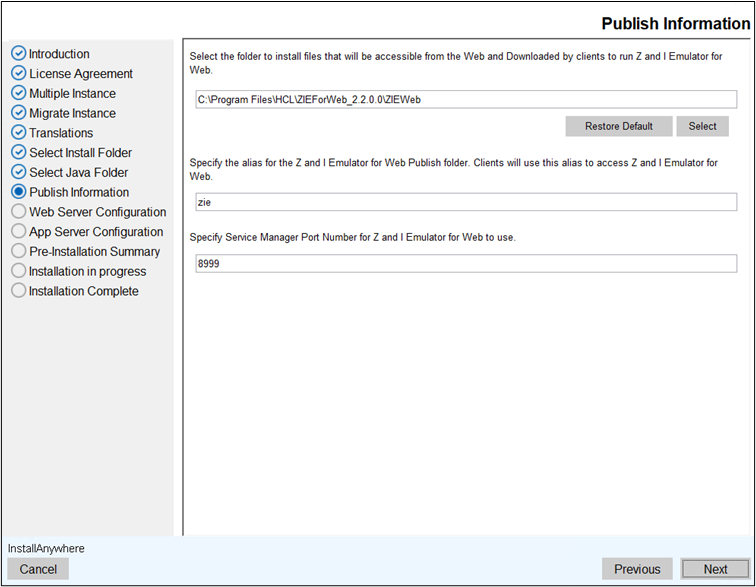
- Click Next. The Publish Information screen displays.
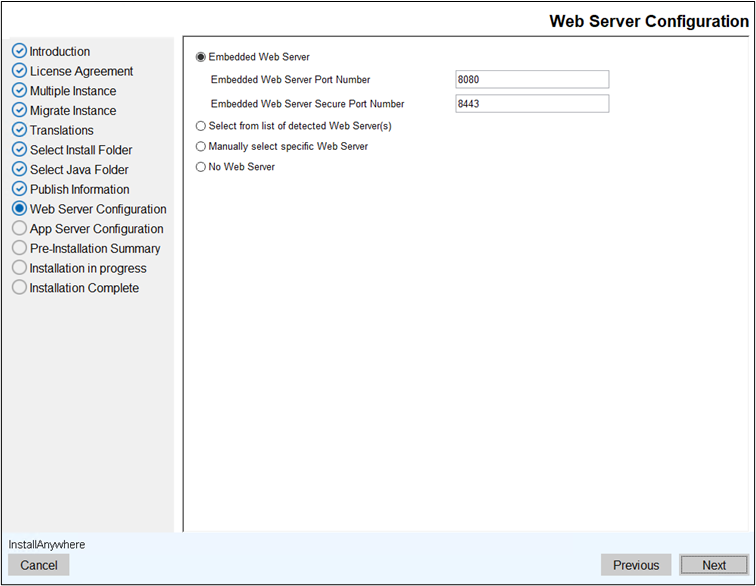
- Click Next. The Web Server Configuration screen displays.
- Embedded Web Server : Select Embedded Web Server when
the web server provided with the application is used. The non-secure and secure port
numbers for the embedded web server are auto-populated, and the administrators have
the option to configure the port numbers as per their requirements.
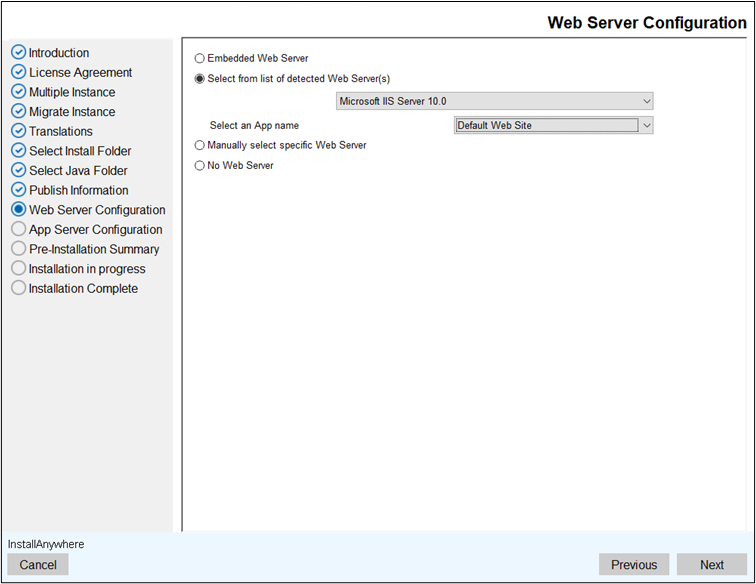
- Select from the list of detected web server: Select the option 'Select from
list of detected web server' and then select the web-server from the list if more than
one detected.
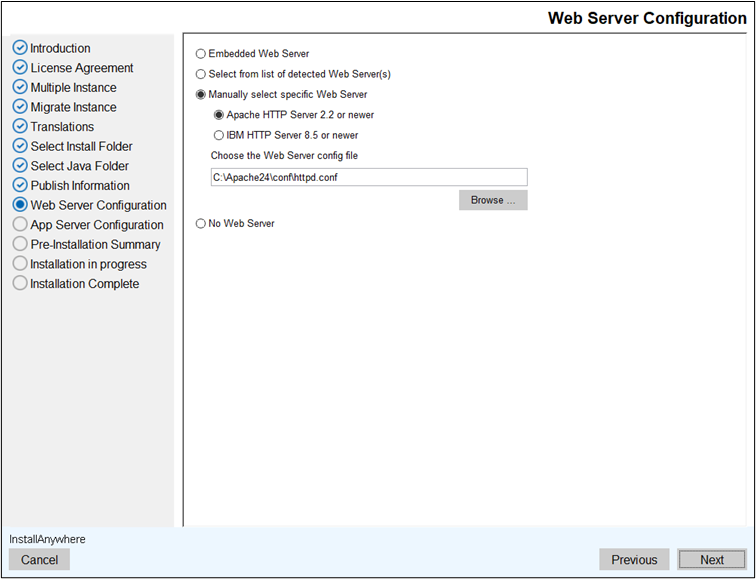
- Manually select Specific web server: Select the option Manually
select specific web server, in case a IBM HTTP Server or Apache
web-server is installed but not detected.
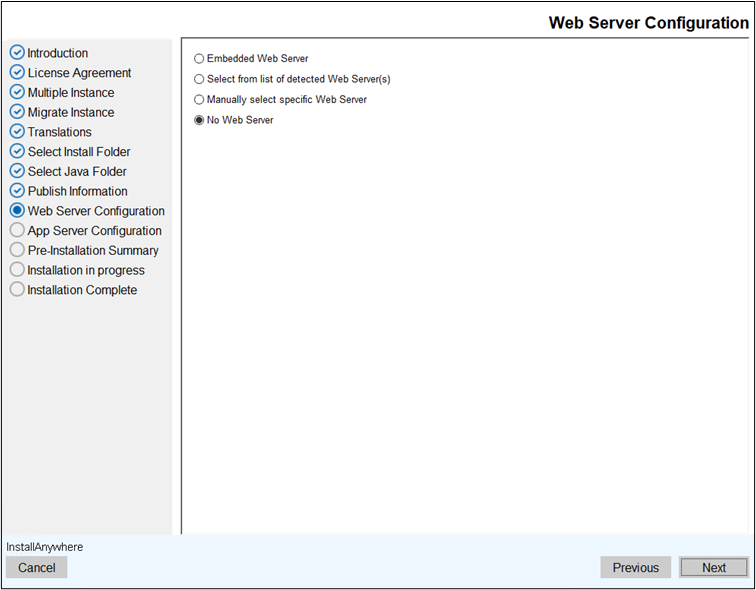
- No Web Server: when web server is configured manually by the user.
The user is advised to contact their web server administrator or refer to the web
server documentation for details.
- Embedded Web Server : Select Embedded Web Server when
the web server provided with the application is used. The non-secure and secure port
numbers for the embedded web server are auto-populated, and the administrators have
the option to configure the port numbers as per their requirements.
- Click Next.
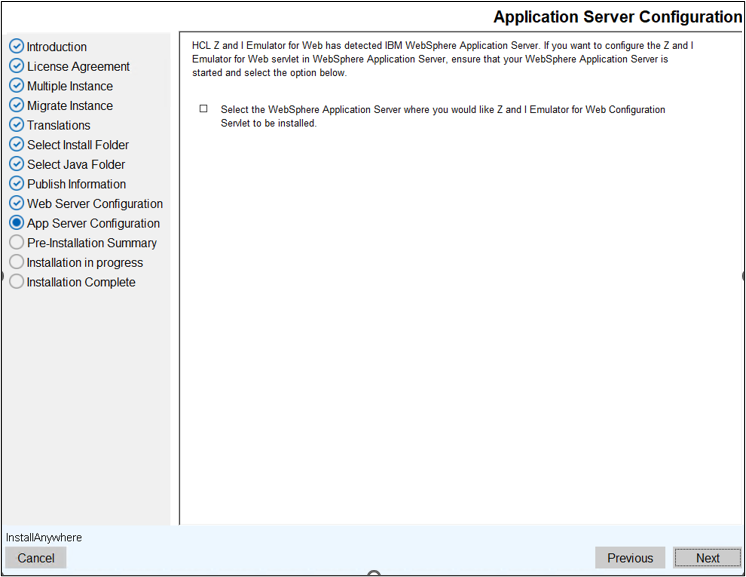
- The App Server Configurationscreen displays.
- Select the WebSphere Application Server when you would like Z and I Emulator for Web Configuration Servlet
to be installed.
- Select the WebSphere Application Server details to install the Application
Server.
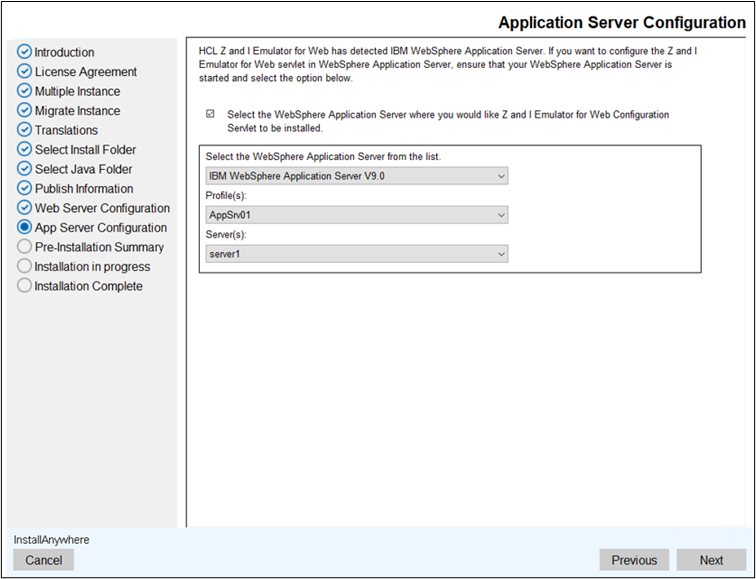
- Select the WebSphere Application Server when you would like Z and I Emulator for Web Configuration Servlet
to be installed.
- Click Next.
- The Pre- Installation Summary screen displays to review the summary details, for
example, product name, install folder, Z and I Emulator for Web server location, and disk
space information.
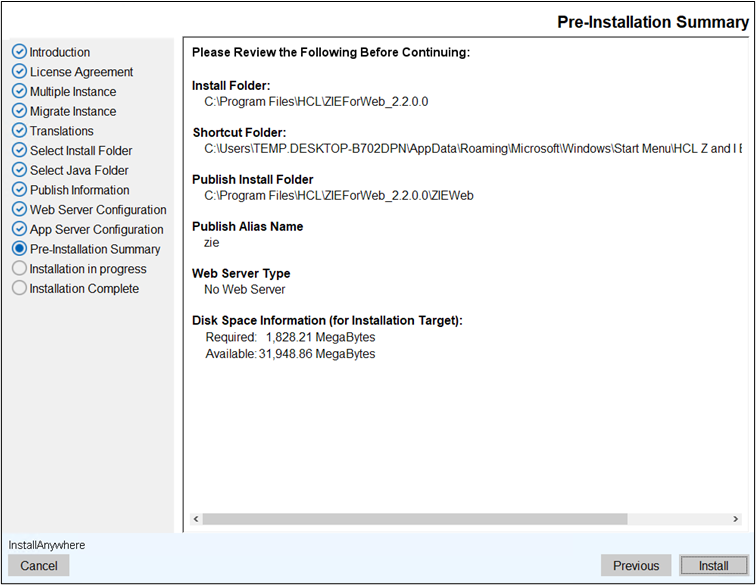
- Click Install. The product gets installed.
- Once the extraction is completed. The Install Complete screen displays.
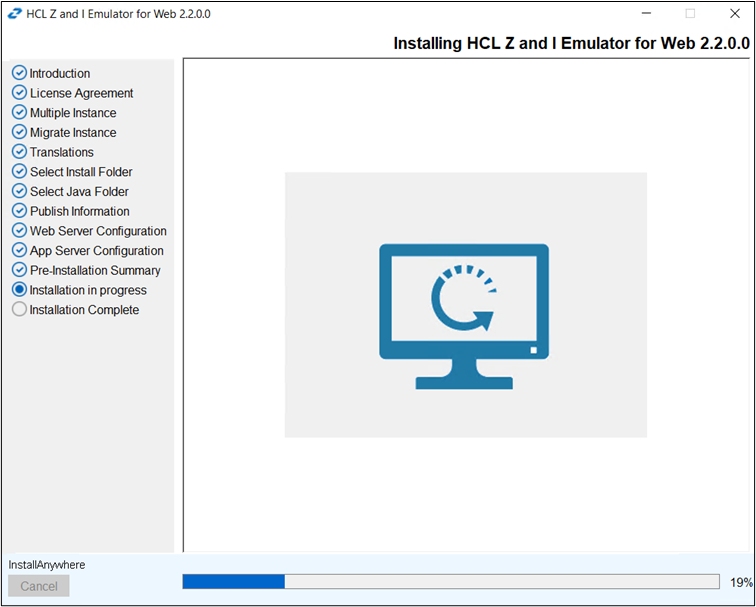
- Click Done. It creates the shortcut for easy access.
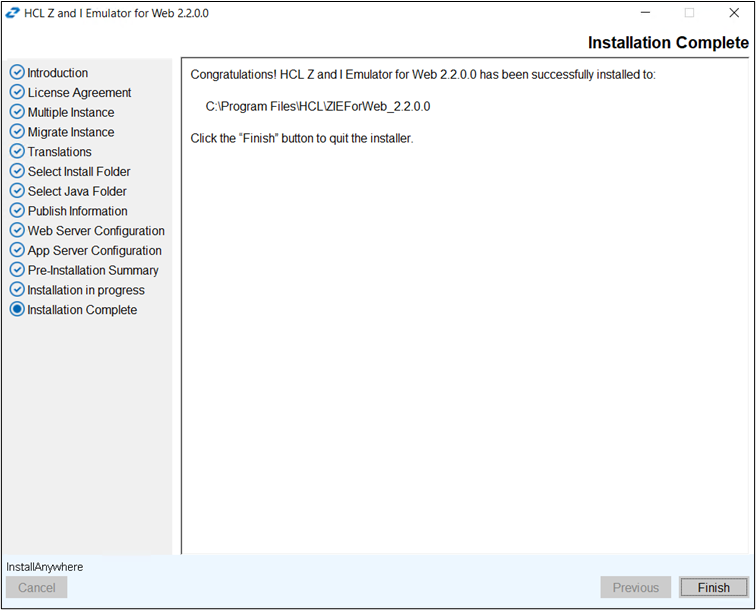
- Click Finish. To ensure the install is completed successfully, you can take the following additional actions:
- Restart the web server.
- Ensure that ZIEWeb pages are accessible over the browser. If not, check the web server configuration and ensure that files in the Z and I Emulator for Web publish directory are accessible. Refer to your web server documentation for the configuring details.