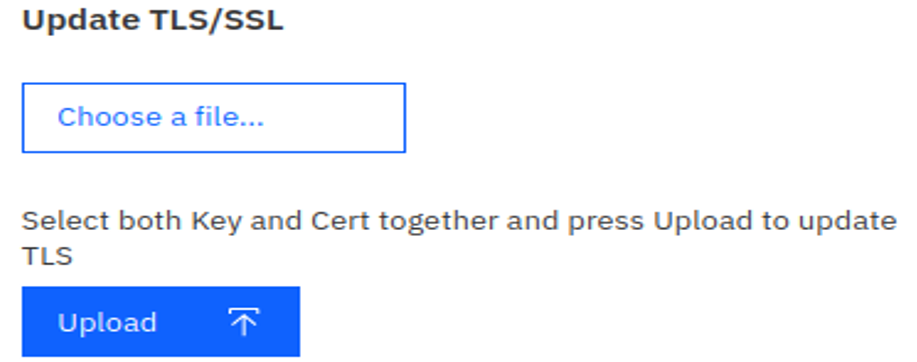
If the existing TLS/SSL certificate needs updating or is expiring, then an admin can
upload replacement versions here.Figure 1. TLS/SSL cert.pem & key.pem Update
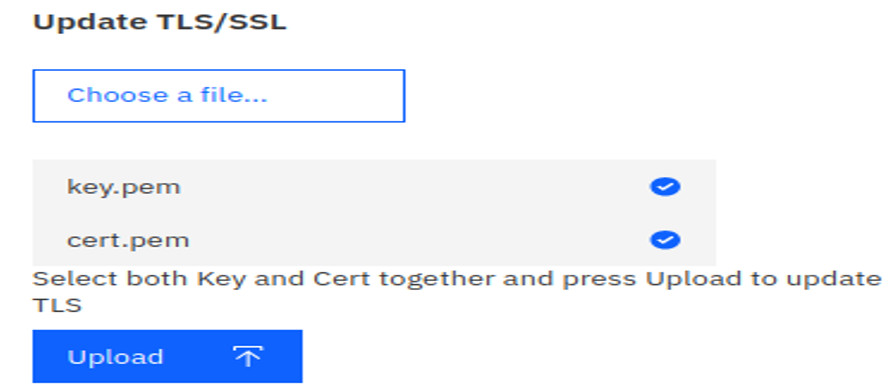
The admin should upload both the key and the cert (*.pem type files only
are supported) files together by:
Selecting the Choose a file button (hold the shift button to enable
multiple entry selection).
Selecting Upload.
The TLS/SSL upload card section available on the app settings page is as displayed in the
following image:Figure 2. TLS/SSL Certificate Upload
After completion of SSL/TLS upload process, the results message will be displayed as
follows:Figure 3. TLS/SSL Update Success Message
Note:
After the TLS/SSL update is complete, all users should reload
the active page or re-logon to the application to begin using the updated TLS/SSL
certificate. Any API service instances also running should be restarted.