
GKB Maintenance
As an admin, you are authorized to update the product's internal GKB database. A GKB
update file can be downloaded from your
HCL
Fix Central account portal.
- On the GKB page, select Choose a file option to select the
previously downloaded GKB update package file.
Eg: GKB_yymmdd-s390x-V9.1.tar.gz.encrypt, where the yymmdd is the build/version date of the GKB database.
- Select Choose a file and navigate to where you downloaded the GKB update package file and select this file.
- Once you can select your file from the Choose a file option, select the Update GKB button to execute the upload and GKB update process.
Figure 1. Process GKB Update File 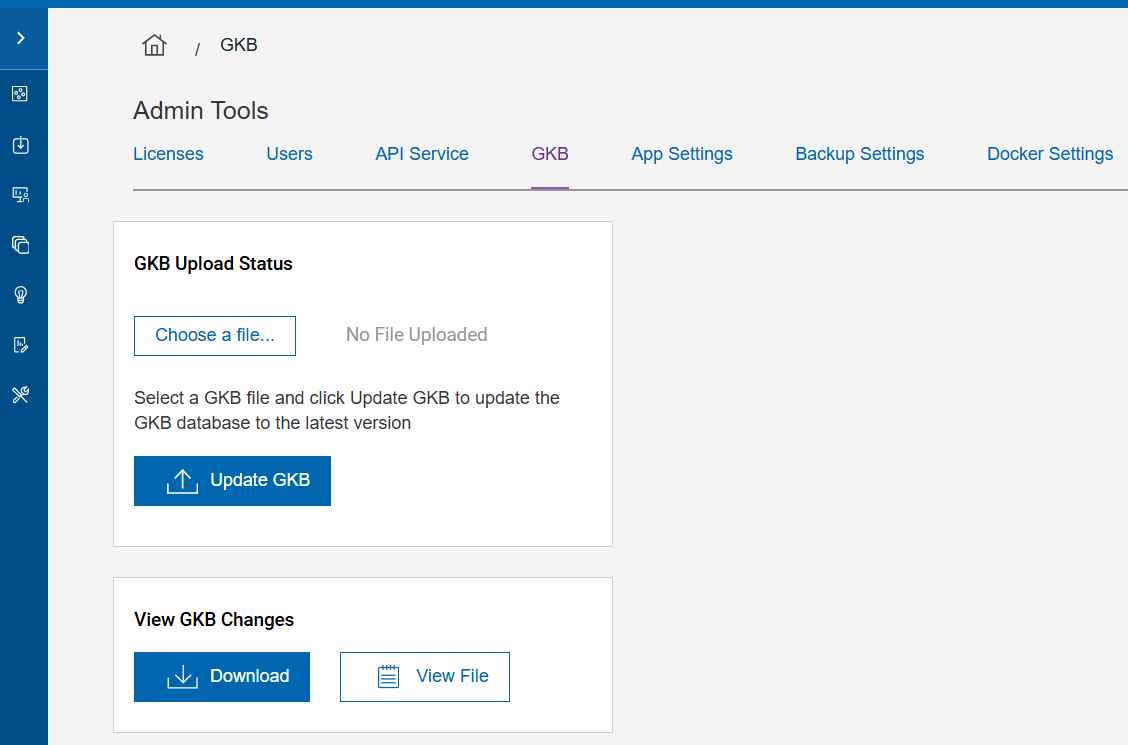
Note:While the file is being uploaded to the GKB update page, do not navigate away from the Upload page before the process is complete. Otherwise the GKB update gets cancelled.This will now perform the required back-end GKB Databases update processing. The Upload Status of the update file is displayed during processing.
Once the GKB upload process completes, the update processing will begin automatically.Figure 2. GKB Upload Progress Window 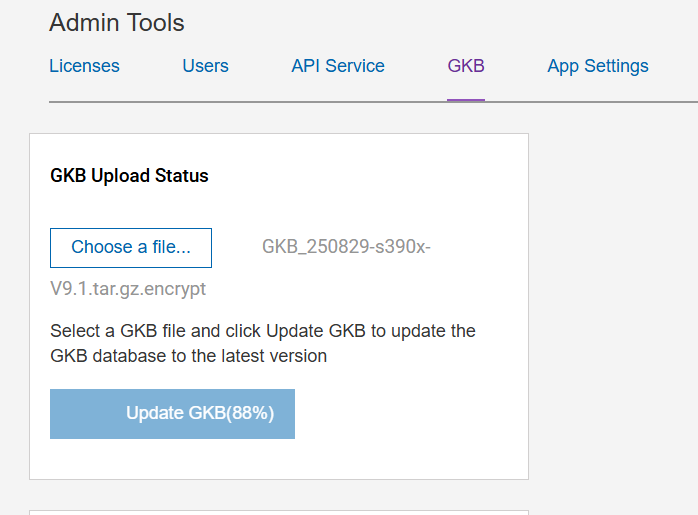
After the update processing is over, you will see the GKB successfully updated message as follows:Figure 3. GKB Successful Status Update 
- If you click on the View Logs button, the GKB update process output log
details will be displayed as follows:
Figure 4. GKB Successful Update Status Logs 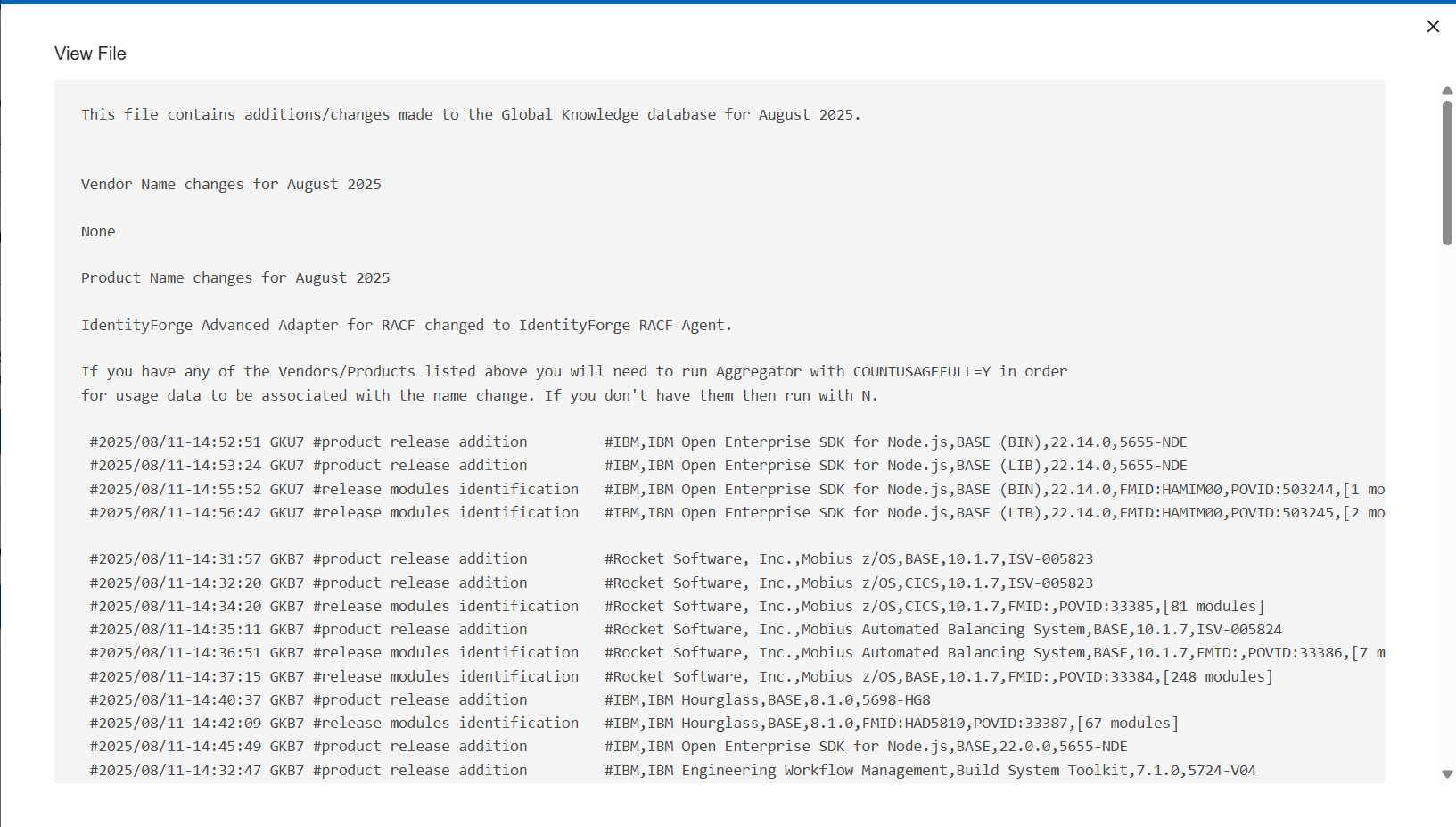
- Select the Show more expander to see more of the log file in the viewer window.
- If the GKB update is not successful, then a GKB failed message will appear as
follows:
Figure 5. GKB Update Failure Message 
- View the error logs by selecting View Logs option.
Once the cause of the failure is resolved, you can upload the GKB update file again and re-initiate the GKB update processing.
- If the GKB update is successful, you can download or view the GKB Changes file.
To download through your browser, use the Download button.
Figure 6. GKB Updates - File Download Option 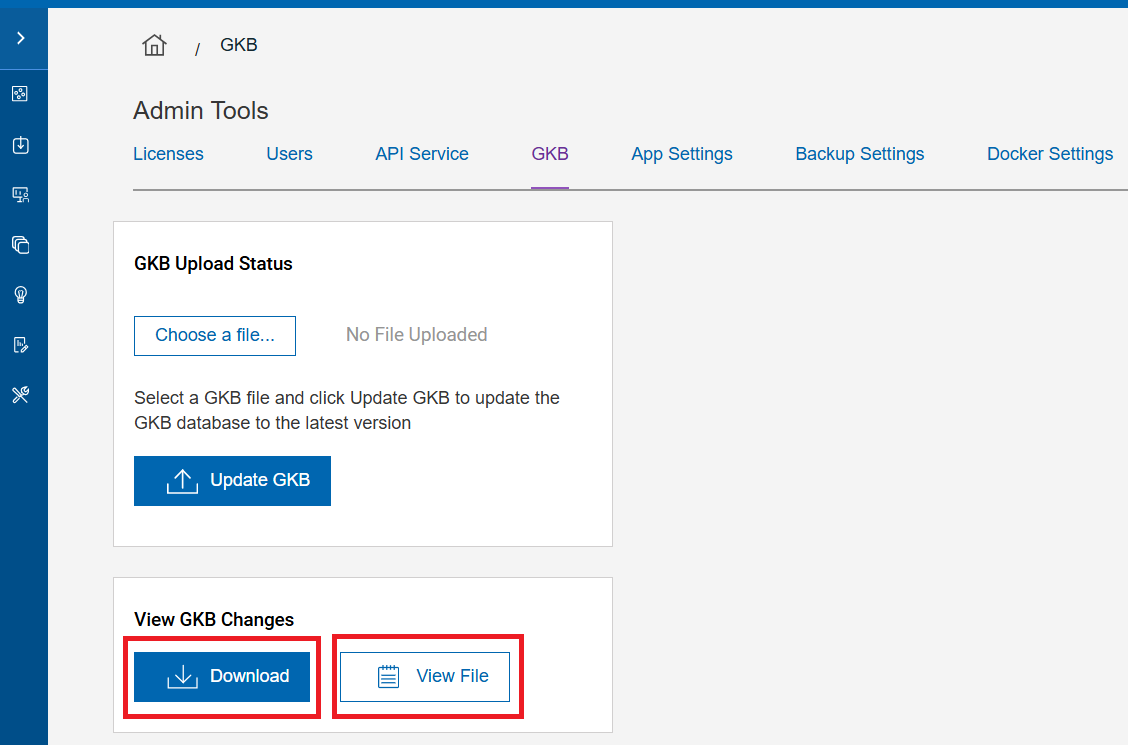
-
To just view the GKB changes file without downloading to your local machine, use the ‘View File’ button.