
Application Settings
As an Admin, you can perform the following activities on the App Settings page.
- Debugging options – use only if directed by technical support
- Report Preprocessing
- Enable remember me at login
- Auto Session Timeout
- Max API Instances allowed
- Update TLS/SSL browser connection files
Administrators are authorized to enable the application's Debugging options when
requested by technical support personnel. Administrators are authorized to enable the
Remember Me feature. By default the following is disabled:
- Remember Me
- Report Pre-processing
- Auto session timeout
- Debugging
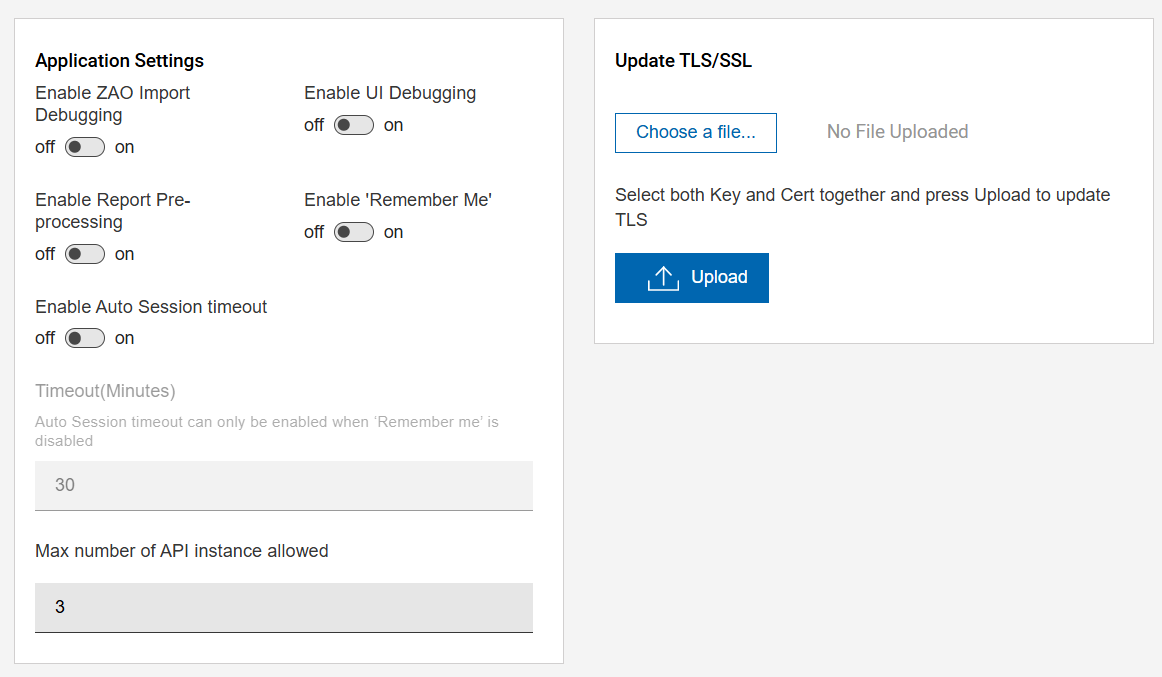
- To enable the report performance feature for affected reports, set the Enable
Report Pre-processing option to On. A warning flash message will appear. Please read this information carefully, as it will relate to the increase in DASD utilization based upon the use of this feature.Note:See the Report Performance section for more information.
- If the Enable Remember Me option is set to On:
- The Remember Me checkbox will appear on the User login screen.
- Users can check or uncheck the Remember Me option, based on their preference during login.
- If Remember Me was checked, the login details are saved for a month. Otherwise, the token will expire when the user closes their browser session.
- If the Enable Auto Session Timeout option is enabled, then the user session token will expire based on the timeout value provided by the administrator.
Figure 2. User Login Page with Remember Me Option 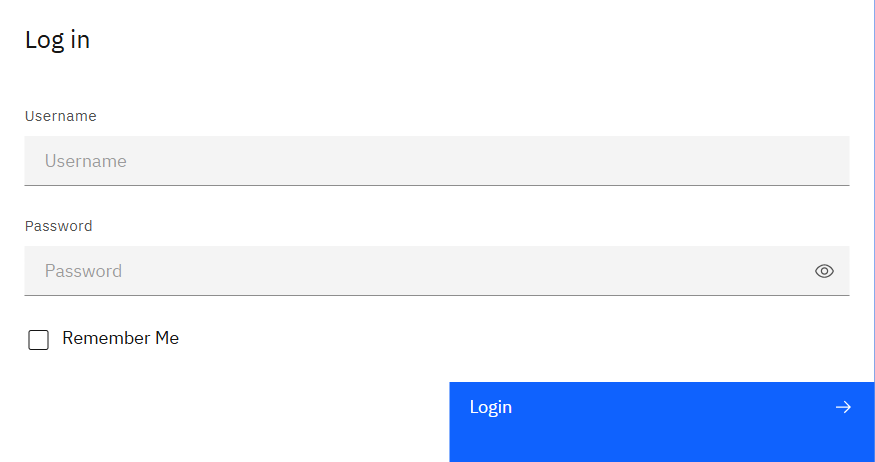
- Enable Debugging mode should only be activated on direction from technical
support staff. Significant processing performance degradation and logging
overhead may occur when this option is enabled. When the Enable Debuggingoption is
activated:
- Debugger logging functionality and data collection will be enabled for all selected component processing. Large log and data collection files may be generated.
- The debugging icon
 will appear at the top right corner of the
page.
will appear at the top right corner of the
page. - All user processing will be performed in debug mode until this option is
deactivated.Note:This option is not recommended for normal use. It should only be enabled under the direction of a technical support engineer to assist with the gathering of problem analysis information.
Figure 3. Enable Debugging 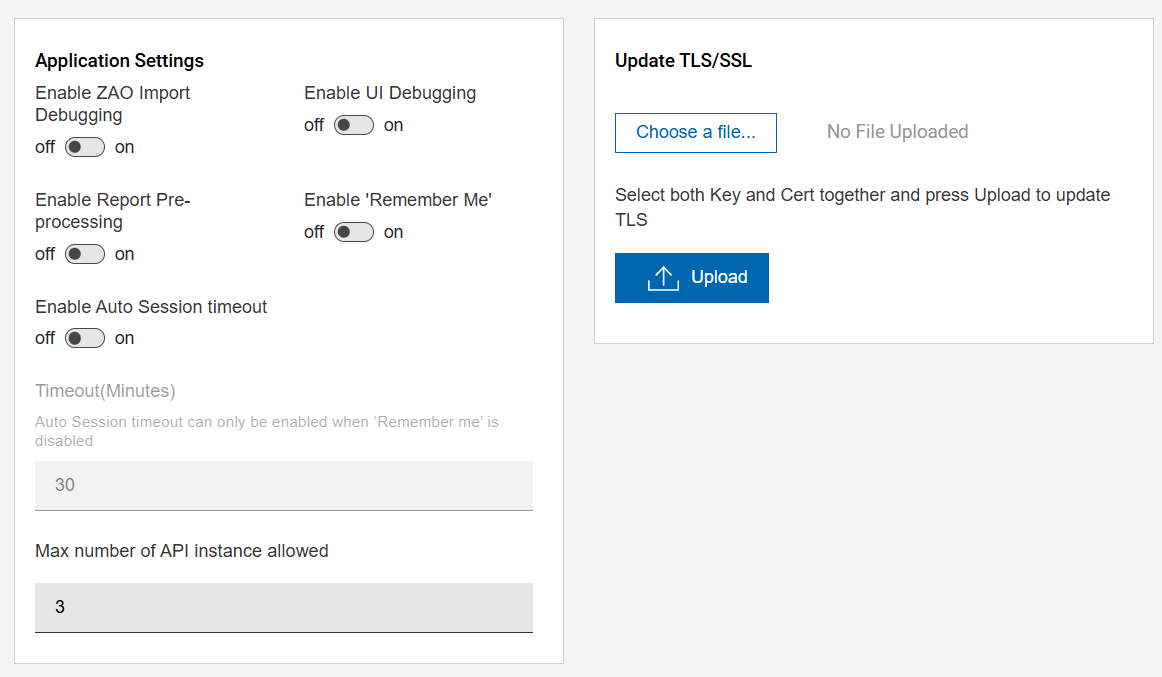
The debug logging options are split into two sections:
- UI (web) debug logging
- Import (back-end) debug logging
The debug icon will appear half red if only one debug logger is activated, or fully red
if both debug loggers are activated.
Note:
Your technical support
engineer will direct you as to which debug loggers are to be activated if
needed.