Import Figma Design into Volt Iris
This feature enables developers and designers to import Figma designs into Volt Iris using artificial intelligence (AI). It uses advanced AI to map designs to Iris-compatible widgets accurately.
Prerequisites
- Install Python 3.12.x on your computer. Download Python.
- Install the Figma desktop application. Download Figma.
- Install VoltMX Figma to Iris Form plugin in Figma. Download Plugin.
Setting Up the Environment
Set Up the VoltMX Figma to Iris Plugin in Figma
Follow these steps to set up the plugin:
- Unzip the downloaded VoltMX Figma to Iris
.zipfile to a preferred location on your computer. - Open the Figma desktop application, and open the Figma design file you want to use.
-
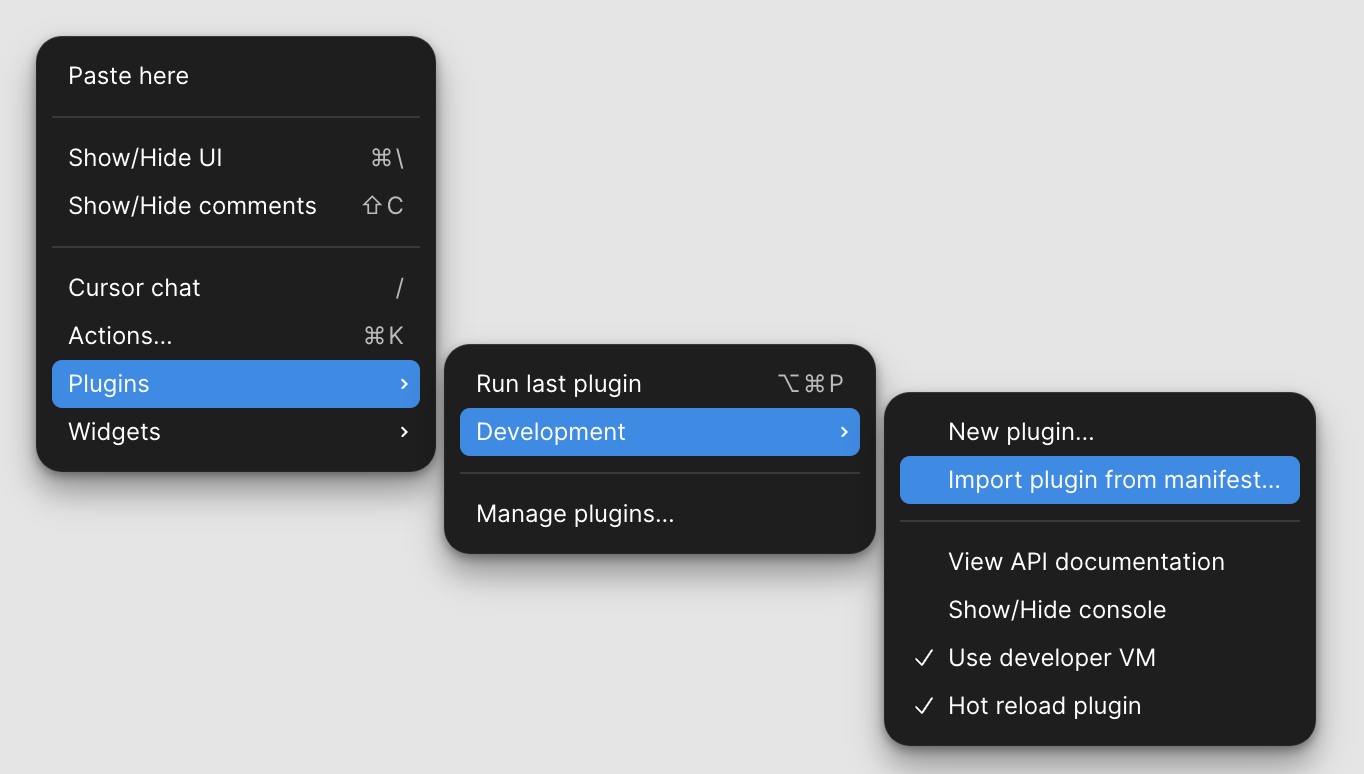
Right-click an empty area of the canvas, and select Plugins > Development > Import plugin from manifest….
-
Go to the folder where you extracted the plugin in step 1, and select the
manifest.jsonfile.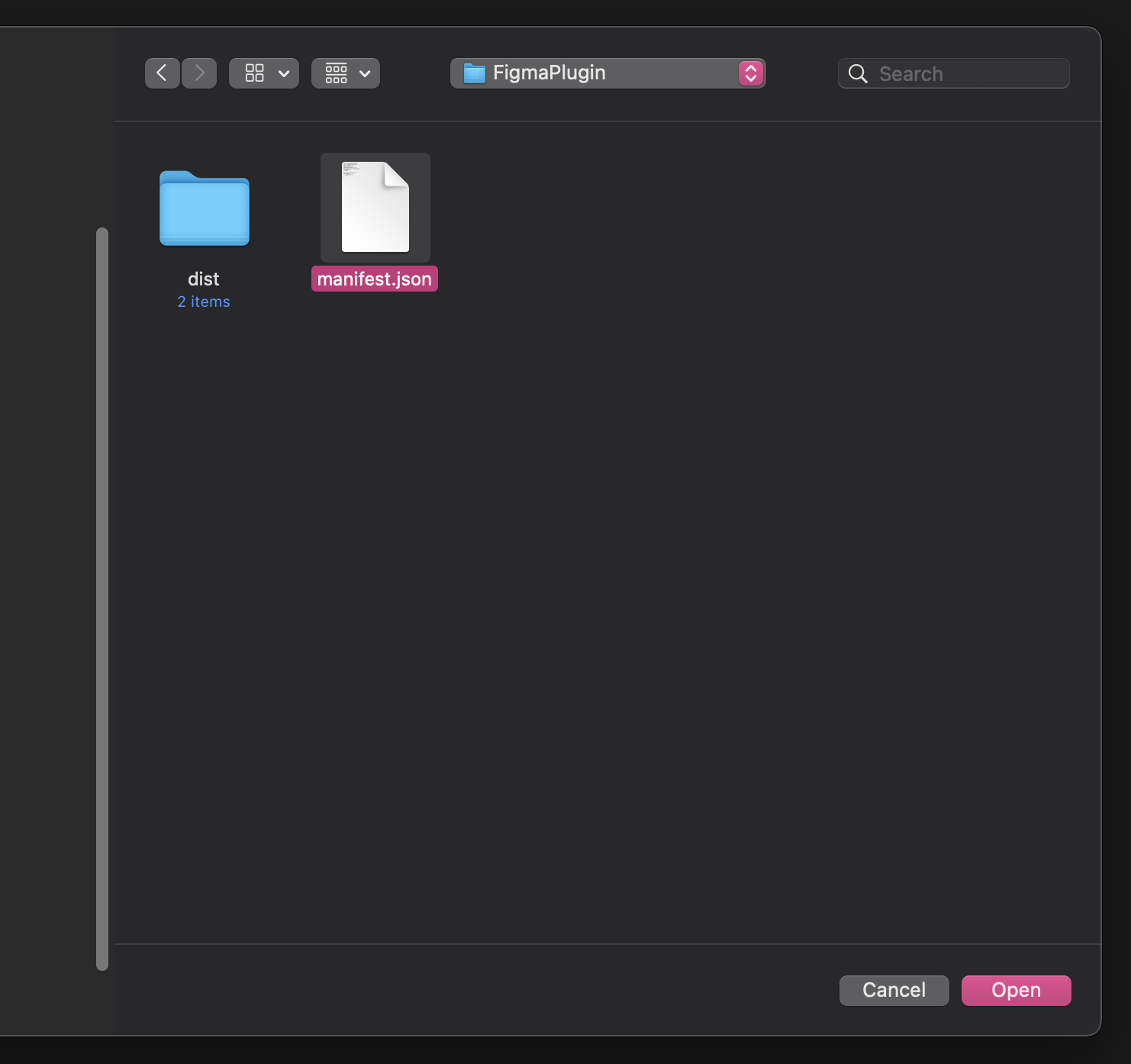
-
Select Open.
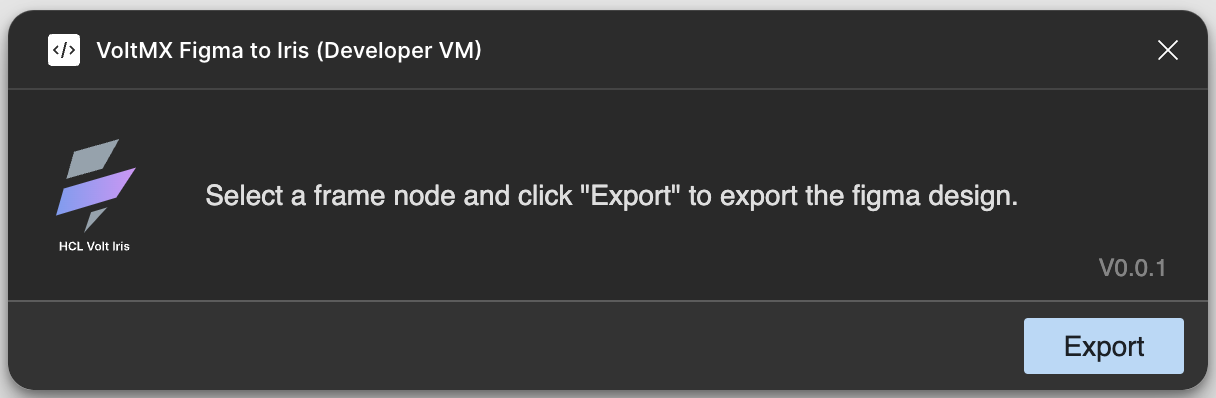
The plugin loads, and the following screen appears.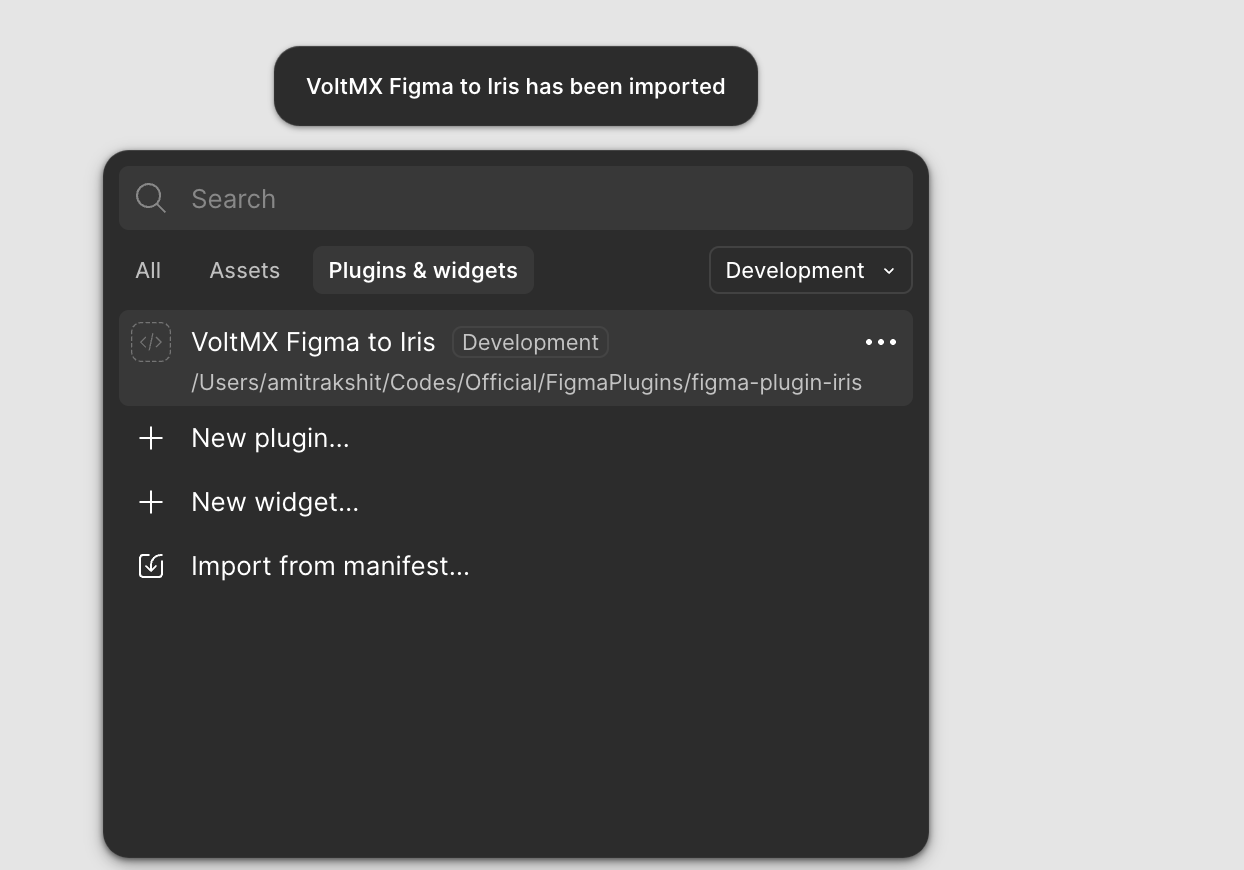
This plugin allows you to export design frames as
.zipfiles compatible with Volt Iris.Important: This plugin is compatible only with Figma Design files. It does not support FigJam, Slides, or any other Figma file types. Ensure you are using a Design file to access the plugin’s functionality.
Set Up the Python Environment in Volt Iris
Follow these steps to set up the Python Environment:
- Open Volt Iris.
-
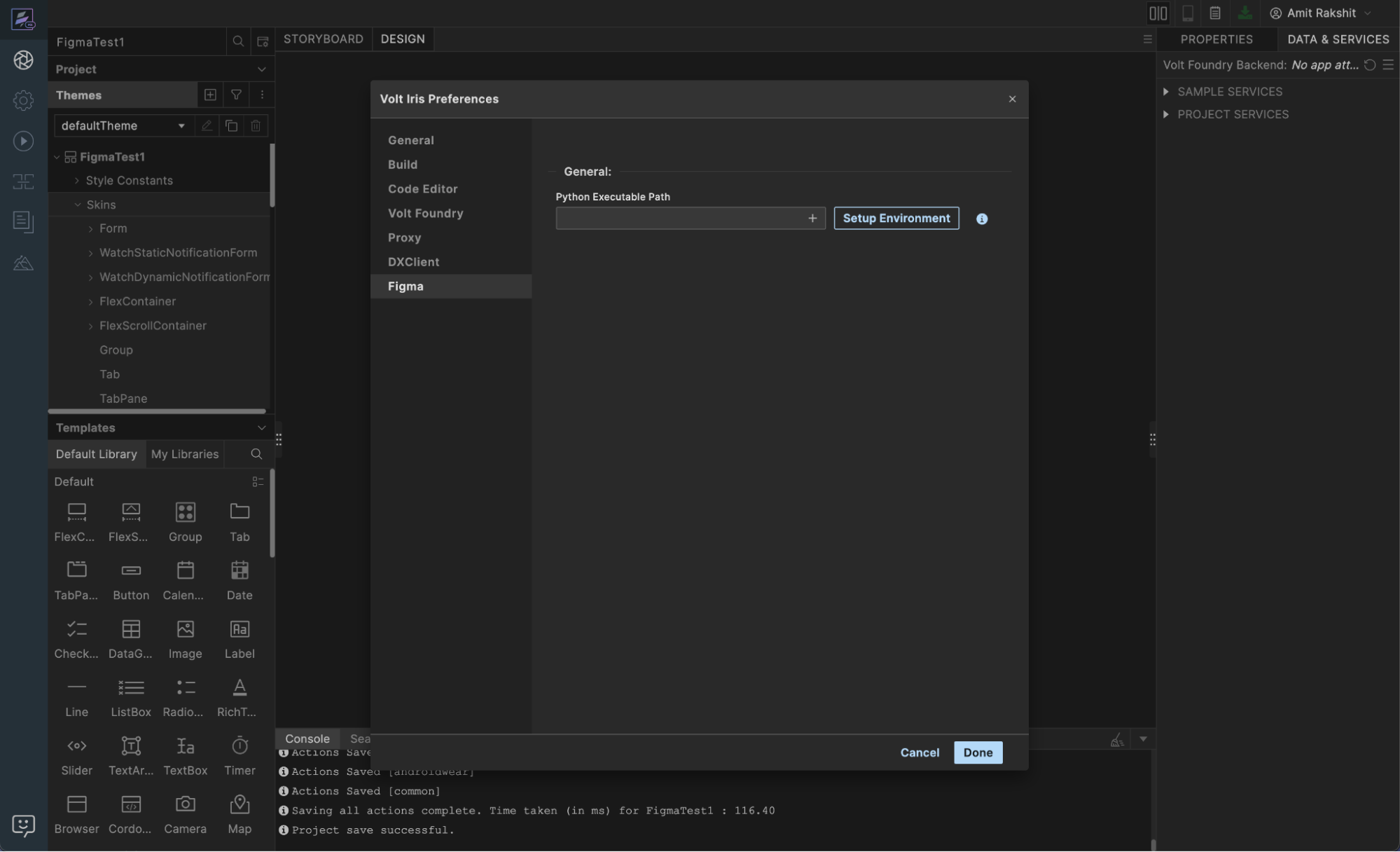
Go to Preferences > Figma > General.
-
Enter the correct Python binary path:
- macOS example:
/usr/local/bin/python3.12 - Windows example:
C:\Python312\python.exe

- macOS example:
-
Select Setup Environment.
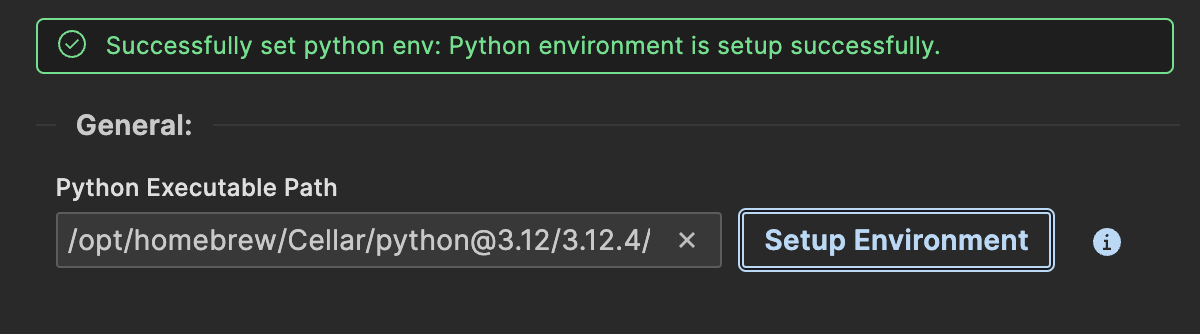
Volt Iris installs and configures the required Python packages. When setup is successful, the following message appears:
Only For Volt Iris V10.0.6.0 and onwards:
macOS triggers the following system security prompt:
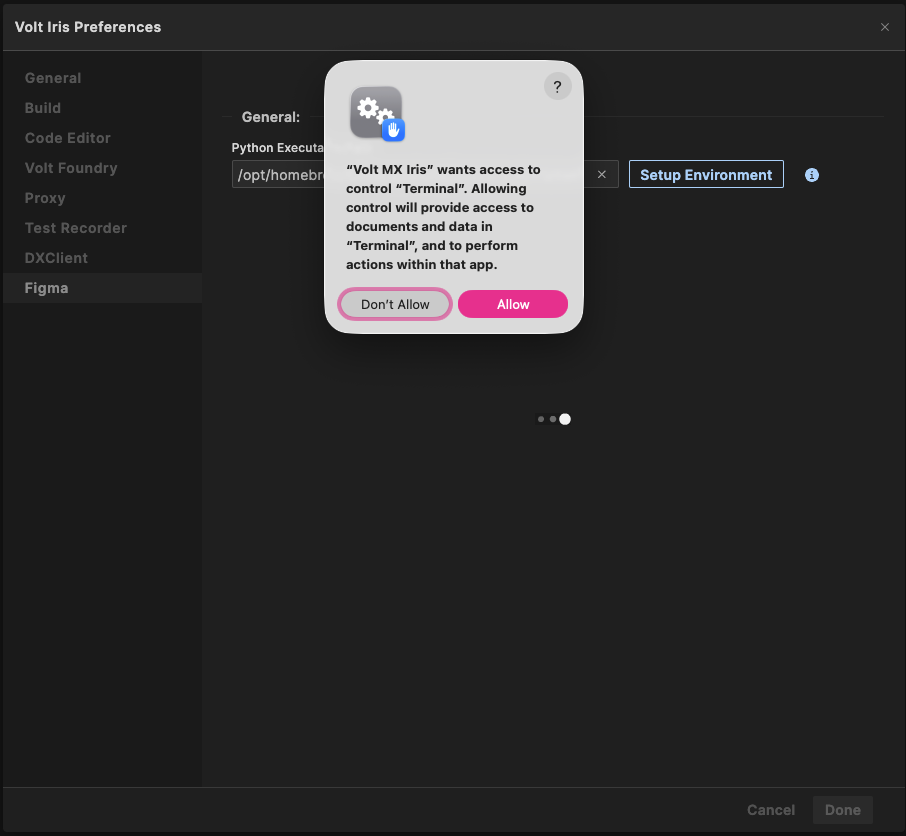
4.1. Click Allow.
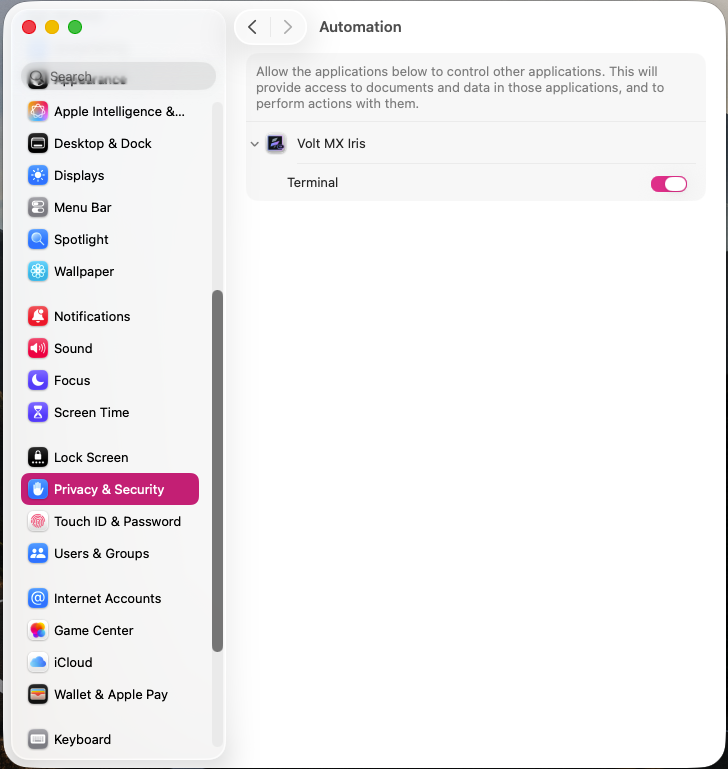
Note: If you accidentally click the Don't Allow button, you can enable it manually via System Settings > Privacy & Security > Automation > Volt MX Iris > Toggle 'Terminal' ON.
Import the Figma Design into Volt Iris
Export the .zip file from Figma
Follow these steps to export the .zip file:
- Select the desired frame in your Figma design.
-
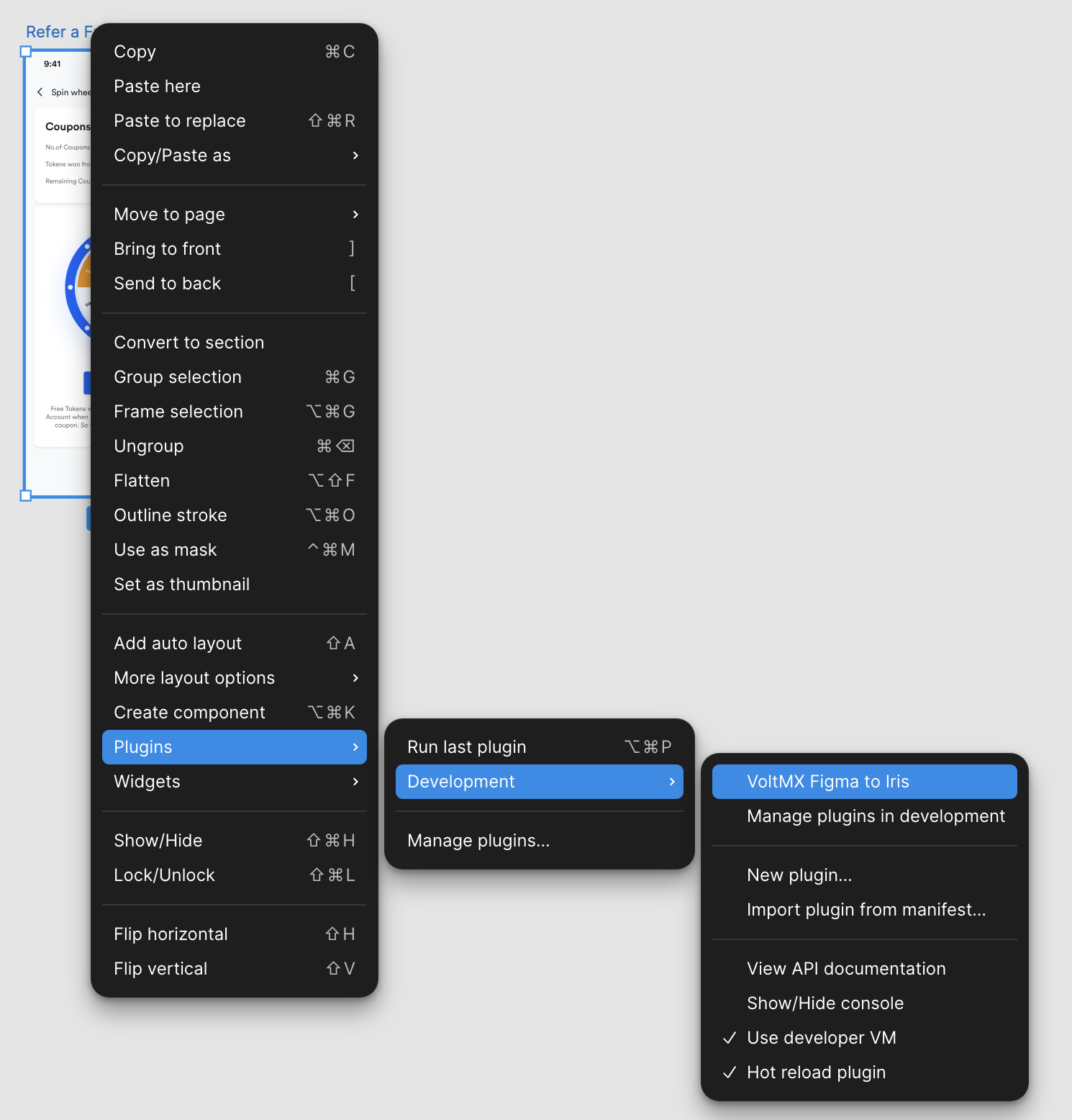
Right-click the frame, and select Plugins > Development > VoltMX Figma to Iris.
-
In the plugin UI, select Export.
-
Select Save to export the form as a
.zipfile.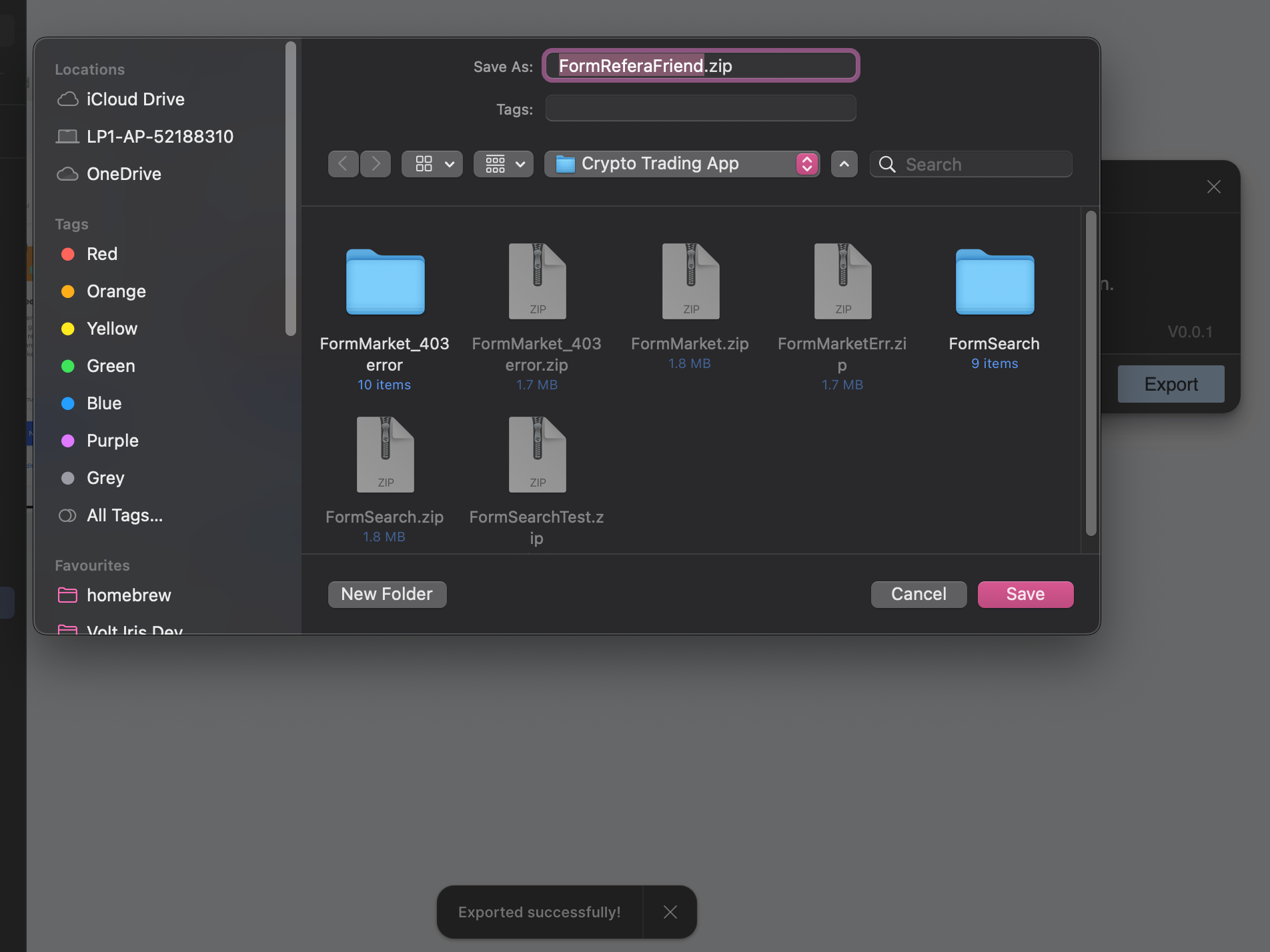
Import the Design into Volt Iris
Follow these steps to import the design:
Note: To use the Import Figma Form option in Iris, you must connect to a Foundry server. If the option appears dimmed, sign in to Iris to enable it.
-
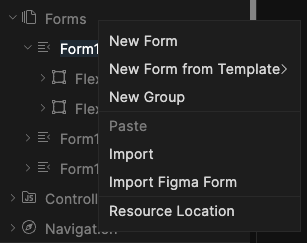
In Volt Iris, right-click any form in the Project Explorer.
-
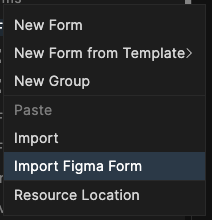
Select Import Figma Form from the context menu.
-
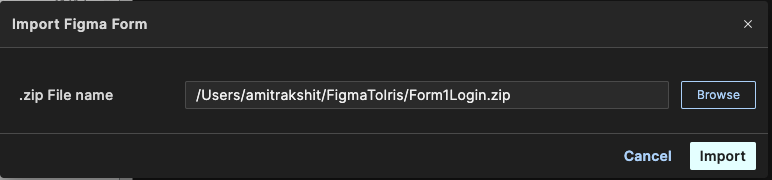
In the dialog box, browse to the
.zipfile you exported from the Figma plugin, and select it.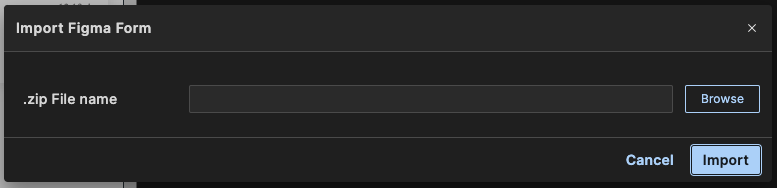
-
Select Import.
macOS First-Time Setup Warning ⚠️
When you use Import Figma Form for the first time on macOS, the import may fail due to security restrictions on native Python extensions (such as pydantic). A pop-up like the one shown below may appear.
Note: The exact message and behavior may vary depending on your macOS version.
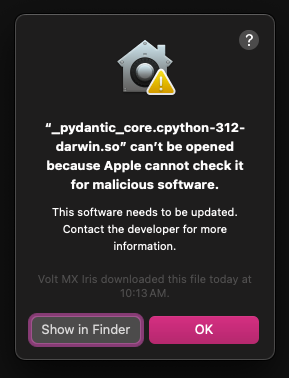
To resolve this issue:
-
Select OK on the pop-up.
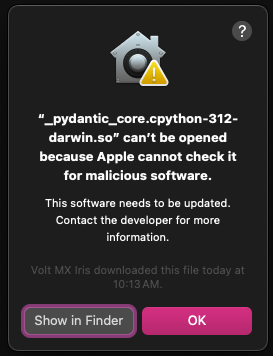
You may see a console error in Volt Iris.

-
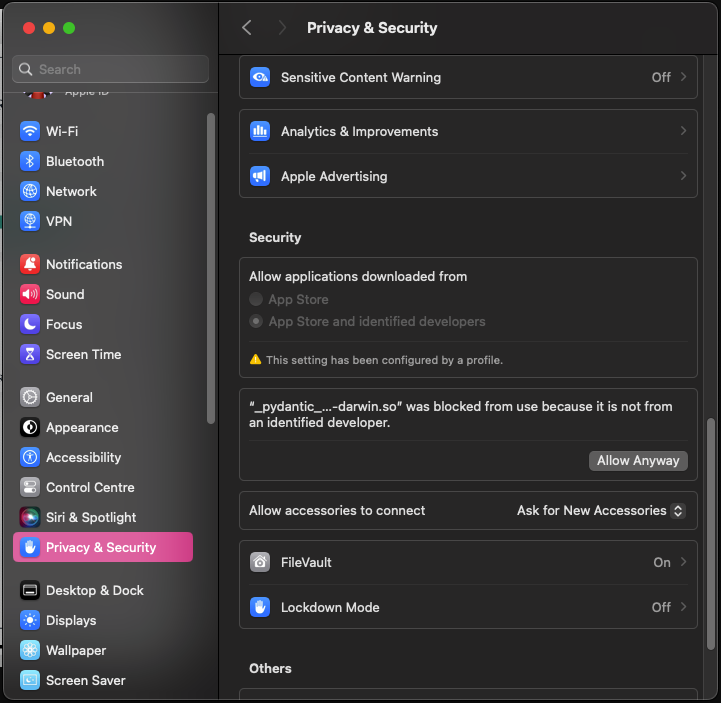
Open System Settings > Privacy & Security.
- Scroll to the Security section.
-
Select Allow Anyway for the blocked item (typically pydantic).
-
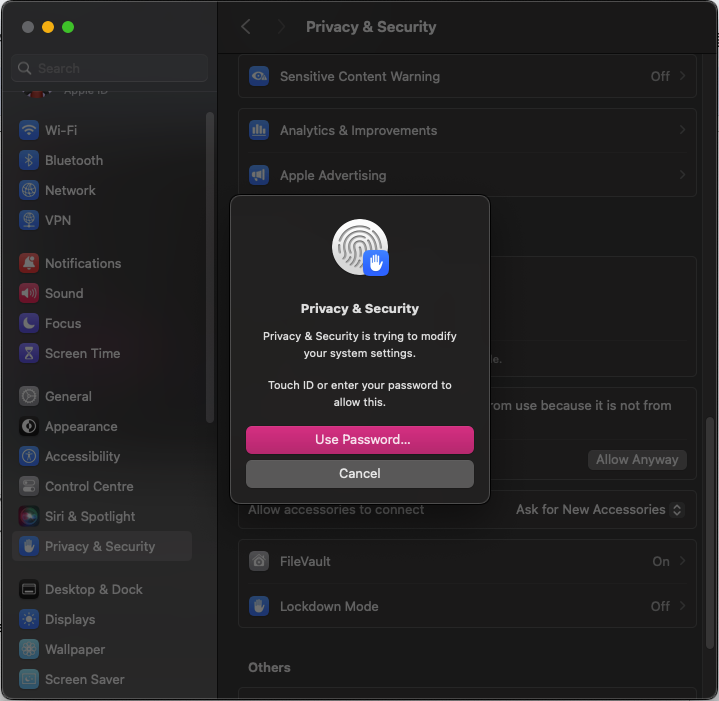
Authenticate the action using Touch ID or your System Password.
-
Retry the import in Volt Iris, and select Open when prompted.
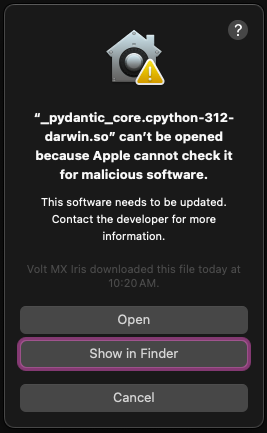
Once approved, future imports will proceed without interruption.
Disclaimer: The Figma to Iris feature uses AI to convert your designs into Iris forms. While this can significantly speed up your workflow, AI-generated outputs may contain occasional inaccuracies. We recommend reviewing the form's structure, hierarchy, and design elements carefully before finalizing or using the converted form.